Threat Mitigation Strategies: Part 2 — Technical Recommendations and Info
The following information was composed by Andrew Chiles (@andrewchiles), Joe Vest (@joevest) and myself (@minis_io) for quick and easy reference. Much of it was pulled together from a variety of sources with attempts to provide references for each. This post is intended to be more of a brain dump rather than a complete technical breakout.

Introduction
As discussed in the Threat Mitigation Strategies Part 1 http://threatexpress.com/blogs/2018/threat-mitigation-strategies-observations-recommendations/, there is commonality between the inherent weaknesses and the actions a threat might perform within an information system or network.
The following recommendations and informational snippets were derived from many offensive and defensive efforts that continue to support these correlations. Each recommendation and snippet can and very likely should be applied to all networks. Some systems and networks will have exceptions; however, these are exceptions (not the status quo) and should be handled as such.
Also note the exact syntax and use will vary with the network construct, operating system/version, and legal/regulatory security requirements.
Note
Technical recommendations within this blog entry will be periodically updated on ThreatExpress’ GitHub
Account Management
Accounts should have specific roles.
General Guidelines
- Domain Administrators perform management of Windows Active Directory. They do not manage servers or workstations.
- Server Administrators perform management of servers. They do not manage workstations.
- Workstation Administrators perform management of workstation. They do not manage servers.
- Privileged accounts should NOT have external communications (Internet, email, etc.)
- Standard users should NOT have elevated access (use secondary accounts if required)
Adjust Password Policy
Adjust password policy to conform to “800–63–3: Digital Identity Guidelines”.
- Remove periodic password change requirements
- Passwords should only be changed if forgotten or suspected compromise
Note: I don’t agree with the two above and recommend maintaining a reasonable duration for password change requirements - Remove complexity requirements (Upper/Lower/Number/Special character)
- Require a minimum password length of
- A minimum length of 8 is required by NIST, but minimum of 16 is recommended for user accounts
- A minimum length of 20 (28+ is recommended) for service accounts
- Suggest the use of pass-phrases (such as four random lowercase words). Example: “correct horse battery staple!”
- Screen passwords against password compromise lists
- Screen passwords against keyboard walks
Note: Meeting the complexity recommendation may not be possible due to current compliance requirements.
Setting the Password Policy using GPO
Edit the “Domain Password Policy” GPO to configure the appropriate password length
1. Open Group Policy
2. Computer Configurations > Policies > Windows Settings > Security Settings > Account Policy > Password Policy
3. Minimum password length: 20
KRBTGT password reset
Regularly reset the KRBTGT password to minimize stolen credentials from being used in the future.
1. Review the reset tool guide "Guide to Running New-CtmADKrbtgtKeys" (see references)
2. Use the the PowerShell script New-CtmADKrbtgtKeys.ps1 to reset the KRBTGT
3. Wait 24 hours and execute the change a 2nd time
4. Recommend running on a regular schedule. This should be monthly, quarterly (at most), or after an incident where compromise is suspected.
References
https://adsecurity.org/?p=483&source=post_page—–b300c8473468—————————————
Use LAPS to manage the local Administrator (RID 500) password
- Install KB2871997
- Follow details outlined at https://adsecurity.org/?p=1790
References
https://adsecurity.org/?p=1790&source=post_page—–b300c8473468—————————————
https://adsecurity.org/?p=559&source=post_page—–b300c8473468—————————————
Implement Managed Service Accounts
Windows Server 2008 R2 and Windows 7 introduced Managed Service Accounts. MSA’s allow you to create an account in Active Directory that is tied to a specific computer. That account has its own complex password (see password policy) and is maintained automatically. This means that an MSA can run services on a computer in a secure and easy to maintain manner, while maintaining the capability to connect to network resources as a specific user principal.
Group level MSA’s can be deployed in Windows 2012 or higher Domains.
Reference
Protected LSA
Protect LSA Via policy
1. Advanced Audit Policy Configuration > Object Access > Audit Kernel Object
2. Enable SACL L"S:(AU;SAFA;0x0010;;;WD)"
and
1. Computer Configuration > Preferences >Windows Settings
2. Right-click Registry > New > Registry Item
3. Hive HKLM > Path SYSTEM\CurrentControlSet\Control\Lsa
4. DWORD value RunAsPPL=00000001
Note: LSA Protection prevents non-protected processes from interacting with LSASS. Mimikatz can still bypass this with a driver (“!+”).
Protect LSA Via Registry Entry
Manually create registry entry HKEY_LOCAL_MACHINE\System\CurrentControlSet\Control\Lsa DWORD RunAsPPL=00000001
or
reg add HKEY_LOCAL_MACHINE\System\CurrentControlSet\Control\Lsa\ /v RunAsPPL /d 00000001 /t REG_DWORD
Windows Event Forwarding
Windows Event Forwarding (WEF) reads any operational or administrative event log on a device in your organization and forwards the events you choose to a Windows Event Collector (WEC) server.
Windows Logs
The Windows Logs category includes the logs that were available on previous versions of Windows: the Application, Security, and System logs. It also includes two new logs: the Setup log and the ForwardedEvents log. Windows logs are intended to store events from legacy applications and events that apply to the entire system.
Application log
The Application log contains events logged by applications or programs. For example, a database program might record a file error in the application log. Program developers decide which events to log.
Security log
The Security log contains events such as valid and invalid logon attempts, as well as events related to resource use, such as creating, opening, or deleting files or other objects. Administrators can specify what events are recorded in the security log. For example, if you have enabled logon auditing, attempts to log on to the system are recorded in the security log.
Setup log
The Setup log contains events related to application setup.
System log
The System log contains events logged by Windows system components. For example, the failure of a driver or other system component to load during startup is recorded in the system log. The event types logged by system components are predetermined by Windows.
ForwardedEvents log
The ForwardedEvents log is used to store events collected from remote computers. To collect events from remote computers, you must create an event subscription. To learn about event subscriptions, see Event Subscriptions.
Applications and Services Logs
Applications and Services logs are a new category of event logs. These logs store events from a single application or component rather than events that might have system wide impact.
This category of logs includes four subtypes: Admin, Operational, Analytic, and Debug logs. Events in Admin logs are of particular interest to IT Professionals using the Event Viewer to troubleshoot problems. Events in the Admin log should provide you with guidance about how to respond to them. Events in the Operational log are also useful for IT Professionals, but they are likely to require more interpretation.
Admin and Debug logs are not as user friendly. Analytic logs store events that trace an issue and, often, a high volume of events are logged. Debug logs are used by developers when debugging applications. Both Analytic and Debug logs are hidden and disabled by default. To make these logs visible, follow the steps in Show or Hide Analytic and Debug Logs. To enable these logs, follow the steps in Enable Analytic and Debug Logs.
Admin
These events are primarily targeted at end users, administrators, and support personnel. The events that are found in the Admin channels indicate a problem and a well-defined solution that an administrator can act on. An example of an admin event is an event that occurs when an application fails to connect to a printer. These events are either well documented or have a message associated with them that gives the reader direct instructions of what must be done to rectify the problem.
Operational
Operational events are used for analyzing and diagnosing a problem or occurrence. They can be used to trigger tools or tasks based on the problem or occurrence. An example of an operational event is an event that occurs when a printer is added or removed from a system.
Analytic
Analytic events are published in high volume. They describe program operation and indicate problems that cannot be handled by user intervention.
Debug
Debug events are used by developers troubleshooting issues with their programs.
Advanced Audit Policy should focus on these (in no specific order)
1. A logon was attempted using explicit credentials: Event 552 and 4648
2. A member was added to a security-enabled global group: Event 4728
3. A member was added to a security-enabled local group: Event 4732
4. A member was added to a security-enabled universal group: Event 4756
5. An account failed to log on: Event 529-539 4625 (followed by a success 4624)
6. LogonAccount/TargetUserName is Administrator (Using RID-500): Event 4624, 4776
7. Scheduled Task Creation: Event 602, 4698
8. Log was cleared: Event 104 and 1102, 4949
9. EMET dies: Event 1 and 2
10. Application Error or Hang: Event 1000 and 1002
11. Windows Defender Errors: Event 1005, 1006, 1008, 1010, 2001, 2003, 2004, 3002, 5008
12. New process: User NOT admin and Event 4688 (arp, at, bcdedit, certutil, cscript, cmd, dsquery, hostname, ipconfig, msbuild, nbtstat, net, netsh, netstat, nslookup, ntdsutil, pcalua, ping, powershell, psexec, reg, regasm, regedit, regedt32, regsvr32, regsvcs, rundll32, set, sc, schtasks, systeminfo, tasklist, tracert, whoami, wmic, wscript, wsmprovhost)
13. Service creation/install: Event 601, 4697, 7045
14. Service changes: Event 7040
15. File share access/attempts (C$, ADMIN$, IPC$): Event 5140
16. PowerShell execution and module loading: Event 501 and 4104 respectively
17. External media detection: All Events 7045, 10000, 10001 or 10002, 10100, 20001, 20003, 24576, 24577, 24579
18. User creation: Event 4720
It’s a good idea to hide/exclude these events except specific conditions (See caveats above) as these are consistently rolling: 4688,4689,5156,5158
Enable Command Line Logging (Must include MS15–015 KB3031432)
HKLM\Software\Microsoft\Windows\CurrentVersion\Policies\System\Audit DWORD ProcessCreationIncludeCmdLine_Enabled=1
Account HoneyToken (manual)
echo "crazypassword" | runas /u:yourdomain.com\Xadmin /netonly ipconfig
Consider a check on 4625 where Xadmin is found
Also add hash of crazypassword to IDS and alert when seen
Account HoneyToken (network)
Invoke-HoneyCreds.ps1
Reference: https://github.com/Ben0xA/PowerShellDefense/blob/master/Invoke-HoneyCreds.ps1
SPN HoneyToken
Set-ADUser watchaccount -ServicePrincipalNames @{Add=”MSSQLSvc/sql1:1433″}
PowerShell Module Logging
Ensure all Windows systems have PowerShell v3 or newer. Newer versions of PowerShell have better logging features, especially PowerShell v5. This will log all PowerShell activity including all PowerShell modules.
Enable PowerShell Module Logging1. Open Group Policy
2. Computer Configuration > Policies > Administrative Templates > Windows Components > Windows PowerShell
3. Turn on Module Logging
4. Enter "*" and click OK.
Log Parsing
If enabled, PowerShell activity will be logged to the Microsoft-Windows-PowerShell/Operational Log. Push or pull these events to a central logging server (via Windows Event Forwarding or similar) or SIEM.
Parse PowerShell events for the following Mimikatz indicators
"System.Reflection.AssemblyName"
"System.Reflection.Emit.AssemblyBuilderAccess "
"System.Runtime.InteropServices.MarshalAsAttribute"
"TOKEN_PRIVILEGES"
"SE_PRIVILEGE_ENABLED"
Detecting Offensive PowerShell Tools
Many PowerShell offensive tools use the following calls which are logged in PowerShell Module Logging.
"GetDelegateForFunctionPointer"
"System.Reflection.AssemblyName"
"System.Reflection.Emit.AssemblyBuilderAccess"
"System.Management.Automation.WindowsErrorReporting"
"MiniDumpWriteDump" "TOKEN_IMPERSONATE"
"TOKEN_DUPLICATE"
"TOKEN_ADJUST_PRIVILEGES"
"TOKEN_PRIVILEGES"
Reference
Disable Windows Legacy & Typically Unused Features
The reference (Securing Windows Workstations: Developing a Secure Baseline) located at https://adsecurity.org/?p=3299 contains a wealth of information to help reduce security risks in a Windows Domain. Key mitigations are highlighted below.
Force Group Policy to reapply settings during “refresh”
Computer Configuration>Policies>Administrative Templates>System>Group Policy>Configure security policy processing
Set to EnabledAlso check the box for “Process even if the Group Policy objects have not changed”
It’s also recommended to configure the same settings for each of the following:
- Computer Configuration, Policies, Administrative Templates, System, Group Policy, Configure registry policy processing
- Computer Configuration, Policies, Administrative Templates, System, Group Policy, Configure scripts policy processing
- As well as any other policy settings as needed.
Disable Unneeded Services
The document Service-management-WS2016.xlsx contains a list of default services, their state, use, and if it is safe to disable.
- Review the Services outlined in the document Service-management-WS2016.xlsx
- Create a list of service to disable, and enforce via GPO
Disable Net Session Enumeration (NetCease)
This hardening process prevents attackers from easily getting some valuable recon information for lateral movement within the victim’s network.
- Run the NetCease PowerShell script on Server
- Include DCs, Fileservers, or other servers where Session information may be used by and attacker for enumeration
References
https://adsecurity.org/?p=3299&source=post_page—–b300c8473468—————————————
Disable WPAD
Web Proxy Auto-Discovery Protocol (WPAD) is “a method used by clients to locate the URL of a configuration file using DHCP and/or DNS discovery methods. Once detection and download of the configuration file is complete, it can be executed to determine the proxy for a specified URL.”
Disable WPAD via Group Policy by deploying the following registry change:
HKEY_CURRENT_USER\Software\Microsoft\Windows\CurrentVersion\Internet Settings\Wpad
New DWORD (32-Bit Value) called “WpadOverride” and set to “1”
Disable the service “WinHTTP Web Proxy Auto-Discovery Service”
Computer Configuration&>Policies>Windows Settings>Security Settings>System Services
Set WinHTTP Web Proxy Auto-Discovery Service to Disabled
Note:
Partial mitigation of WPAD issues is possible by installing the Microsoft patch KB3165191 (MS16–077).
Disable LLMNR
Link-Local Multicast Name Resolution (LLMNR):
In a nutshell, Link-Local Multicast Name Resolution (LLMNR) resolves single label names (like: COMPUTER1), on the local subnet, when DNS is unable to resolve the name.
Disable LLMNR via Group Policy by deploying the following:
Group Policy:Computer Configuration/Administrative Templates/Network/DNS Client
Set “Turn Off Multicast Name Resolution” to “Enabled”
Disable WDigest
WDigest provides support for Digest authentication which is: “An industry standard that is used in Windows Server 2003 for Lightweight Directory Access Protocol (LDAP) and Web authentication. Digest Authentication transmits credentials across the network as an MD5 hash or message digest.”
Prior to Windows 8.1 and Windows Server 2012 R2, Wdigest was enabled which placed the user’s “clear text” password in LSASS memory space in to support basic authentication scenarios. Windows 8.1 and Windows Server 2012 R2 and newer have WDigest disabled by default.
Disable WDigest via Group Policy by deploying the following registry change:
HKEY_LOCAL_MACHINE\System\CurrentControlSet\Control\SecurityProviders\Wdigest\UseLogonCredential = “0”
References
https://adsecurity.org/?p=3299&source=post_page—–b300c8473468—————————————
Remove the use of NTLM v1
Windows Server 2008 R2 included features to help identify NTLM authentication use on the network. It is important to completely remove these legacy authentication protocols since they are insecure. Removal and prevention of LM and NTLMv1 use can be achieved through the use of Group Policy security settings.
Plan to move to NTLMv2 and Kerberos at the least, with the long-term goal being Kerberos only.
- Audit the use of NTLM v1 on the network
- Determine the risks and need to support NTLM v1
- Disable the use of NTLM v1
Reference
Consider other Mitigations
Consider other mitigations detailed at https://adsecurity.org/?p=3299
References
https://adsecurity.org/?p=3299&source=post_page—–b300c8473468—————————————
Deploy security back-port patch (KB2871997)
Ensure all Windows systems prior to Windows 8.1 & Windows Server 2012 R2 have the KB2871997 patch installed. This patch updates earlier supported versions of Windows with security enhancements baked into Windows 8.1 & Windows Server 2012 R2.
https://adsecurity.org/?p=559&source=post_page—–b300c8473468—————————————
Prevent local “administrator” accounts from authenticating over the network
While the local Administrator (RID 500) account on two different computers has a different SID, if they have the same account name and password, the local Administrator account from one can authenticate as Administrator on the other. The same is true with any local account that is duplicated on multiple computers.
This presents a security issue if multiple (or all) workstations in an organization have the same account name and password since compromise of one workstation results in compromise of all.
Windows 8.1 & Windows 2012 R2 and newer introduced two new local SIDs: S-1–5–113: NT AUTHORITY\Local account S-1–5–114: NT AUTHORITY\Local account and member of Administrators group
These SIDs are also added in earlier supported versions of Windows by installing the KB2871997 patch.
Install patch KB2871997
Configure through Group Policy:
1. Open Group Policy Management (gpmc.msc or via MMC Group Policy Object Editor)
2. Computer Configuration > Windows Settings > Local Policies > User Rights Assignment
3. Deny access to this computer from the network: Local account and member of Administrators group
4. Deny log on through Remote Desktop Services: Local account and member of Administrators group
Remote Connections
RDP Restricted Admin (Connect to only 1 resource)
mstsc /v:server /restrictedAdmin
Enable Restricted Admin via Registry
Manually create registry entry HKEY_LOCAL_MACHINE\System\CurrentControlSet\Control\Lsa\ DWORD DisableRestrictedAdmin=0
or
reg add HKEY_LOCAL_MACHINE\System\CurrentControlSet\Control\Lsa\ /v DisableRestrictedAdmin /d 0 /t REG_DWORD
Enable Restricted Admin via GPO
1. Open Group Policy Management (gpmc.msc or via MMC Group Policy Object Editor)
2. Computer Configurations > Policies > Administrative Templates > System > Credential Delegation
3. Set "Restrict Delegation of credential to remote servers" to enable
RDP Windows Defender Remote Credential Guard (Connect to multiple resources)
mstsc /v:server /remoteguard
Enable Windows Defender Credential Guard via Registry
Manually create registry entry HKEY_LOCAL_MACHINE\System\CurrentControlSet\Control\Lsa\ DWORD DisableRestrictedAdmin=0
or
reg add HKEY_LOCAL_MACHINE\System\CurrentControlSet\Control\Lsa\ /v DisableRestrictedAdmin /d 0 /t REG_DWORD
Enable WinDef Cred Guard via GPO
1. Open Group Policy Management (gpmc.msc or via MMC Group Policy Object Editor)
2. Computer Configurations > Policies > Administrative Templates > System > Credential Delegation
3. Set "Restrict Delegation of credential to remote servers" to enable
4. In Options, Under use the following restricted mode: Choose "Prefer Windows Defender Remote Credential Guard"
a. Note if all systems are Windows 10/2016, Choose "Require Remote Credential Guard"
Limit Client-to-Client Communication (Implement and Configure Host Based Firewalls)
- Clients and Server should be split into separate OU’s
- Enable the Windows Firewall through GPO
- (Optional) Add exceptions to systems that are used to manage other hosts such as Sysadmins. Use a jump host to minimize exposure.
Enable Firewall
PowerShell
1) Create a GPO to hold the Workstation FW settings (workstation_fw)
Example
Set-NetFirewallProfile -Profile Domain,Public,Private -Enabled True –PolicyStore example_domain.local\workstation_fw
Set-NetFirewallProfile -DefaultInboundAction Block -DefaultOutboundAction Allow –NotifyOnListen True -AllowUnicastResponseToMulticast True –LogFileName %SystemRoot%\System32\LogFiles\Firewall\pfirewall.log –PolicyStore example_domain.local\workstation_fw
2) Assign the GPO to a Workstation Container
Block/control TCP/UDP access from the Internal network and DMZ
- Evaluate the need for servers to connect to the Internet.
- Create a list of systems outside the network that require access. Limit access using this whitelist.
- Configure firewall rules to enforce these traffic policies.
Block out bound TCP/UDP access from the Client systems to outbound networks.
Clients generally only need a few ports to connect out bound. Limit access from client workstations to these ports.
- Create a list of ports required by clients to communicate outside the network. Limit access using this whitelist.
- Configure firewall rules to enforce these traffic policies.
- Rule can be managed at the HOST level via GPO or the network level via firewall rules.
Implement a Proxy for All Outbound Traffic
Force systems to traverse a proxy to communicate outbound. It is preferred to only allow authenticated communications. This prevents privilege users (SYSTEM, root) from communicating outbound.
- At a minimum, force all client’s HTTP(S) and DNS through a proxy
- If possible, require user authentication
- Prevent outbound access if a client or system attempts to connect to external port directly using network firewall rules
Create a new GPO to manage the proxy settings
Edit the GPO
User Configuration>Windows Settings>Internet Explorer Maintenance>Connection
Select Proxy Server
Enter the Proxy IP address and Port
Prevent Users from Changing Settings
User Configuration>Administrative Templates>Windows Components>Internet Explorer>Internet Control Panel
Set Disable the Connections Page to Enabled
Recommended Configurations
AutoRuns
1. De-select "Hide Microsoft Entries"
2. De-select "Hide Windows Entries"
3. Under Scan Options, enable "Verify code signatures"
4. Under Scan Options, enable "Check VirusTotal.com" (note this shouldn't be done on GOV or otherwise sensitive networks)
5. Review all entries with multiple parameters
Application White/Black listing
A number of solutions exist to limit the applications a user can use on a system. AppLocker allows you to specify which users or groups can run particular applications in your organization based on unique identities of files. If you use AppLocker, you can create rules to allow or deny applications from running.
Applocker
AppLocker Executable Path Restrictions
1. Open Group Policy Management (gpmc.msc or via MMC Group Policy Object Editor)
2. Computer Configuration > Policies > Windows Settings > Security Settings > Application Control Policies > AppLocker
3. Configure rule enforcement
4. Executable rules, Check Configured, Enforce rules
5. Overview > Executable Rules > Right Click Create New Rule
6. Permissions > Deny > Domain Users
7. Conditions > Path
8. Exceptions > Add as/if required
9. Create > Yes
Interesting Paths
1. <drive letter>\users\<username>\appdata (%AppData% or for extension %AppData%\*.exe 5AppData%\*\*.exe)
2. \users\\appdata\local
3. \users\\appdata\local\temp
4. \users\\appdata\roaming
5. \programdata
Explicit Whitelisting
1. Open Group Policy Management (gpmc.msc or via MMC Group Policy Object Editor)
2. Computer Configuration > Policies > Windows Settings > Security Settings > Software Restriction Policies
3. Security Level Disallowed
4. In additional rules allow
a. %HKEY_LOCAL_MACHINE\SOFTWARE\Microsoft\WindowsNT\CurrentVersion\SystemRoot%
b. %HKEY_LOCAL_MACHINE\SOFTWARE\Microsoft\Windows\CurrentVersion\ProgramFilesDir (x86)%
c. %HKEY_LOCAL_MACHINE\SOFTWARE\Microsoft\Windows\CurrentVersion\ProgramFilesDir%
d. *.lnk
Interesting file extensions
.ade, .adp, .ani, .bas, .bat, .chm, .cmd, .com, .cpl, .crt, .exe, .hlp, .ht, .hta, .inf, .ins, .isp, .jar, .job, .js, .jse, .lnk, .mda, .mdb, .mde, .mdz, .msc, .msi, .msp, .mst, .ocx, .pcd, .ps1, .reg, .scr, .sct, .shs, .svg, .url, .vb, .vbe, .vbs, .wbk, .wsc, .ws, .wsf, .wsh, .exe, .pif, .pub, .ip
References
Manual Hunting and Detection Examples
Filtering Event Logs via PowerShell
Log locations on disk (only use event viewer or cli to copy)
- XP or older: %windir%\system32\config
- Vista or newer: %windir%\system32\winevt\logs
Get times Service was installed and count
Get-WinEvent -FilterHashtable @{Path="*.evtx"; ID=7045}|Measure-Object -Line
Get blocked events
Get-WinEvent -FilterHashtable @{Path="AppLocker.evtx"; ID=8004}| Format-Table -Wrap
Get WindowsDefender actions
Get-WinEvent -FilterHashtable @{Path="WindowsDefender.evtx"; ID=1117}| Format-Table
Get WindowsDefender detections
Get-WinEvent -FilterHashtable @{Path="WindowsDefender.evtx"; ID=1116}| Format-Table
Get files (by extension) with search from Application (crash)
Get-WinEvent -FilterHashtable @{Path="application.evtx"}|Where {$_.Message -like "*pdf*"}|Format-Table -Wrap
Get EMET events
Get-WinEvent -FilterHashtable @{Path="Win7-Application.evtx"; providername="EMET"}|Format-Table -Wrap
Get service installs and errors
Get-WinEvent -FilterHashtable @{Path="system.evtx"; ID=7030,7045}| fl
Search for USB loading
Get-WinEvent -FilterHashtable @{Path="system.evtx"; ID=7045,10000,10001,10100,20001,20002,30003,24576,24577,24579}|Where {$_.Message -like "*USB*"}|fl
Search for error/warning/info
Get-WinEvent -FilterHashtable @{Path="application.evtx"; level=2}
Get remote eventlog (caution this drops credentials onto remote system)
Get-EventLog -List -ComputerName <ip>
Get-EventLog -LogName System -ComputerName
Get log within X hours
Get-EventLog System -after (get-date).addhours(-12) | Where {$_.entrytype -eq “warning”}
Get logs during “downtime”
Get-EventLog -LogName security | ? {$_.EventId -eq 4624 –and ($_.TimeGenerated.TimeOfDay -gt '20:00:00' -or $_.TimeGenerated.TimeOfDay -lt '08:00:00' ) } | export-csv offhours.csv
Use wevtutil to export logs (export-log)
wevtutil.exe epl system system.evtx
Use wevutil to get last 20 startups (use /r:computer for remote and qe for short query)
wevutil query-events System /count:20 /rd:true /format:text /q:"Event[System[(EventID=12)]]"
Windows consolidated logging
- enable winrm
winrm qc - enable wecutil
wecutil qc - Create subscriptions and select events/filters in event viewer
a. via event viewer or b. by PowerShell (1) wecutil cs "Creates a subscription" (2) wecutil ss "Sets a subscription" (3) wecutil es "Views subscriptions"
Get a detailed list of all security-auditing event entries (use an elevated prompt)
wevtutil gp Microsoft-Windows-Security-Auditing /ge /gm:true
Return a list of all security-auditing categories and subcategories (use an elevated prompt)
auditpol /list /subcategory:*
Network
Network Flow Basics:
- Prevent traffic on uncommon ports (not if a good threat)
- Establish commonality in traffic (size, frequency, browser headers, etc.)
- Consistently review outlying DNS entries (very few connections or host traffic)
- Identify and investigate unique User-Agent strings
- Identify and investigate Base64 encoded strings within the URL
- Identify and investigate executables being downloaded and traversing the network
Basic PCAP Carving (*nix)
Note: The snippets below are examples for pcap carving. I’d highly recommend using bro/ <insert your SIEM flavor> for traffic analysis.
Get certificates from pcap (use BRO if possible)
tshark -nr file.pcap -2 -R "ssl.handshake.certificate" -V > cert.txt
or
ssldump -Nr /path/file.pcap | awk 'BEGIN {c=0;} { if ($0 ~ /^[ ]+Certificate$/) {c=1; print "========================================";} if ($0 !~ /^ +/ ) {c=0;} if (c==1) print $0; }'
View certificates (see BRO)
openssl x509 -in certs\name.der -inform der -text -noout
Get DNS queries from pcap and count instances
tshark -r /path/file.pcap -T fields -e ip.src -e dns.qry.name -2 -R "dns.flags.response eq 0"
or
tcpdump –n –r file.pcap “port 53” 2>/dev/null|grep –E ‘A\?’|awk ‘{print $(NF-1)}’|sort|uniq –c|sort –n
Get DNS queries from NX domain
tshark -r /path/file.pcap -T fields -e ip.src -e dns.qry.name -2 -R "dns.flags.rcode eq 3"
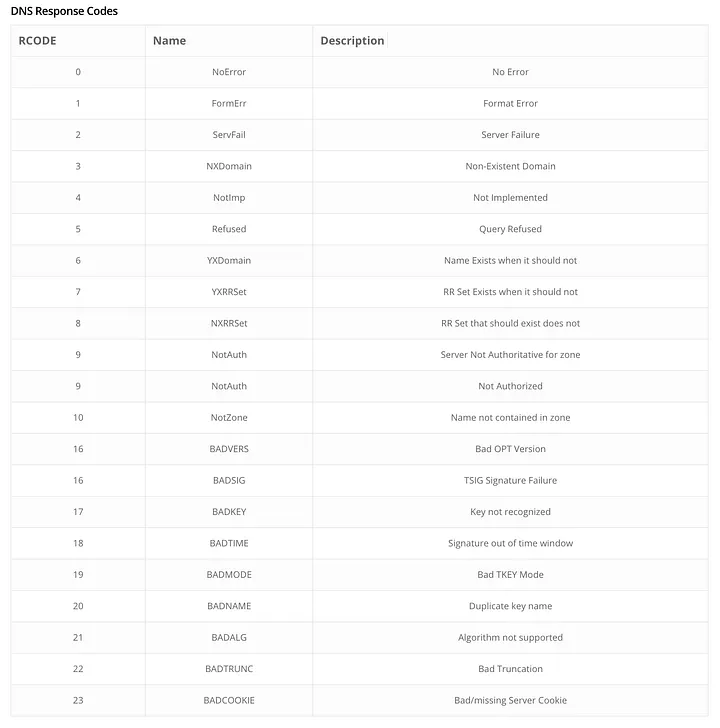
DNS Response Codes
Get User-Agents from PCAP
tshark -r /path/file.pcap -T fields -e http.user_agent|sort -n -k1|uniq -c|sort -n
or
tcpdump –n –A –r file.pcap ‘tcp port 80’|egrep –I “User-Agent”|sort|uniq –c|sort -n
or
strings /path/file.pcap |grep -i User-Agent|uniq -c|sort -n
Get info for frame containing search dataf
tshark -r /tmp/10.10.10.52\:1082_10.10.19.32\:80-6.raw -2 -R 'frame contains "MZ"'
Search for string in tcp data (finds data not in field i.e. UA in json)
tshark -r /path/file.pcap -T pdml -T fields -e tcp.data -2 -R 'tcp contains "User-Agent"'|sed s/://g|xxd -p -r|grep -a User-Agent|uniq -c
Find strings in pcap
tshark -r file.pcap -T pdml -T fields -e irc.response -Y 'frame contains "badguy"'
or
tshark -r file.pcap -T pdml -Y 'frame contains "badguy"'|grep badguy
or
ngrep -q -I /path/file.pcap "badguy"
or
strings /path/file.pcap |grep -i User-Agent |sort -u
or
tshark -r /path/file.pcap -T pdml -2 -R 'frame contains "User-Agent"'|grep User-Agent
Get the frame that contains string
tshark -r file.pcap -2 -R 'frame contains "badguy"
Show packet data by field
tshark -nr /path/file.pcap -T fields -e http.user_agent -2 -R http.user_agent
Get data & hex from first two packets in pcap
tcpdump -n -r /path/file.pcap -c2 -x -v
Get frames that have tcp header length gt 20 and port 25
tshark -r /path/file.pcap -Y 'tcp.hdr_len > 20 && tcp.port == 25'
Get data in frames that have tcp header length gt 20 and port 25
tshark -r /path/file.pcap -T pdml -T fields -e tcp.port -e tcp.hdr_len -Y 'tcp.hdr_len > 20 && tcp.port == 25'
Get frames with hex data 0x7932
tshark -r /path/file.pcap -Y 'ip.id == 0x7932'
Get frames and show hex data
tshark -r /path/file.pcap -T pdml -T fields -e ip.id -Y 'ip.id == 0x7932'
Get all arp request and count (request=1, reply=2)
tshark -r file.pcap -Y 'arp.opcode == 1'|wc -l
Get ip.len less than 46 (64 for ethernet minus 14 header and 4 trailer) & icmp of 0
tshark -r file.pcap -Y 'ip.len < 46 && icmp.type == 0'
Get ip option of loose src routing with offset starting at ip options
tshark -r file.pcap -Y 'ip[20] == 0x83 && ip.hdr_len >20'
Filter Info
URG = 32 or 0x20
ACK = 16 or 0x10
PSH = 8 or 0x08
RST = 4 or 0x04
SYN = 2 or 0x02
FIN = 1 or 0x01
All = 0xFF
Examples:'tcp[13] & 2 !=0' Get all SYN
'tcp[13] & 4 !=0' Get all RST
'tcp[13] & 16 !=0' Get all ACK
Get frame with IP src and ACK flag set
tshark -n -r /path/file.pcap '((ip.src == 192.168.10.1) and (tcp.flags.ack==1))'
or
tshark -n -r /path/file.pcap 'tcp[13] == 0x10 && ip.src == 192.168.10.1'
or
tcpdump -n -r /path/file.pcap 'src host 192.168.10.1 and tcp[13] = 0x10'
Get frame with IP src and ACK or RST flag set
tshark -n -r /path/file.pcap '((ip.src == 192.168.10.1) and (tcp.flags.syn==1 or tcp.flags.reset==1))'
or
tshark -n -r /path/file.pcap 'ip.src == 192.168.10.1 && tcp[13] == 0x14 or tcp[13] == 0x10 or tcp[13] == 0x04'
or
tcpdump -n -r /path/file.pcap 'src host 192.168.10.1 and tcp[13] & 0x14 !=0'
Get frame with dst port 0 and DF flag set
tshark -n -r /path/file.pcap 'tcp.port == 0 && ip[6] == 0x40'
Get frame with net 10.10.10.10/24
tcpdump -n -r /path/file.pcap 'dst net 10.10.10 and ip[19] & 0xd0 = 0xd0'
Get frames by ip
tshark -n -r file.pcap '((ip.addr == 10.10.10.10) and (ip.addr == 192.168.10.11))'
View specific frame verbose (note tcp stream index number)
tshark -n -r file.pcap -Y frame.number==12 -V
Follow tcp stream 0 (ascii, raw, hex)
tshark -n -r file.pcap -z "follow,tcp,ascii,0"
Flow Data Analysis
Use rwfilter to analyze flow data by IP and port
rwfilter suspicious.silk --any-address=192.168.10.10 --aport=1088 --print-stat
View detail of flow data by IP and port
rwfilter suspicious.silk --any-address=192.168.10.10 --aport=1088 --pass=stdout|rwcut
Extract all UDP from flow then pipe to get field 4 (4=dst port, 3=srcport, 5=proto, 6=packets, etc)
rwfilter suspicious.silk --proto=17 --pass=stdout|rwuniq --fields=4
Extract connections from 10/8 with a reset to close then pipe to get srcIP count
rwfilter suspicious.silk --any-address=10.10.0.0/16 --flags-all=R/R --pass=stdout|rwuniq --fields=1
Use rwstats to get flow data of top 5 flows
rwstats suspicious.silk --fields sIP --bytes --count=5
Extract records not ICMP, TCP or UDP (note fail) and have src IP of 10.10.10.1
rwfilter suspicious.silk --proto=1,6,17 --fail=stdout|rwfilter --input-pipe=stdin --saddress=10.10.10.1 --pass=stdout | rwcut
or
rwfilter suspicious.silk --proto=0,2-5,7-16,18- --saddress=10.10.10.1 --pass=stdout | rwcut
Get top 5 IP with data transfer
rwstats phishing-attack.silk --fields=sip --top --bytes --count 5
Get flows with larger than 100,000 bytes
rwfilter phishing-attack.silk --proto=6 --bytes=100000- --pass=stdout |rwcut -f 1-8
ELSA (BRO queries)
ELSA most common svc
class=BRO_CONN groupby:service
ELSA BRO nx domains
class=BRO_DNS nxdomain groupby:hostname
ELSA BRO common FQDN
class=BRO_HTTP "-" groupby:site
ELSA BRO Sites hosting EXE
class=BRO_HTTP BRO_HTTP.mime_type="x-dosexec" groupby:site
ELSA BRO URI with EXE downloads
class=BRO_HTTP BRO_HTTP.mime_type="x-dosexec" groupby:BRO_HTTP.uri
ELSA BRO Internal IP EXE download
class=BRO_FILES "-" mime_type="application/x-dosexec" groupby:rx_hosts
ELSA BRO connections w/o UA group by source IP
class=BRO_HTTP "-" user_agent="-" groupby:srcipt
BRO
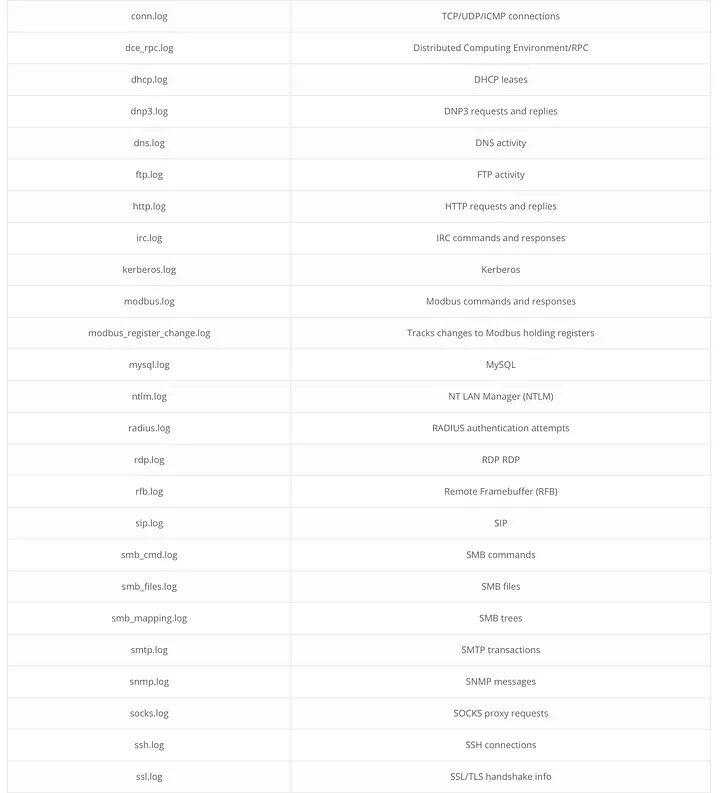
BRO Logs
Just a few logs that can be used to gather information. Note, custom logs can be created and referenced using the BRO.
BRO Log Hunting
BRO Carving
Read and output bro logs
bro -r file.pcap
Get source src ip, dst ip, dst port, and bytes (in that order)
cat conn.log |bro-cut id.orig_h id.resp_h id.resp_p orig_bytes |head -2
Same as above but sort by bytes (field 5 reverse by number)
cat conn.log |bro-cut id.orig_h id.orig_p id.resp_h id.resp_p orig_bytes|sort -k 5 -rn
Get http on non-standard ports (ssl?)
cat conn.log | bro-cut service id.resp_p id.resp_h | awk '$1 == "http" && ! ($2 == 80 || $2 == 8080) { print $3 }' | sort -u
Extract DNS info from bro logs
cat dns.log |bro-cut query | sort -u
and
cat dns.log | bro-cut -d answers | sort -u
Get User-Agents
cat http.log | bro-cut user_agent | sort | uniq -c |sort -n
Get Mime Types
cat http.log | bro-cut orig_mime_type | sort | uniq -c |sort -n
Get bro outbound signature stored in .sig file (read with -s)
signature outbound-sig {
ip-proto == tcp
src-ip == 192.168.0.0/16
dst-ip != 192.168.0.0/16
dst-port == 80
http-request-header /^User-Agent:.*/ event "Outbound HTTP traffic"
}
Get bro Windows Shell signature stored in .sig file (read with -s)
signature windows_reverse_shell {
ip-proto == tcp
tcp-state established,originator
event "ATTACK-RESPONSES Microsoft cmd.exe banner (reverse-shell originator)"
payload /.*Microsoft Windows.*\x28C\x29 Copyright 1985-.*Microsoft Corp/
}
signature windows_shell {
ip-proto == tcp
tcp-state established,responder
event "ATTACK-RESPONSES Microsoft cmd.exe banner (normal-shell responder)"
payload /.*Microsoft Windows.*\x28C\x29 Copyright 1985-.*Microsoft Corp/
}
Run bro with sig file
bro -r file.pcap -s outbound.sig
View dst addresses in signature file
cat signatures.log |bro-cut dst_addr | sort | uniq -c |sort -n
BRO event script to find User-Agent (outbound.bro)
event http_header(c: connection, is_orig: bool, name: string, value: string)
{
local snet = 192.168.0.0/16;
if (c$id$orig_h in snet)
{
if (c$id$resp_h !in snet)
{
if (c$id$resp_p == 80/tcp && name == "USER-AGENT")
{
print fmt ("source IP %s, destination IP/port %s %s, USER-AGENT content %s", c$id$orig_h,c$id$resp_h,c$id$resp_p,value);
}
}
}
}
BRO Scripting Reference
https://www.bro.org/sphinx/scripting/?source=post_page—–b300c8473468—————————————
Run event file to view user-agent
bro -r file.pcap outbound-event.bro
BRO extract common files from pcap
sudo bro -r file.pcap /opt/bro/share/bro/file-extraction/extract.bro
Extract ssl info
cat ssl.log | bro-cut server_name, subject, issuer_subject
BRO extract unique SSL certificate data
bro -C -r file.pcap > cert_data.txt
BRO extract SSL issuer data from certificate extraction
cat ssl.log|bro-cut issuer_subject|sort -u > /tmp/bro/data.txt
BRO show shortest issuer from extraction
cat /tmp/bro/data.txt |awk '{print length, $0}'|sort -nr
ModSecurity rules
error.log UA not starting with Mozilla
SecRule REQUEST_HEADERS:User-Agent "!^Mozilla/\d\.\d" "log,msg:'User-Agent without Mozilla/#.#'"
error.log visiting IP URL
SecRule REQUEST_HEADERS:Host "^[\d.:]+$" "log,msg:'Host used an IP address'"
error.log blank UA
SecRule REQUEST_HEADERS:User-Agent "^$" "log,msg:'Request has blank UA'"
error.log UA starting with mozilla
SecRule REQUEST_HEADERS:User-Agent "^mozilla" "log,msg:'Request has mozilla UA'"
error.log visiting by IP log UA used
SecRule REQUEST_HEADERS:Host "^[\d.:]+$" "log,msg:'Host used an IP address check errorlog for UA',logdata:'User-Agent:%{REQUEST_HEADERS.User-Agent}'"
error.log no UA (not blank but none)
SecRule &REQUEST_HEADERS:User-Agent "@eq 0" "log,msg:'Request missing UA',logdata:'User-Agent:%{REQUEST_HEADERS.User-Agent}'"
error.log note param entry
SecRule &ARGS:password "@gt 1" "log,msg:'PW data',logdata:'params:%{REQUEST_LINE}'"
error.log trigger on keyword (can use pattern)
\#Trigger on EXFIL from body (phase:4 is the Response Body)
SecRule RESPONSE_BODY "badguy" "phase:4, msg:'HoneyToken Exfil Detected', tag:'HONEYTOKEN EXFIL'"
Splunk
Note these are examples and are mainly illustrated as templates for creating your own internal searches
New unauthorized service
index=windows LogName=System EventCode=7045 NOT (Service_Name=<yourscanner>) | eval Message=split(Message,".") | eval Short_Message=mvindex(Message,0) | table_time, host, Service_Name, Service_Type, Service_Start_Type, Service_Account, Short_Message
Detecting process abuse
index=sysmon SourceType="WinEventLog:Microsoft-Windows-Sysmon/Operational" ProcessCreate (whoami OR netstat OR etc) | search EventCode=1 Image="*\\whoami.exe" OR Image="*\\netstat.exe" OR Image="*\\tasklist.exe" | bin )time span=5m | rex field=Message ".*User:(xxx|NT AUTHORITY)\\\\(?<USER>.*)" | stats dc(Image) AS CNT_CMDS values(CommandLine) values(ParentImage) values(ParentCommandLine) count by _time ComputerName USER
Detecting process abuse (simplified, requires one entry per process)
index=sysmon Image="*\\net.exe" (CommandLine="*net group*" OR CommandLine="*net localgroup*" OR CommandLine="*net user*") | stats count by Computer,CommandLine
Process starts and connects to IP
index=windows LogName=System EventCode=5156 NOT (Source_Address="10.10.10.15") NOT (Application_Name="path:\file.exe") | eval Message=split(Message,".") | table_time, host, Application_Name, Source_Address, Destination_Address, Direction
Detect SMB traffic between clients
index=sysmon SourceName="Microsoft-Windows-Sysmon" EventCode=3 Initiated=true SourceIp!=DestinationIp DestinationPort=445 Image!=System (SourceHostname="fileserver1" DestinationHostname="client1") OR (Source_Address="10.10.1.5" Destination_Address="10.10.10.15") | stats by ComputerName ProcessGuid | fields ComputerName ProcessGuid
Detect Named Pipes
index=sysmon sourcetype="WinEventLog:Microsoft-Windows-Sysmon/Operational" (PipeEvent "Pipe Created") | search (EventCode=17 (PipeName="\\*")) | stats values (Image) AS Images values(PipeName) AS PipeNames count by TaskCategory ComputerName
Detect WMI
index=sysmon Image="*\\WMIC.exe" (CommandLine="*process call create*" OR CommandLine="*/NODE:*") | stats count by Computer,CommandLine
and
index=sysmon ParentImage="*\\WmiPrvSE.exe" | stats count by Computer,CommandLine
Detect PowerShell Commands
index=sysmon ParentImage="*wsmprovhost.exe" | stats count by Computer,CommandLine
and
index=sysmon Image="*powershell.exe" (CommandLine="*-EncodedCommand*" OR CommandLine="*-Enc*" OR CommandLine="*-e*" OR CommandLine="*new-object*" OR CommandLine="*-nop*" OR CommandLine="*-noprofile" OR CommandLine="*-Command*" OR COmmandLine="*-c*" OR CommandLine="*Invoke-Command*" OR CommandLine="*download*" OR CommandLine="*IEX*" OR CommandLine="*exec*")| stats count by Computer,CommandLine
Alert on remote files copied via cmd line
index=windows LogName=Security EventCode=5145 Object_Type=File Share_Name=*$ (Access_Mask=0x100180 OR Access_Mask=0x80 OR Access_Mask=0x130197) |bucket span=1s _time |rex "(?(0x100180|0x80|0x130197))" |stats values(Relative_Target_Name) AS Relative_Target_Name, values(Account_Name) AS Account_Name, values(Source_Address) AS Source_Address, dc(thingtype) AS distinct_things by ComputerName, _time |search distinct_things=3
Alert on C or Admin share enumeration
index=windows LogName=Security EventCode=5145 Share_Name=*c$ OR *ADMIN$ (Access_Mask=0x100180) NOT (Source_Address="10.10.10.15")|bucket span=1s _time |rex "(?(0x100180))" |stats values(Relative_Target_Name) AS Relative_Target_Name, values(Account_Name) AS Account_Name, values(Source_Address) AS Source_Address, dc(thingtype) AS distinct_things by ComputerName, _time |search distinct_things=3
Search for file delivery
index=sysmon SourceName="Microsoft-Windows-Sysmon" FileCreateStreamHash badfile.exe | search EventCode=15 | rex field=TargetFilename ".*\\\\(?<TargFilename>[^\\\\]*)" | rex field=Image ".*\\\\(?<ImageFilename[^\\\\]*)" | rex field=Hash ".*MD5=(?<MD5>[A-F0-9]*),IMPHASH=(?<IMPHASH>[A-F0-9]*)" | stats values(TargFilename) values(ComputerName) AS Clients count by TaskCategory ImageFilename MD5
Search for Registry Run (or RunOnce) Keys
index=sysmon SourceName="Microsoft-Windows-Sysmon" RegistryEvent CurrentVersion Run | search EventCode=13 "*\\Windows\\CurrentVersion\\Run*" | rex field=Image ".*\\\\(?Image_EXE>[^\\\\]*)" | rex field=TargetObject ".*\\\\CurrentVersion\\\\(?<TargetObj_PATH>.*)" | strcat "Image=\"" IMage_EXE "\", TargetObject=\"" TargetObj_PATH "\", Details=\"" Details "\"" Image_TargetObj_Details | stats dc(ComputerName) AS Clients values(Image_TragetObj_Details) count by TaskCategory Image_EXE
Search for file system persistence
index=sysmon SourceName="Microsoft-Windows-Sysmon" ProcessCreate "Start Menu" Programs Startup | search Image="*\\Microsoft\\Windows\\Start Menu\\Programs\\Startup\\*" | rex field=Image ".*\\\\Programs\\\\Startup\\\\(?<Startup_Image>[^\\\\]*)" | rex field=Hash ".*MD5=(?<MD5>[A-F0-9]*),IMPHASH=(?<IMPHASH>[A-F0-9]*)" | stats values(ComputerName) AS Clients vlaues(MD5) count by IMPHASH Startup_Image
Detect credential harvesting
index=sysmon ParentImage="*\\services.exe" | regex CommandLine="\\\\[a-z0-9]{8}-[a-z0-9]{4}-[az0-9]{4}-[a-z0-9]{4}-[a-z0-9]{12}\.exe-S$"
and
index=sysmon CommandLine="*privileges::debug*" OR CommandLine="*sekurlsa::*" OR CommandLine="*kerberos::*" OR CommandLine="*crypto::*" OR CommandLine="*lsadump::*" OR CommandLine="*process::*"
Potential Privilege Escalation
index=sysmon sourcetype="WinEventLog:Microsoft-Windows-Sysmon/Operational" EventCode=4688 Token_Elevation_Type="*(2)"
Potential Beaconing Detection
index=proxy sourcetype=bluecoat:proxysg:access:syslog url=* | eval current_time=_time | sort 0 + current_time | streamstats global=f window=2 current=f last(current_time) AS previous_time by src, url | eval diff_time=current_time-previous_time| eventstats count, stdev(diff_time) AS std by src, url
Detect webshell activity (note this should be updated at implementation and often)
index=sysmon ParentImage="*\\apache*" ParentImage="*\\tomcat*" ParentImage="*\\nginx*" ParentImage="*\\httpd*" ParentImage="*\\php-cgi*" ParentImage="*\\w3wp*" CommandLine="*whoami*" CommandLine="*net*" CommandLine="*ipconfig*" CommandLine="*hostname*" CommandLine="*systeminfo*" CommandLine="*cmd*" CommandLine="*sh*" CommandLine="*bash*" CommandLine="*powershell*"
Detect potential SQLi
index=weblogs sourcetype=MSWindows:2008R2:IIS | regex cs_uri_query="(?i)(?:--|\;|\/\*|\@|\@\@version|char|alter|begin|cast|create|cursor|declare|delete|drop|end|exec|fetch|insert|kill|open|select|sys|table|update)" | stats count by host c_ip cs_uri_stem cs_uri_query | rex field=cs_uri_query "(?i)(?<suspect>--|\;|\/\*|\@|\@\@version|char|alter|begin|cast|create|cursor|declare|delete|drop|end|exec|fetch|insert|kill|open|select|sys|table|update)" max_match=0
View HTTP POST with response
index=json_bro eventtype=bro_http method=POST AND status <=403 AND uri=*.php OR uri=*.jsp OR uri=*.cfm OR uri=*.asp OR uri=*.aspx |stats values(id.orig_h) AS Source, values,(hostname) AS Destination by uri
Find Weird User-Agents
index=json_bro eventtype-bro_http |stats count by user_agent | sort -count | reverse
Get high severity EPO events
index=av sourcetype=mcafee:epo (severity=critical OR severity=high) | stats values(event_description) AS desc, values(signature) AS signature, values(file_name) AS file_path, count AS result BY dest | eval dd="index=av sourcetype=mcafee:epo (severity=critical OR severity=high) dest=".dest
Snort
Note these are examples and are mainly illustrated as templates for creating your own internal searches
Detect psexec
alert tcp any any > $HOME_NET [139,445] (msg:"ET POLICY PsExec? service created"; flow:to_server, established; content:"\5c 00 50 00 53 00 45 00 58 00 45 00 53 00 56 00 43 00 2e 00 45 00 58 00 45\"; reference: url, xinn.org/Snort-psexec.html; reference:url, doc.emerginthreats.net/2010781:classtype:suspicious-filename-detect:sid:201781; rev:2;)
Detect packets with with port 4444 (port 0?)
alert tcp $EXTERNAL_NET any <> $HOME_NET 4444 (msg:"BAD-TRAFFIC tcp port 4444 traffic"; flow:stateless; classtype:misc-activity; sid:524; rev:8;)"
Snort appid list
sudo u2openappid /var/log/snort/appstats-unified.log.1455060958 |egrep -v '"http"|"https"|"dns"|"internet_explor"'|cut -d"," -f2|sort|uniq -c|sort -nr
Interesting file extensions (Note this is the same list as above, placed here for use in monitoring via Snort)
.ade, .adp, .ani, .bas, .bat, .chm, .cmd, .com, .cpl, .crt, .exe, .hlp, .ht, .hta, .inf, .ins, .isp, .jar, .job, .js, .jse, .lnk, .mda, .mdb, .mde, .mdz, .msc, .msi, .msp, .mst, .ocx, .pcd, .ps1, .reg, .scr, .sct, .shs, .svg, .url, .vb, .vbe, .vbs, .wbk, .wsc, .ws, .wsf, .wsh, .exe, .pif, .pub, .ip
Additional Useful Info
Get methods from access.log
cat access.log | cut -d\" -f2 | cut -d' ' -f1 | sort -u
Decode %encoded url (line 290)
awk ' {if (length($0) > max){max=length($0);maxline=$0}} END {print maxline }' access.log|cut -d" " -f7|sed s/%//g|sed s/+//g|sed s/?//g|xxd -r -p
or
cat access.log |grep POST|grep cgi-bin|cut -d'"' -f2|sort -u|sed s/%//g|sed s/+//g|cut -d"?" -f2|awk -F"HTTP/1.1" '{print $1}'|xxd -r -p
Gather Information on Windows host
List task services
tasklist /svc /fi "imagename eq file.exe"
Show modules for task
tasklist /m /fi "imagename eq file.exe"
Verbose task information
tasklist /v /fi "imagename eq file.exe"
Get information about processes
get-wmiobject -class Win32_Process -Filter 'Name="file.exe"'
and
get-process | select * |Where-Object {$_.ID -eq PID}
and
gwmi Win32_Process|Select ProcessName,ProcessID,ParentProcessID,CommandLine,@{e={$_.GetOwner().User}}|ft -wrap;netstat ano
Look for code injected into memory
Get-InjectedThread.ps1
Reference
https://gist.github.com/jaredcatkinson/23905d34537ce4b5b1818c3e6405c1d2
Summary
As evident by the mass of information above, there are numerous methods, capabilities and procedures for both limiting and detecting threat activity; however, as a reminder, these are simple examples. There are, and will continue to be, really inventive and interesting actions that a threat may perform. Our task is to match a threat’s success with effective simplicity and ingenuity.
As recommended by several within Specter Ops, this information would be much easier to digest within a wiki format. My personal task over the next X (TBD) weeks is to consolidate much of the information into a common (open) wiki.
Also, be sure to check out the series as well as other posts from Specter Ops.
Part 1 introduced the basic premise of the needs and recommendations for most networks as observed from the security perspective.
Part 2 provides example syntax and structure (albeit simplified syntax) for many of the generalized recommendations in part 1.
Part 3 will include how each can be streamlined and implemented within a network using existing implementations of systems, tools, and products.
Originally published by @minis_io at threatexpress.com on May 16, 2018.