Revisiting TTPs: TimeStomper
In this post, I will cover how to manipulate file times on the Windows OS. Manipulating timestamps is a common technique implemented in malware to blend in with other files on disc or as an anti-forensics technique. I will present a proof-of-concept tool to manipulate file times and walk you through example usage.
Introduction
The primary purpose of manipulating file times (timestomping) is as an anti-forensics technique. Although the PoC is not an end-all solution on manipulating file times (there are other artifacts that are not modified), it can be used to increase the time/cost of an investigation.
Timestomping is a technique that’s been observed by malware campaigns in the wild. MITRE ATT&CK has a page regarding timestomping and the different threat groups that have used this technique in the past. I wrote this PoC to learn more about how this technique is implemented in malware and to incorporate more real-world techniques into my toolkit.
The PoC can be found here: https://github.com/justinbui/TimeStomper. I’ve also included a Sysmon config file created by Roberto Rodriguez to help detect timestomping.
Functionality
TimeStomper can be used in the following ways:
- Set custom modified, access, and creation time for a file/folder.
- Set random modified, access, and creation time for a file/folder.
- Copy a time from a file/folder on disc to a target file/folder.
The above capabilities can also be performed recursively against a folder and its sub-folders.
Usage
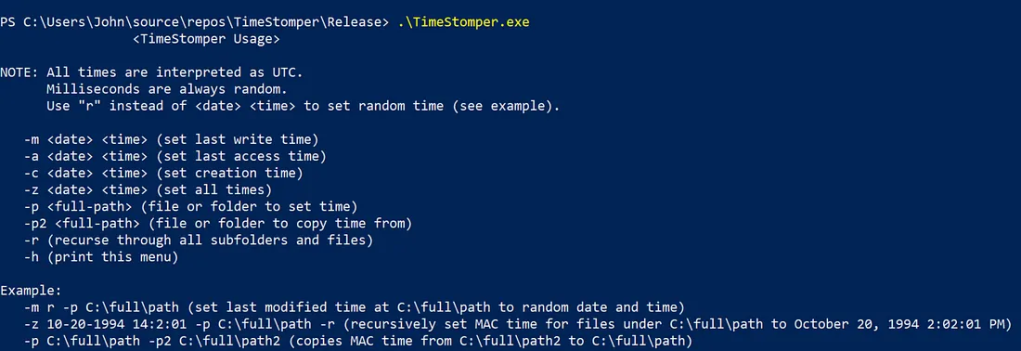
Additional examples
TimeStomper.exe -m 1-1-1994 1:2:34 -a 1-2-1994 4:32:1 -c 1-3-1994 12:34:56 -p C:\temp\Tuesday.txtThis will change last modified time for C:\temp\Tuesday.txt to January 1st, 1994 01:02:34 AM UTC, last accessed time to January 2nd, 1994 04:32:01 AM UTC, creation time to January 3rd, 1994 12:34:56 PM UTC.

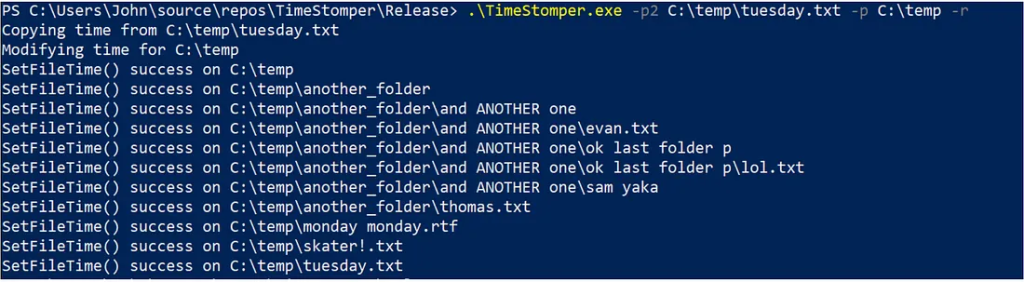
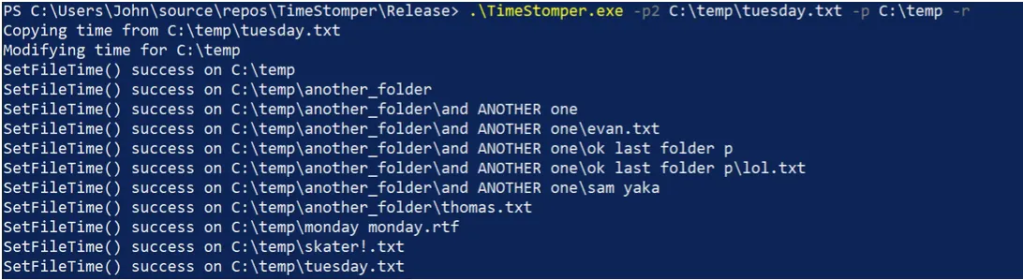
TimeStomper.exe -p2 C:\temp\tuesday.txt -p C:\temp -rThis will copy the times from C:\temp\tuesday.txt and apply it recursively to C:\temp and all folders/files under C:\temp.
How it Works?
Case 1: Modify a single file/folder based on user input
TimeStomper’s main functionality comes from the SetFileTime() API shown below:
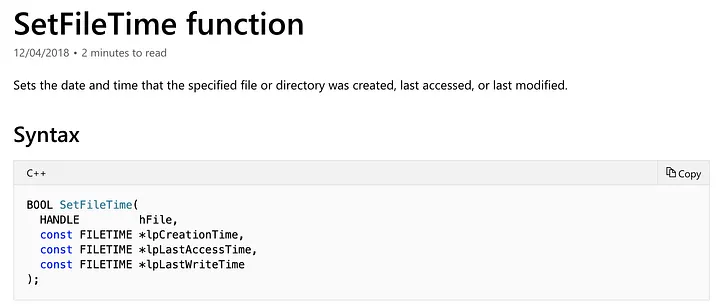
It requires a handle to the file/folder that we want to modify as well as pointers to three FILETIME structures.
We obtain a handle to the file/folder using the CreateFileA() API. Note, if our program doesn’t have the appropriate permissions to open a handle to a file/folder CreateFileA() will fail and return system error code 5 (access denied).
I’ve listed how FILETIME and SYSTEMTIME structures look below:
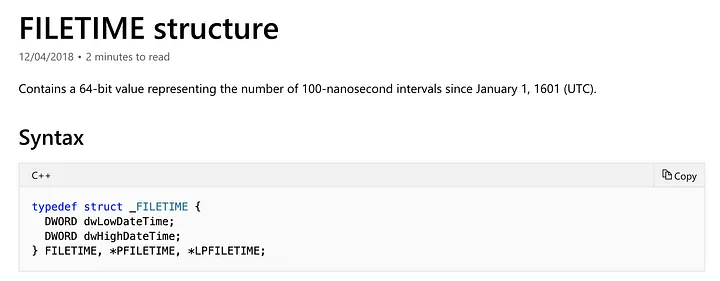
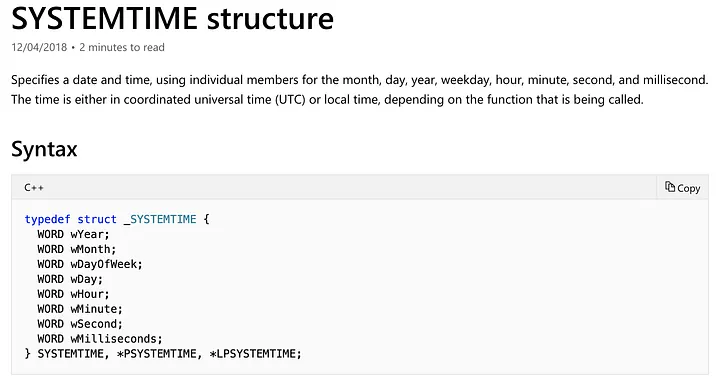
As SYSTEMTIME structures are more intuitive, we will convert user input into a SYSTEMTIME structure, then use the SystemTimetoFileTime() API to obtain FILETIME structures.
With a handle to the file/folder we want to modify and the appropriate FILETIME structures, we can call the SetFileTime() API to manipulate last modified time, recently accessed time and creation time!
TimeStomper also accepts “r” in place of a date and time to generate a random FILETIME structure. Note, this may set the last modified, last accessed or creation time to unreasonable values (look at documentation for SYSTEMTIME structures to see the range of times that can be created).

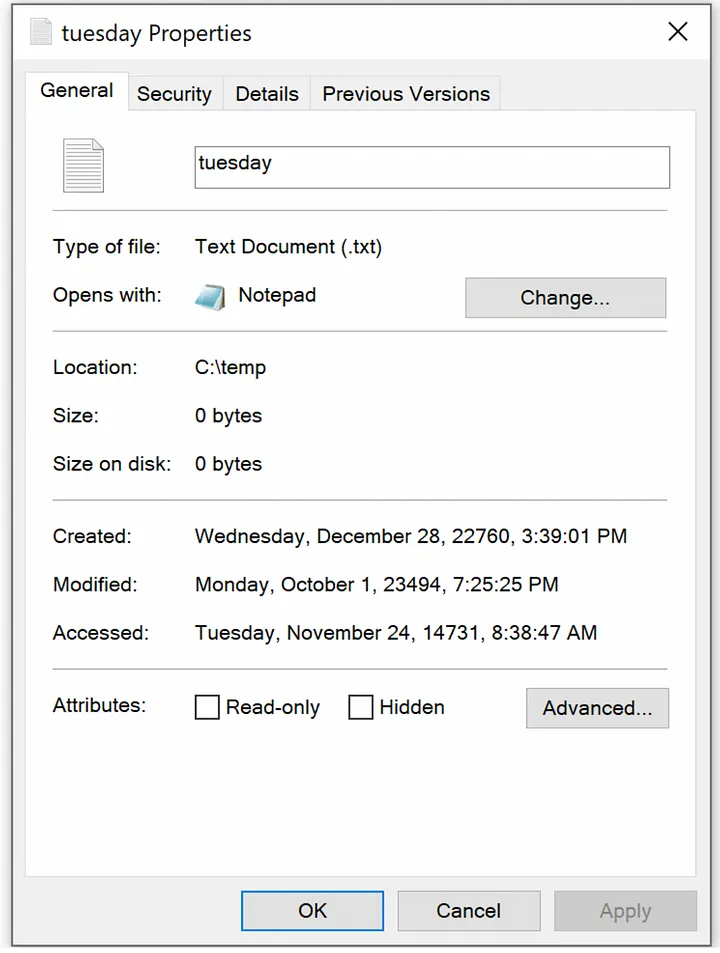
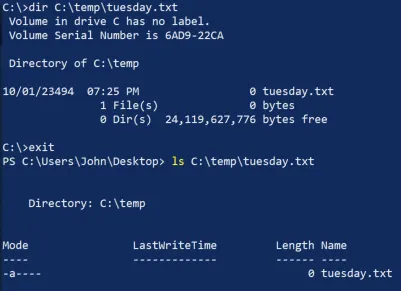
I found that these absurd times in the future will not properly display in the file browser or in a PowerShell command prompt.
They will display properly in a cmd prompt and if you inspect the properties of the file through the file browser.
Case 2: Copy a time from a file/folder on disc
TimeStomper also has the ability to copy a time from a file/folder on disc to a target file/folder. This is accomplished by opening a handle to the file/folder that we want to mimic with the CreateFileA() API. With the appropriate handle, we are able to call the GetFileTime() API to obtain three FILETIME structures which are compatible with the SetFileTime() API.

Case 3: Recursion!
For recursion, I knew that I had to take a path and timestomp each file/folder within the path and then recursively perform this timestomp anytime a folder is encountered.
I didn’t quite know how to fully implement this part and heavily relied on the work from Vincent Liu who authored Meterpreter’s timestomp functionality back in 2005. I utilized similar logic and tweaked it to work for my program.
The method that Vincent came up with implements a depth-first search algorithm. This means the program will continue to dive deeper into sub-directories until it finds a sub-directory with only files before backtracking to other files.
Recursion works with the “-r” flag and will work with copying a time (as shown below) as well as when manually setting a time.
Detections
PowerForensics, written by Jared Atkinson, is a tool that can be used for live disc forensic analysis.
The Get-ForensicFileRecord cmdlet can be used to parse the Master File Table for file records which show times from the $STANDARD_INFORMATION attribute as well as the $FILE_NAME attribute.
In my testing, I show the file record for a file before and after timestomping. I will also show how to detect timestomping using Sysmon.
Case 1: Modifying file to a non-random time
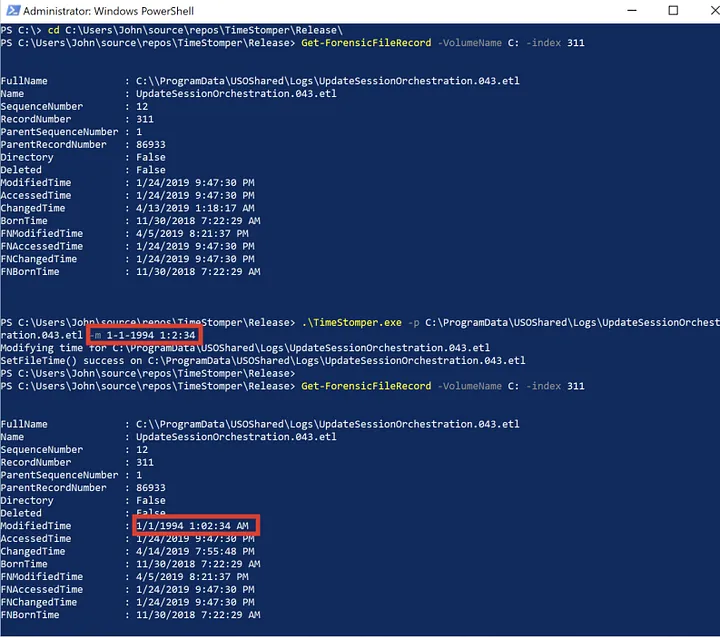
Here we see that Get-ForensicFileRecord is able to see the changes made to the ModifiedTime attribute.
Case 2: Modifying file to a random time
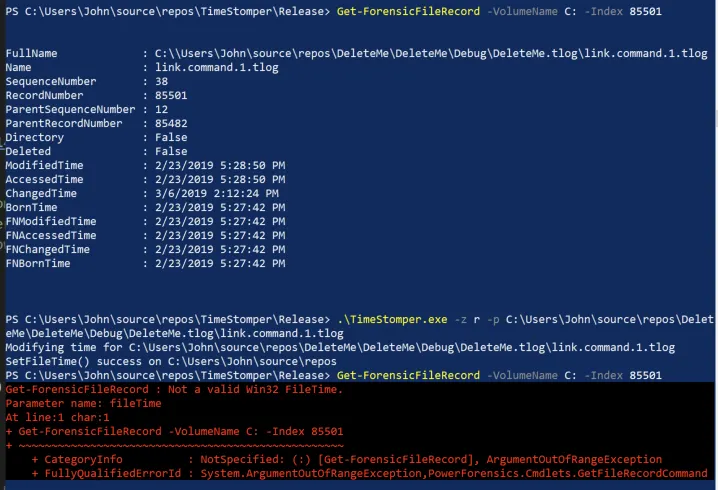
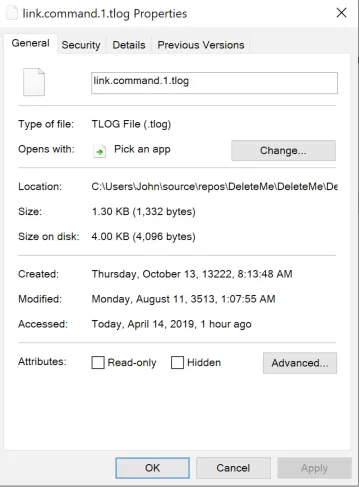
Here we see that Get-ForensicFileRecord is initially able to parse the file record and obtain the file times. However, after timestomping, it is unable to to understand the the randomly generated file time data returned although the operating system is still able to understand the times.
Case 3: Detecting timestomping with Sysmon
I downloaded Sysmon and used a config file created by Roberto Rodriguez (@Cyb3rWard0g) which greatly reduces noise by ignoring file creation times changed by RuntimeBroker.exe and backgroundTaskHost.exe. In my testing, I saw Google Chrome also manipulated file creation times and added chrome.exe to the exclude list. The config file used is shown below:
<!--
  Author: https://twitter.com/Cyb3rWard0g
-->
<Sysmon schemaversion="4.2">
   <EventFiltering>
      <!-- Event ID 2 == File Creation Time. Log file creation time modifications -->
      <RuleGroup name="technique_id=T1099,tactic=Timestomp" groupRelation="or">
         <FileCreateTime onmatch="exclude">
            <Image condition="image">RuntimeBroker.exe</Image>
            <Image condition="image">backgroundTaskHost.exe</Image>
            <Image condition="image">chrome.exe</Image>
         </FileCreateTime>
      </RuleGroup>
   </EventFiltering>
</Sysmon>
Note: An attacker could inject into these processes to take advantage of the whitelist and evade detection.
“System Monitor (Sysmon) is a Windows system service and device driver that, once installed on a system, remains resident across system reboots to monitor and log system activity to the Windows event log. It provides detailed information about process creations, network connections, and changes to file creation time.”
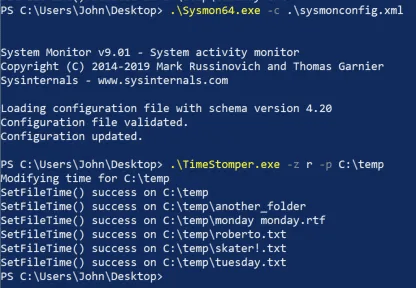
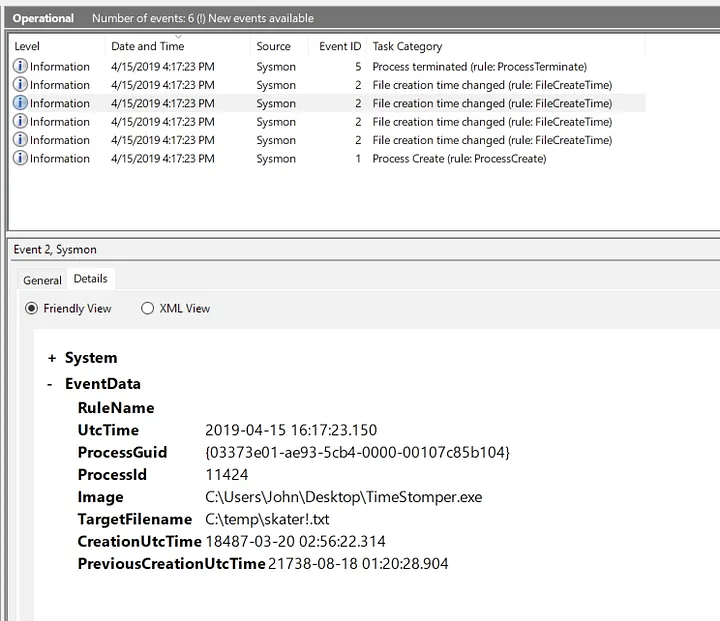
We see that Sysmon is able to alert on changes to file creation time (Event ID 2). Sysmon also give us visibility into the process performing the timestomping, the timestomped file, the previous file creation time and the modified file creation time!
This information could lead you to the process ID that malware is currently injected into for further investigation.
Shortcomings
As I learned more about the different time artifacts on the file system, I realized I wasn’t editing the entry modified time in the master file table (MFT) within the $STANDARD_INFORMATION attribute.
This is done in the Metasploit version which uses the NtSetInformationFile() API to manipulate the FILE_BASIC_INFORMATION structure. This method is more complete in timestomping $STANDARD_INFORMATION.
My current program leaves the $FILE_NAME attribute untouched. Generally, the $FILE_NAME attribute cannot be modified from userland. I have seen some tricks regarding moving/copying files to edit the $FILE_NAME attribute which can be found here. I have decided against implementing these techniques as they would lead to a lot of noise.
References
Big thanks to developers of Meterpreter’s timestomp functionality. Also, big thanks to all the coworkers who reviewed my post and helped me with the detections portion 🙂
https://www.forensicswiki.org/wiki/Timestomp?source=post_page—–622d4c28a655—————————————