Ghostwriter v6.1 — Playing Fetch with BloodHound
TL;DR Ghostwriter v6.1 introduces a full-featured BloodHound integration that lets you import BloodHound data and findings directly within your projects, alongside new collaborative project notes, upgraded caption editor objects, and a collection of usability, SSO/MFA, and template improvements. This release streamlines workflows, enhances team collaboration, and tightens the connection between assessment tooling and reporting.
We’re excited to announce Ghostwriter v6.1, a release packed with powerful collaboration tools and a significant leap forward in BloodHound integration. This update strengthens Ghostwriter as your central hub for assessment writing, evidence tracking, and team collaboration.
BloodHound Integration
At the heart of v6.1 lies our all-new BloodHound integration, thanks in large part to an initial implementation by John Hopper, our VP of Engineering (@zinic)! Previously, we released a more “DIY” solution that used Ghostwriter’s GraphQL API and custom fields to populate Ghostwriter with data from BloodHound. With this integration, you can now import data and findings directly from BloodHound into Ghostwriter — whether you’re running the Community Edition or Enterprise version.
My team has been working hard on this release since June. We’ve been iterating on it for several months to get the integration ready for this initial release. We already have a list of things we want to improve and add, so it will only get better! Keep an eye on the Ghostwriter Project board for details.
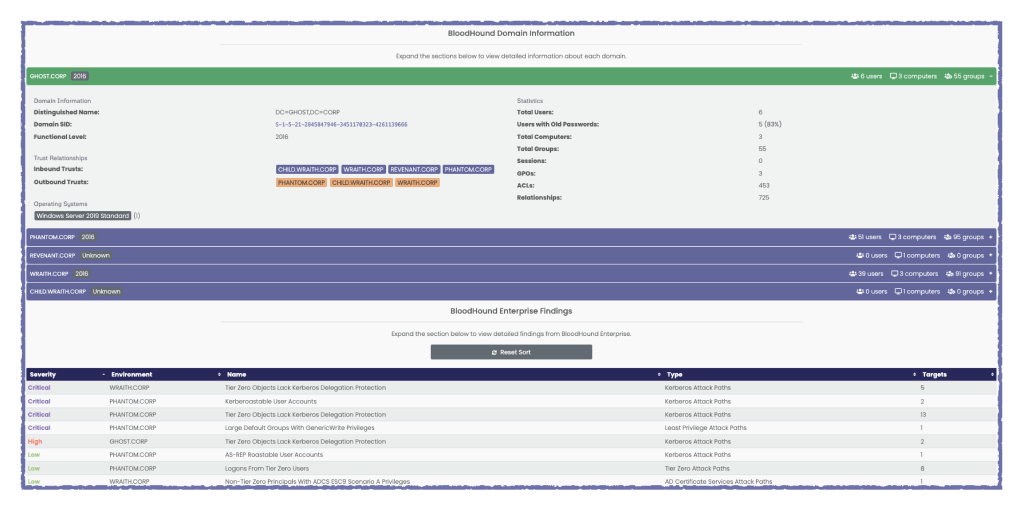
It was essential to us that this integration support both editions. Here’s how it works in practice:
- On your Project dashboard, you’ll find a BloodHound tab where you can manage integration settings and pull in BloodHound data.
- You can configure a global BloodHound instance for your entire Ghostwriter installation or, if your workflow demands it, set up per-project configurations. This flexibility means that different projects can use different BloodHound instances if needed.
- Once configured, you can fetch the BloodHound data. Ghostwriter stores that snapshot of the BloodHound data in its database and displays it under your Project dashboard.
For more details on setup and usage, check out the Ghostwriter wiki: BloodHound Integration.
This feature significantly reduces friction between adversary path enumeration (via BloodHound) and narrative reporting in Ghostwriter. We’re thrilled to have rich integration between these two tools finally! We will continue to improve this initial integration design in 2026 based on feedback.
Collaboration & Editing Enhancements
Beyond BloodHound, v6.1 introduces meaningful improvements to how your team can work together:
Collaborative Notes on Project Dashboard
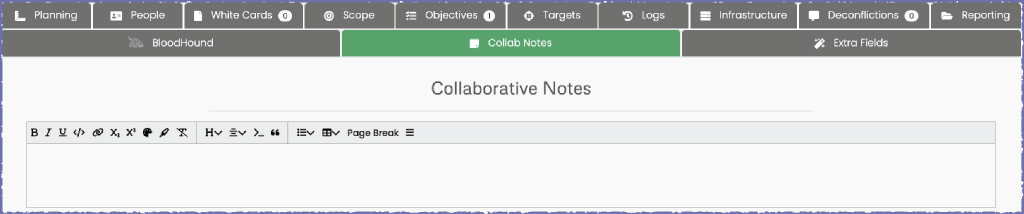
- We’ve added a Collab Notes tab to the Project dashboard, offering a shared space for project members to write notes, brainstorm, or maintain a running assessment journal.
- Just like the other collaborative editor fields introduced in v6.0, these notes synchronize in real time, allowing multiple users to edit simultaneously while automatically saving changes.
- Because it’s built into the dashboard, it’s a dedicated space that’s readily accessible to any team member with access to the project. No more siloed or disparate notes!
New Editor Features: Tiptap Objects for Captions & Evidence Enhancements
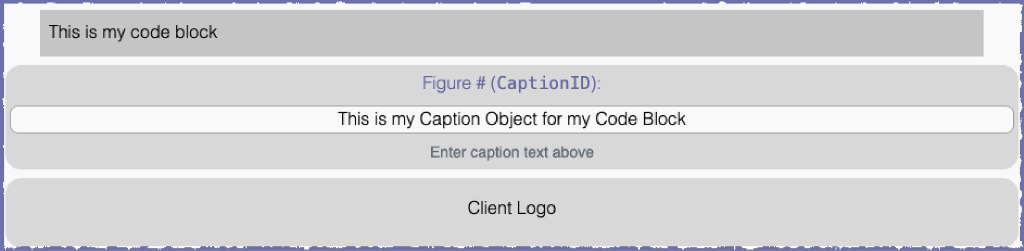
- In the editor, we’ve replaced the old
{{.caption}}syntax with a Tiptap editor object, making captions more intuitive and visible in the collaborative UI. - Now you can set caption text and a custom reference ID directly within the object. You no longer need to use the more manual method with a line like:
{{.caption REF_ID}} Caption text lines. - This aligns with our broader move toward structured editor objects (like evidence insertion and previews) and makes editing more WYSIWYG and less error-prone.
- Speaking of evidence previews, you can now click those objects to view a full-sized version for close examination.
Text Transform Menu & Client Logo Support
- We’ve added a new menu that restores the option to convert selected text to lowercase or uppercase, giving you more formatting controls.
- You can now upload a client’s logo and insert it into your report templates. To support everyday use cases like inserting a logo into a header or cover page, you can have a placeholder image in your template and set the alt text to
[CLIENT_LOGO]. Ghostwriter will replace the placeholder with the actual logo, preserving dimensions and placement. - You can also insert the client’s logo as an editor object so Ghostwriter inserts it.
Under the Hood & Other Notable Changes
Here’s a quick roundup of other noteworthy improvements, migrations, and breaking changes in v6.1:
Evidence Downloads with GraphQL
The community asked for a way to download evidence files from Ghostwriter instances programmatically, and v6.1 delivers. The new evidenceDownload query has options for a download link that you can visit in your browser and a base64 blob you can easily decode for your file.
Dark Mode
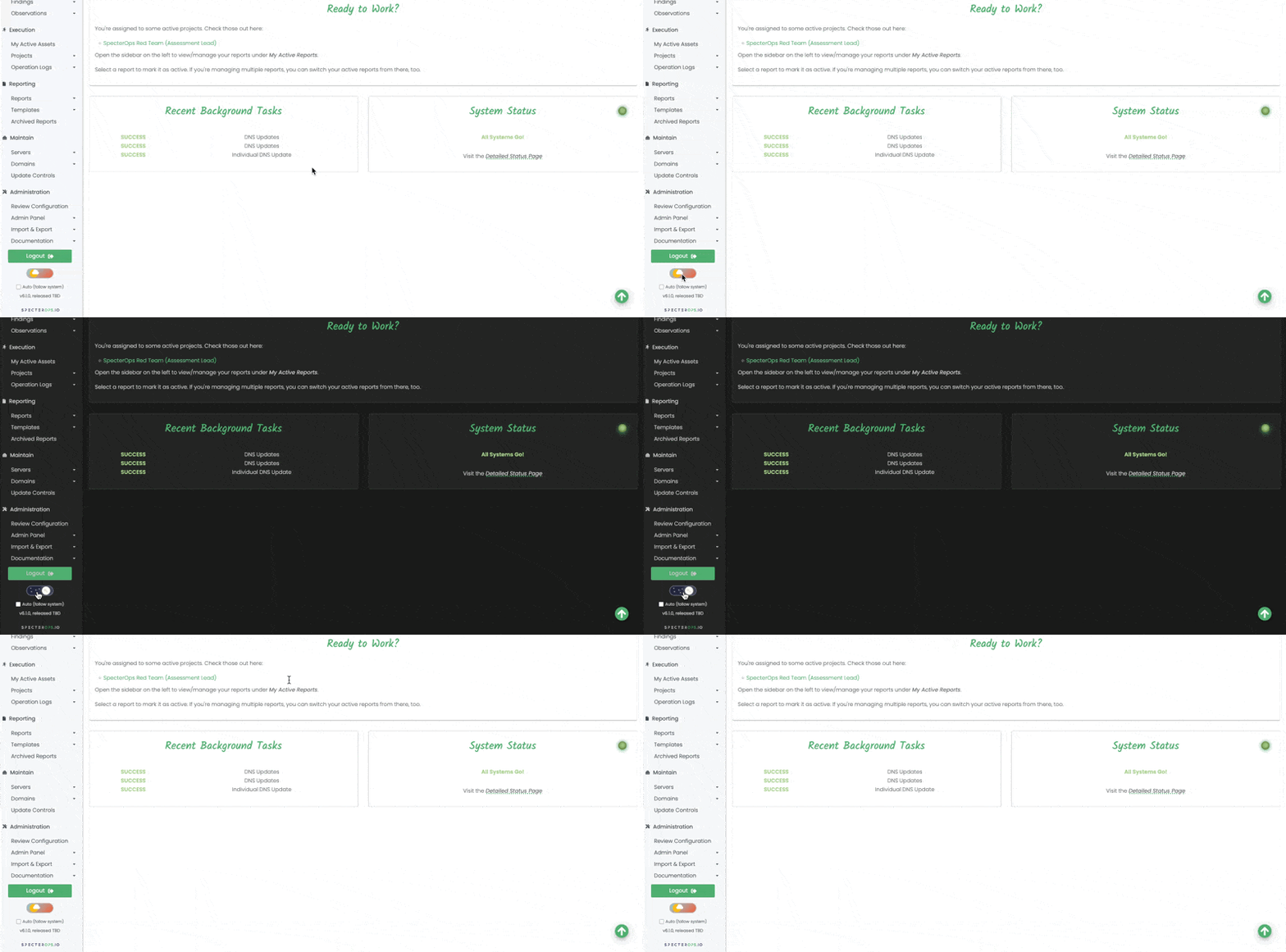
A long-requested feature is finally here! Users can now switch between light and dark mode, or have it switch automatically based on their system theme.
Authentication & MFA Enhancements
We upgraded Django allauth to support expanded SSO options and more MFA options. There’s now a dedicated MFA management page, and we’ve laid the groundwork for WebAuthn and Passkey authentication.
The plan is to offer Passkey as an MFA option or as a passwordless authentication mechanism.
Migration Required: existing TOTP devices must be migrated using ./ghostwriter-cli migrate_totp.
Retiring “Notes”
Early in development, we added a note field to most data models. Later, we added various “*Notes” models (e.g., ProjectNote, DomainNote) to enable users to add conversation-style notes. These fields became confusing, so this was technical debt that was a long time coming.
In many data models (Project, Client, Finding, Domain, etc.), we renamed the note field to description to better align with its usage. This is a breaking change for templates or scripts that referenced the legacy note fields.
Legacy Notes UI Removal
With the addition of the new collaborative notes section on projects, we’ve hidden the old Notes tab to reduce confusion with the collaborative notes feature. For existing projects with content in legacy notes, the section remains visible, but new projects won’t see it.
Get Started / Upgrade Notes
- Be sure to check out the BloodHound integration wiki page to configure your instance properly.
- For MFA users: run the migration for your TOTP devices using Ghostwriter CLI.
- Review any of your existing report templates or scripts that reference note — you’ll need to update them to use description.
Ghostwriter v6.1 represents a meaningful step forward: not just in collaboration, but in bridging the gap between technical tooling (like BloodHound) and narrative reporting. We’re excited to hear how you use these improvements, whether it’s leveraging BloodHound insights in your findings or using collaborative notes as a shared team journal.
As always, we welcome your feedback, bug reports, and feature suggestions. Try out v6.1, let us know how it goes, and thank you for being part of the Ghostwriter community!
You can check out the release here:
https://github.com/GhostManager/Ghostwriter/releases/tag/v6.1.0