Mapping Deception Solutions With BloodHound OpenGraph – Configuration Manager

TL;DR: At SpecterOps, we look at Attack Path Management from multiple perspectives, including those of identifying areas to implement quality deception solutions. In this blog, I discuss identifying key areas of Configuration Manager (SCCM) infrastructure that defenders can implement for deception solutions. Additionally, I provide practical examples of mapping those key areas in OpenGraph with Chris Thompson‘s ConfigManBearPig and Ben Schroeder‘s deceptionClone projects.
Deception Solution Methodology
As a consultant, I have had several opportunities to work on deception solution projects for both the private and public sector. From my experience, the most effective implemented deception solutions take advantage of existing Attack Paths that adversaries would find attractive to achieve their objectives instead of introducing randomly placed canary accounts or files (e.g., passwords.txt) throughout the environment.
The blindspot many of the randomly placed canaries contend with is the fact that actual adversaries typically achieve objectives with as few steps as possible (i.e., the Attack Path of least resistance). I’ve seen APT groups elevate from Local Administrator on an external-facing SharePoint server to Domain Administrator by simply dumping the credentials of the interactively logged in Domain Administrator accounts managing the SharePoint server. From that point, the adversaries used the stolen credentials to laterally move to the domain controllers (DCs) and dump the NTDS.dit.
The HasSession Attack Path was already presented to the adversary and they leveraged it. In this scenario, it did not make sense for the adversary to hunt around for a “passwords.txt” living on a file share somewhere. The canary file was not attractive to the attackers and it didn’t blend with the environment well enough to be considered in the adversary’s objectives.
During deception solution program development for clients, we, at SpecterOps, consider deception solutions to be effective when several attributes about the deception solution are satisfied:
- Blends: Designed to integrate naturally with the environment
- Attractive: Attackers can identify the deception solution (and they will want to)
- No New Risk: Designed to not create exploitable Attack Paths
- High-Fidelity: Access is reliably detected
Ben Schroeder wrote Mapping Deception with BloodHound OpenGraph, which dives deeply into SpecterOps’s deception solution development methodology. I provided a high-level overview of the methodology, so I’m not going to spend more time discussing it. Instead, let’s shift our focus to areas where we can leverage Configuration Manager as a deception solution implementation. If you want to know more about SpecterOps’s methodology and would like to create a similar methodology for your insider threat team or detection engineering team, I recommend reading Ben’s blog.
Deception with OpenGraph
Defenders can leverage BloodHound OpenGraph to map the deception solutions implemented in their environment for the purpose of planning and tracking. We released BloodHound OpenGraph around BlackHat 2025. This capability is available in both the Community Edition and Enterprise version of BloodHound. The OpenGraph capability enables organizations to map anything into graph form (I really do mean anything; our Adversary Tactics and Detection course has students generate endpoint detection and response [EDR] telemetry models in BloodHound OpenGraph).
BloodHound OpenGraph’s intended use case is to enable organizations to map enterprise environment data beyond Active Directory and Entra ID to things like third-party services and applications. For example, OpenGraph opens the capability to connect-the-dots between Active Directory users and GitHub access models, and from GitHub access models to AWS secrets. Organizations can now graph access models across multiple desperate and seemingly separate technologies within their environment. Currently, we are offering the OpenGraph Community Incentive Program which enables the community to participate in mapping unique applications and identity providers for a chance to attend SO-CON 2026 (ticket, flight, and hotel included).
As a practical example of mapping deception solutions into BloodHound OpenGraph, defenders can leverage Ben Schroeder‘s deceptionClone project to modify the attributes of OpenGraph nodes to display implemented deception solutions. Throughout this blog, I will show both examples of the deception solution before and after the deceptionClone project modified the node.

ConfigManBearPig
Chris Thompson released ConfigManBearPig to map System Center Configuration Manager (SCCM) infrastructure within an organization’s environment. This tool generates JSON data that BloodHound OpenGraph can ingest to map the existing edges between the infrastructure that enables traversal of the Misconfiguration Manager project’s Attack Paths.
ConfigManBearPig is a BloodHound collector that uses LDAP to collect site servers by identifying objects with “Full Control” of the System Management container. It also collects primary site information where the objectClass displays mSSMSSite. The collector will continue to enumerate SCCM infrastructure and find management points, central administration sites (CAS), and SCCM client devices. For more information about how this BloodHound collector works and how to use it, please read Introducing ConfigManBearPig, a BloodHound OpenGraph Collector for SCCM. In that blog, Chris Thompson describes the collector and how to use it in full detail. For this blog, I will be using the “sample_data” from the ConfigManBearPig project for practical examples.
Configuration Manager Deceptions
Configuration Manager has been targeted by offensive research lately. With the creation of the SpecterOps Misconfiguration Manager project, offensive operators have begun to leverage a client’s endpoint management infrastructure to execute scripts and deploy payloads. Configuration Manager is a very valuable target to adversaries because of the administrative capabilities that Configuration Manager infrastructure holds over every endpoint within the site.
SCCM is comprised of multiple key pieces of infrastructure that enable administrative capabilities on every endpoint within the SCCM site. For an infrastructure and “How To” view of these nodes in OpenGraph, take a look at Chris Thompson‘s blog, “Introducing ConfigManBearPig, a BloodHound OpenGraph Collector for SCCM.” The below sections jump right into the deception solutions with the assumption that you have some familiarity with SCCM infrastructure.
Deception Solution: Canary NAA
Site Distribution Points are the client-facing content servers used to host content that clients can retrieve and execute. Site Distribution Points are often targeted by adversaries because of their Pre-Boot Execution (PXE) Media hosted for clients who are joining the environment for the first time (more on this later). Management Points are the client tasking servers. Clients will send periodic messages to the Management Points to check in and request any updates to the client as per the SCCM policies.
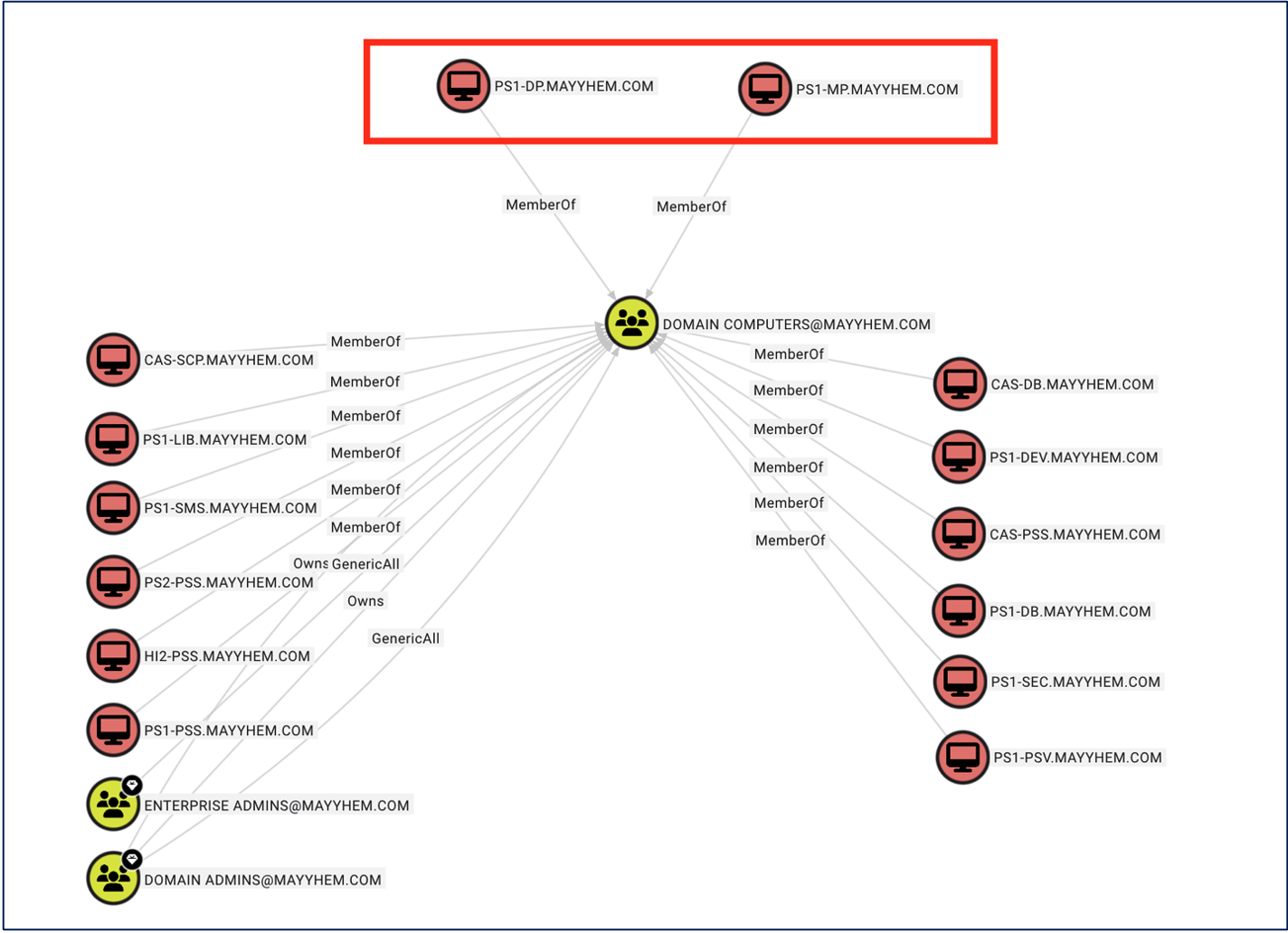
As per the CRED-1 technique from the Misconfiguration Project, PXE media is distributed from the Site Server to the Distribution Point where a non-domain joined client can use TFTP to download boot images from the Distribution Point. As mentioned in the CRED-1 description, “This process can be abused because the files and policies can be accessed without booting the PXE media.” Via a DHCPDISCOVER request, attackers can discover the Distribution Point and download the boot media. The boot media is encrypted via a password, and hashcat can be used to crack and recover the hash of the password. Once the boot media is decrypted, the attacker may be able to identify a network access account (NAA).
The NAA is a domain account that is typically configured on the Site Server. SCCM site clients use the NAA account to access and retrieve software, updates, and policies. The NAA is an often over-privileged account and we have historically seen this account with AdminTo rights to all workstations, SCCM admin accounts, or even Domain Administrator accounts. This domain account is stored on every SCCM client. Attackers abuse the legitimate flow of PXE media and the NAA to obtain a domain account for lateral movement.
ConfigManBearPig doesn’t collect the node and edge relationship of NAAs because the collector cannot guarantee the NAA credentials are valid. However, from a deception solution perspective, we can implement canary NAA credentials and model that relationship in BloodHound OpenGraph by manually editing the ConfigManBearPig JSON output.
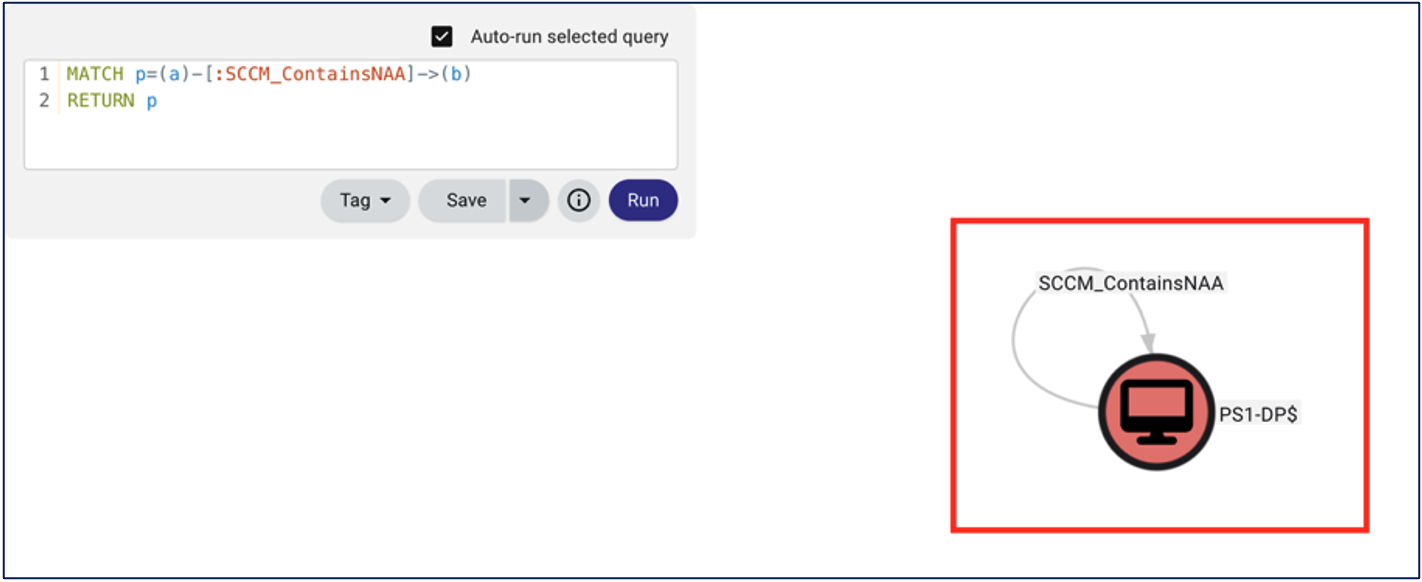
This deception solution is documented in CANARY-1 of the Misconfiguration Manager project. Defenders can create a canary NAA by creating a new user in Active Directory using a similar naming convention to other SCCM related services (e.g., “<DOMAIN>-SCCM-NAA” or “SVC-SCCM-NAA“). This deception solution can be used to detect adversaries using opensource SCCM tooling to enumerate or steal the credentials of NAA accounts, such as Chris Thompson’s SharpSCCM and Adam Chester’s SCCMWTF.
Note: The range I’m using for the practical setup examples is different from the “sample_data” range from the ConfigManBearPig project that I’m showing in the BloodHound OpenGraph screenshots.
- Upon a DC run: dsa.msc
- Create a new NAA within Active Directory by creating a new user utilizing a similar naming convention as mentioned above (e.g., “
<DOMAIN>-SCCM-NAA” or “SVC-SCCM-NAA“) and add a realistic description to the account (ideally something that matches existing NAA descriptions) - Set the password to something that looks realistic (e.g., 16 random characters [Don’t worry. We are going to reset the password with a more secure password later])
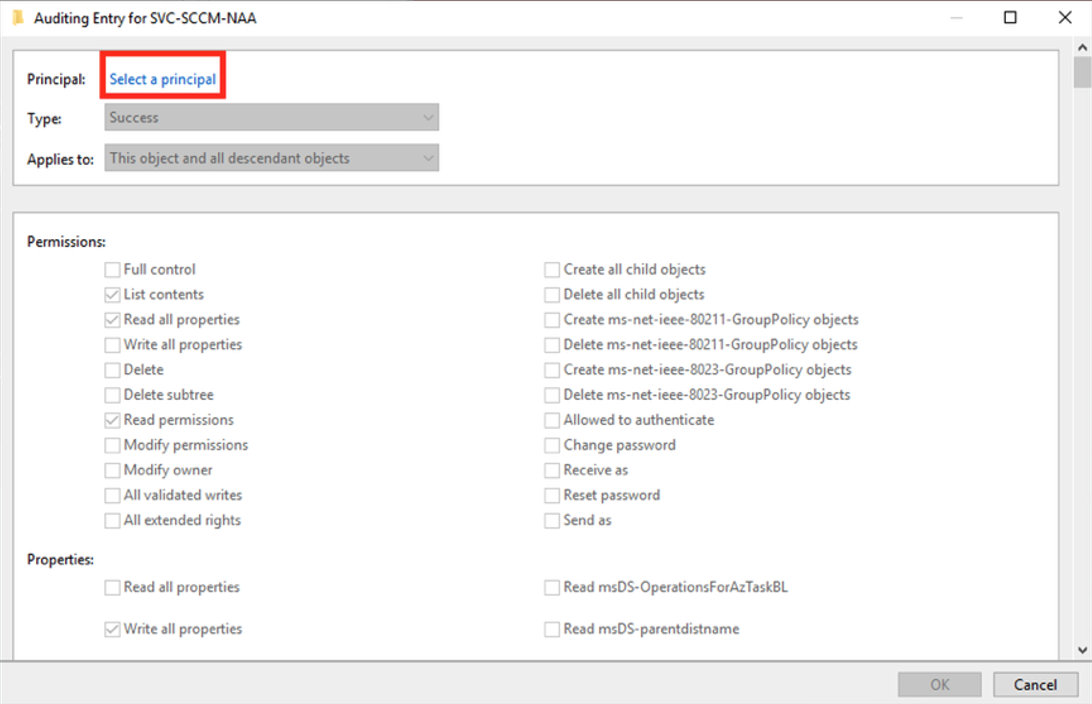
- Once the account has been created in Active Directory, setup SACL auditing on this account by clicking the “Security” tab in the account’s properties
- Click on the “Advanced” button and click the “Auditing” tab
- Click the “Add” button
- On the “Auditing Entry for <ACCOUNT>” pop up, click the “Select a Principal” button

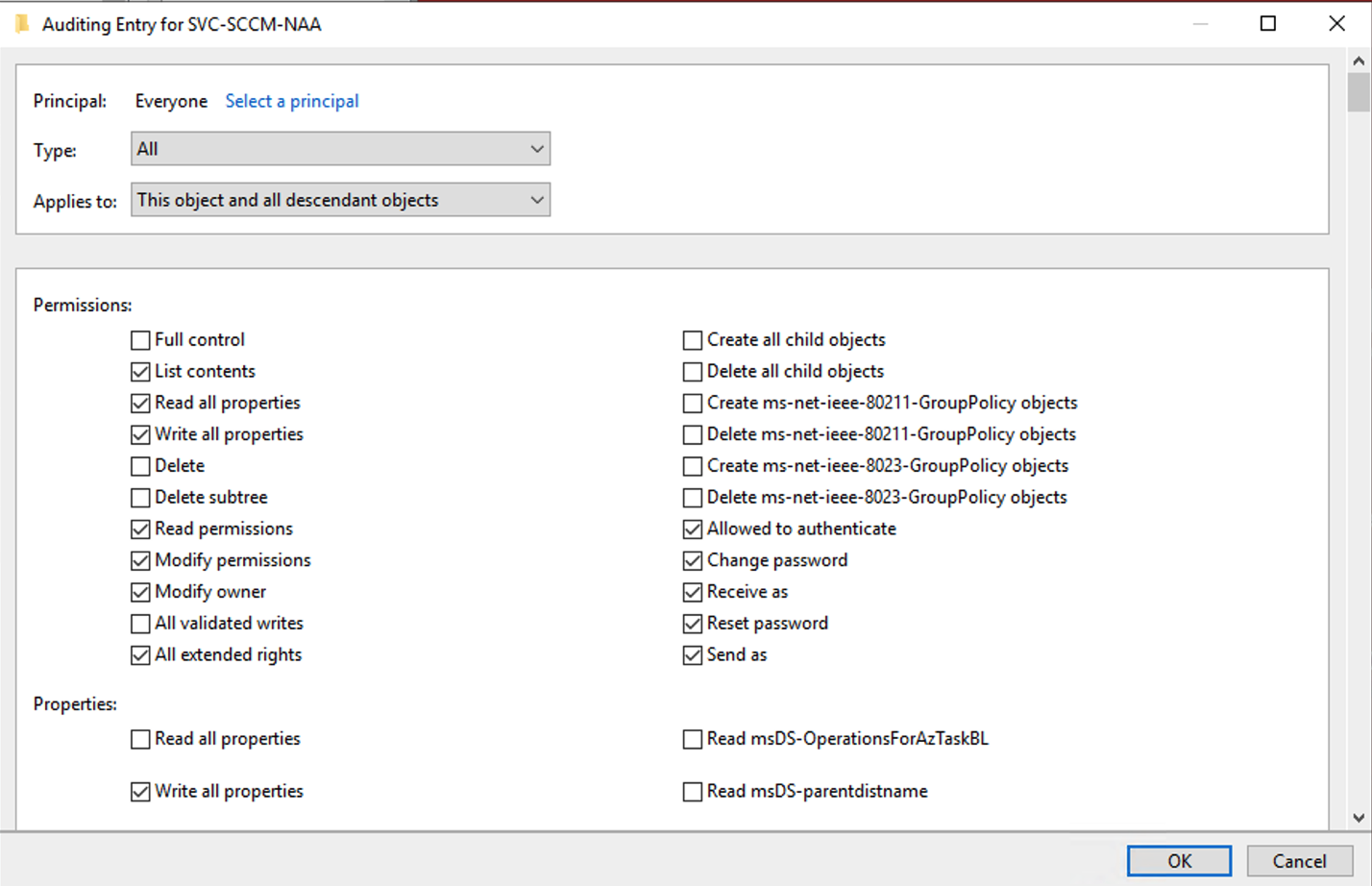
- For the principal to audit, select “Everyone” and click “OK”
- For the “Type” drop down, select “All”
- For the permissions to audit, click the check boxes for:
List Contents
Read all properties
Write all properties
Read permissions
Modify permissions
Modify owner
All extended rights
Allowed to authenticate
Change password
Receive as
Reset password
Send as
Read msDS-OperationsforAzTaskBL
Read msDS-parentdistname
To create an effective deception solution, defenders can edit the account to restrict interactive logons and avoid creating a new exploitable Attack Path.
- Still staying within dsa.msc, right-click the account and click the “Account” tab
- Click the “Log On To…” dialog button
- Select “The following computers” and leave the box blank
- Click “OK” and then “Apply” to save the configuration
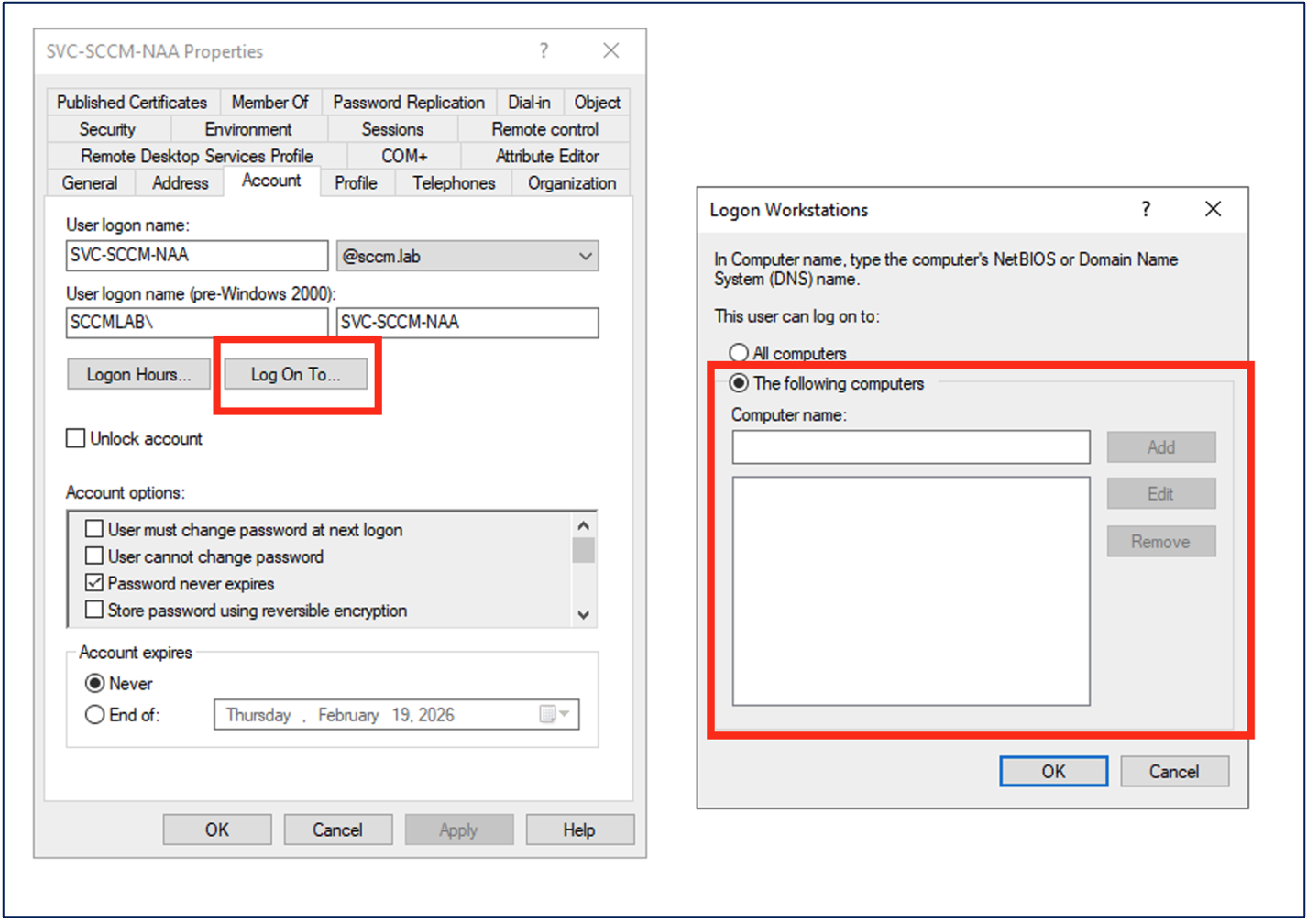
To ensure that this account cannot be misused, ensure that the account is configured so that:
- The password never expires
- The user cannot change the password
Once the account has been created in Active Directory and the SACL has been set on the account, log into the System Center Configuration Manger console:
- Once logged in, navigate to the “Administration” menu and click the “Site Configuration” drop-down
- Click on the “Site” link and choose the site for which you want to deploy the canary NAA
- Click “Configure Site Components” and select “Software Distribution”
- Once the pop up appears, select the “Network Access account” tab and click the sun icon to select the new NAA canary
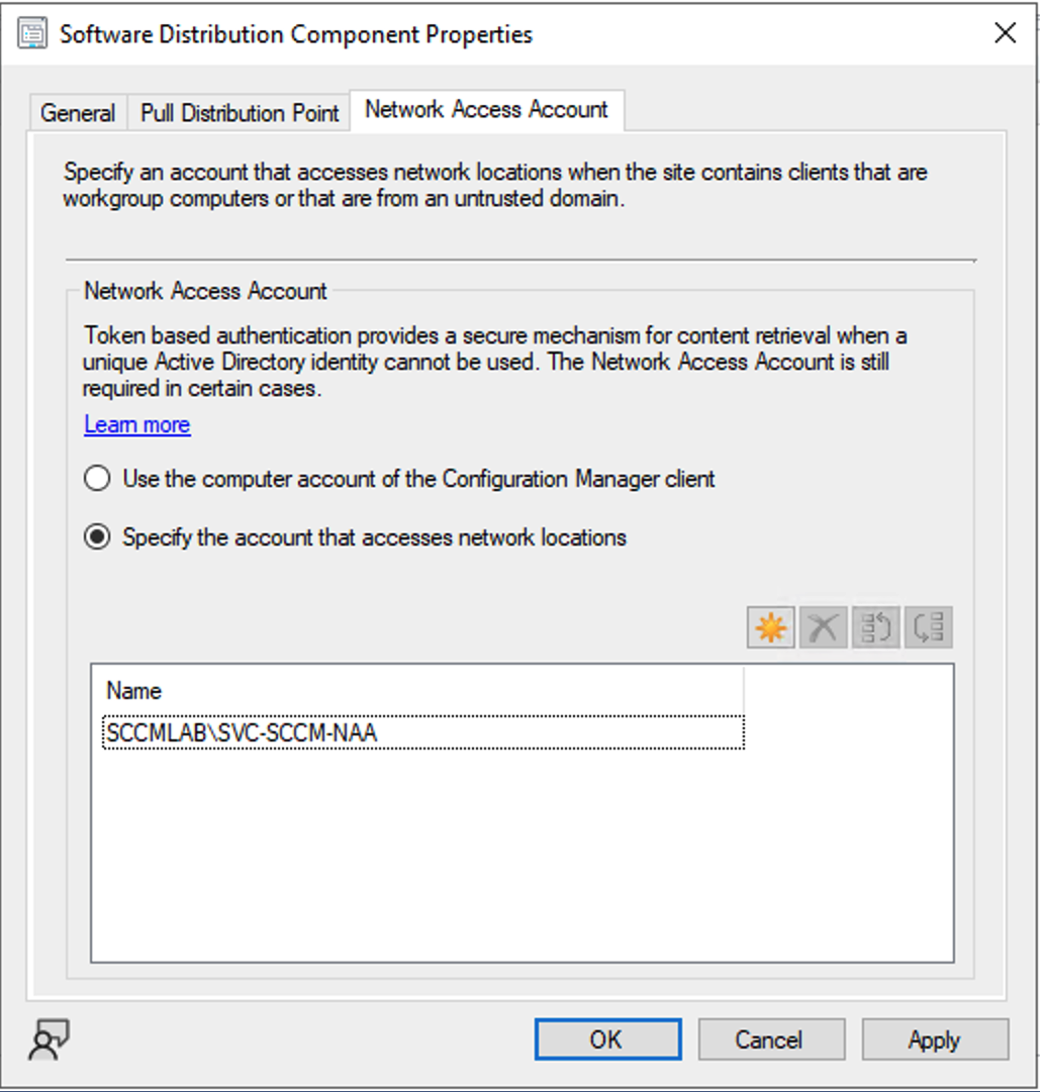
SUPER IMPORTANT NOTE (Seriously! Don’t skip this!)
Now that the account has been created in Active Directory and added as a NAA to SCCM, you’re going to want to rotate the password of the NAA account in Active Directory to a new 64 random character password (More on this later).
We can model the NAA canary within BloodHound OpenGraph by utilizing the cloneDeception.py script to insert the custom edge to the Distribution Points for the site the NAA canary is implemented in.
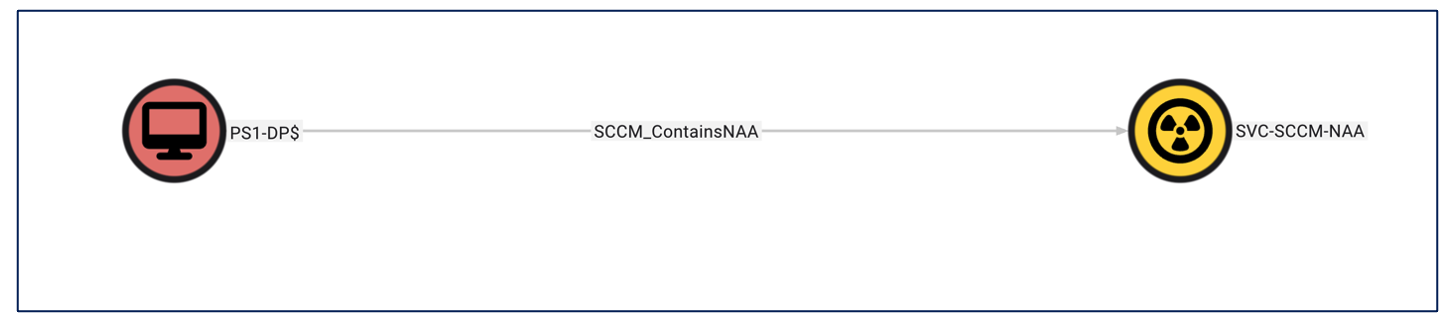
As per the Misconfiguration Manager project, multiple techniques leverage connecting to and interacting with Distribution Points. For example:
- CRED 1: Retrieve secrets from PXE boot media
- CRED 6: Loot Distribution Points via SMB or SCCM
- ELEVATE 4: Distribution Point Takeover via PXE Boot Spoofing
- ELEVATE 5: Distribution Point Takeover via OSD Media Recovery
- RECON 1: Enumerate SCCM site information via LDAP
- RECON 2: Enumerate SCCM roles via SMB
- RECON 6: Enumerate SCCM roles via the SMB Named Pipe winreg
Deception Solution: PXE Media
In large environments where multiple Distribution Points are deployed, defenders can designate one of the Distribution Points as a PXE media serving file share as a deception solution for the most realistic approach. Distribution Points serving PXE media files will typically have a REMINST (RemoteInstall) directory and a SMSTemp share accessible for the Authenticated Users group to “Read.”
Defenders can replace the existing legitimate PXE media with PXE Boot file structures from a lab environment (e.g., SCCM Ludus). From the perspective of an attacker, it would be very difficult to determine if the PXE boot media stored within SMSTemp share is legitimate or fake without accessing and enumerating the ACL to determine if a SACL was set.
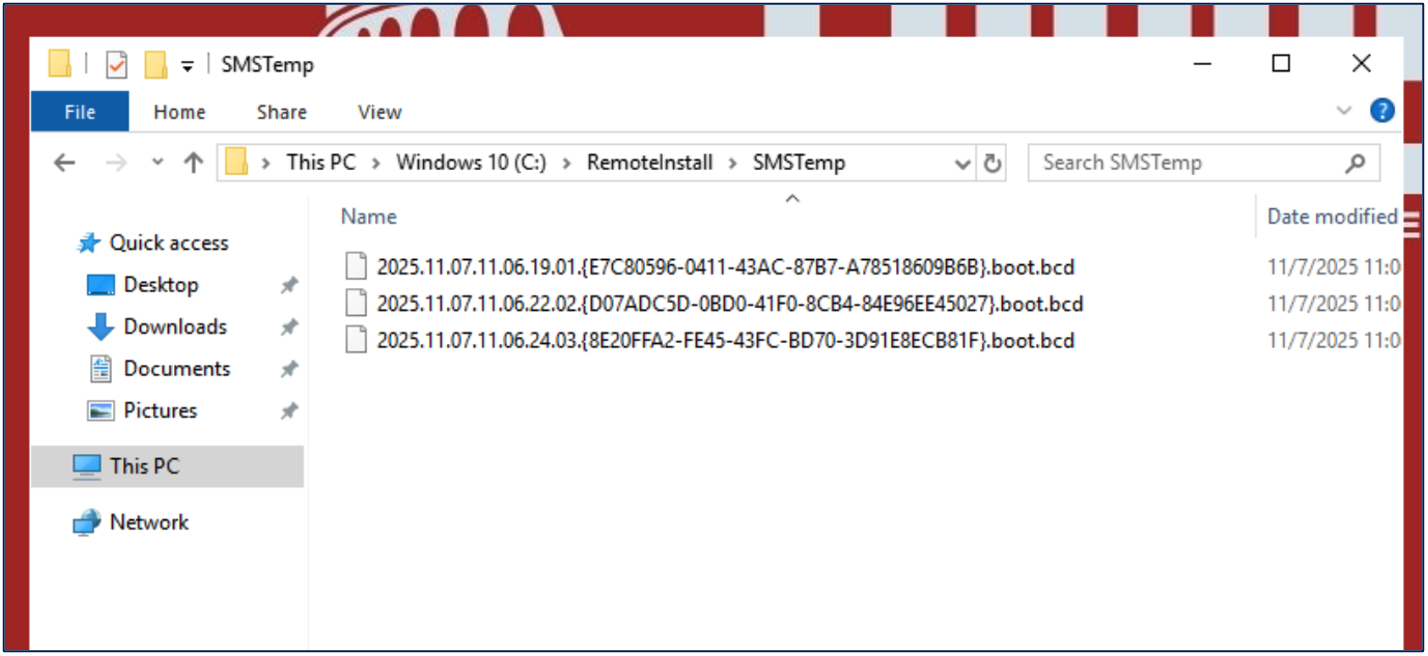
Defenders can enable file auditing SACLs on the fake PXE media to determine access attempts to these files. Additionally, on the Distribution Point server hosting the REMINST directory and SMSTemp share, defenders can enable the “Detailed File Share” auditing sub-category via Local Group Policy or a group policy object (GPO) targeting this system specifically.
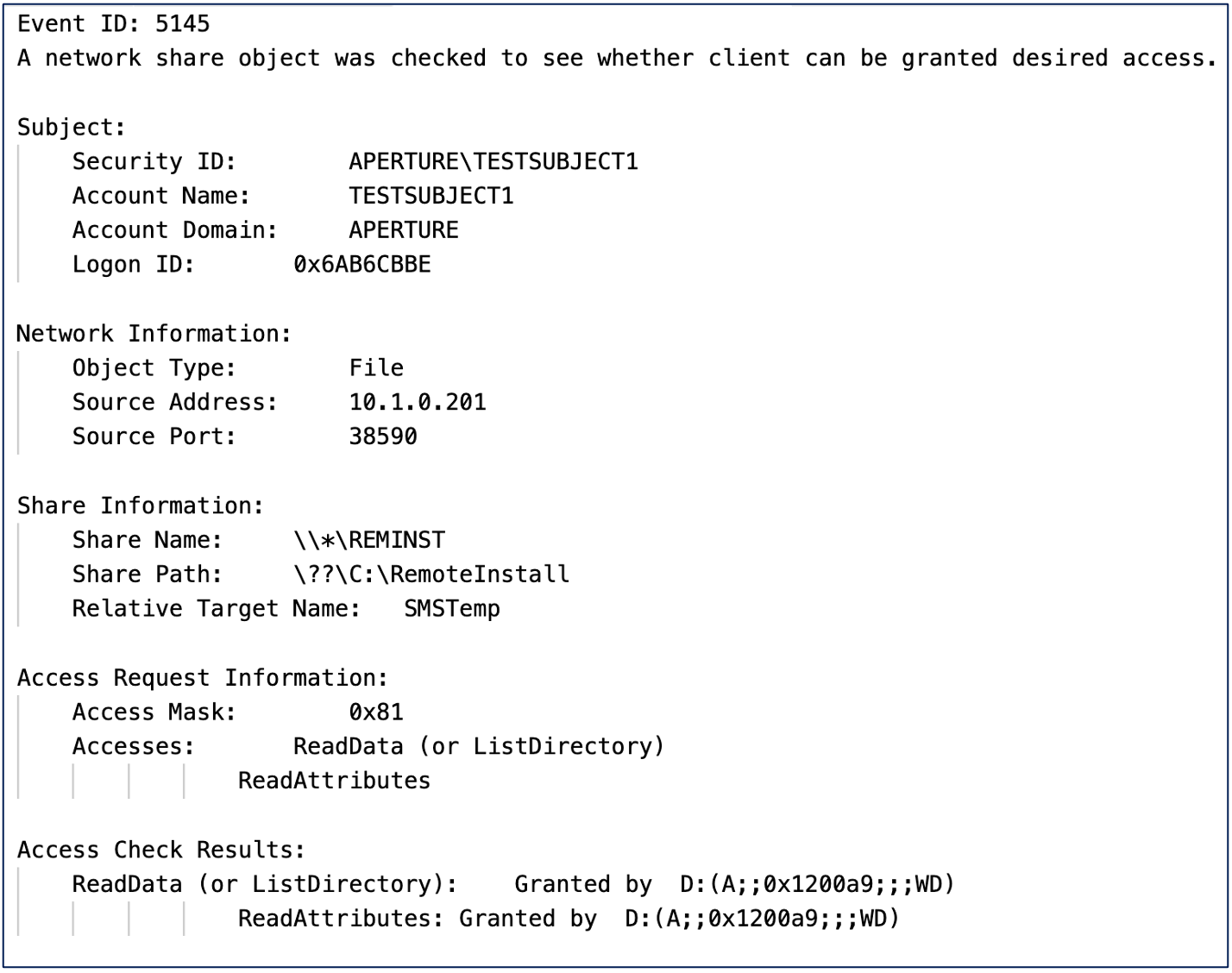
We suggest “Detailed File Share” auditing over “File Share” auditing even though the former is well-known for being overly verbose, due to the fact that the “Detailed File Share” auditing generates an Event ID (EID) 5145 (i.e., “A network share object was checked to see whether client can be granted access”) which provides valuable details such as the specific file that was accessed, the access check results, and even the user that committed the access attempt. Additionally, since this member server is used as a deception solution, the volume of logs accessing the SMSTemp share path should be relatively low. Below is an example of the “Detailed File Share” auditing Event ID 5145 during an access attempt of PXEThief:
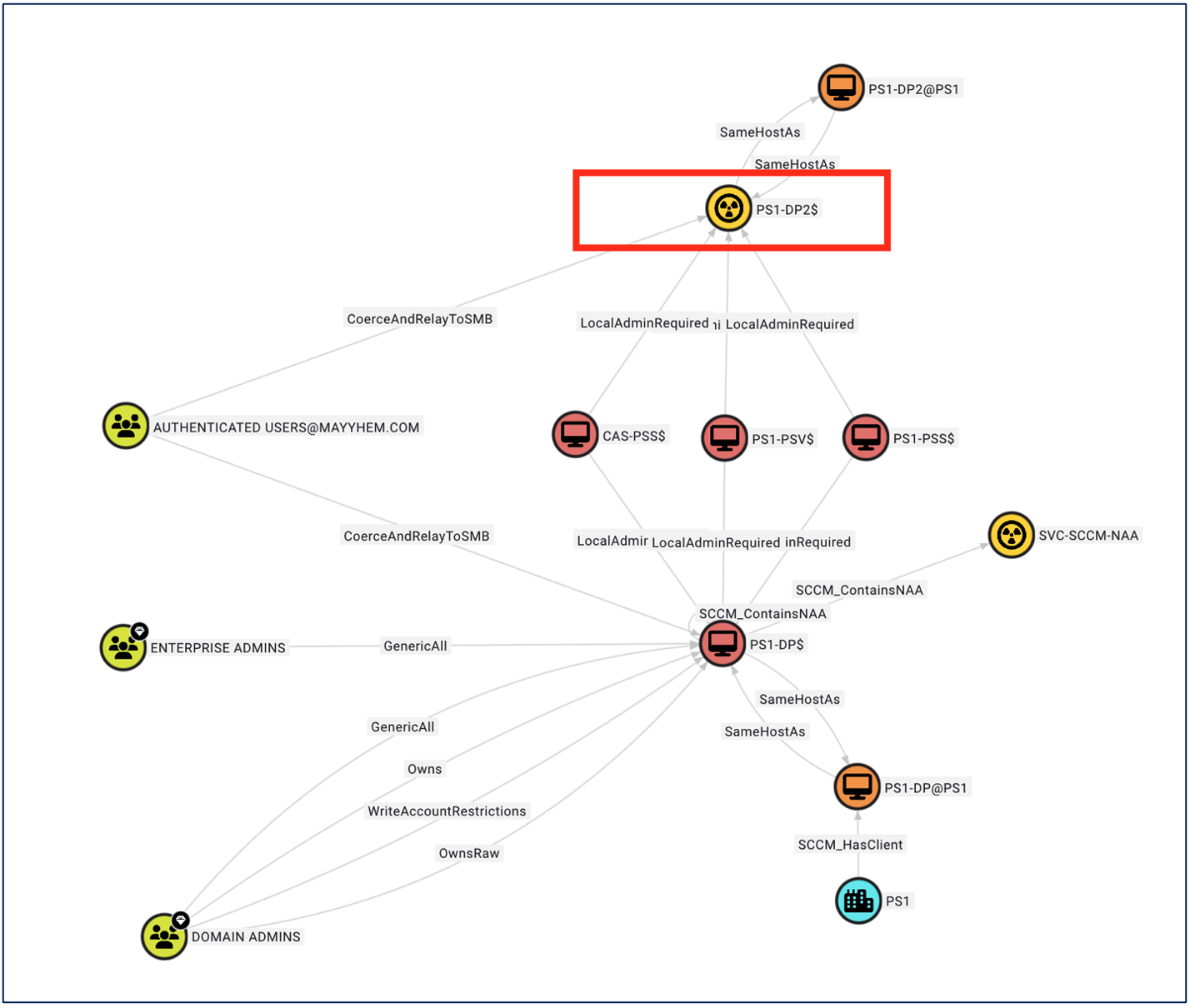
Defenders can utilize the deceptionClone project to clone the selected Distribution Point serving the canary PXE files and mark the Distribution Point as a deception solution within BloodHound OpenGraph. The following command will take the targeted Distribution Point and mark the server as a deception solution within OpenGraph:
python3 deceptionClone.py --in ./ConfigManBearPig_Output1.json \
  --out ./SCCMHound_Output2.json \
  --pretty \
  decept-node --id "S-1-5-21-1642199630-664550351-1777980924-34103" \
  --name "SITE-DP2" \
  --description "Canary Distribution Point"
The following image displays an example of having converted the targeted Distribution Point into a deception solution.
Deception Solution: SC_UserAccount Table
When discussing proposed SCCM focused canaries with Chris Thompson, he mentioned the use of the SC_UserAccount table in the SCCM site database server. I was not as familiar with this MSSQL database table as some other sensitive tables (e.g., RBAC_Admins). While multiple techniques from the Misconfiguration Manager project discusses enumerating or harvesting credentials from SCCM related accounts, the CRED-5 technique in the Misconfiguration Manager project provides the most “explain like I’m 5” version of the intended use of this table and the abuse techniques related to it. I’m going to paraphrase it below.
The SC_UserAccount MSSQL database table contains the credentials for the different SCCM accounts used for various purposes (e.g., network access accounts, domain join accounts, client push installation accounts). This table contains username and password pairs as hex-encoded RSA private key encrypted blobs. The SC_UserAccount table containing a SCCM site’s SCCM accounts’ credentials and usernames/passwords can be enumerated from the site server due to the “sysadmin” role over the site database. Additionally, with the site server’s private key, an adversary can decrypt the SC_UserAccount credential blobs.
Garrett Foster‘s SCCMHunter can enumerate the accounts of the SC_UserAccount table and recover the stored credentials via the decrypt command in the admin module using the SCCM server’s private key.
SCCMHunter does not actually use the site server’s private key directly but instead invokes SCCM’s own cryptographic APIs. SCCMHunter indirectly uses the private key by uploading a script to SCCM and leveraging SCCM’s “Run Script” execution capabilities to load the Microsoft.ConfigurationManager.ManagedBase.SiteCrypto::Decrypt function from C:\PROGRAM FILES\MICROSOFT CONFIGURATION MANAGER\BIN\X64\MICROSOFT.CONFIGURATIONMANAGER.MANAGEDBASE.DLL on the site server itself.
Defenders can stage canary expired credentials within the SC_UserAccount MSSQL database table by leveraging the canary NAA account created via the CANARY-1 technique. If you are thinking, “What does he mean by “expired” credentials?”, this is best explained with, “It’s not a bug; it’s a feature.”
SCCM will store the credentials of a service account at the time of configuration and will not continually validate the credential against Active Directory. This feature, while probably annoying for a SCCM administrator, is perfect for a deception solution by ensuring that if the account is stolen, the credentials won’t work.
If you didn’t skip over the seriously important step from above when creating the NAA account, then you’ve already addressed this issue and the NAA canary account in your SCCM configuration SC_UserAccount table is currently set to the incorrect password. Just to reiterate the high-level explanation of the steps above:
- Create a canary NAA service account in AD with a random 16-character password
- Set a SACL on the canary NAA service account in AD
- In the SCCM Console, add the canary NAA service account
- Go back to Active Directory and reset the password to a random 64-character password
I’m a big believer in “trust but verify” and, if you’re like me, you’ll want to do the same thing. Garrett Foster’s tool, SCCMHunter, has an admin module you can use to run the get_creds command to validate the password set for the canary NAA service account in the SC_UserAccount table.
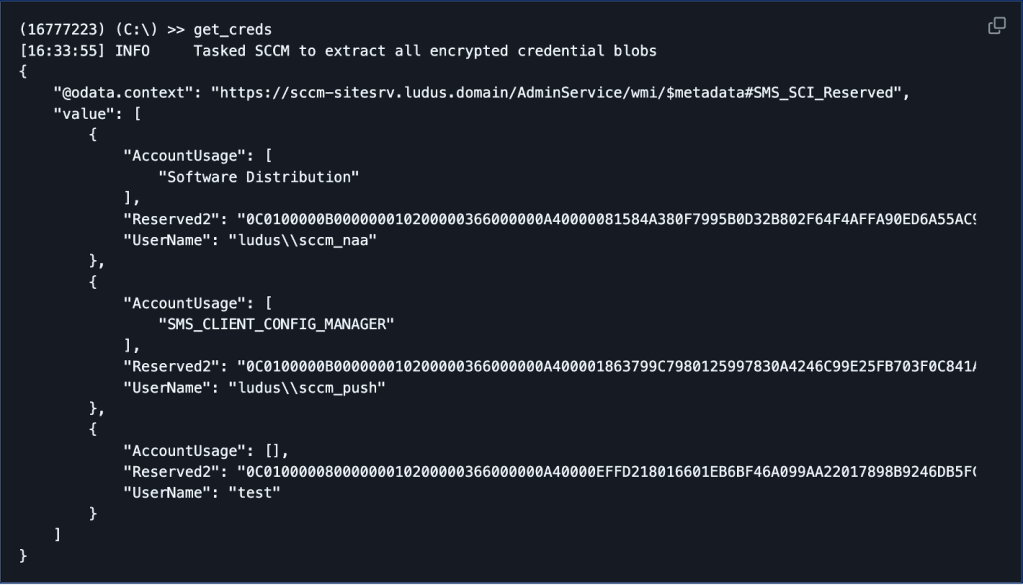
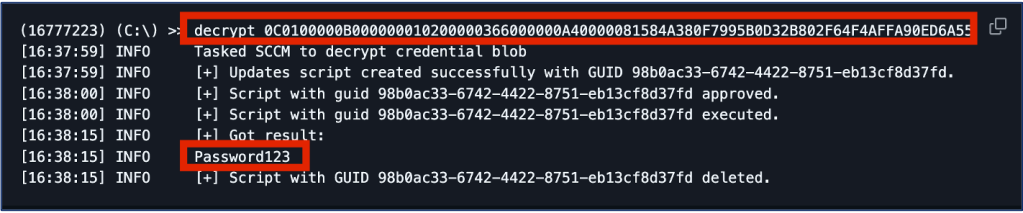
After running get_creds, we can run the decrypt command to validate the credentials are set to the original poor password set for the NAA service account at the time of the addition in System Configuration Manager Console.
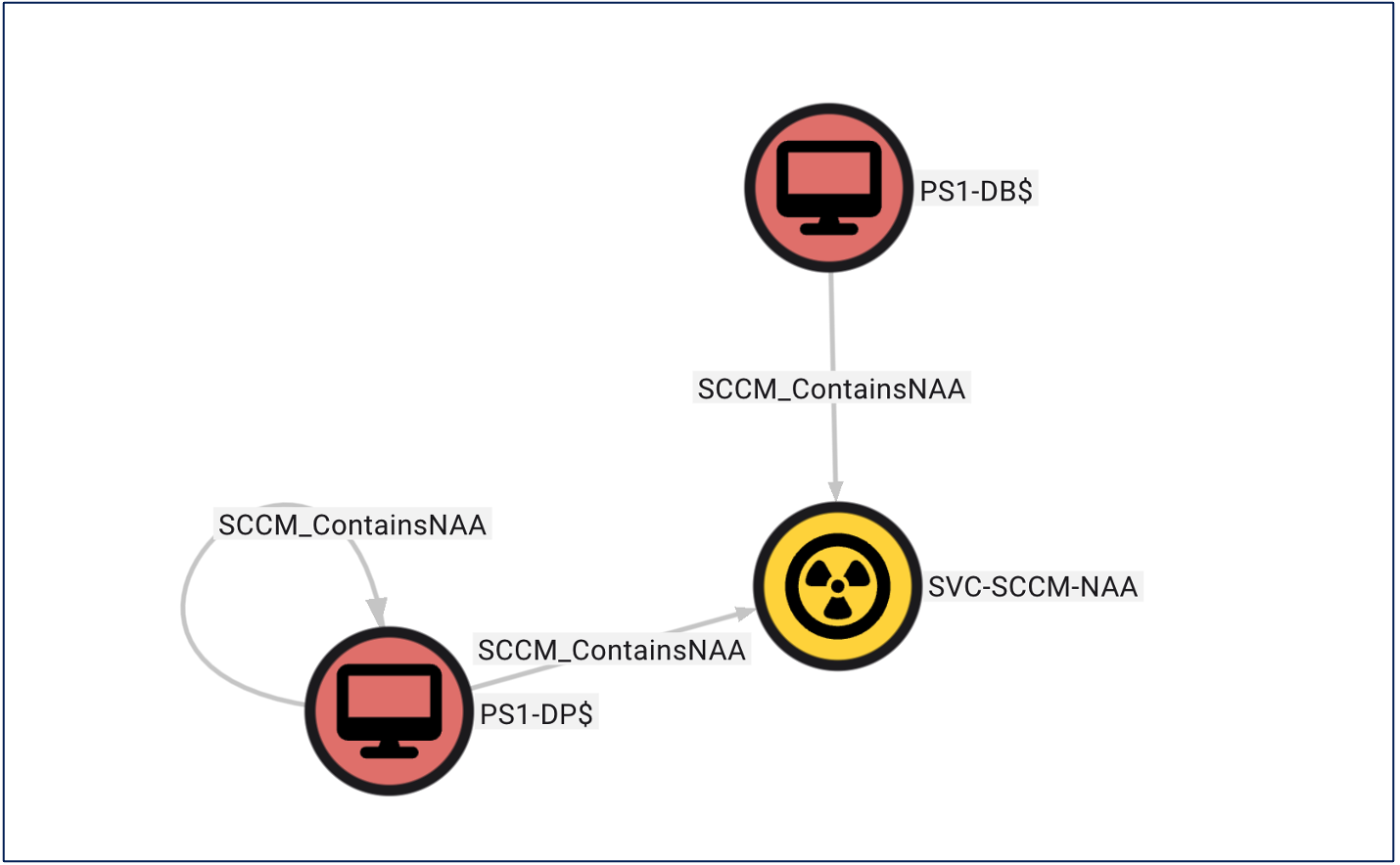
As with our other deception solutions, we can add this canary NAA account to BloodHound OpenGraph for tracking and planning. Like the Distribution Point, ConfigManBearPig doesn’t display a traversable “ContainsNAA” edge by default. Again, this is due to the inability to validate NAA’s credentials. However, thanks to the flexibility of BloodHound OpenGraph, we can modify the ConfigManBearPig JSON output to display the connection between the canary NAA account and the SC_UserAccount within the site database server with “SCCM_ContainsNAA.”
Reliable Auditing
The final step in creating an effective deception solution is to ensure the deception solution is reliably audited. Defenders can audit the NAA canary account upon enumeration and credential abuse by malicious actors by centralizing the previously mentioned SACL events for the NAA canary account (e.g., E ID 4662 [i.e., “An operation was performed on an object”]) and the Detailed File Share audit of the canary Distribution Point (e.g., EID 5145 [i.e., “A network share object was checked to see whether client can be granted desired access”]). However, we need some way to determine when an adversary attempts to enumerate the credentials of the NAA account from the SC_UserAccount table on the site MSSQL site database server. For that defensive technique, we can leverage a custom SQL audit.
To create this SQL audit, SCCM administrators with the rights to connect to the SQL instance of MSSQL site database server via an administrative session can conduct the following actions.
- Typically using Microsoft SQL Server Management Studio (SSMS), authenticate to the database, and select the specific site database the canary NAA account was implemented in
- Navigate to “Security”
- Navigate to “Audits”
- Right-click and select “New Audit”
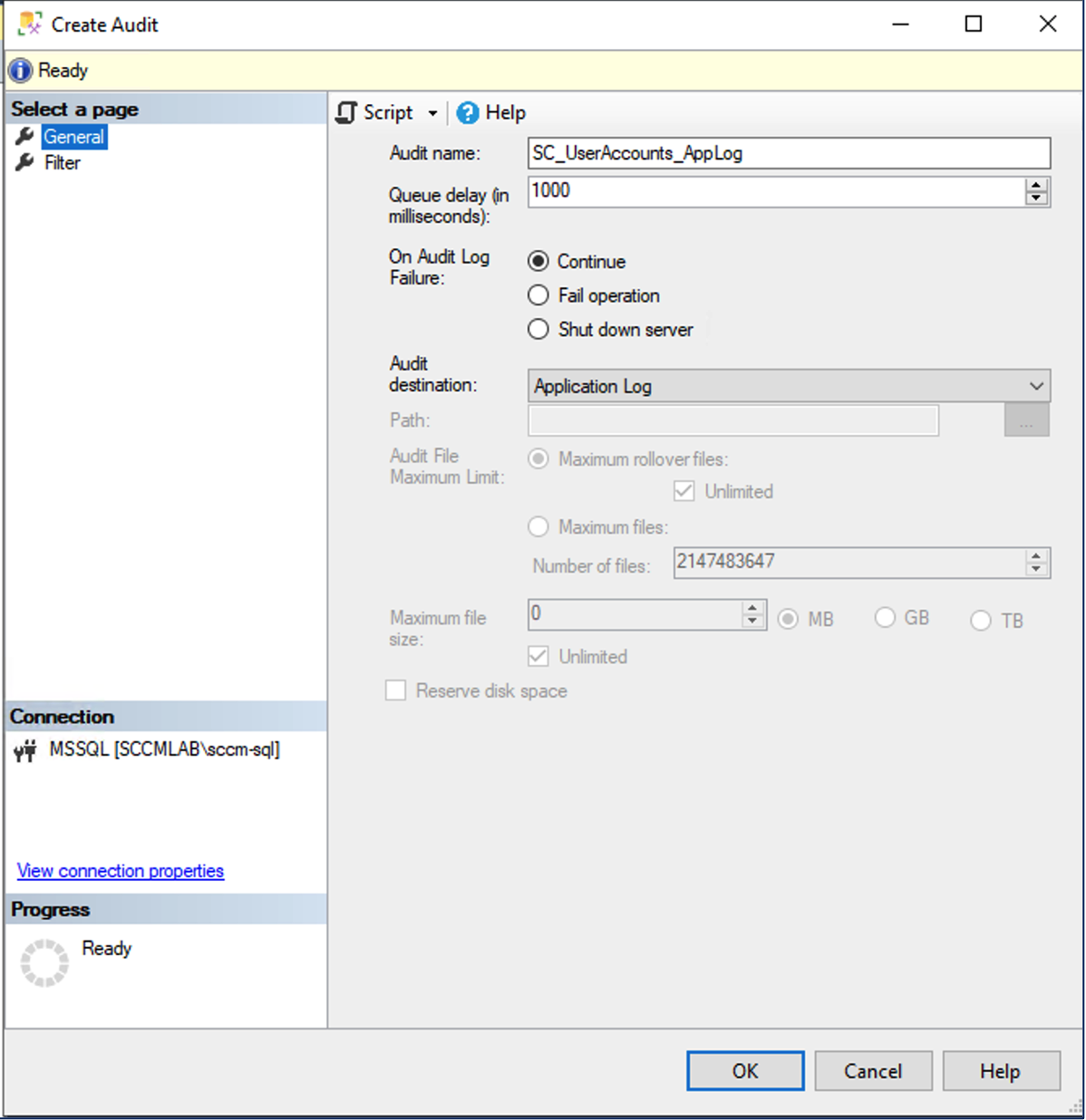
- Give the audit a name that fits your organization (e.g., “SC_UserAccounts_AppLog”)
- For Audit Destination, select either Security or Application log (for my example, I selected Application log

- Click “OK” to save the audit
- Expand the database for your specific site (e.g., PS01)
- Expand Security for your site database
- Right-click “Database Audit Specifications” and click ” New Database Audit Specification”
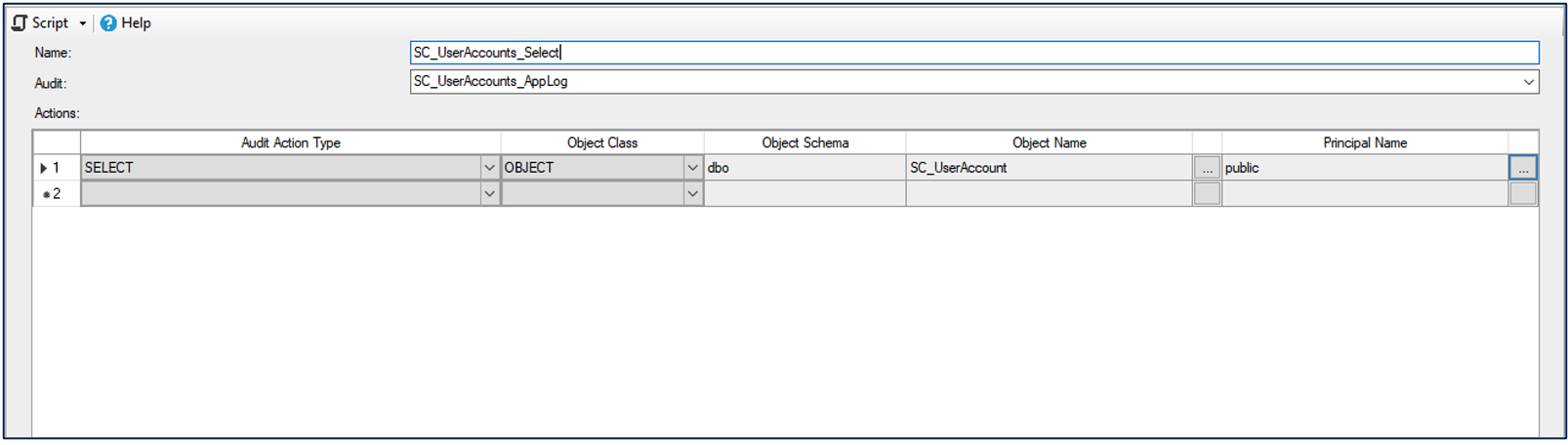
- Name it something specific to your organization (e.g., “SC_UserAccounts_Select”)
- Click on the drop-down and select your “SC_UserAccounts_AppLog” audit
- Click “Add” and input the following details
Audit Action Type: SELECT
Object Class: OBJECT
Object Schema: dbo
Object Name: SC_UserAccount
Principal Name: Public (This will capture every account that attempts to generate aSELECTon the table)
- Click “OK”
- Right-click SC_UserAccounts_Select and select “Enable Database Audit Specification…”
- Go back one level higher to “Security”\”Audits”
- Right-click “SC_UserAccounts_AppLog” and click “Enable Audit”
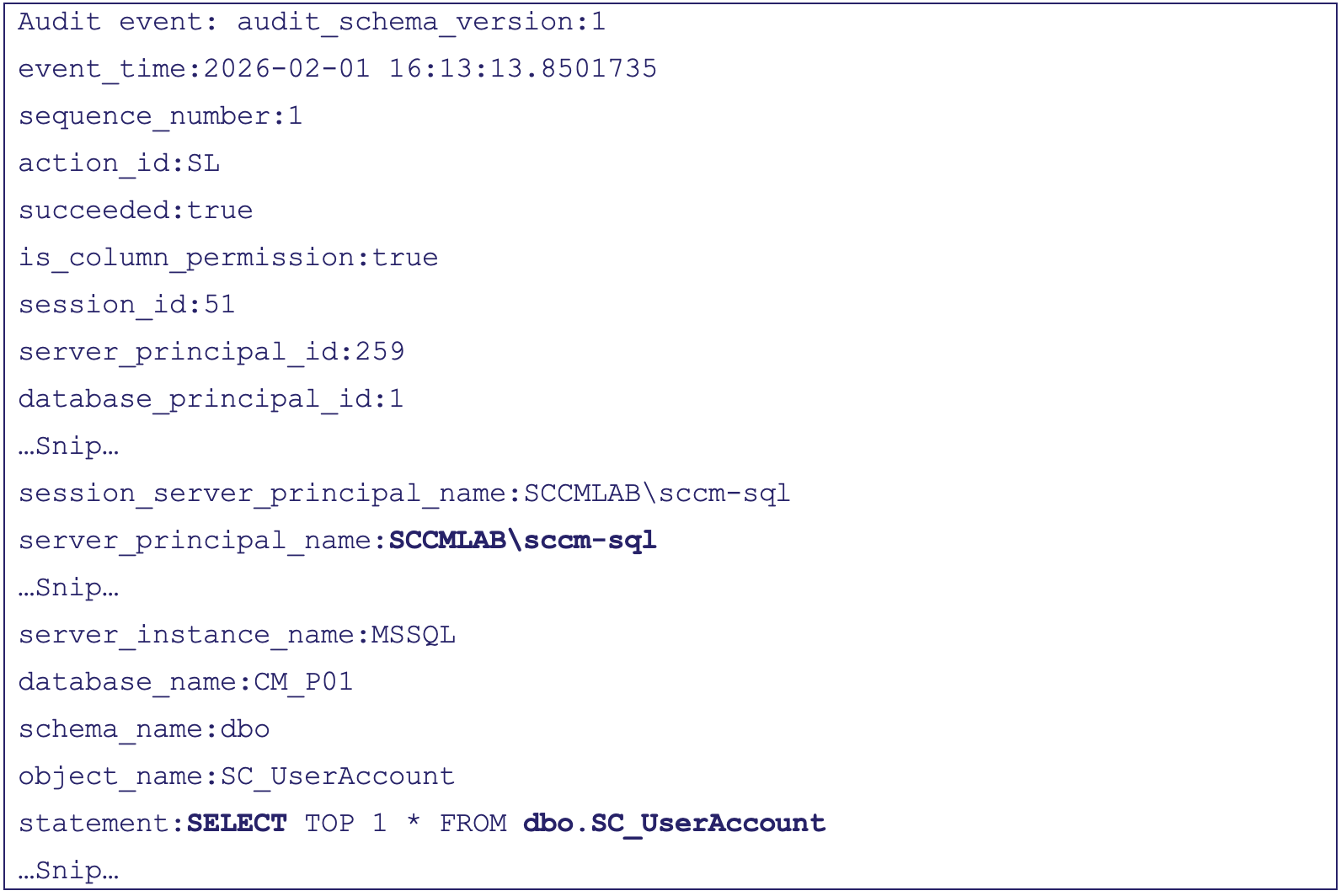
Using the above mentioned steps with SCCMHunter, we can test this audit by simply running a select command against the SC_UserAccount table with the same account that we used to create the audits and sqlcmd:
sqlcmd -S MSSQL -E -d CM_P01 -Q "SELECT TOP 1 * FROM dbo.SC_UserAccount"The audit will generate an EID 33205 (i.e., “SQL Audit”) within Windows Logs\Application log. The log is typically very verbose as it contains quite a few fields, so you may want to handle filtering of the extra information at the data shipper level.
EID 33205:
Note:
I haven’t tested this particular detection method in production, so there may be legitimate SCCM services that are constantly running SELECT against the SC_UserAccount table in the site database server all the time. In my lab environment, the only instances I see are the ones generated via the previously mentioned test. As with anything, trust but verify and baseline, baseline, and baseline. If I get the chance to run this in a production environment in the future, I’ll update this blog. But for now, YMMV.

Finally, we need to determine a detection control for the malicious authentication of the canary NAA deception solution assuming the adversary can steal the password of the NAA from the site database server’s SC_UserAccount table. I had a conversation with Garrett Foster who mentioned the password in the site database server’s SC_UserAccount table would be different than the password in Active Directory so failed logons would occur if the stolen credential were used. Remember that SCCM will save the credential of the added NAA at the time of configuration and, by default, SCCM will not validate the account against Active Directory to determine if the account password changed. Due to this “feature,” the adversary will steal the incorrect password of the NAA deception solution. Defenders can simply leverage failed logon events filtered for specifically the canary account to determine the attempted use of the canary NAA deception solution (e.g., EID 4625 [i.e., “An account failed to log on”]).
Closing Thoughts
Now that we have created three different deception solutions (one of which is more like two birds with one stone), we can accurately identify when adversaries attempt to enumerate and access the boot files and NAAs of our environment.
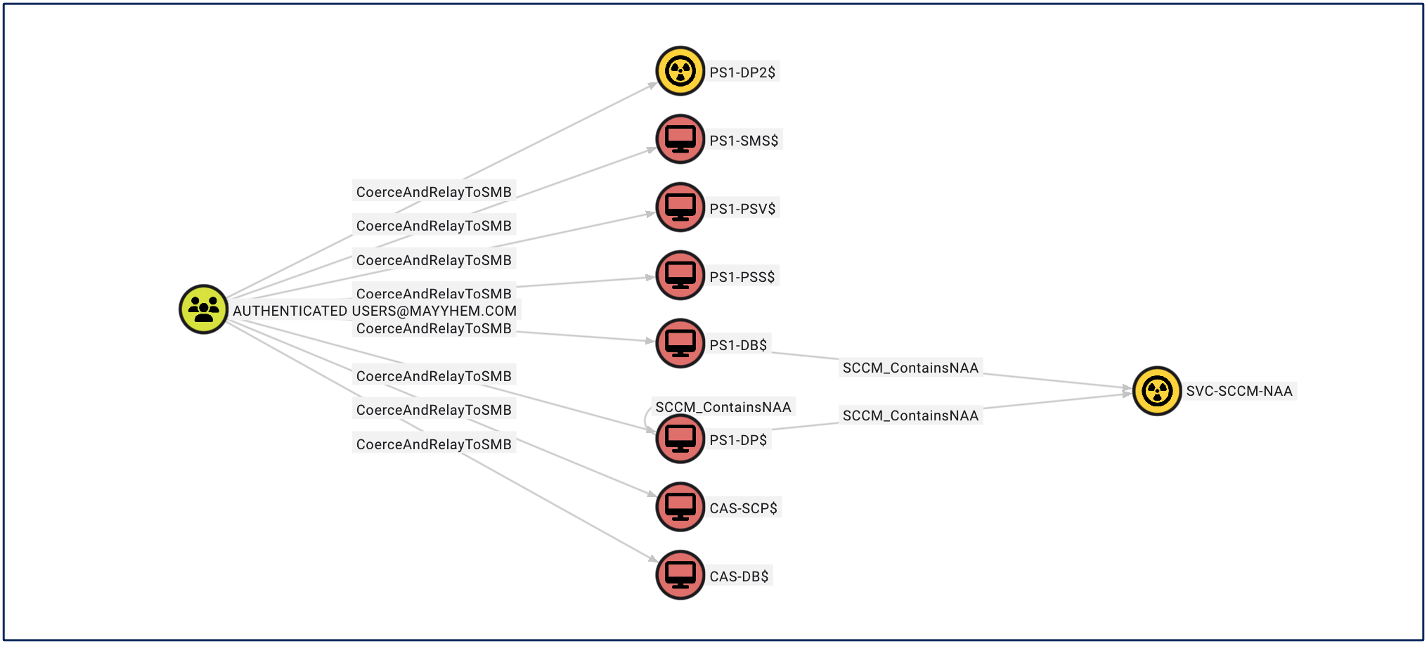
Putting it altogether in BloodHound OpenGraph for the purposes of planning and tracking our deceptions proves invaluable to both detection engineers, insider threat teams, and SOC operators. Next steps, I’ll get these into the CANARY section of the Misconfiguration Manager project. If your environment is using SCCM in some capacity, try to first validate what Attack Paths exists with the Misconfiguration Manager project and ConfigManBearPig. Next, review which Attack Paths can be remediated (e.g., Misconfiguration Manager Remediation Guidance) and which nodes from specific attack paths can be turned into safe deception solutions.