ghostsurf: From NTLM Relay to Browser Session Hijacking
TL;DR: ntlmrelayx‘s SOCKS proxy works great for SMB and MSSQL but fails when you try to browse a web application through it – I dug into why, found several fundamental issues with how it handles HTTP, built ghostsurf to fix them, and along the way, discovered (and circumvented) some undocumented Windows kernel auth behavior. ghostsurf lets you browse web applications that accept NTLM auth (i.e., enterprise password vaults!) as a relayed user through a SOCKS5 proxy, even when cookie theft is not an option.
Tool: https://github.com/senderend/ghostsurf
Where This Started
On a recent assessment, the target environment used CyberArk Privileged Access Manager. The intended workflow for both users and admins was to browse to an internally hosted web interface where they automatically authenticated via windows logon session and copy-pasted passwords from the browser. We compromised a relay position and captured NTLM authentication for a privileged domain account (not crackable). If we could browse CyberArk as this user, we’d have access to every secret this account was provisioned, and could pivot deeper into the environment with our choice of a vast array of services.
ntlmrelayx from the Impacket suite has a SOCKS proxy feature for scenarios like this. After relaying NTLM authentication, it opens a SOCKS5 proxy that lets you route traffic through the authenticated session. This works well for protocols like SMB and MSSQL, where you can point tools like smbclient or mssqlclient through the proxy and attack the target interactively. But when we configured our browser’s SOCKS proxy and navigated to CyberArks’s web interface, we were met with confusion. Basic auth prompts, the connection would hang, partial responses came back corrupted, pages never fully rendered…after extensive searching and conversations with colleagues, a few experienced this but none had solutions.
I spent time troubleshooting proxy settings, trying different browsers, and adjusting connection timing. None of it helped. So I started reading the ntlmrelayx HTTP SOCKS plugin code to understand what was actually happening on the wire, and that’s where things got interesting. Before we dive into implementation, let’s take a look at some background.
The Current State of ntlmrelayx HTTP Browser SOCKS
ntlmrelayx is a venerated tool that most network testers use at some point or another, often to great success. However, it’s designed with command-line tools in mind. What happens when you put a browser through it? Let’s go on a cheeky little journey through the process as it stands today.
First, fire up ntlmrelayx with the appropriate flags and target, as we have all done many times before:
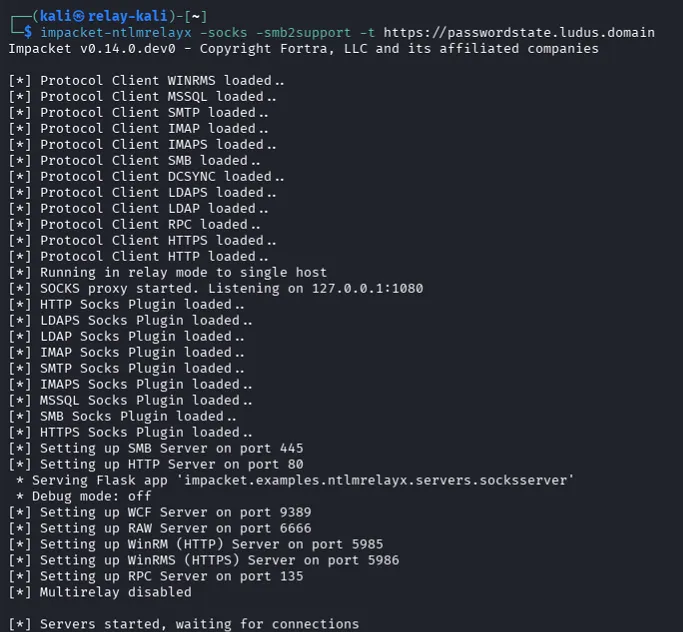
Assuming your relay succeeds, it handles the NTLM handshake, stores the relayed session, dutifully keeps the authenticated TCP socket alive for you with keepAlive requests every 30 seconds, and opens SOCKS proxy for you to connect to and use the sessions. You’ll see in the output that your relay succeeded:

Time to “Enjoy” our new session! Let’s connect up Firefox with the FoxyProxy extension pointed at ntlmrelayx’s default proxy port of 1080/TCP on localhost, browse to the target application, accept the self-signed Impacket cert, and…
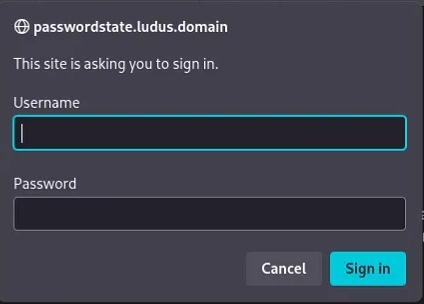
…be greeted by a basic auth prompt. My enjoyment is diminishing already. This is exactly the same basic auth prompt that you’ll receive if you browse to the target application unauthenticated, off SOCKS, no relay, etc. Most operators on a time-bound assessment will conclude at this point that their attack failed, and move on, as we did.
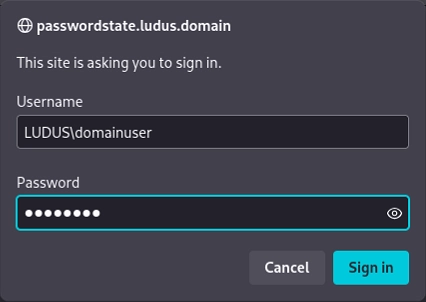
We’ll go into why this basic auth prompt happens later. For now, let’s assume you’re really determined and continue this attempt in my lab. Let’s try giving it a valid domain\user:password combo since this example is in my lab where I know all the credentials.
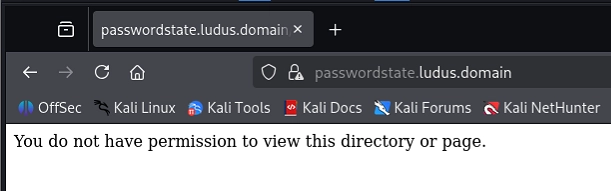
[COOL]
So we’ve relayed a user, connected to socks, and it appears that we’ve now taken a step backwards, as we can’t even log in with valid creds? Lets try one more thing, just because we’re feeling creative. Let’s give it a forward slash between domain and username, even though the application’s basic auth prompt will reject this even with valid creds. Why not?
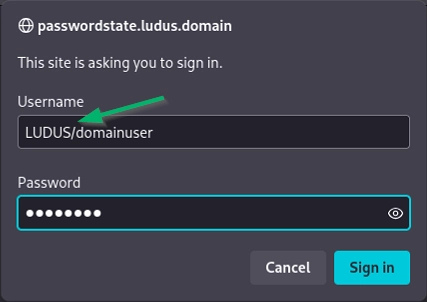
Unbelievably, this works! We’re in! Let’s get at that juicy web interface and get to looting secrets!
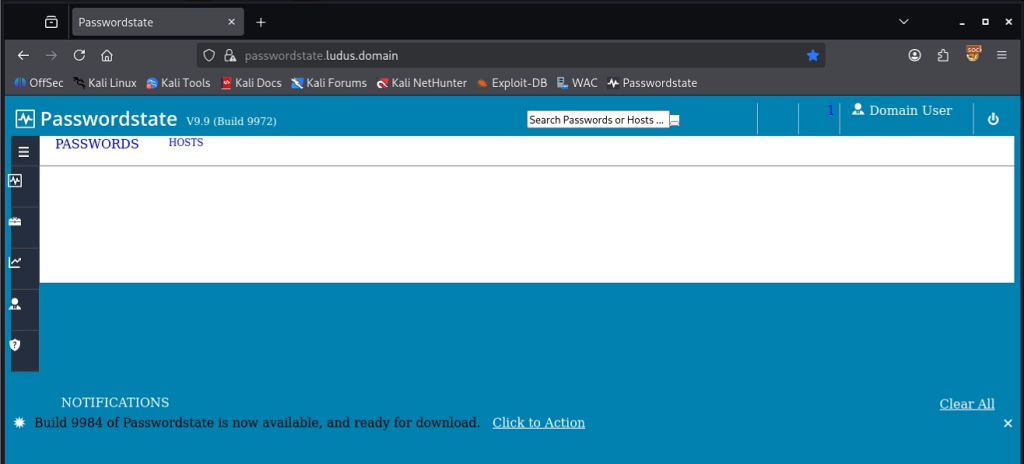
This glitched mess cannot be the UX the web designers intended! After a few unsuccessful clicks, the session crashes, we lose our relayed context, and our little joyride is over.
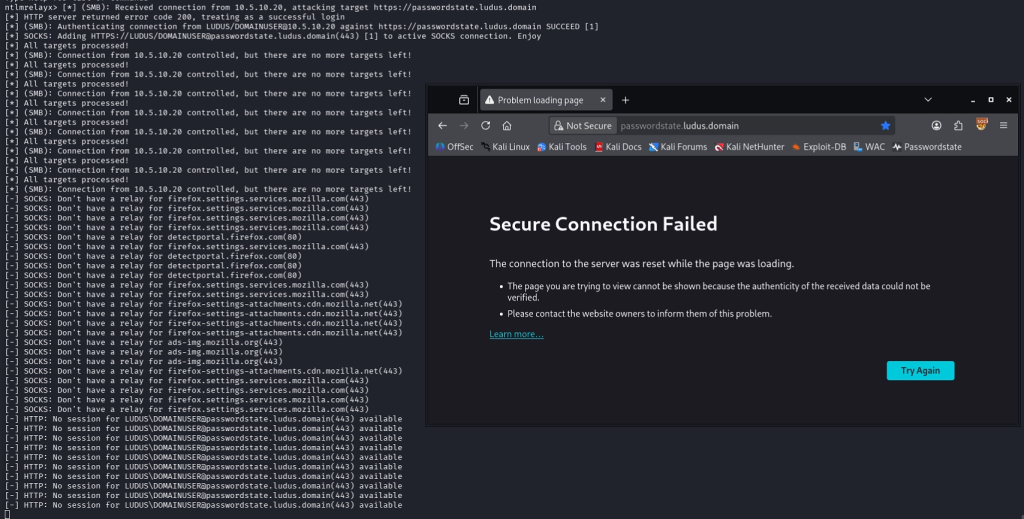
At this point, my curiosity got the better of me. What in the world is going on here?
We’ll go into the technical breakdown of “why” below, but I’ll offer a preview and summary up front: ntlmrelayx was never meant to point a browser through. The same design choices that make it work well from the command line, coincidentally align to make it comically confounding and unusable with a browser in this scenario.
Why is Browser Proxy Broken?
The root issue: ntlmrelayx was designed for tools that make sequential requests on a single connection. Browsers do not work this way.
Unlike most (stateless) HTTP protocols that perform an auth exchange and hand off a cookie, Windows NTLM HTTP authentication is tied to the TCP connection (stateful!). What this means: cookie theft is not an option (see “Caveats” heading below for more detail). The application never even sees your request, or its headers (including cookies) until IIS authenticates the TCP connection.
When ntlmrelayx relays authentication to an HTTP target, the authenticated session lives on that specific socket and every request you want to make as that user must travel through it. For SMB or MSSQL, this is fine; those protocols are connection-oriented. You open a connection, authenticate, and keep using it.
HTTP is different. A browser opens multiple TCP connections in parallel for page resources, prefetch, and concurrent tab requests. It fires off requests across all of them at the same time. But ntlmrelayx has a single authenticated relay socket per session, and the HTTP SOCKS plugin doesn’t coordinate access to it. When two browser connections try to send requests simultaneously, they stomp on each other. One writes a request, the other writes before the first response comes back, and the whole stream gets corrupted before the page can even finish loading.
ntlmrelayx’s SOCKS architecture also uses an inUse flag inherited from the stateful protocol plugins. When one connection uses a session, the flag blocks all others. For SMB, this prevents collision. For HTTP, it means a browser that opens six parallel connections gets five of them immediately rejected.
The Confounding Basic Auth Prompt
Why do we get prompted for auth through a relayed and authenticated HTTP SOCKS session?
ntlmrelayx supports relaying and storing sessions for multiple users, but it needs a way for the user to specify which session to use when connecting thru its SOCKS proxy. The HTTP SOCKS plugin requires Basic Auth headers for to specify the session, which is intuitive enough for command-line tools like curl where response headers can be examined with the debug or verbosity flags.
Unfortunately, this means a browser navigating to a web application via an authenticated ntlmrelayx SOCKS proxy will show a basic auth prompt that appears identical to what an unauthenticated user will receive when navigating to a page protected by Windows NTLM HTTP Authentication. What a browser user can’t easily see, is that this basic auth prompt is coming from *ntlmrelayx,* not the target web application. It’s not actually asking for auth with this prompt, it’s ntlmrelayx’s special way of asking us which session we want to use. This is the unfortunate coincidence that produces the confusing situation laid out in the beginning of this blog. We are in fact authenticated to the web application via our relay, but ntlmrelayx needs us to specify the session before it will forward our requests on through the authenticated socket.
To make matters more confusing, ntlmrelayx requires these basic auth headers even if you only have a single relayed session; it does not auto-select it for you. For the cherry on top, you’ll need to specify your username in domain/user format, with a forward slash, to accommodate command line parsing and escape characters. This is especially confusing in a browser prompt, as the identical-in-appearance basic auth prompt from the web application requires the Windows standard domain\user format (backslash), and will reject a username in ntlmrelayx’s forward slash format. The password field in this session-selection “auth” prompt is just a placeholder, it can be left empty or filled with random characters – its discarded by ntlmrelayx, only the domain/user is used.
The Solution: ghostsurf
ghostsurf is a fork of ntlmrelayx‘s relay and SOCKS infrastructure, rebuilt for browser-based usage.
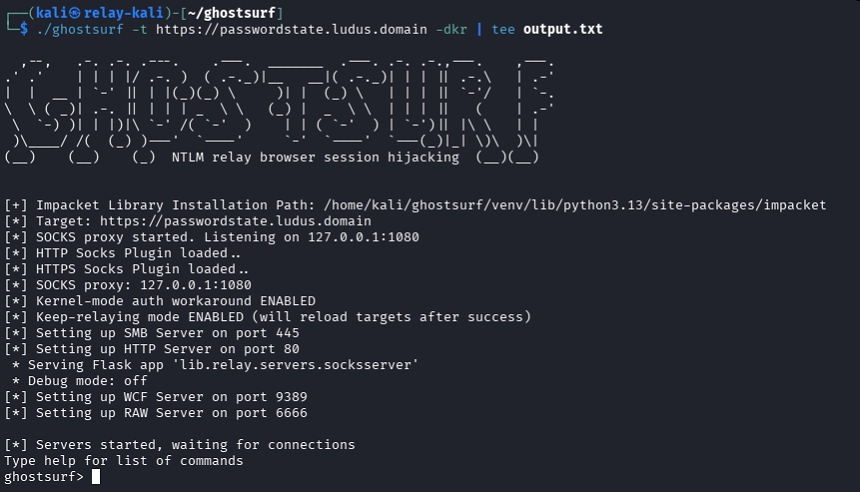
The first problem to solve was concurrent access to the relay socket. Instead of the inUse flag, ghostsurf wraps the relay socket with a mutex-style thread lock. When a browser connection needs to send a request, it acquires the lock, sends through the relay socket, reads the full HTTP response to ensure the relay socket is in a clean state for the next request, and releases. Other connections queue up and wait their turn. This results in a neat serialization of all incoming requests. The browser can open as many parallel connections as it wants without corrupting the relay stream, and they’ll all be funneled into our single authenticated relay socket (slight simplification; see the Kernel Mode Auth section below for some more detail). In my lab network, latency was negligible. Speeds will likely be limited by your operational networking setup before they bottleneck at this request-serialization level.
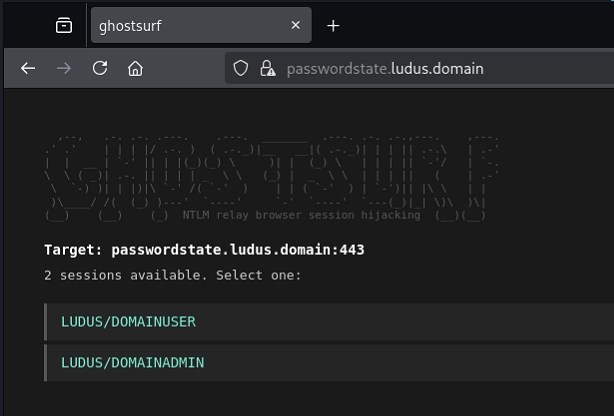
There’s no more basic auth header futzing. If you only have a single relayed session, ghostsurf will auto select it for you, so the browser simply transparently proxies as the relayed user. When you’ve relayed multiple users, ghostsurf will intercept you before page load and serve an HTML selection page in the browser. Click the user you want and the target page will load as them. Under the hood, this sets a cookie that binds all subsequent browser requests to that relay session. When you’re ready to switch user context, closing the browser clears the cookie and the picker will appear again.
ghostsurf also preserves browser headers through the relay. The original ntlmrelayx HTTP plugin strips most headers before forwarding to the target. ghostsurf keeps User-Agent, cookies (stripping only its own session tracking cookie), and other headers that the target application might depend on for state and session tracking.
Kernel-Mode Authentication Research
My initial testing and dev was done against a single-page vibe coded dummy webapp running on IIS with Windows Authentication enabled. With the above reworks implemented, everything was running smooth, but things got more complicated when I tried testing against real enterprise software. I obtained a trial of Passwordstate Password Manager and stood it up in my lab, relayed against it, and the debugging got nasty.
My relays succeeded and the initial page loaded fine; however, on the first navigation click, I was re-prompted for basic auth. Each subsequent click simply brought up another basic authentication browser prompt, and all requests failed after this point.
My first suspect was IIS’s auth persistence settings. authPersistSingleRequest instructs IIS to re-challenge for auth on each request, but it defaults to false, and I confirmed this setting remained intact for Passwordstate along with all IIS defaults. However, even when set to true, this wouldn’t explain what I saw: 30 to 50 authenticated requests returning 200 successfully, followed by a sudden HTTP 401 response. AuthPersistNonNTLM was also irrelevant, as it applied to Kerberos only.
After days of scrutinizing IIS settings and defaults, I noticed that, unlike my manually installed dummy app, Passwordstate installs with IIS defaults, which include the Kernel Mode Authentication setting. This setting moves auth logic from IIS usermode execution, to the kernel level in the HTTP.sys listener. Windows makes auth decisions before they even reach IIS or the application layer.
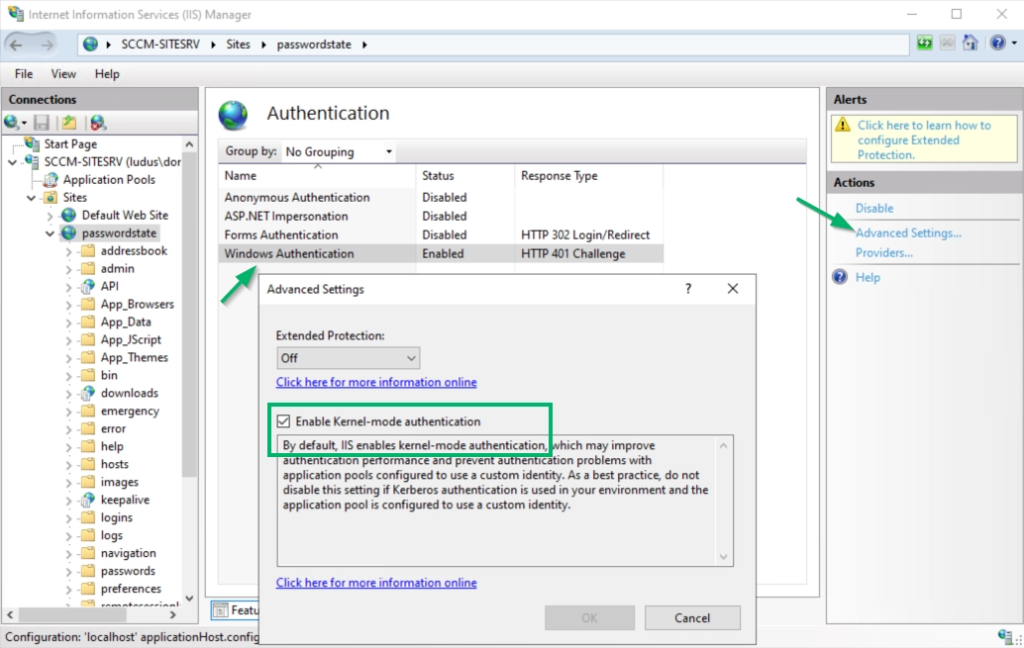
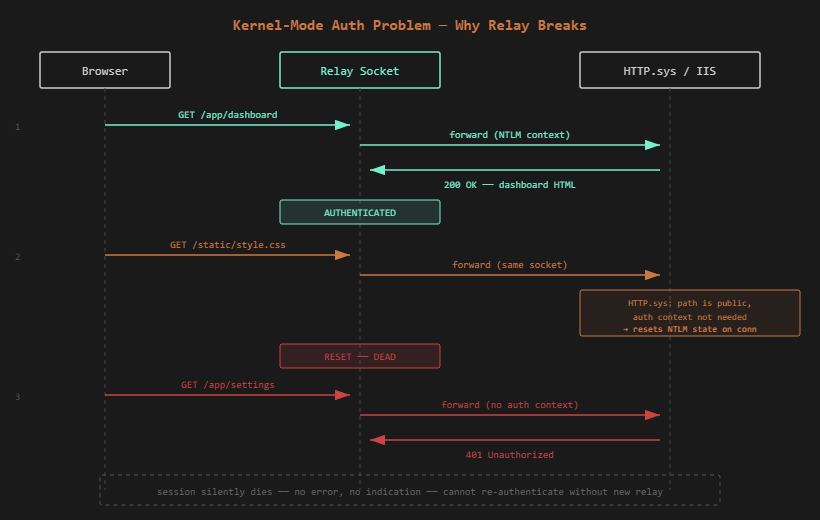
After combing through request logs for days, I noticed a pattern: the 401 re-challenge for auth always came after successful requests to certain endpoints. On closer look, despite the web root requiring Windows Authentication, these virtual directories and URL paths for static content (CSS files, JavaScript, images, fonts, etc.) were set to Anonymous Authentication. This is common in webapps: the browser needs to fetch these to render the page, and they don’t contain sensitive data.
At this point, the pattern was:
- Many successful requests to authenticated resources
- One or more successful request to an unauthenticated (Anonymous) resource
- Failed request to an authenticated resource (401 auth challenge response)
I began to develop a hypothesis: perhaps something reset some sort of auth cache. With usermode auth, IIS appeared to “remember” my authenticated context across any sequence of requests to authenticated and unauthenticated resources. However, in kernel mode (where memory and execution constraints are much stricter), the auth cache appeared to function as more of a binary on-off switch. As long as the browser made sequential requests to authenticated resources, the authenticated context persisted, but on the first request to an unauthenticated resource, perhaps kernel mode “reset” or “downgraded” the auth context to anonymous, in order to strictly match the auth requirements of the resource. When the next request to an authenticated resource came, the current auth context remained set to ‘Anonymous’, triggering a prompt for auth from HTTP.sys.
I searched for confirmation of this behavior extensively. The closest publicly available source code I could find was the ASP.NET Core HttpSys AuthenticationManager, which is the managed wrapper above HTTP.sys rather than the kernel implementation itself, and the Windows Server 2003 IIS authstate implementation, which predates kernel-mode auth entirely. Neither documents the specific behavior I observed. Community observations and even some light reverse-engineering of HTTP.sys also yielded no direct confirmation. However, I had an idea for a workaround that I thought might work against this hypothetical implementation, and decided to test it. Long story short: it worked!
Implementation
For IIS/HTTP.sys targets, ghostsurf implements a probe-first strategy to avoid killing the authenticated session. Before sending a request through the relay socket, it opens a fresh anonymous TCP connection and sends the same request without any NTLM auth. If the server responds with 401, the path requires authentication, so ghostsurf forwards the request through the relay socket as intended. If the server responds with 200 (i.e., “OK”), the resource is public and doesn’t need auth, so ghostsurf returns the anonymous response directly to the browser. The relay socket only ever touches resources requiring authentication.
Probe results are cached by path, so each resource only gets probed once. After the initial page load, cached lookups mean negligible overhead.
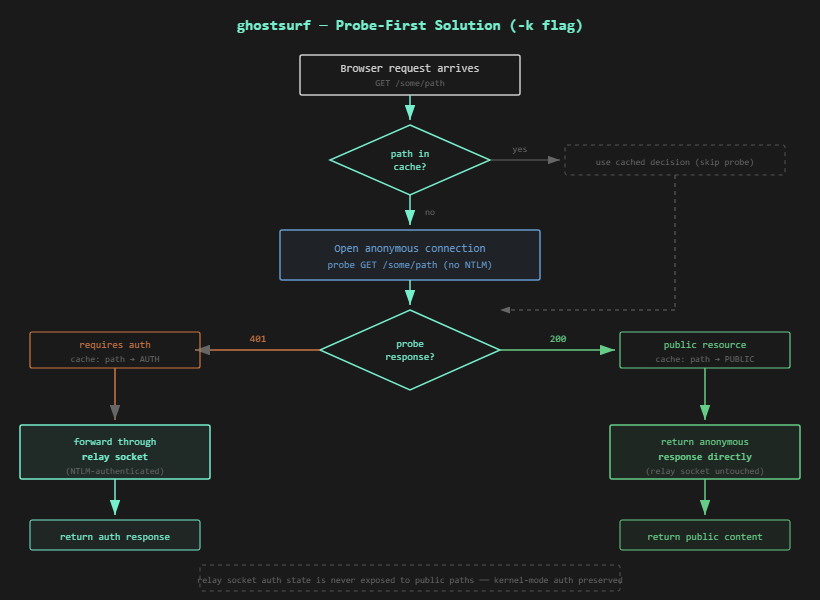
This is enabled with the -k flag. For live ops, especially evasive Red Team ops, I recommend using it by default to avoid killing your relayed session and necessitating another coercion. As mentioned before, Kernel Mode Authentication is enabled by default in IIS 7 onwards.
Usage
Start ghostsurf pointed at a target:
./`ghostsurf` -t <https://cyberark.target.local/> -k -r
The -k flag enables the kernel-mode auth workaround. The -r flag allows multiple captured users to relay to the same target. Without it, the target is marked done after the first successful relay and further auth captures are dropped.
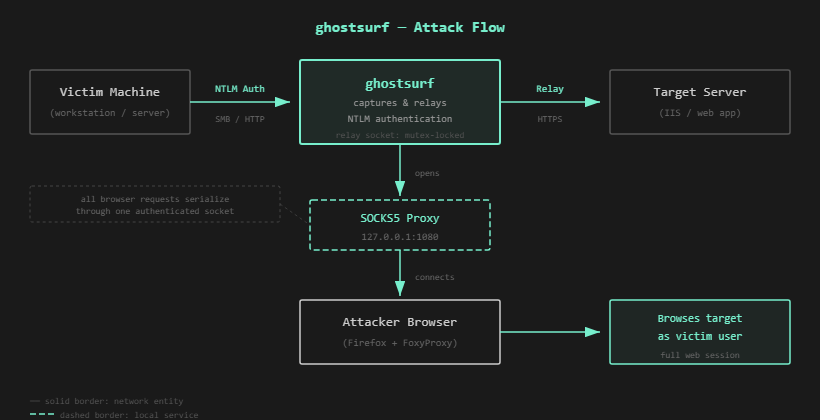
Set up Firefox with FoxyProxy configured as a SOCKS5 proxy at 127.0.0.1:1080. I recommend Firefox over Chrome, as Chrome makes background telemetry and tracking requests that get routed through the proxy, polluting your output with noise. For HTTPS targets, accept the certificate warning for the local SOCKS TLS connection (self-signed cert generated by impacket for the local proxy layer. I also doctored this cert to make it compatible with Firefox’s stricter settings).
Trigger NTLM authentication through whatever method you have (coerced auth, phishing, responder, etc.) Once ghostsurf captures and relays the auth, the session shows up in the interactive shell:
ghostsurf> socks

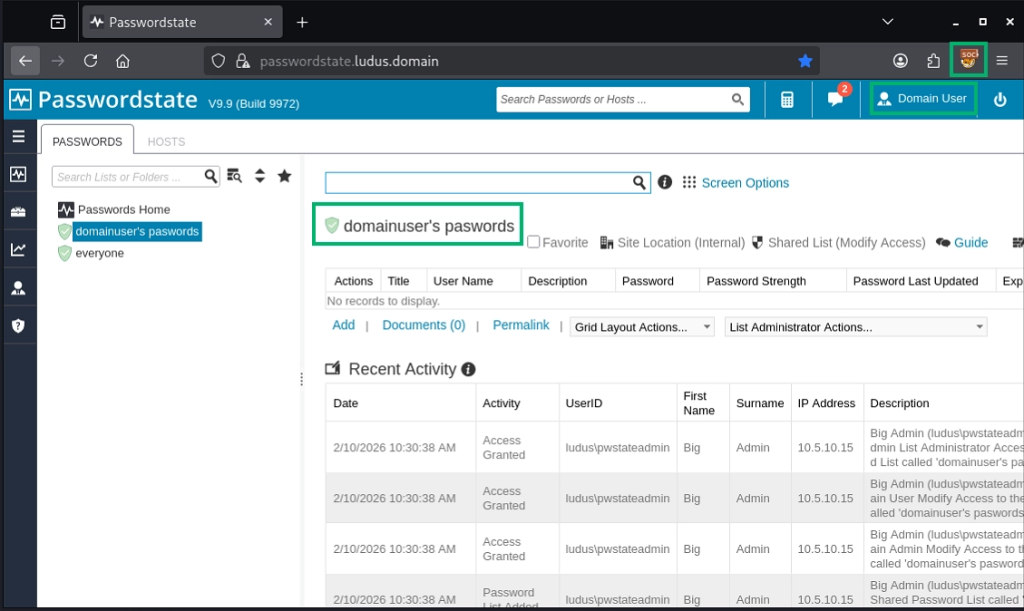
Navigate to the target in your browser. With one relayed session, you go straight to the application. With multiple sessions, you see the session picker. Click one and you’re in.
When to Use -k
Use -k for IIS targets where kernel mode auth is enabled (the IIS default). This commonly includes CyberArk, Passwordstate, Delinea Secret Server, IBM Verify Privilege Vault, Thycotic Secret Server, BeyondTrust Password Safe, OneIdentity Password Manager, SCCM, and others that preserve default IIS authentication settings.
If you’re unsure whether the target uses kernel-mode auth, just use -k. The anonymous probing adds minimal overhead and prevents the silent session death that is otherwise extremely frustrating to debug. Without -k, all requests go directly through the relay socket, which works for targets that don’t use kernel-mode authentication (Windows Admin Center, Apache, nginx, non-IIS stacks).
Additional Targets
Use the ntlmscan tool by nyxgeek to search for viable targets in the environment and reference this list for manual enumeration ideas.
Beyond browsing: recon for further tooling
Some targets are simple enough to reverse with curl and a packet capture. Many aren’t — complex web apps with multi-step workflows, JavaScript-rendered interfaces, and stateful interactions that only make sense in a browser. ghostsurf lets you proxy a browser through the relayed session, interact with the application as the victim, and understand what’s actually there. This hands-on recon lowers the barrier for developing new ntlmrelayx httpattack modules against targets that would have been difficult to reverse without interactive access.
Caveats
ghostsurf shares a single authenticated TCP connection across all browser requests. Performance depends on the target application. Lightweight apps feel snappy. Heavier ones like Windows Admin Center can be sluggish due to very large request sizes. If in doubt, be patient and give the page some time to load before spamming clicks. I’ve optimized the HTTP request parsing and chunking and even the large WAC remoting requests will go through, given a few seconds.
WebSocket connections are not supported. Modern web apps that use WebSockets for real-time features will still load and function for the core browsing experience, just without live updates.
Not All NTLM HTTP Targets Are Equal
Why do we need to proxy in the first place? Why can’t we just just steal the cookies and run?
Anonymous + Windows Authentication enabled
When both Anonymous and Windows Authentication are enabled on an IIS site, the application typically has its own session management layer — an HTTP module that intercepts requests before the native auth pipeline fires. If a valid session cookie exists, the module builds the user identity from the cookie and the request proceeds without an NTLM challenge. If no cookie exists, the module falls through to NTLM, authenticates, then mints a session cookie on the response. Subsequent requests ride the cookie. The NTLM-authenticated connection is no longer needed, and cookie replay works.
Windows Authentication only (Anonymous disabled)
When Windows Authentication is the sole provider, IIS handles NTLM at the pipeline level — and with kernel-mode authentication enabled (the default since IIS 7), HTTP.sys handles it in the kernel on every request to protected paths. No app-layer session cookie is issued that can bypass re-authentication. A browser or request presenting valid harvested cookies gets a 401 from HTTP.sys before the cookies are ever evaluated. In these scenarios, cookies may be used for state management, but not authentication.
In these configurations, cookie replay doesn’t help; the app doesn’t see your cookies until you’ve completed an NTLM challenge. The only way to interact with these targets post-relay is to proxy the browser through the live authenticated connection via SOCKS. This is what ghostsurf does.
Common examples: Passwordstate and other enterprise password managers (configured for AD passthrough SSO), SCCM/MECM IIS site system roles, and the countless internal IIS sites stood up by org admins who enabled Windows Authentication and never thought about it again.
Credits
ghostsurf is built on ntlmrelayx from Impacket. Credit to Dirk-jan Mollema, Alberto Solino, and the Fortra team for the relay framework and the original SOCKS plugin architecture that ghostsurf extends. Credit to Craig Wright for leading the op that inspired this tool, and the suggestion to research it rather than moving on!