Ghostwriter v6.3.0 and CLI v1.0.0: New Activity Logging, Faster Installs, and Better Writing QA
TL;DR: Ghostwriter v6.3.0 makes day-to-day operations faster and more integrated, with a redesigned activity log that ties actions directly to evidence and terminal recordings, dramatically faster installs via published container images, and built-in writing QA through passive voice detection. Alongside it, Ghostwriter CLI v1.0.0 standardizes deployment and configuration workflows. Together, these changes reduce operational friction while improving both execution tracking and report quality.
Ghostwriter is SpecterOps’s engagement management and reporting platform, designed to help red teams and security consultants track operations, manage evidence, and produce high-quality deliverables in one place. It acts as the system of record for offensive operations—capturing what was done, why it mattered, and how it translates into findings.
In practice, Ghostwriter complements tools like BloodHound Community and Enterprise Editions by bridging the gap between technical discovery and client-facing reporting. Where BloodHound helps operators identify and analyze attack paths in Active Directory environments, Ghostwriter is where those paths, actions, and outcomes are documented, validated with evidence, and turned into clear, actionable reports.
Ghostwriter v6.3.0 delivers several significant improvements that meaningfully change how teams install, update, and use Ghostwriter day to day, including:
- A redesigned operation log experience, with built-in support for evidence and terminal recordings.
- Passive voice checking is now built directly into the collaborative editor, providing a lightweight, local QA tool for report writing.
- Production installs now use published container images by default, dramatically reducing install and update time.
Alongside the application release, we’re also shipping Ghostwriter CLI v1.0.0, which formalizes and supports these changes going forward. This post covers what’s new, why it matters, and what existing users should know before upgrading.
New Activity Log with Evidence & Terminal Recordings
The operation log is one of the most heavily used parts of Ghostwriter during an engagement. In v6.3.0, we’ve reworked both the interface and the back-end models to make it more useful during execution and review.
A two-pane interface for faster navigation
We have replaced the previous table view with a two-pane layout, similar to what you’d expect from an email client:
- Left pane: A list of log entries with at-a-glance context
- Right pane: A dedicated details view for the selected entry

All the features you’re familiar with are still here, like customizing which table columns are visible and how they’re sorted. These changes make it easier to scan activity, jump between entries, and review details without losing context. The details pane also serves as the central place for managing everything related to a log entry.
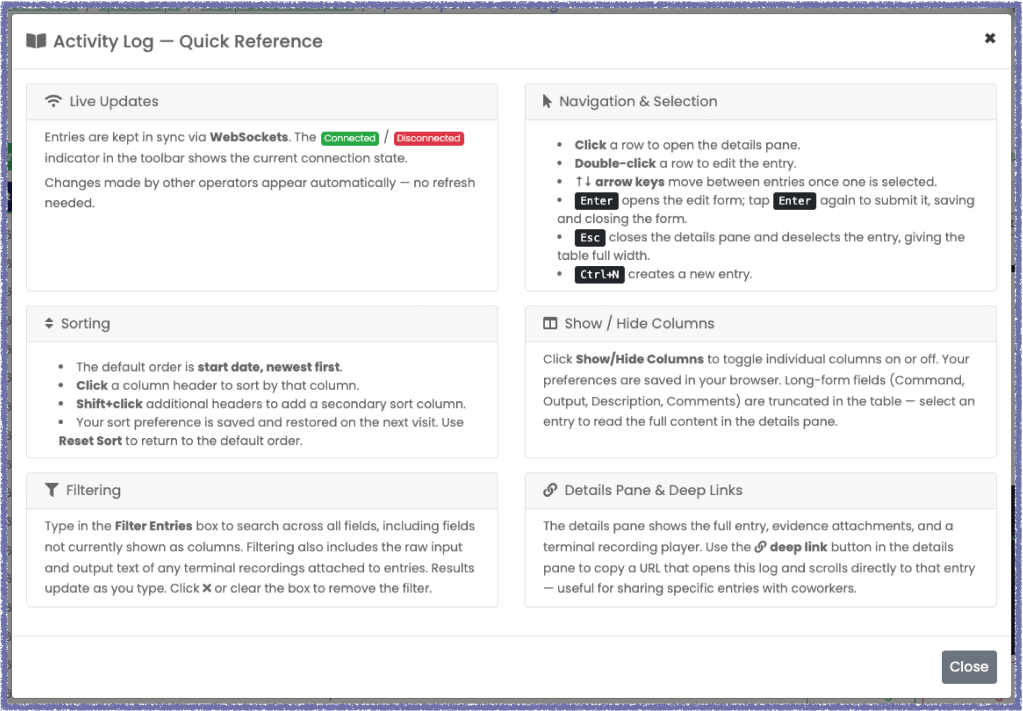
The details pane also includes a new option for copying a deep-link pointing to your log entry. If you ever need to share a log entry with a coworker, it is now easier than ever to do so. Copy the link and send it. Anyone who visits the link will open the log and the relevant entry will be pre-loaded in the details pane and highlighted in the table view.
We’ve also added a new “Help” button with a quick reference card that explains how to use the features of the operation log. The card includes information on keyboard navigation, shortcuts, filtering, sorting, and general usage.
Attach evidence directly to log entries
You can now link evidence directly to individual log entries. Instead of tracking evidence separately and trying to correlate it later, you can attach it at the moment the activity is recorded. Each log entry now includes:
- A dedicated evidence section
- Friendly names and direct links to the underlying evidence
- Automatic tagging when evidence is present
This creates a much tighter relationship between what was done and the artifacts that support it—something that becomes especially valuable during reporting and review. When an evidence file is linked to a log entry, the evidence detail page includes one or more deep links to the associated entries, making it easy to jump directly to the relevant log for context.
Evidence can be attached through both the UI and the API, making it easy to integrate into existing workflows.
Upload and replay terminal recordings
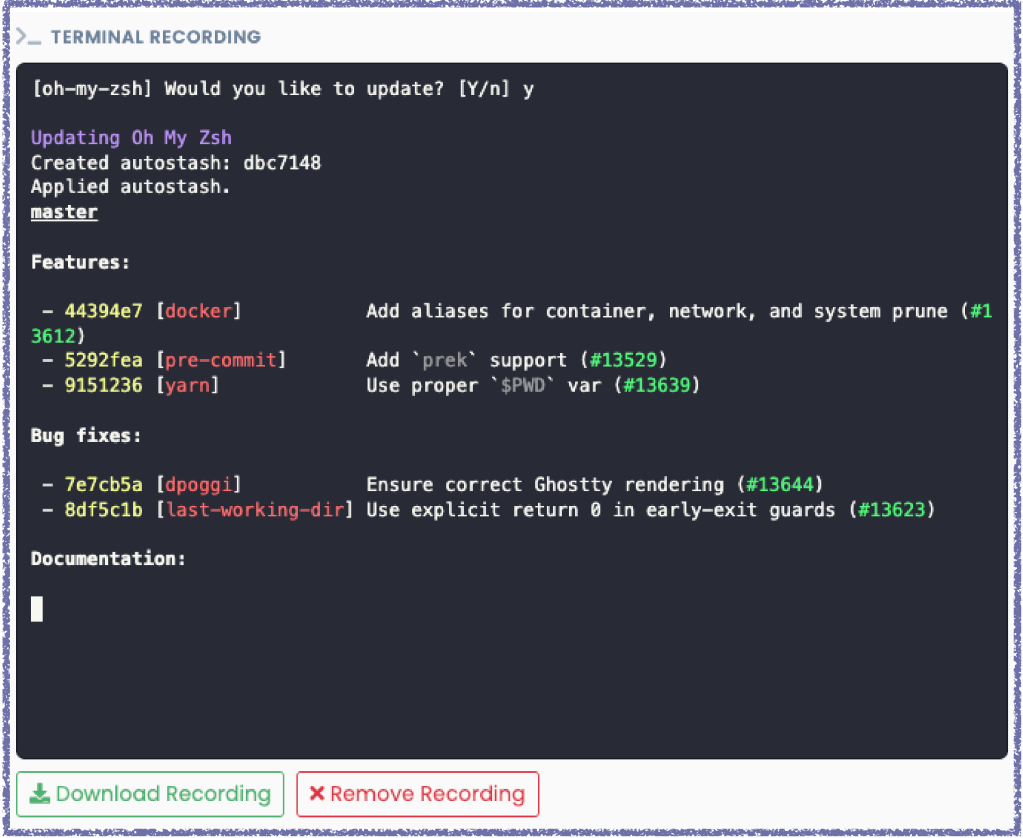
Ghostwriter now supports terminal session recordings using Asciinema (.cast and .cast.gz files), attached directly to log entries.
With this feature:
- You can upload a recording as part of a log entry
- Ghostwriter stores and serves the file
- Recordings can be played back directly in the browser via an embedded player
This is particularly useful for:
- Demonstrating exploit chains or complex procedures
- Capturing ephemeral output that may not translate well to screenshots
- Providing reviewers with a more complete view of operator activity
Each log entry supports a single recording and Ghostwriter extracts the raw text contents of the input and output events and stores them alongside the recording file. In this way, you can also filter log entries by the contents of their attached recordings.
Automatic tagging for better filtering
To tie everything together, Ghostwriter now automatically manages tags for these features:
- An evidence tag is applied when evidence is linked and removed when it’s no longer present
- A recording tag is applied when a recording is uploaded and removed if it’s deleted
These tags make it easier to filter and identify log entries that include supporting artifacts, especially in larger operations.
Helping operators build their narrative
Now that evidence can be linked directly to log entries, we’re starting to explore how this richer dataset can help jumpstart report writing. In Ghostwriter v6.3.0, we’ve introduced a new option in the collaborative editor: Insert Log Narrative.
This feature allows you to quickly generate and append an outline of assessment activities based on your operation log. You control what gets included through tags. By default, Ghostwriter uses report and evidence tags, but admins can customize this behavior, including support for partial tag matching. This makes it easy to incorporate events you already flag as important during an engagement.
For example, adding cred* to your configuration will include log entries tagged with creds, credentials, and similar variations.
For each included event, Ghostwriter generates a structured entry containing the date and time (based on the server’s configured format), tool name, source and target system details, and any associated comments. If evidence is linked, it also includes references to those artifacts, allowing you to review the timeline alongside supporting screenshots and text evidence.
This is an early step toward making reporting more efficient, and we’re excited to continue building on ideas like this in future releases.
Thank you to our coworkers Adam Chester and JD Crandell for the ideas and building PoCs to assist with this massive redesign!
Passive Voice Checking in the Collaborative Editor
Ghostwriter v6.3.0 also introduces passive voice detection directly inside the collaborative editor. This feature allows authors and reviewers to quickly scan text and highlight sentences that may be written in passive voice. It’s designed as a convenience tool for report QA, not a replacement for editorial judgment.

Why this matters
Clear, direct writing is especially important in technical reports. Passive voice can obscure responsibility, weaken findings, or reduce readability—issues that often surface late in the review process.
With passive voice checking:
- More QA can happen inside Ghostwriter, without exporting text to external tools
- The analysis is fast and completely local—no cloud services or external APIs are involved and your data does not leave Ghostwriter
- The underlying model is small, language-aware, and approximately 95% accurate
To use it, simply select “Check Passive Voice” from the collaborative editor. Ghostwriter will analyze the selected text and highlight phrases it believes are passive, allowing authors to quickly review and adjust as needed.
Powered by a local language model
This feature uses a locally hosted spaCy language model for text analysis. The model is bundled with Ghostwriter and runs entirely on your system.
For teams working in different languages, the model’s language can be changed via configuration. More details, including examples, are available in the Ghostwriter Wiki.
New Published Container Images
Starting with Ghostwriter v6.3.0, new production installations no longer require cloning the Ghostwriter repository or building containers locally. Instead, the Ghostwriter CLI pulls pre-built, published container images directly from GitHub’s container registry.
Why this matters
If you’ve installed Ghostwriter before, you know the process wasn’t fast. Between cloning the repository and building images, installs could easily take 20 minutes or more.
With published images:
- Fresh installs can complete in as little as ~5 minutes, depending on network speed.
- Updates are significantly faster, since there’s no rebuild step.
- There’s no need to maintain a local copy of the Ghostwriter codebase unless you’re actively developing or customizing it.
This also removes a whole class of failure modes related to local Docker builds, DNS issues, or system resource constraints. The images are built once, tested, and then reused by everyone.
For most users, this means Ghostwriter is now closer to a “download and run” experience.
Changes under the hood
To support this, the Ghostwriter CLI now:
- Pulls published container images when running in production mode (the default mode).
- Downloads the Docker YAML file that matches your Ghostwriter release, ensuring compatibility.
- Stores runtime configuration in your operating system’s data directory rather than the repository directory.
The default data directory locations are:
- Linux:
~/.local/share/ghostwriter/ - macOS:
~/Library/Application Support/ghostwriter/ - Windows:
%LOCALAPPDATA%\ghostwriter\
This allows the CLI to work from any directory and decouples configuration from the source code entirely.
Migrating an existing installation
We recommend that most existing users migrate to the published images model for easier updates and lower maintenance overhead. The migration is straightforward, but there are a few files you’ll need to move.
We’ve made migration simpler by implementing a migrate command that handles everything for you, but it’s important to know what this migration entails.
To migrate, we need to copy the following items into the new ghostwriter data directory for your OS:
- Your .env file
- The ssl/ directory
- Any custom Django settings files
Specifically:
- Copy ssl/ into the ghostwriter/ directory inside your OS data directory
- Copy any custom files from config/settings/production.d/ into ghostwriter/settings/
We also need to migrate your database and uploaded media files (e.g., evidence files, report templates).
Once migrated, you can continue using Ghostwriter normally, but with much faster updates going forward.
Keeping the Old Behavior
If you rely on a customized Ghostwriter codebase, you can keep the previous workflow. The CLI supports this via the mode flag available for most commands: --mode local-prod
This mode continues to use a local copy of the repository and behaves like earlier versions. Developers and advanced users who patch Ghostwriter directly should continue using this approach.
Ghostwriter CLI v1.0.0
Alongside v6.3.0, we’re releasing Ghostwriter CLI v1.0.0, which formalizes several changes that have been evolving over recent releases.
Key highlights include:
- Support for published container images in production installs.
- A new settings/ directory for custom Django configuration when using published images.
- Improved version reporting, including local and latest available versions for both the CLI and Ghostwriter containers.
- A unified
--modeoption (prod,local-prod,local-dev) that replaces older flags.
For users running in default production mode, the new settings/ directory allows customization—such as SSO or email configuration—without maintaining a local code checkout. Settings files are loaded alphabetically, making configuration order explicit and predictable.
Getting Started
- New users can install Ghostwriter faster than ever using the published images.
- Current admins are encouraged to migrate for simpler updates and lower maintenance.
- Current operators can take advantage of the improved operation log to better capture and communicate their work.
- Writers and reviewers can start using passive voice checking immediately in the collaborative editor.
As always, full release notes are available in the changelog, and the documentation covers migration and configuration in more detail.
We’re excited to see how teams use these improvements to spend less time maintaining Ghostwriter and more time writing better reports.
Check out the full release notes here:
https://github.com/GhostManager/Ghostwriter/releases/tag/v6.3.0
https://github.com/GhostManager/Ghostwriter_CLI/releases/tag/v1.0.0