Of Course We Built a WSUS Ludus Lab
TL;DR: This blog walks you through setting up a WSUS lab using Ludus for testing.
The associated GitHub repo is here.
Introduction
I have been researching the Windows Service Update Service (WSUS) and discovered a new way we could take over the WSUS infrastructure and deploy custom payloads for lateral movement. As part of this research, I created a Ludus lab to help automate the lab deployment for testing.

The series can be found here:
Turning Enterprise Update Servers Into Backdoor Factories (0_o) – Part 1
Turning Enterprise Update Servers Into Backdoor Factories (0_o) – Part 2
Erik Hunstad developed Ludus which simplifies lab deployments in a virtual environment and I definitely recommend checking out: Ludus
Roles
Ludus uses Ansible roles to manage the software and configurations in the lab environment. The following are roles that I created for this lab.
ludus_wsus_install_wsus_server
This role installs the WSUS role on a server and configures the WSUS server. This also configures WSUS to user an external MSSQL server.
This role requires the ludus_wsus_sql_server_fqdn variable to be specified in the Ludus configuration file to specify the fully qualified domain name of the external SQL server.
ludus_wsus_sql
This downloads and installs SQL Server Management Studio (SSMS), creates a SQL service account and installs a SQL server.
The SQL server is configured to run as the created service account and the default Ludus domainadmin account is configured to have database admin permissions.
ludus_wsus_configure_client_gpo
This role creates a group policy object (GPO) and organizational unit (OU) on the domain controller. This GPO is configured to setup WSUS for WSUS client machines and the default is to configure those machines to automatically install updates without user interaction.
Some notable variables are the following:
ludus_wsus_configure_client_gpo_name – The name of the GPO
ludus_wsus_configure_client_gpo_ou_name – The name of the OU
ludus_wsus_configure_client_computers – The computers that will get added to the OU and become WSUS clients
ludus_wsus_ludus_wsus_auto_update_option – Defaults to 4 which means clients will automatically schedule and install updates.
The following is a list of auto update options:
2 – Auto download and notify for install
3 – Auto download and notify for install
4 – Auto download and schedule the install
5 – Allow local admin to choose setting
ludus_wsus_force_group_policy_update
This role is designed for WSUS clients and forces the computer to check and apply new group policies.
ludus_wsus_client_initiate
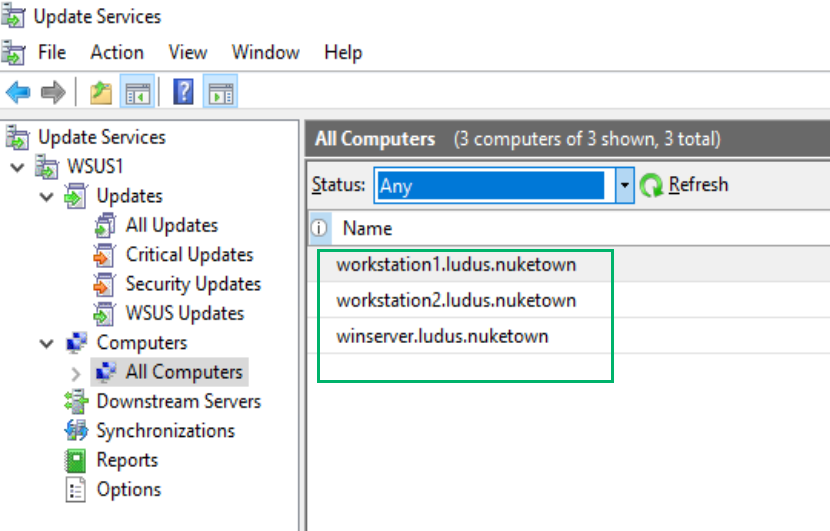
This role is for WSUS clients and restarts the windows update service. This role also initiates a registration check with the WSUS server. After this role is executed, the WSUS administrative interface should have this computer populated.
Installation
Installation of Ludus as this is already heavily documented in the Ludus docs.
To install the ludus_wsus collection simply run this command on your Ludus server:
ludus ansible collection add bagelbyt3s.ludus_wsus
The following is a sample Ludus configuration file configured to use the ludus_wsus collection.
WSUS-Range.yml
ludus:
  - vm_name: DC01-LUDUS-NUKETOWN
    hostname: DC01
    template: win2019-server-x64-template
    vlan: 10
    ip_last_octet: 1
    ram_gb: 8
    ram_min_gb: 4
    cpus: 4
    windows:
      sysprep: true
    domain:
      fqdn: LUDUS.NUKETOWN
      role: primary-dc
    roles:
    - ludus_wsus_configure_client_gpo
    role_vars:
      ludus_wsus_server_fqdn: "WSUS1.ludus.nuketown"
      ludus_wsus_server_IP: "10.2.10.3"
      ludus_wsus_configure_client_gpo_name: "WSUS Workstation Policy"
      ludus_wsus_configure_client_gpo_ou_name: "OU=WSUS Clients,DC=ludus,DC=nuketown"
      ludus_wsus_configure_client_computers: "Workstation1.ludus.nuketown, Workstation2.ludus.nuketown, WinServer.ludus.nuketown" # comma seperated fqdn
      ludus_wsus_server_port: 8530
      ludus_wsus_target_group: "Workstations"
      ludus_wsus_auto_update_option: 4  # 2=notify, 3=auto download/notify, 4=auto download/schedule
      ludus_wsus_install_day: 0  # 0=every day, 1=Sunday, 2=Monday, etc.
      ludus_wsus_install_time: 3  # Hour in 24-hour format
      ludus_wsus_detection_frequency: 1  # Hours between detection cycles (1-22, default is 22)
      ludus_wsus_reboot_wait_time: 15  # Minutes to wait before forced reboot (1-1440, default is 15)
      ludus_wsus_no_auto_reboot_with_logged_on_users: 0  # 0=allow reboot, 1=don't reboot if users logged on

  - vm_name: SQL1-WSUS-LUDUS-NUKETOWN
    hostname: SQL1-WSUS
    template: win2019-server-x64-template
    vlan: 10
    ip_last_octet: 2
    ram_gb: 8
    ram_min_gb: 2
    cpus: 4
    windows:
      sysprep: true
    domain:
      fqdn: LUDUS.NUKETOWN
      role: member
    roles:
      - ludus_wsus_sql
    role_vars:
      ludus_wsus_sql_svc_account_username: "svc_sql_wsus"
      ludus_wsus_sql_svc_account_password: "password"
      ludus_wsus_sql_server_hostname: "sql1-wsus"
      ludus_wsus_sql2022_url: "<https://download.microsoft.com/download/3/8/d/38de7036-2433-4207-8eae-06e247e17b25/SQLServer2022-x64-ENU.iso>"

  - vm_name: WSUS1-LUDUS-NUKETOWN
    hostname: WSUS1
    template: win2019-server-x64-template
    vlan: 10
    ip_last_octet: 3
    ram_gb: 8
    ram_min_gb: 2
    cpus: 4
    windows:
      sysprep: true
    domain:
      fqdn: LUDUS.NUKETOWN
      role: member
    roles:
      - ludus_wsus_install_wsus_server
    role_vars:
      ludus_wsus_sql_server_fqdn: "sql1-wsus.ludus.nuketown"

  - vm_name: Workstation1-LUDUS-NUKETOWN
    hostname: Workstation1
    template: win11-23h2-x64-enterprise-template
    vlan: 10
    ip_last_octet: 4
    ram_gb: 4
    ram_min_gb: 2
    cpus: 2
    windows:
      sysprep: true
    domain:
      fqdn: LUDUS.NUKETOWN
      role: member
    roles:
    - ludus_wsus_force_group_policy_update
    - ludus_wsus_client_initiate

  - vm_name: Workstation2-LUDUS-NUKETOWN
    hostname: Workstation2
    template: win11-23h2-x64-enterprise-template
    vlan: 10
    ip_last_octet: 5
    ram_gb: 4
    ram_min_gb: 2
    cpus: 2
    windows:
      sysprep: true
    domain:
      fqdn: LUDUS.NUKETOWN
      role: member
    roles:
    - ludus_wsus_force_group_policy_update
    - ludus_wsus_client_initiate

  - vm_name: WinServer-LUDUS-NUKETOWN
    hostname: WinServer
    template: win2016-server-x64-template
    vlan: 10
    ip_last_octet: 6
    ram_gb: 4
    ram_min_gb: 2
    cpus: 2
    windows:
      sysprep: true
    domain:
      fqdn: LUDUS.NUKETOWN
      role: member
    roles:
    - ludus_wsus_force_group_policy_update
    - ludus_wsus_client_initiate
Make any desired changes to to the ludus configuration file and deploy.
ludus range config set -f WSUS-Range.yaml
ludus range deploy
Closing Thoughts
Big thanks to Erik Hunstad for Ludus, it makes research super easy and saved me a ton of time when I needed to rebuild my lab.
WSUS is old, but I still see it on engagements. My hope is that this range is used to find more juicy secrets, I’m sure there’s more to uncover with WSUS.
If you have any suggestions or ideas for improvement feel free to reach out!
Twitter: bagelByt3s
LinkedIn: Beyviel David


